Canvas Minimal, Clean Shopify Theme (Section Ready)
Shopify Responsive Theme - Userguide
- Created: 02/24/2018
- By: Shopifytemplate
THANK YOU FOR PURCHASING OUR THEME!
Here are some basics on installing, configuring and customizing the Shopifytemplate,
BEFORE WE GOThe theme and the sample data is provided "as is". Customizing code and other design related issues can be done as freelance work on a $50-100 hourly rate only with Paypal and/or Skrill, if Canvas Store's available. If you are new to Shopify, please understand I cannot fix your site for free. Shopifytemplate would love to help everyone but there is no time. I suggest reading documentation available online regarding using Shopify, server requirements, etc.
If you like this theme please rate it.
Have a wonderful rest of your day!
Shopifytemplate TeamOverview
THEME INTRODUCTION
Getting Started
Getting Started
Creating a Shopify Account
Start a free, no-risk, 14 day Shopify trial. Create your store now
Purchasing Providence
You could buy theme at providers such as: ThemeForest , Shopify ...
Installing Providence
What you get
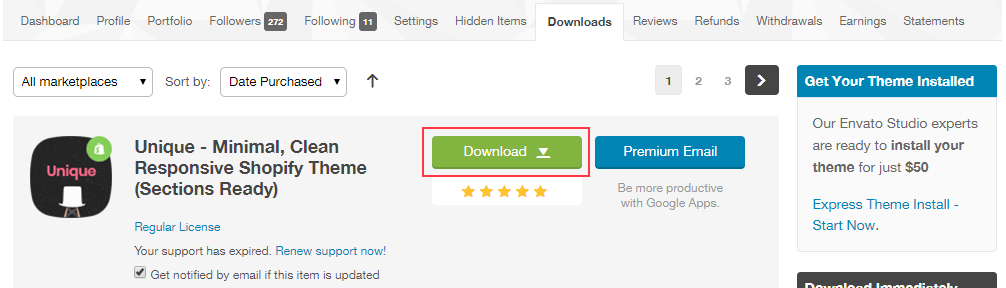
Once you have made the purchase you will find our product in your ThemeForest Downloads page. Click on Download and you will a dropdown will popup with following options:
Folder Structure
+ datasample
+ guides
+ psd
+ theme
+ licensing
Installation
I. Install theme
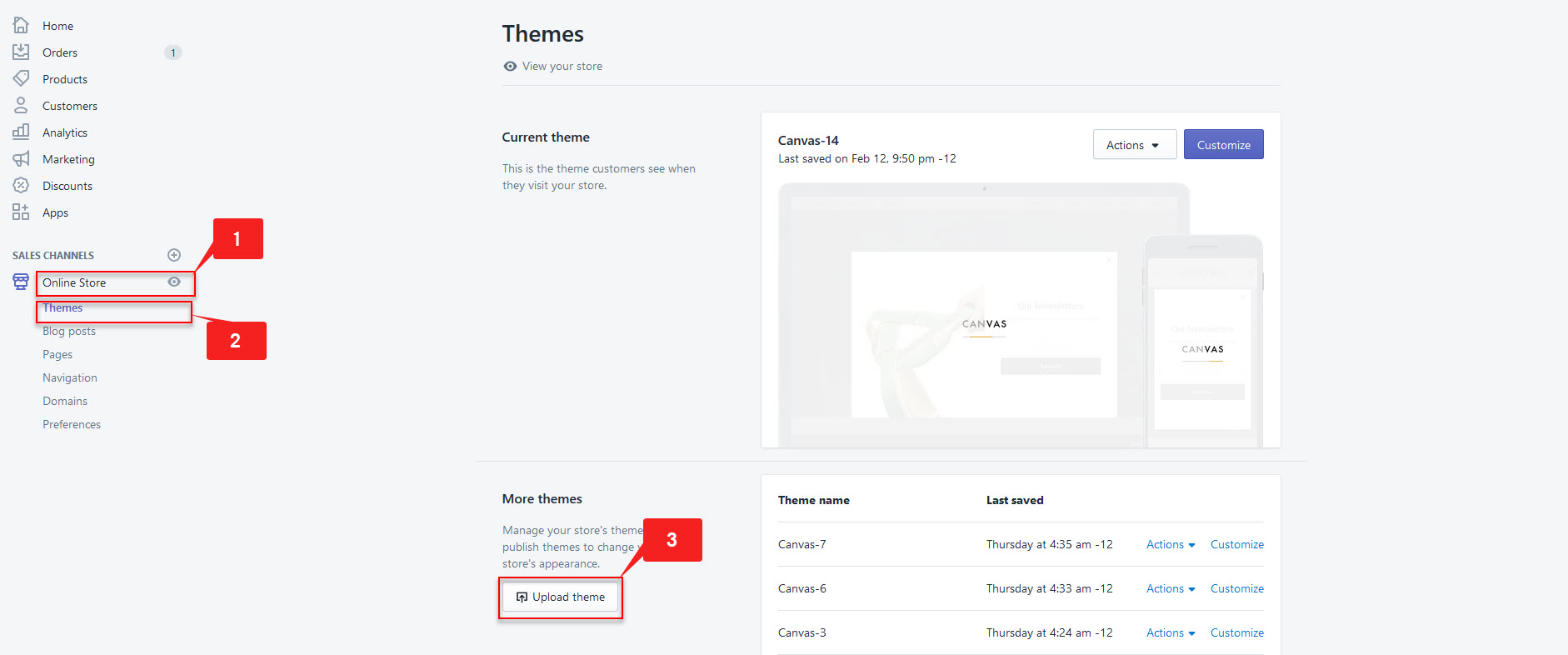
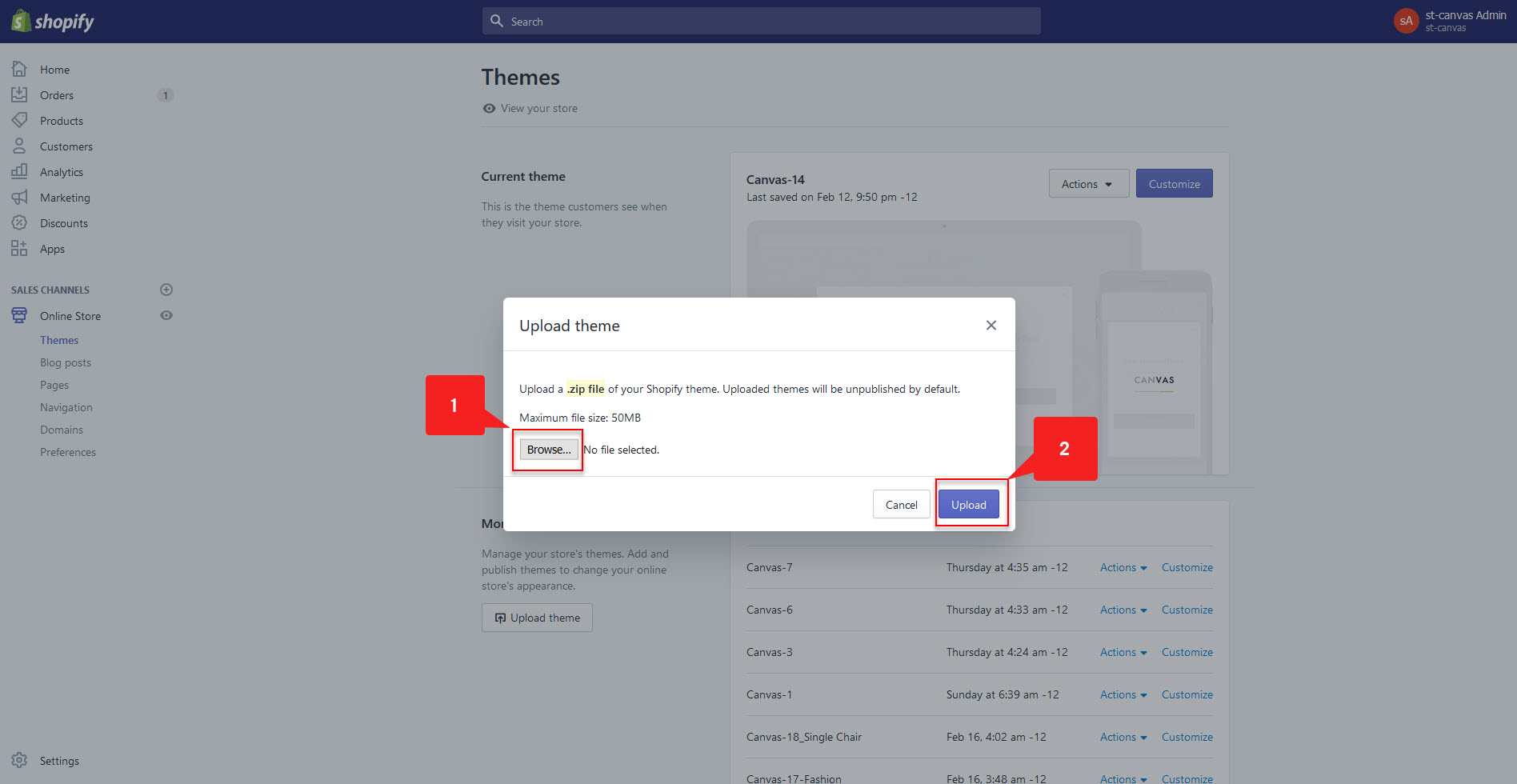
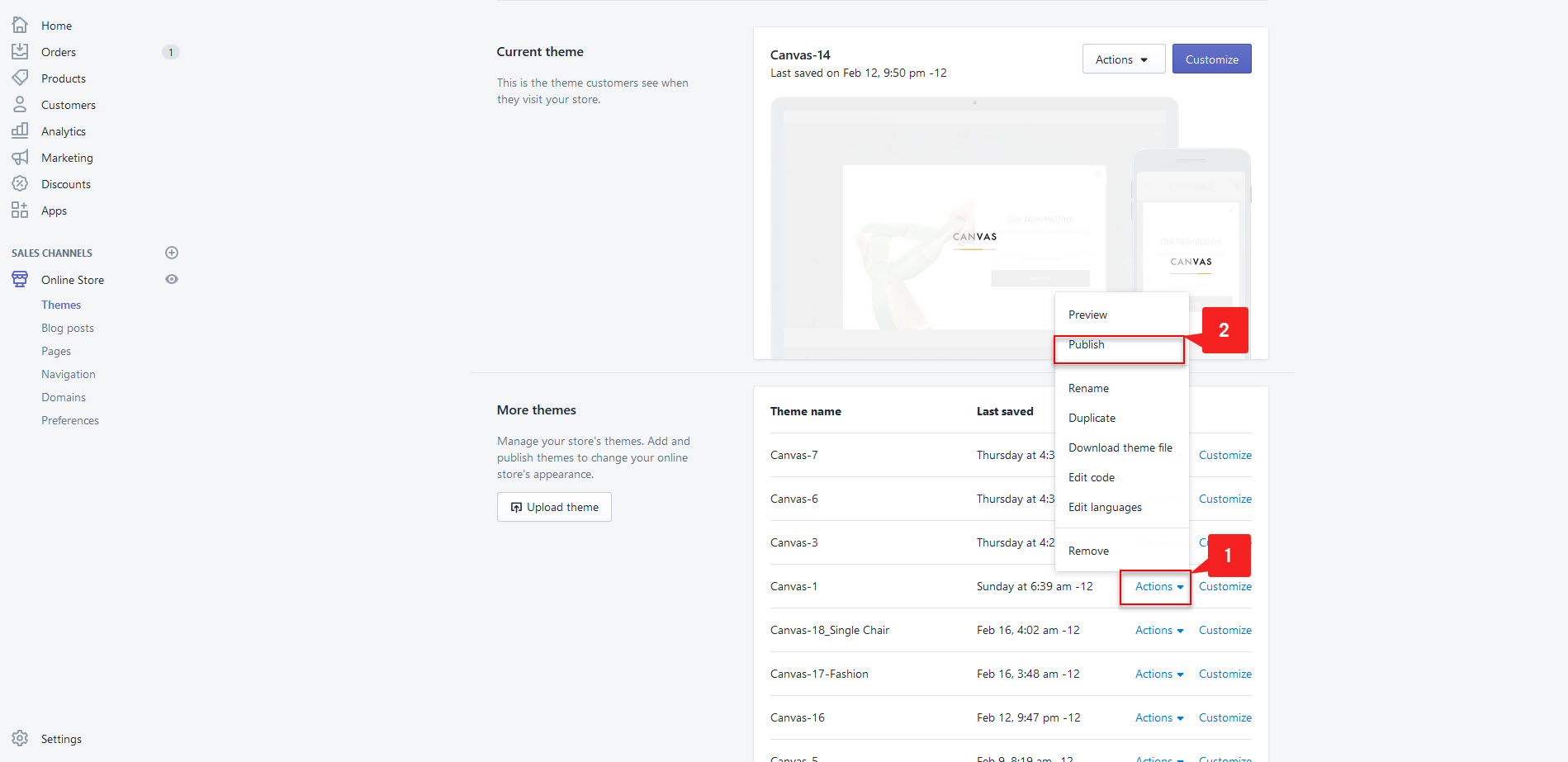
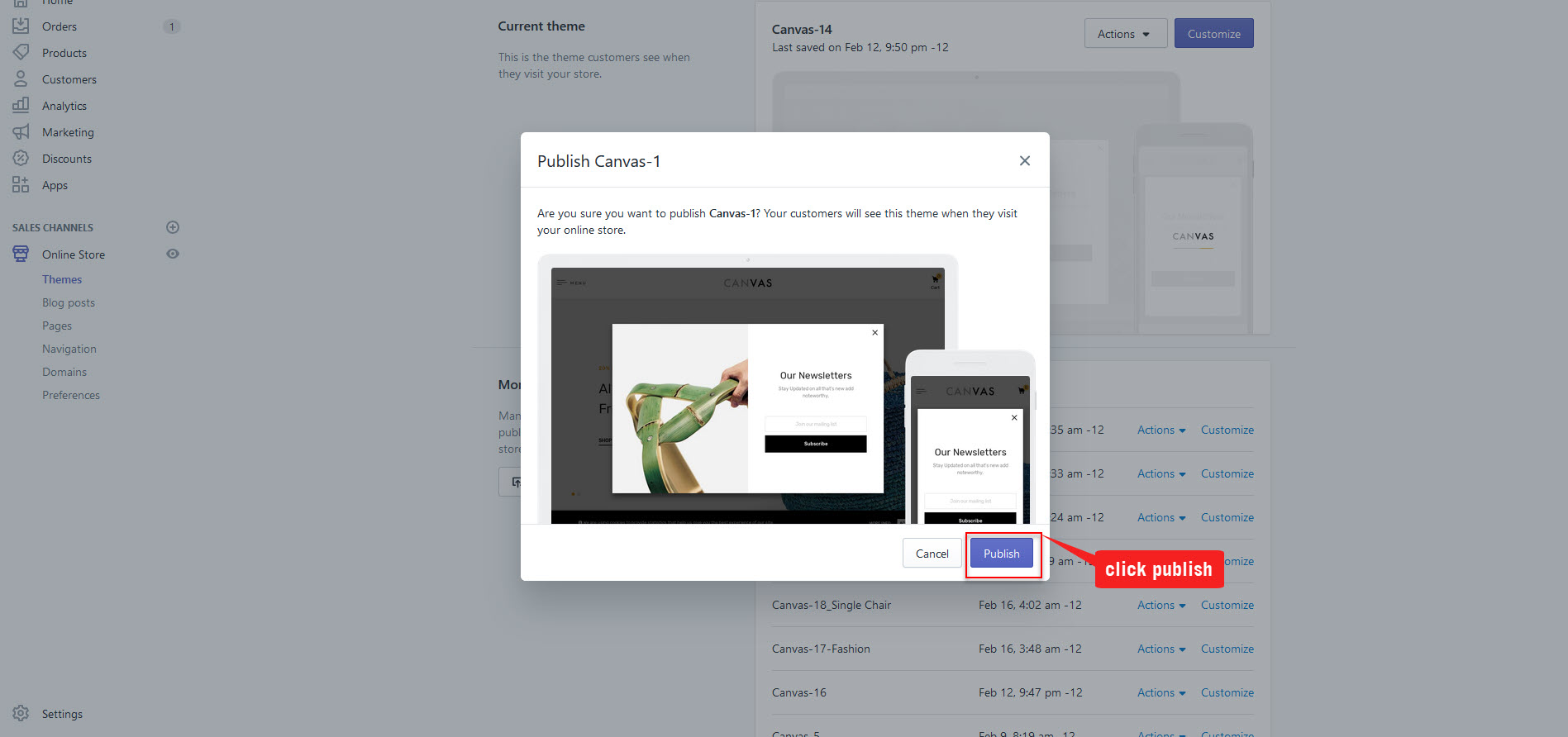
II. Install Apps
1. Product Review
2. Ap Multilanguage New
3. Instagram shop by Snapppt
Get App - Instagram shop by Snapppt
4. Sales Pop by Beeketing
Get App - Sales Pop by Beeketing
III. Edit Currency
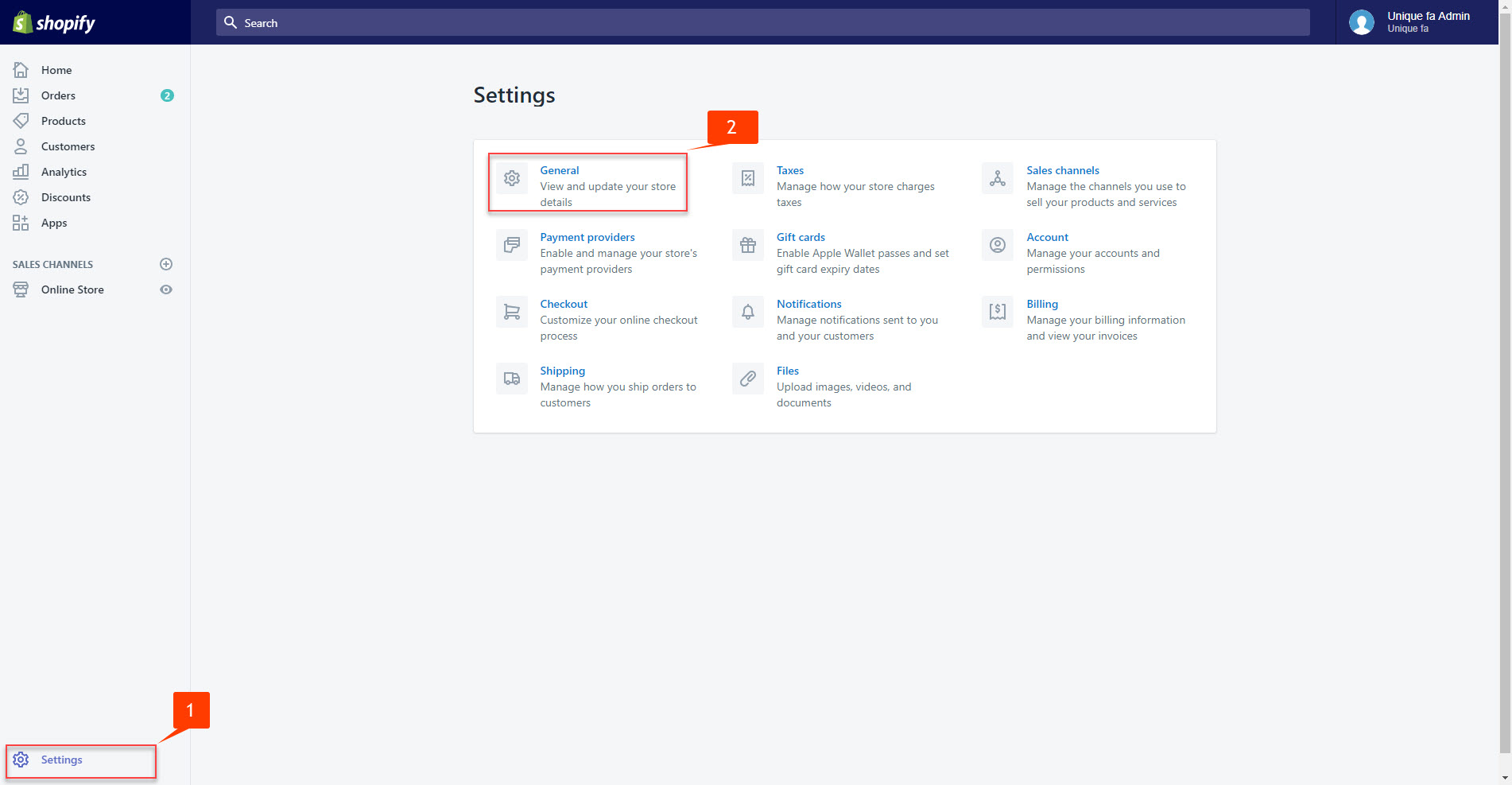
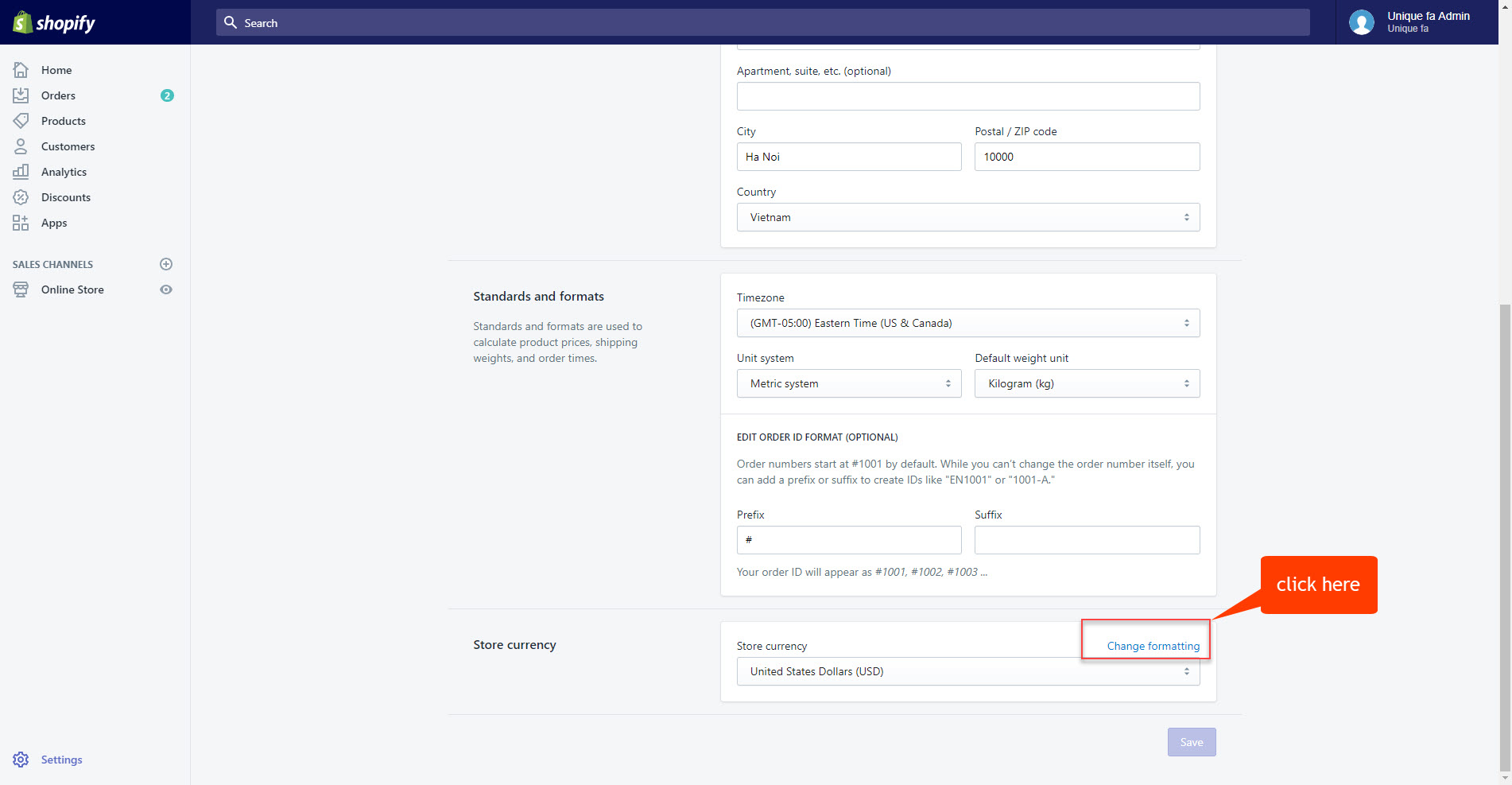
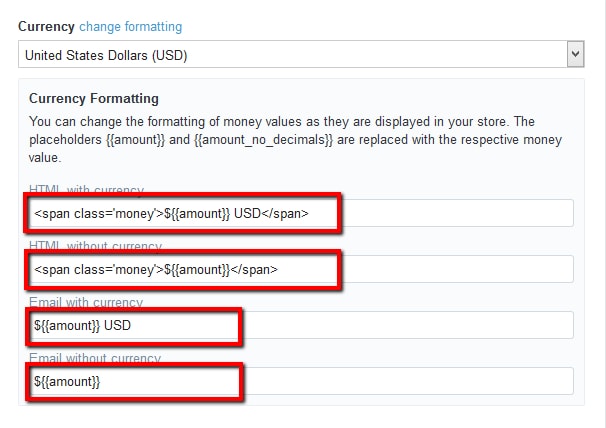
- HTML with currency
- HTML without currency
IV. Account
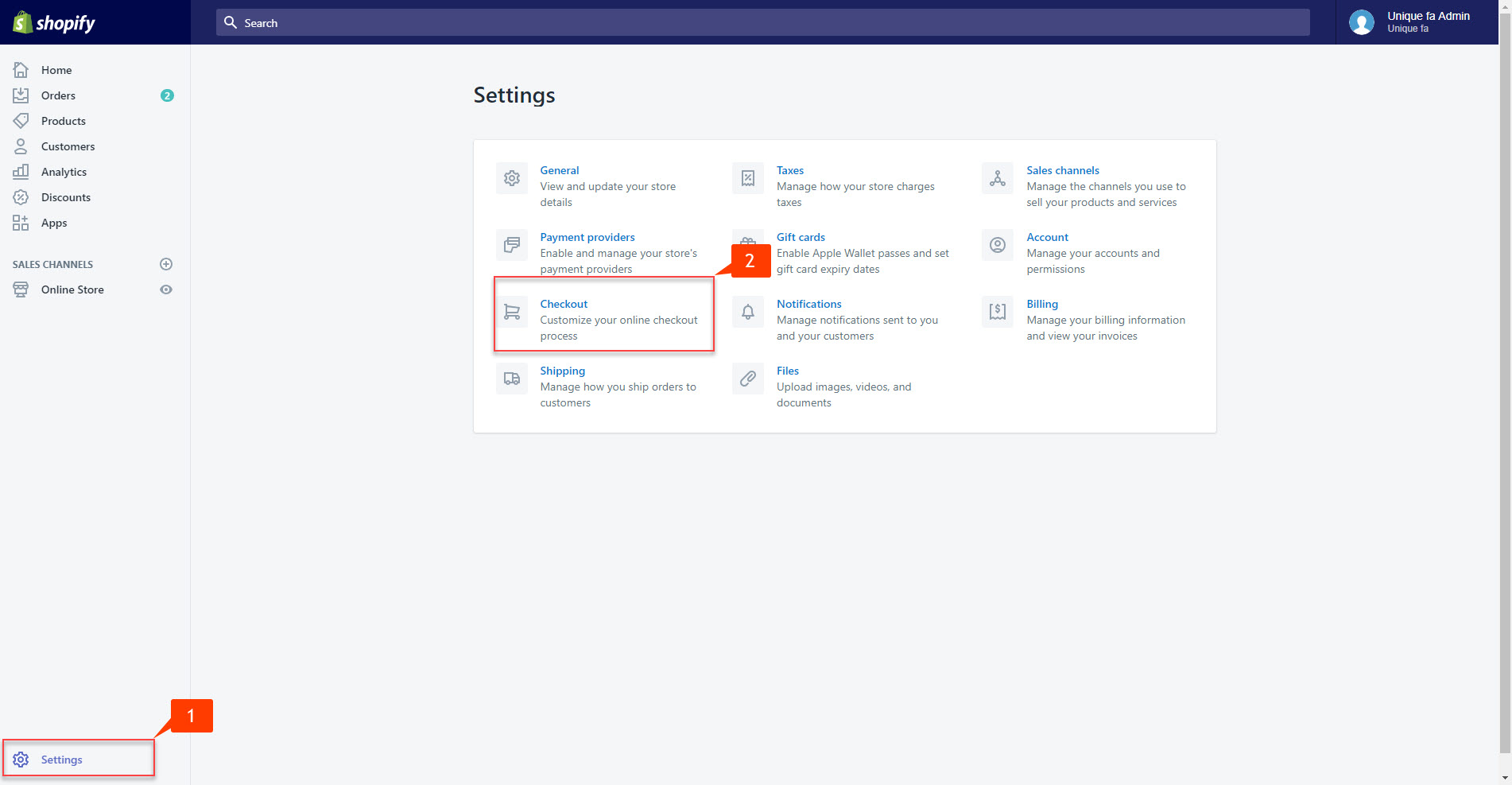
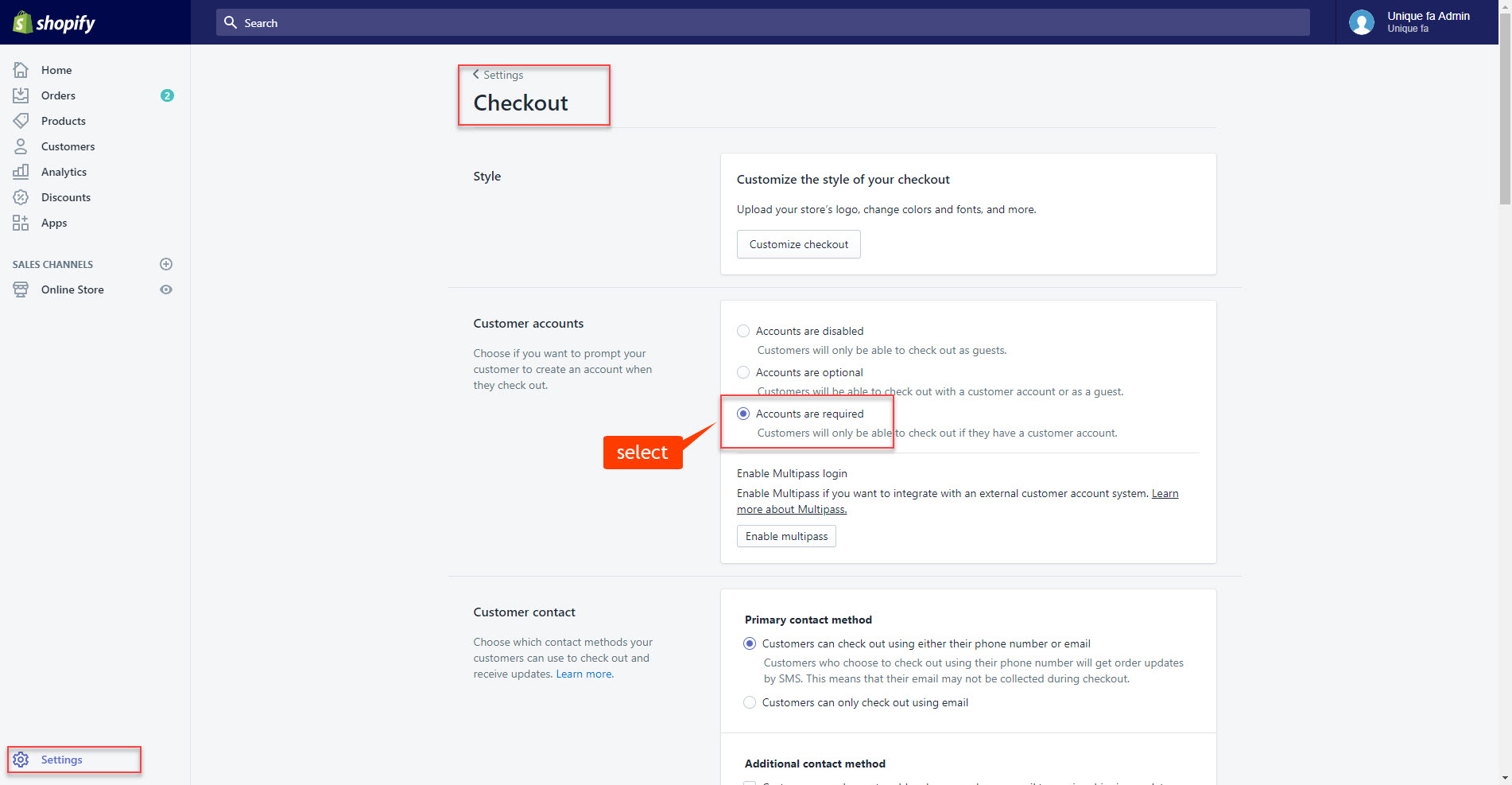
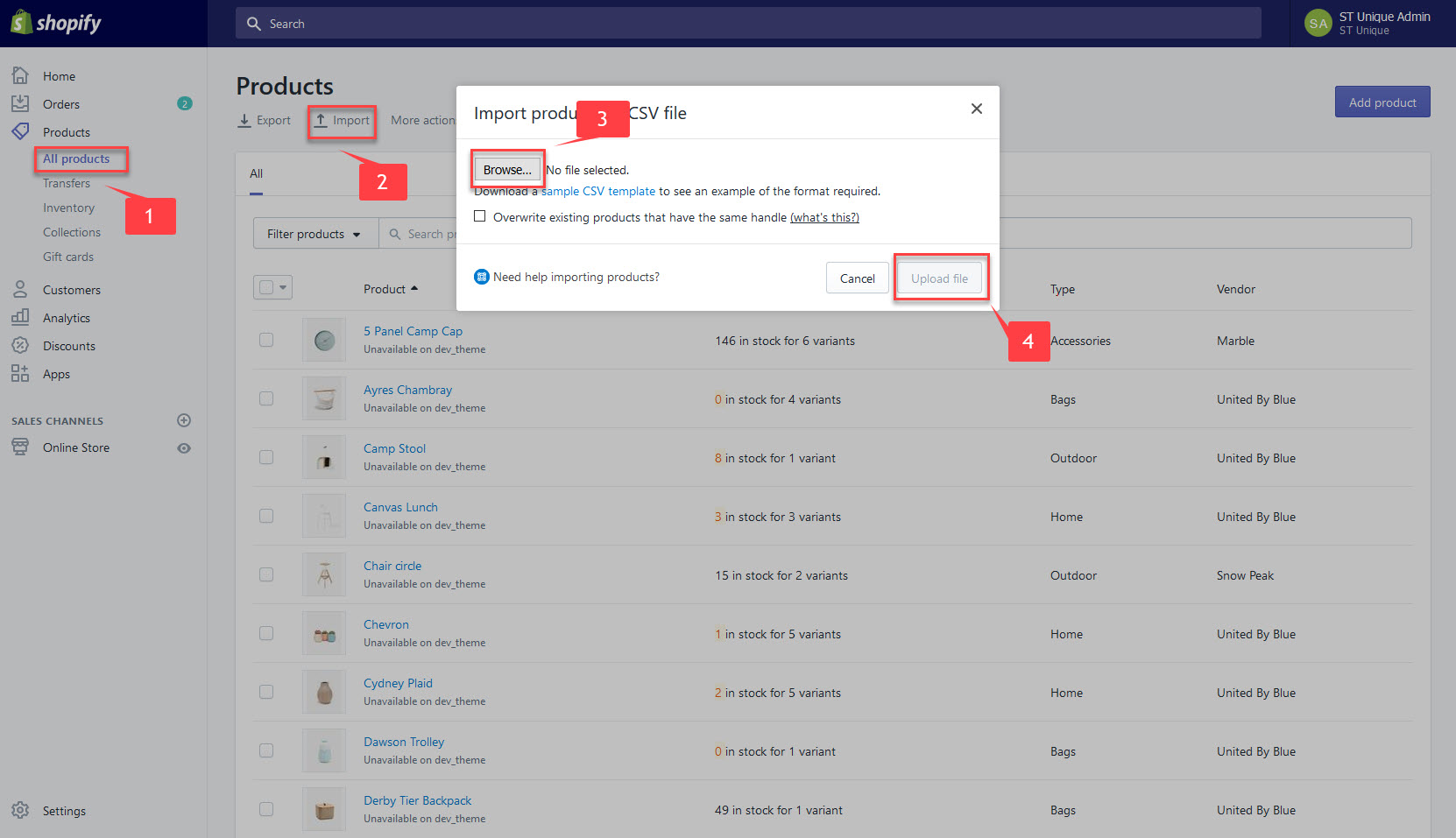
IV. Import Data Product Sample
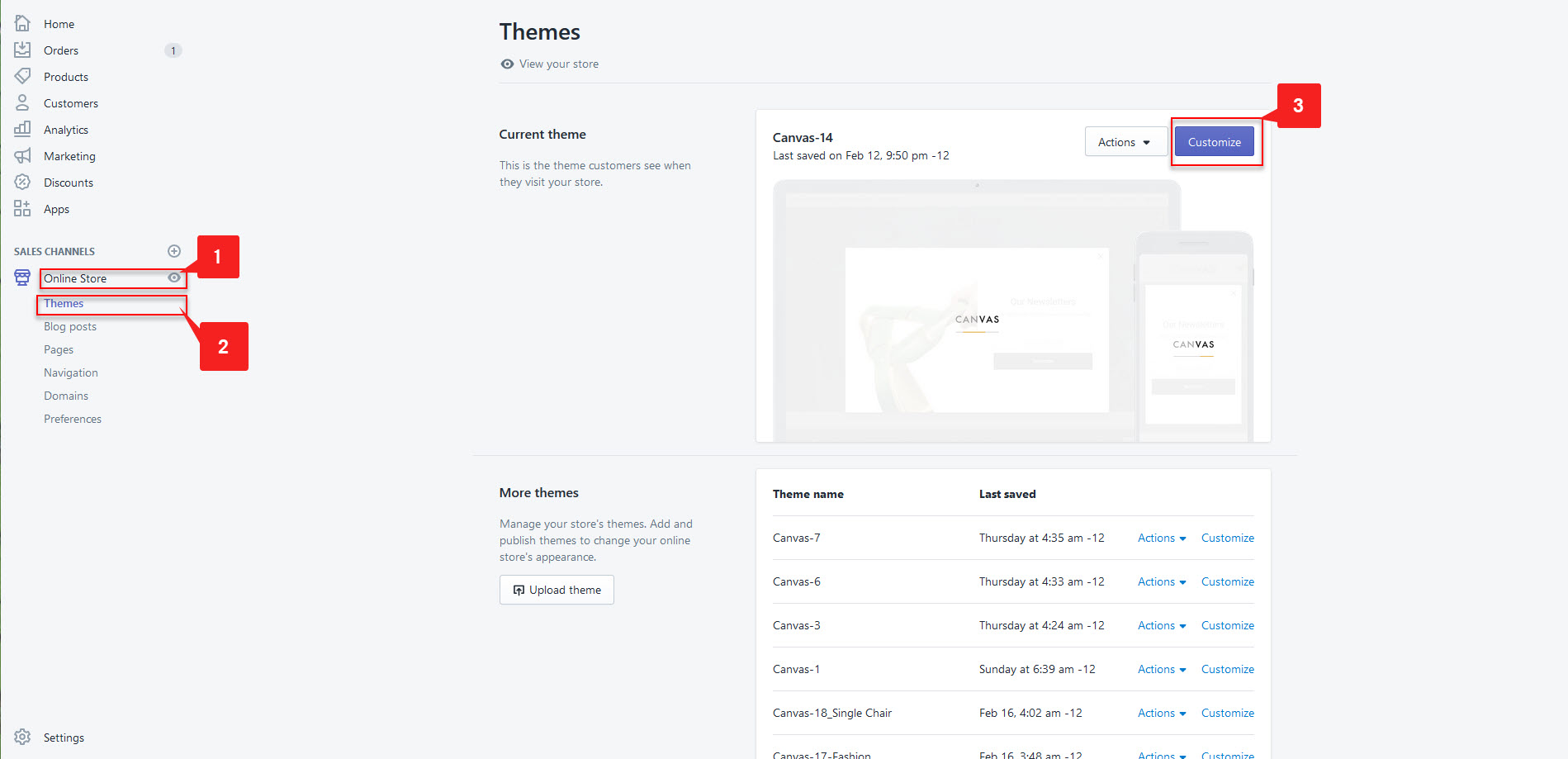
Theme Settings overview
Below you can see a screen shot of the Theme settings area within the Canvas Store Shopify Theme. - Goto: Admin -> Store -> Theme -> Customize Theme -> General settings
The following values can be adjusted to customise the look and feel of your store.
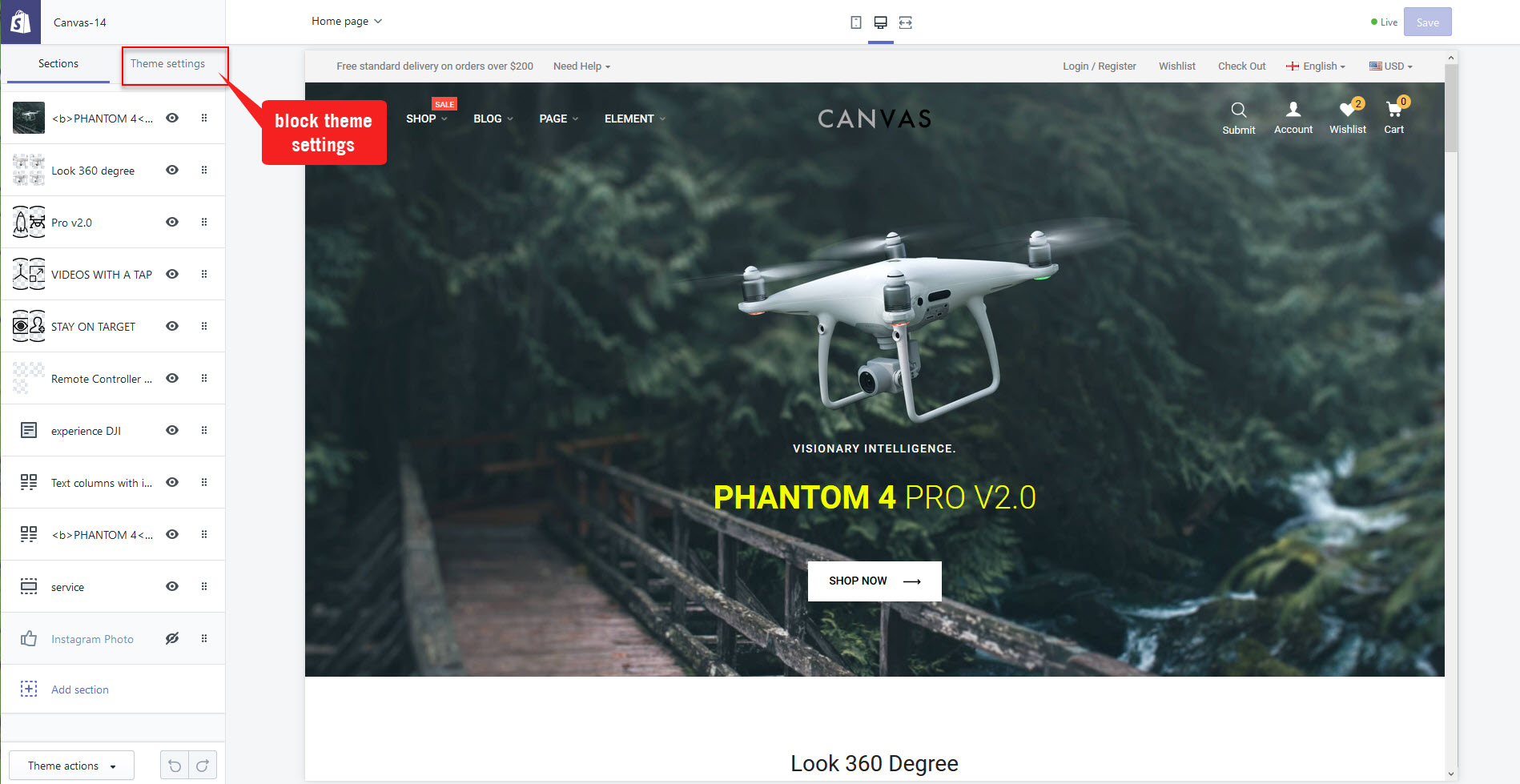
Settings Color
- General Setting -> Color Theme

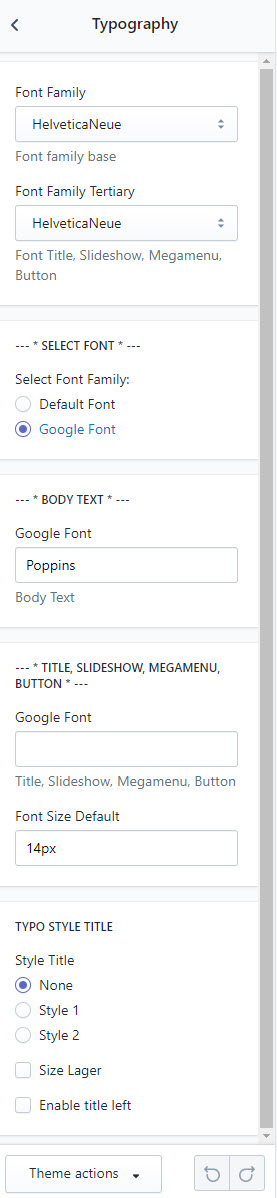
Typography
- General Setting -> Typography
Apollo Theme Configuration
- You can config ON or OFF panel tool
- You can config ON or OFF Smooth Scroll
- You can config ON or OFF Multiple Language
- You can config Favicon
- You can config New Products
- You can config Breadcrumb
- You can config ON or OFF Backtop
- You can config ON or OFF Pepper Contacts link config

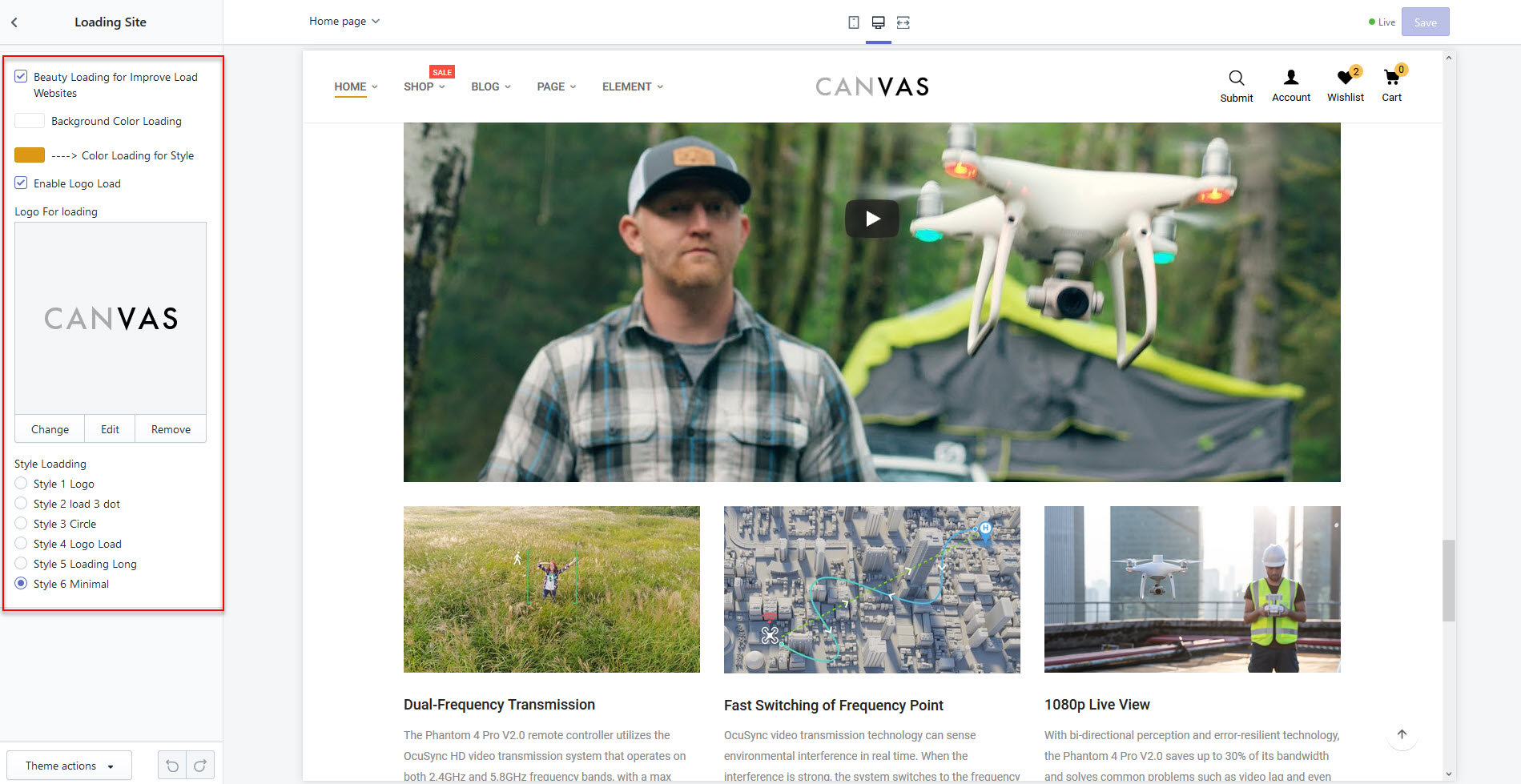
Loading Site
Header
- Style List Link nav
- Style Dropdown form
- Enable 3 line
- Settings Dropdown
- Settings Right Sidebar
- Text About Website in sidebar
- Enable Social
- Enable Notification
- Enable Only Homepage
- Time Show Notification
- Icon
- Text
- Button & Link
- Color bg, Text, hover

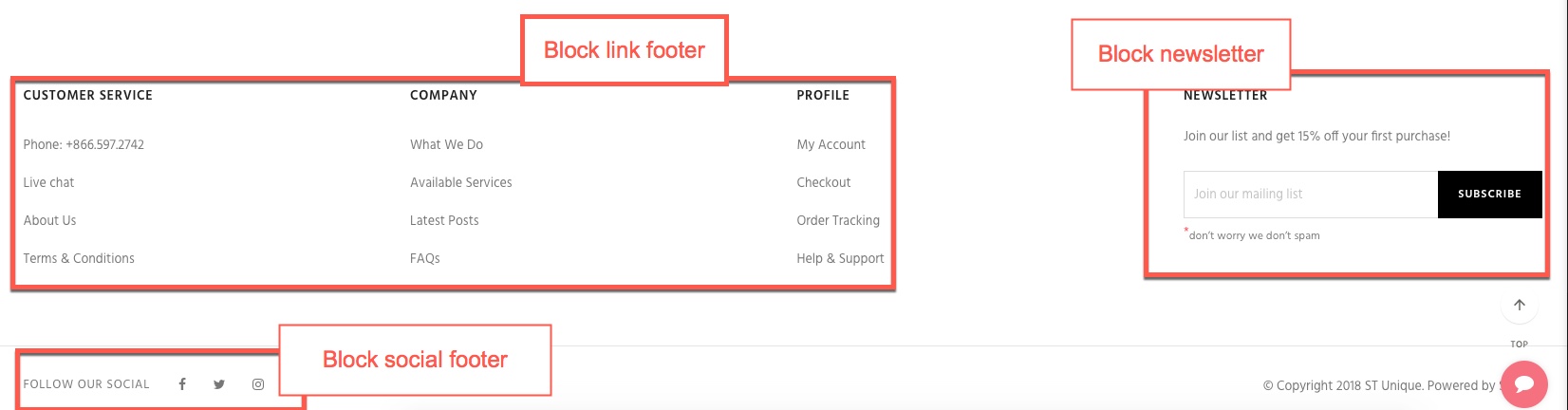
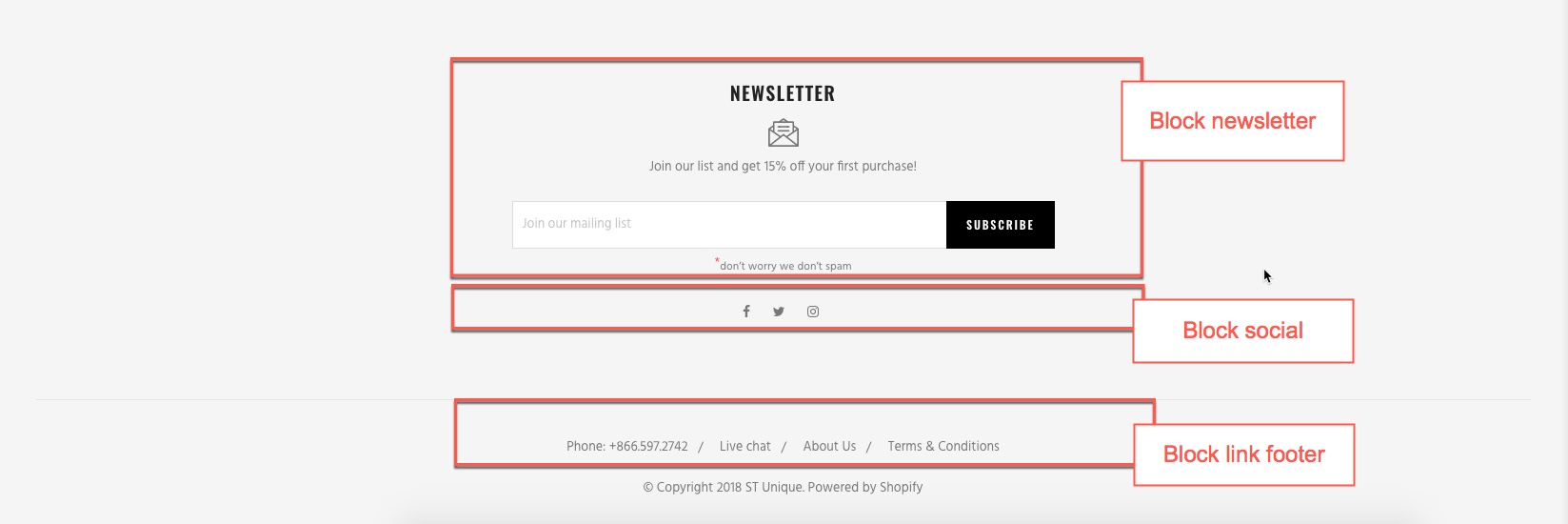
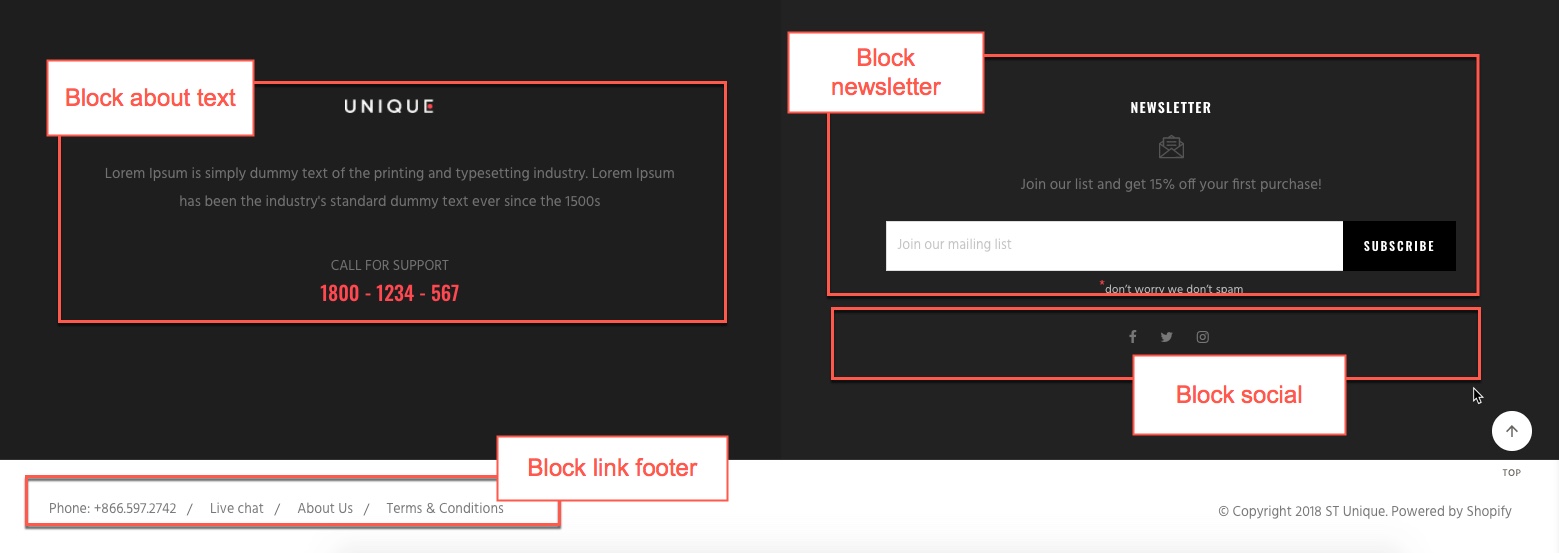
Footer
SELECT FOOTER
- Change content text, color text, background-color
- Enable block
- Title text
- Text Description
- note
- Link mail
- Enable block
- Title text
- Link Social
Select menu in navigation admin
- Enable Link
- Select Menu link

Ex:footer
Apollo Megamenu
Navigation on your Shopify website is controlled by menus and links. Each menu contains links which visitors can click or tap to explore your website.Before starting this section, we strongly recommend you to check the following guide to know how to control Shopify's navigation:
1.First step: You create main menu for your shop
- Default menu shopify
- Add a menu item
- Edit a menu item
- Change the display order of menu items
- Create a drop-down menu
- Remove a menu item
- Adding a menu to your online store
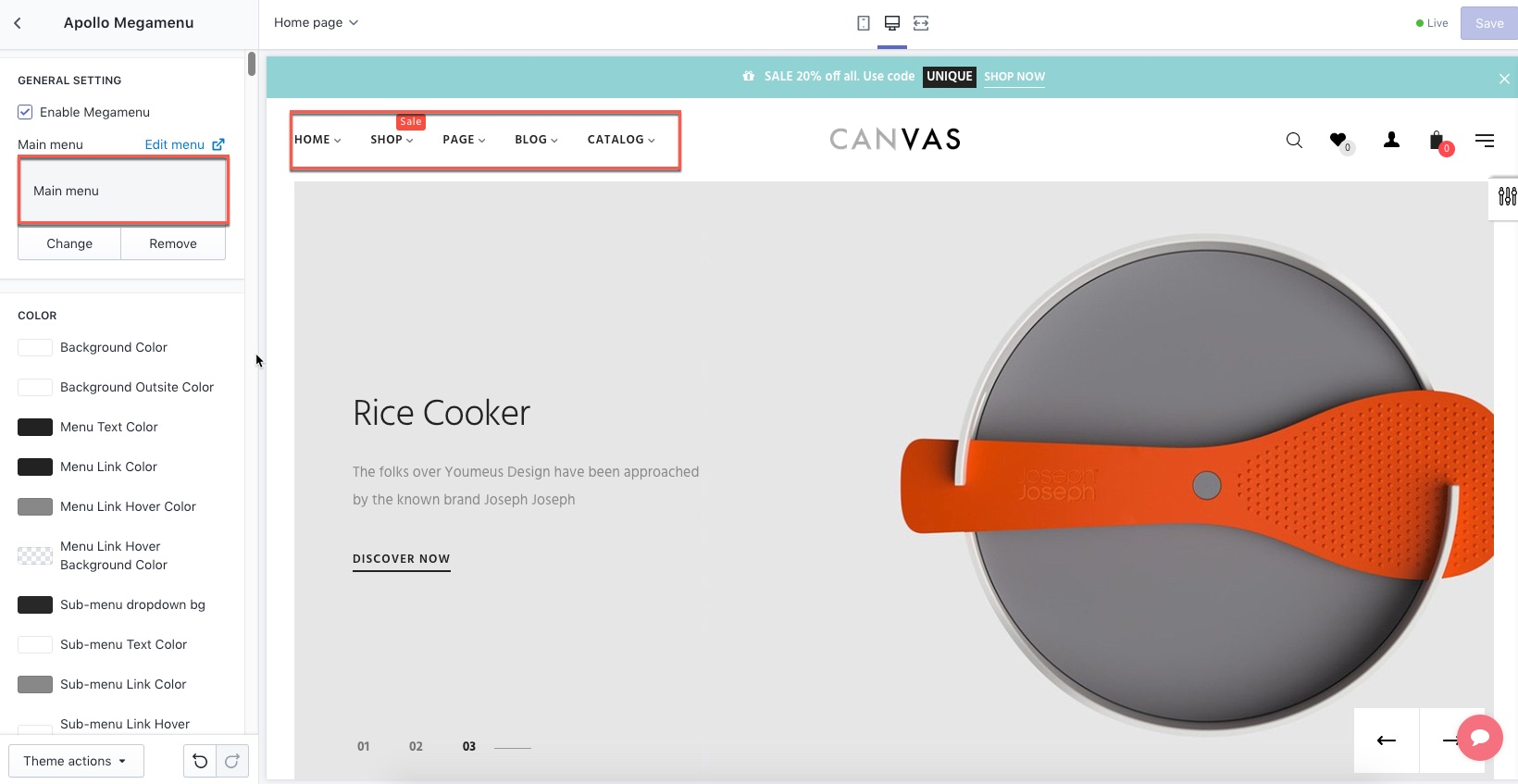
2.Dropdown menu:
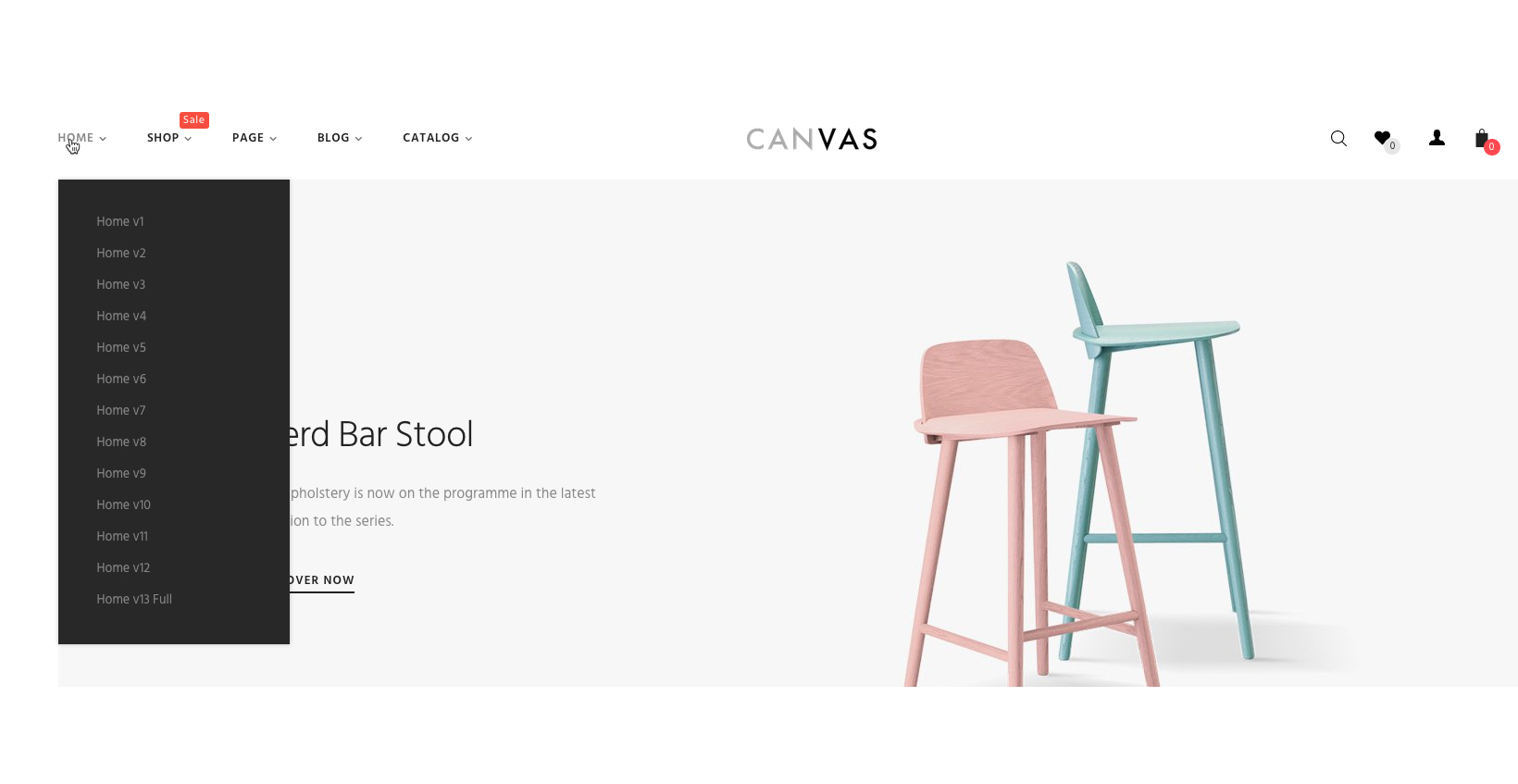
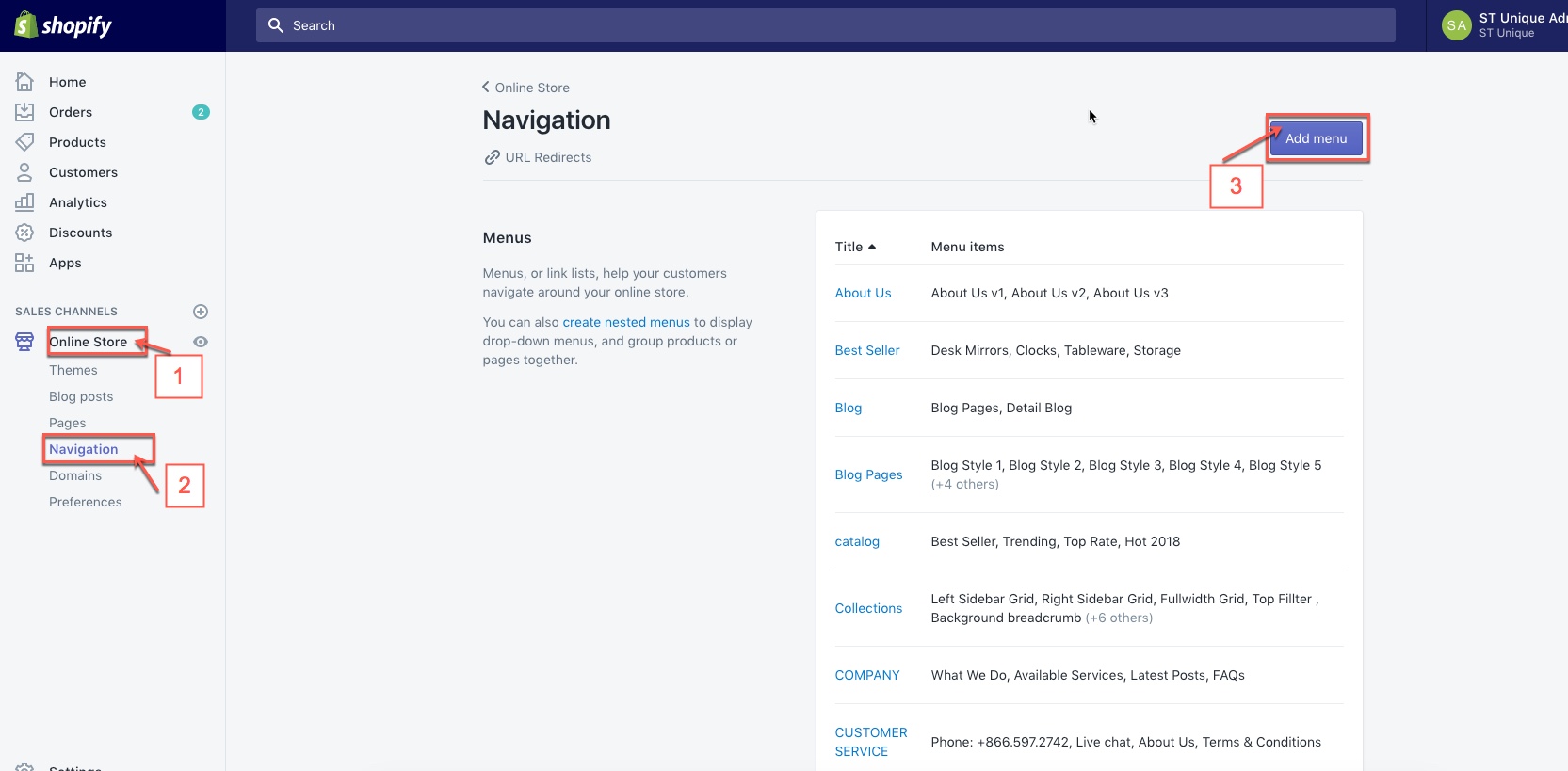
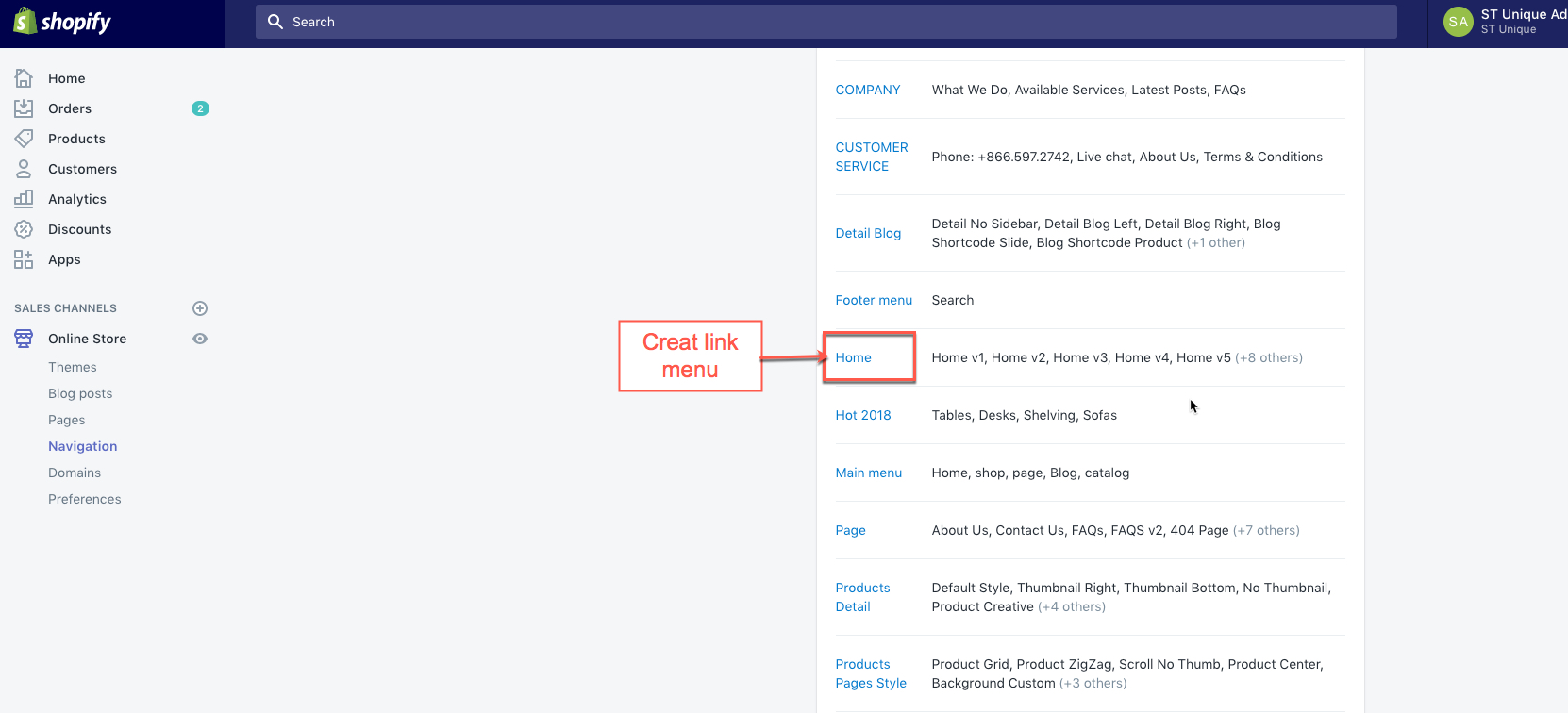
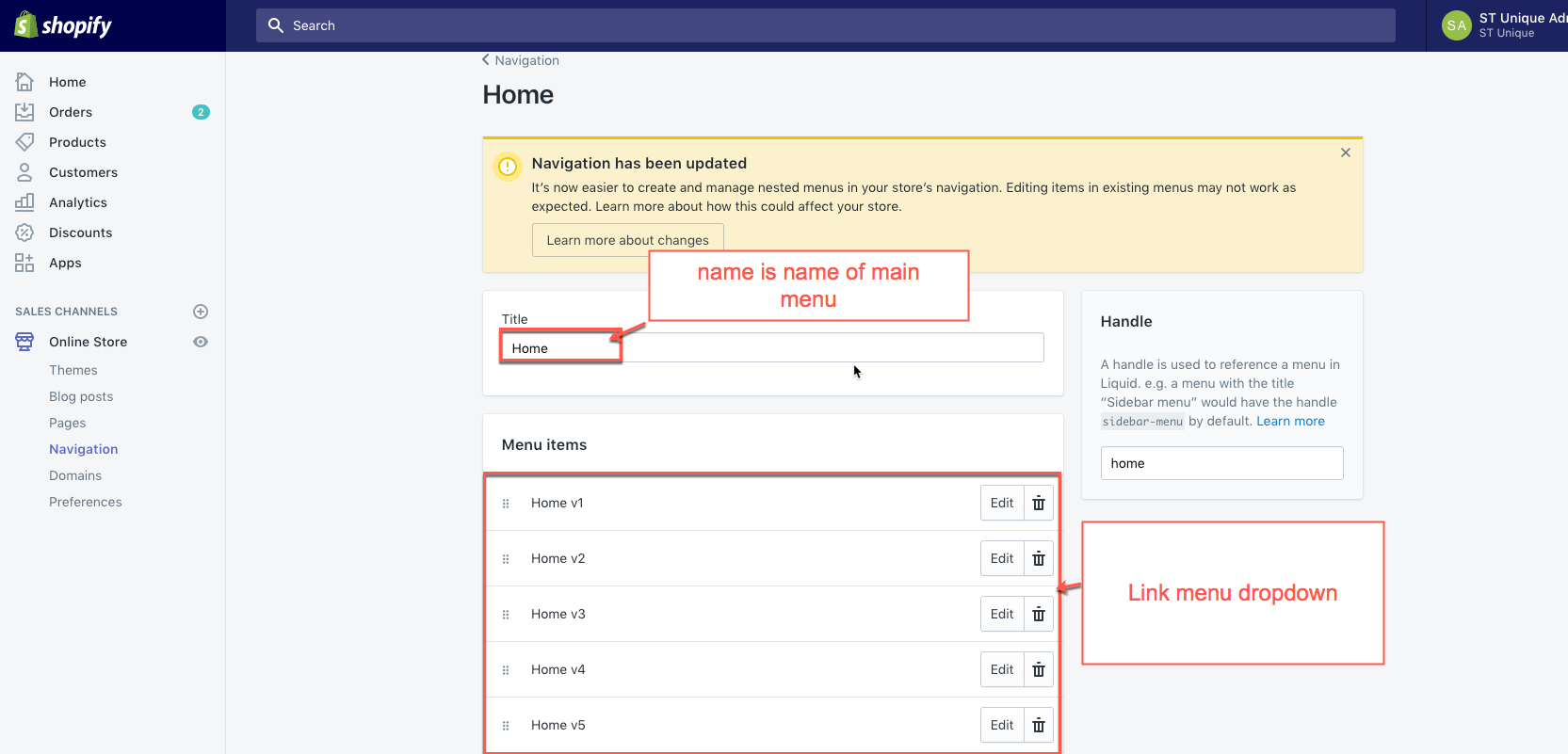
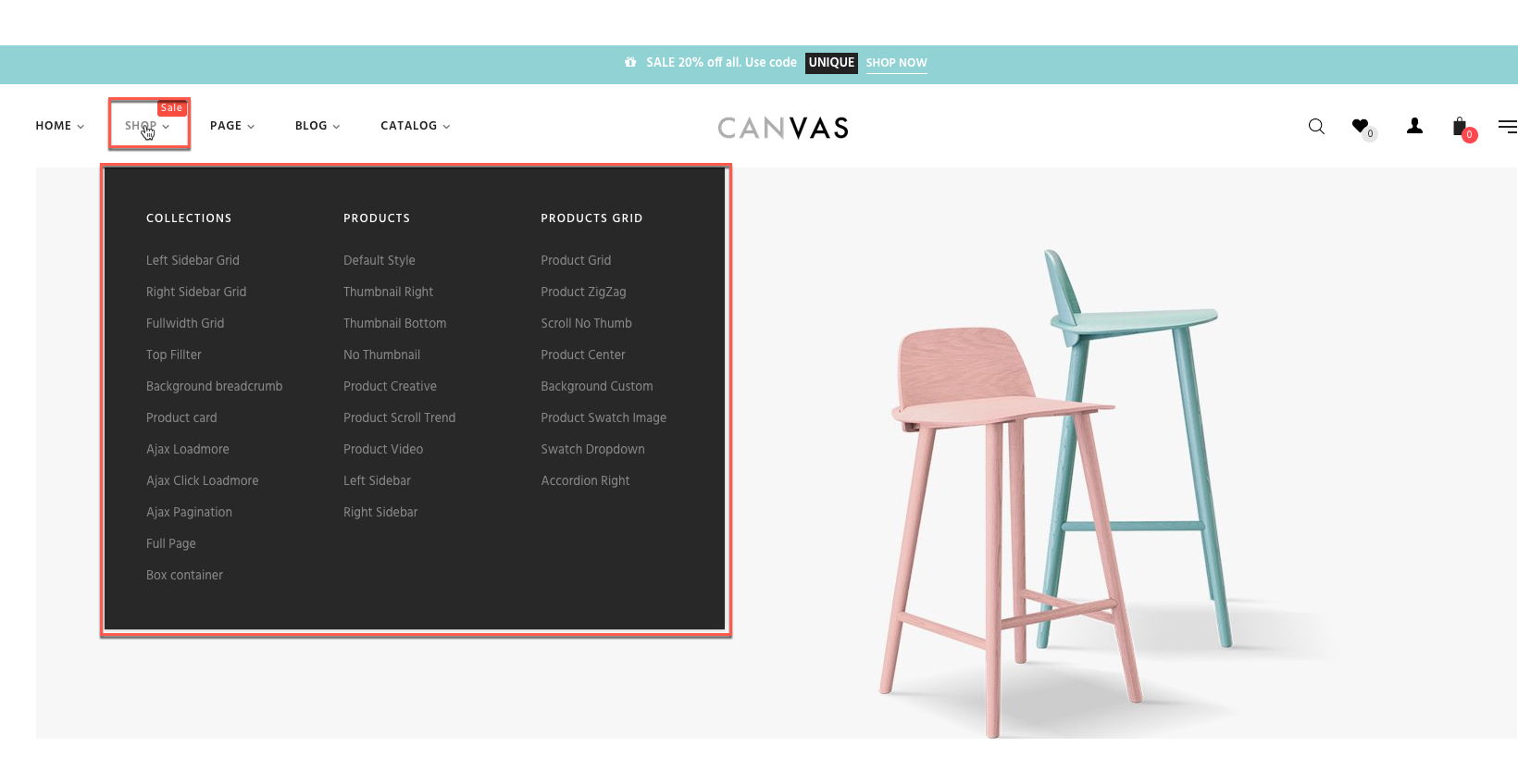
3.Megamenu
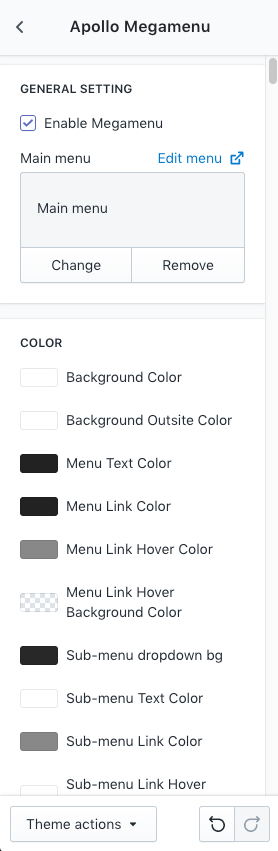

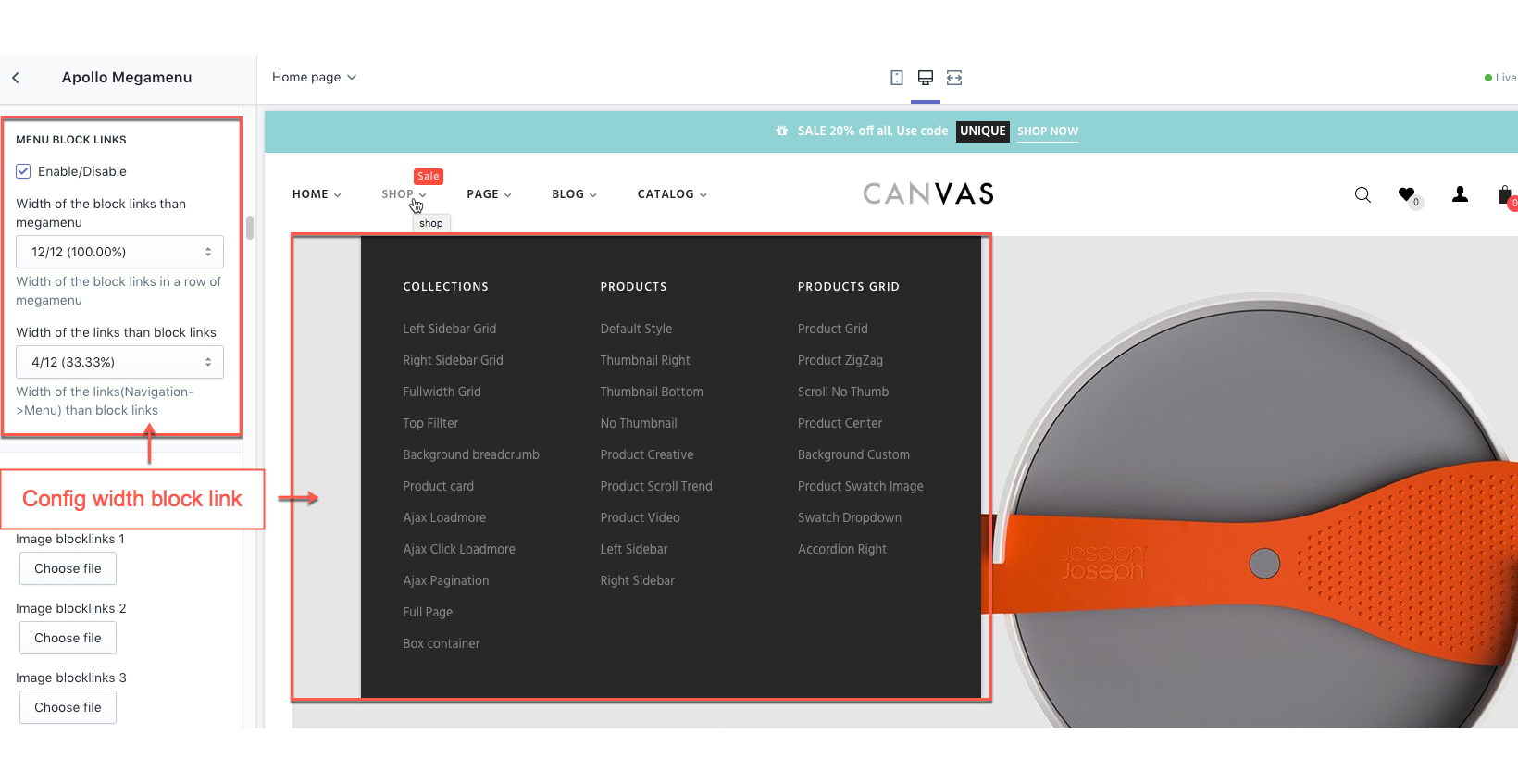
- You can config it. AtMegamenu scroll to "Block links"
+) Active: You can active block links by Select/Unselect "Megamenu blocklinks enable"
+) Columns of block links: Choose the width of "Block links" in a Megamenu. (Columns bootstrap)
+) Columns links of block links: Choose the width of "List Links" in a "Block links"
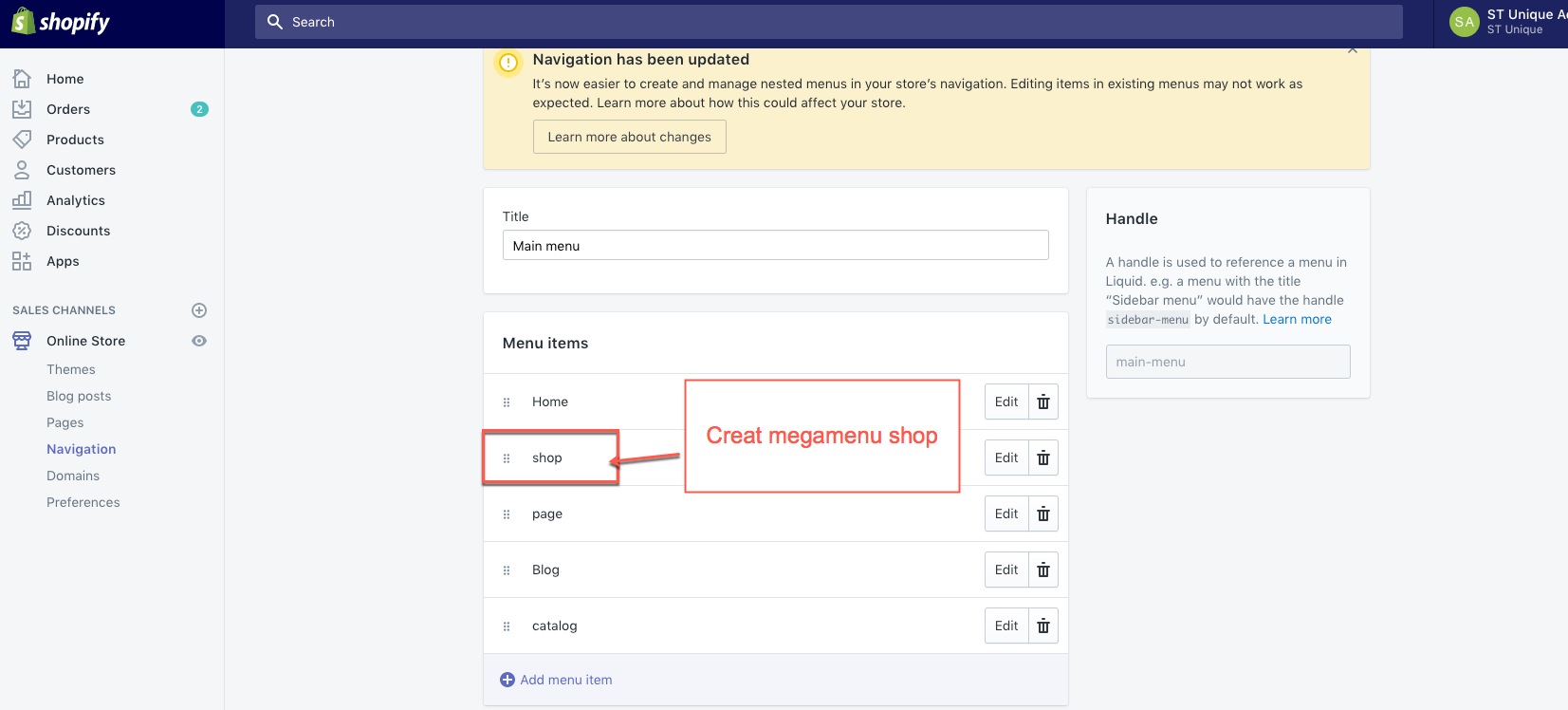
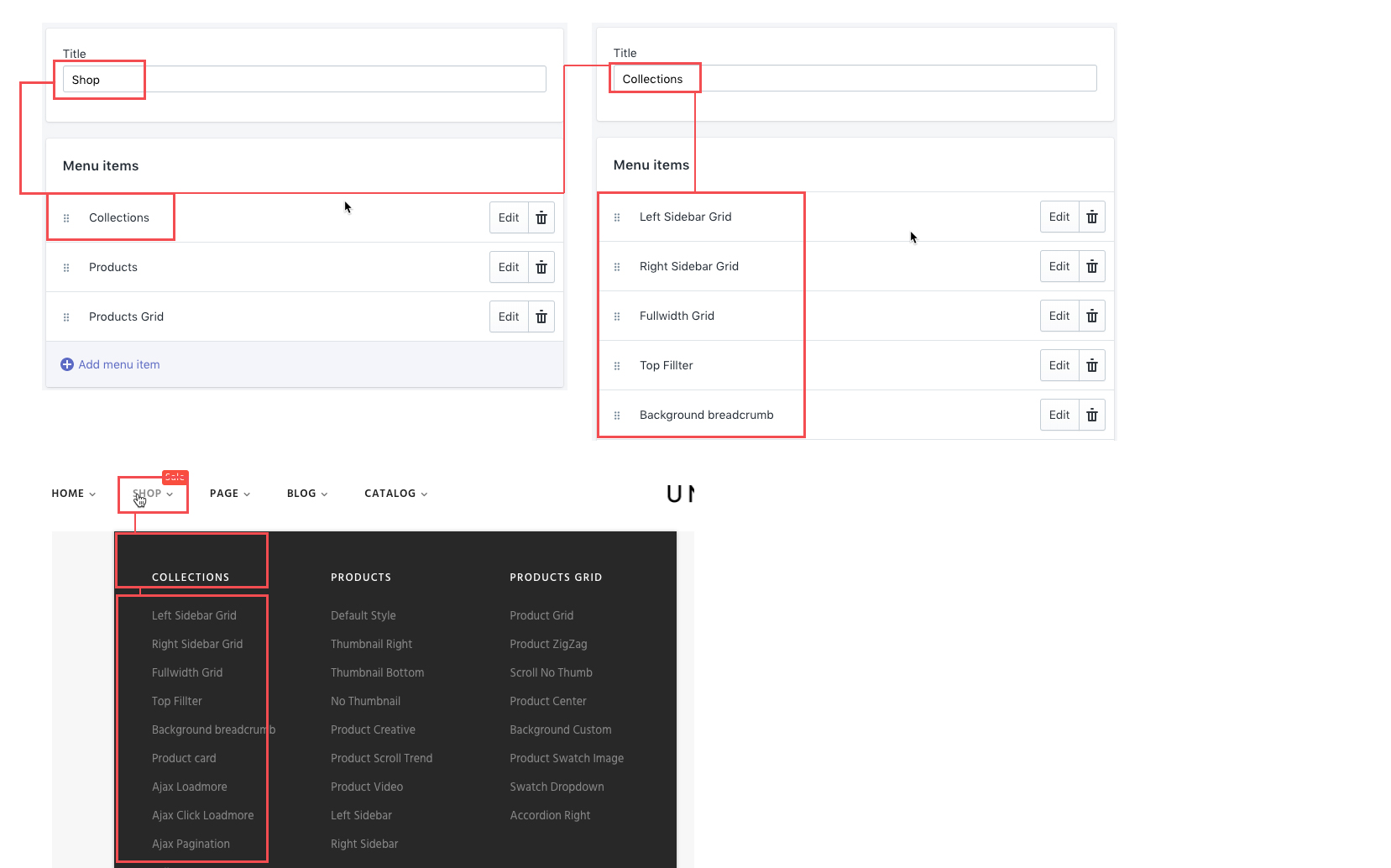
Example: Create Two Link List for megamenu of Shop
1.) Shop for home
+) Name: Shop (Menu item has mega menu)
+) List Links: Collection
2.) Collection
+) Name: Colection (Name of parent link)
+) List Links: Colection full width, Colection sidebar left, Colection sidebar right,...
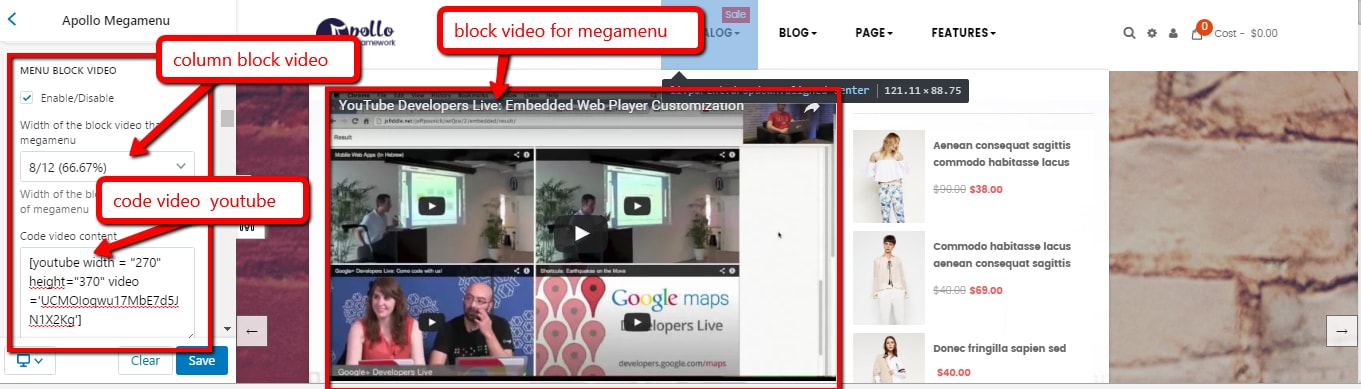
- AtMegamenu scroll to "Block video"
+) Active: You can active block video by Select/Unselect "Megamenu video enable"
+) Columns of block video: Choose the width of "Block video" in a Megamenu. (Columns bootstrap)
+) Megamenu video content: Enter CODE video form Youtube, vimeo ... or you can use shortcode Youtube.
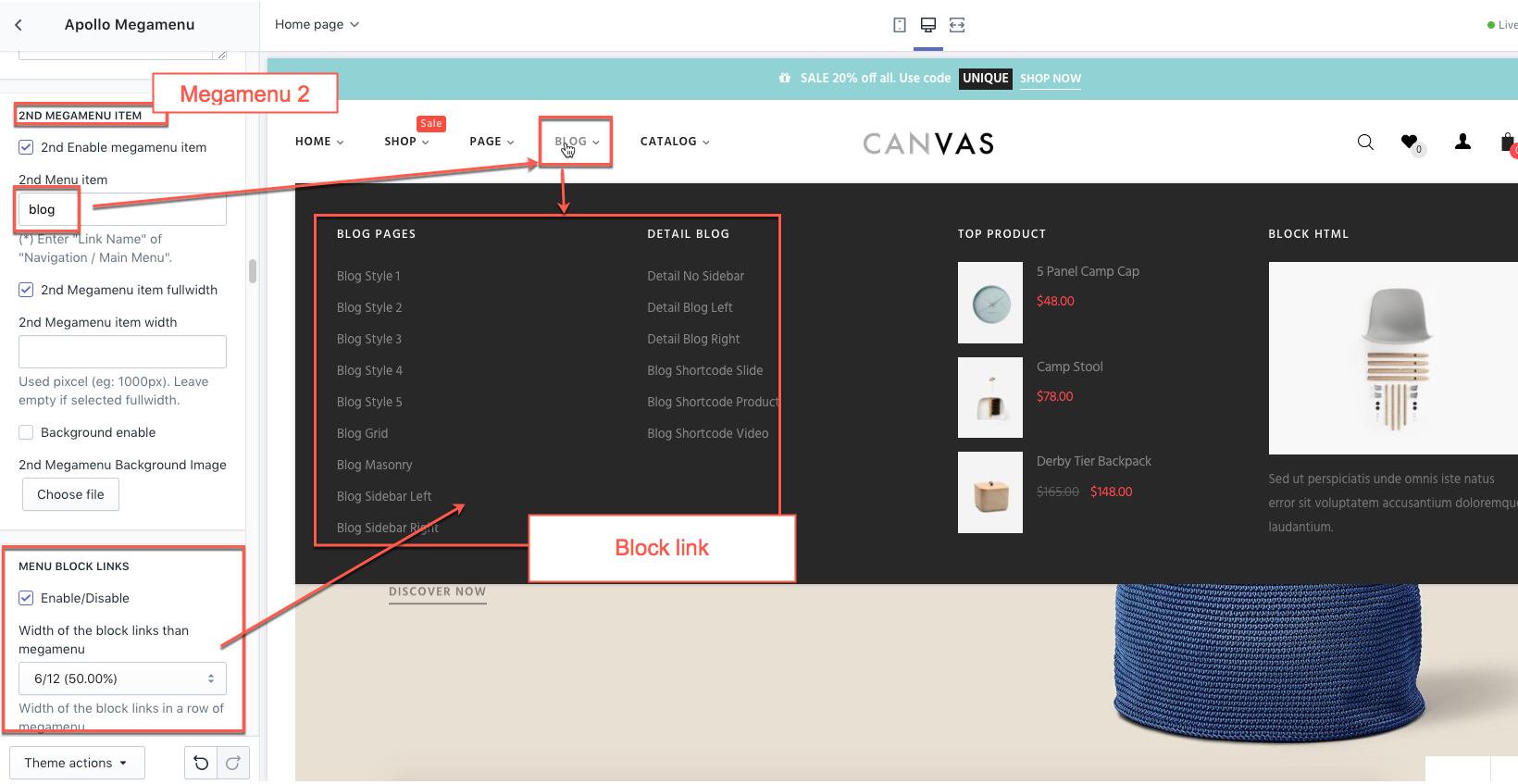
- Create megamenu2 the same megamenu1
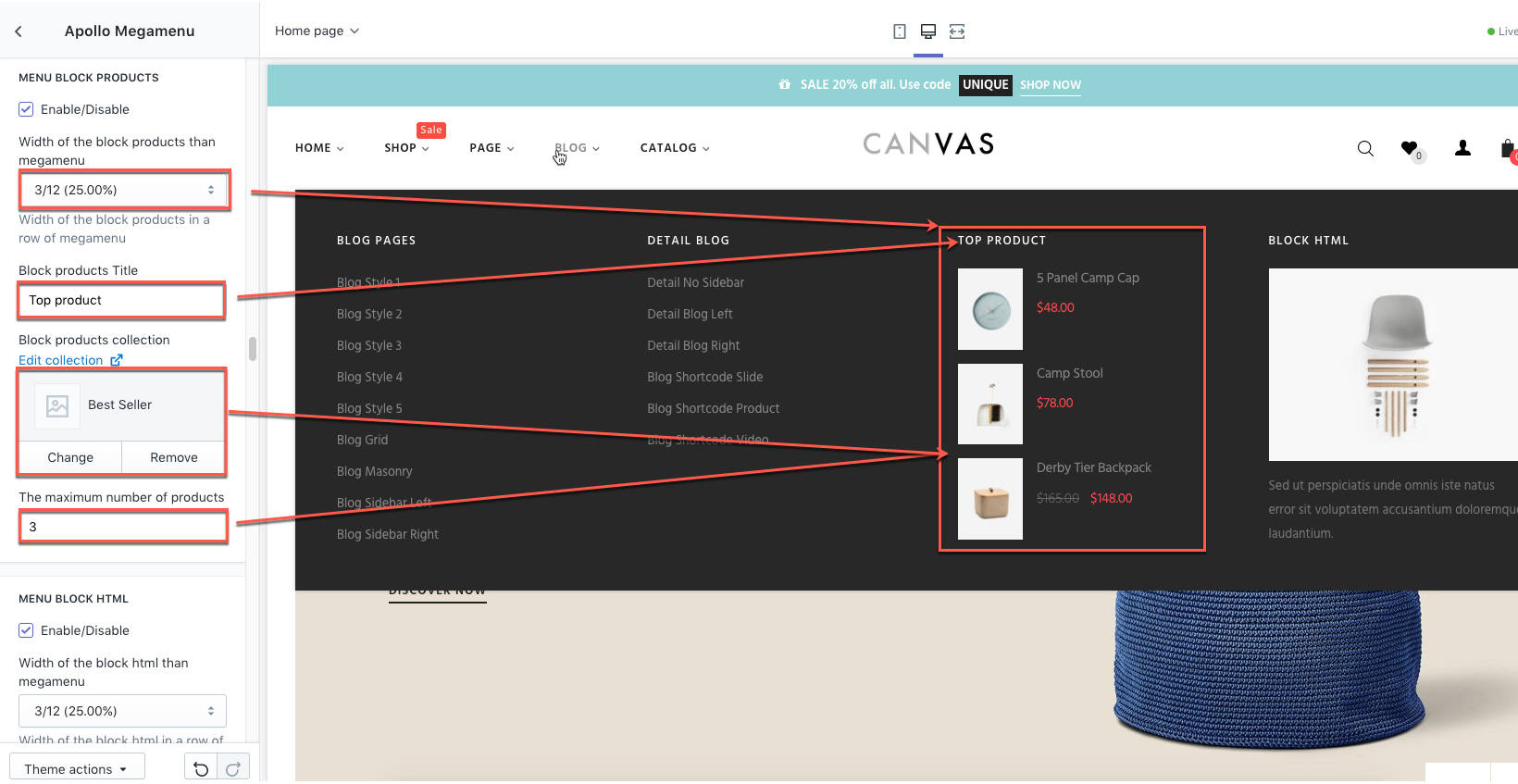
- AtMegamenu scroll to "Block products"
+) Active: You can active block product by Select/Unselect "Megamenu product enable"
+) Columns of block product: Choose the width of "Block product" in a Megamenu. (Columns bootstrap)
+) Megamenu product title: Enter title for Block product.
+) Megamenu product: Select one collections for Block product.
+) Megamenu product number: Number product display in a Block product.
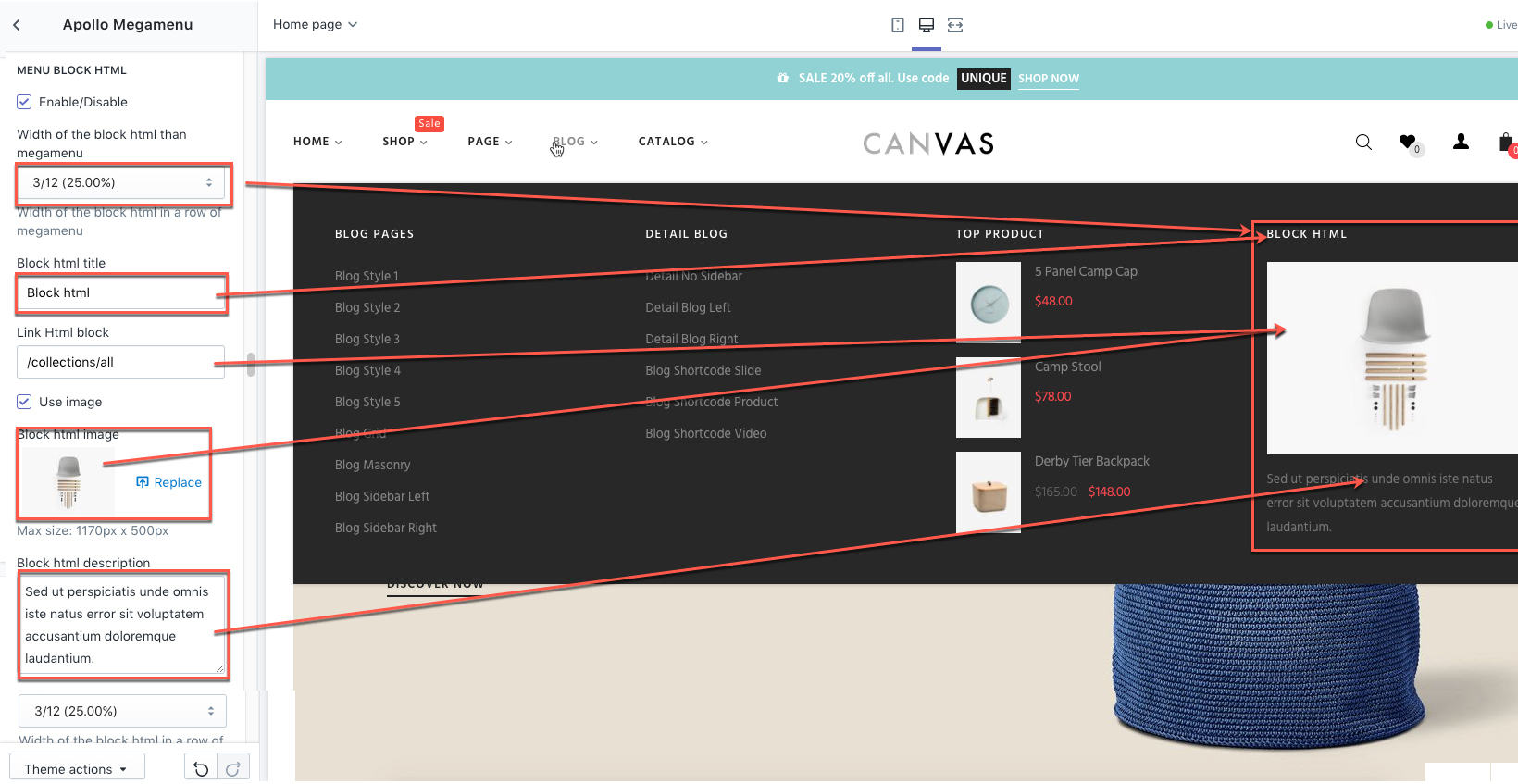
+) Active: You can active block html by Select/Unselect "Megamenu html enable"
+) Columns of block html: Choose the width of "Block html" in a Megamenu. (Columns bootstrap)
+) Megamenu html title: Enter title for Block html.
+) Megamenu html image: Upload image for Block html.
+) Megamenu html description: Enter description for Block html.
- Create megamenu3 the same megamenu1
- scroll 3rd Megamenu scroll to menu block link & image block link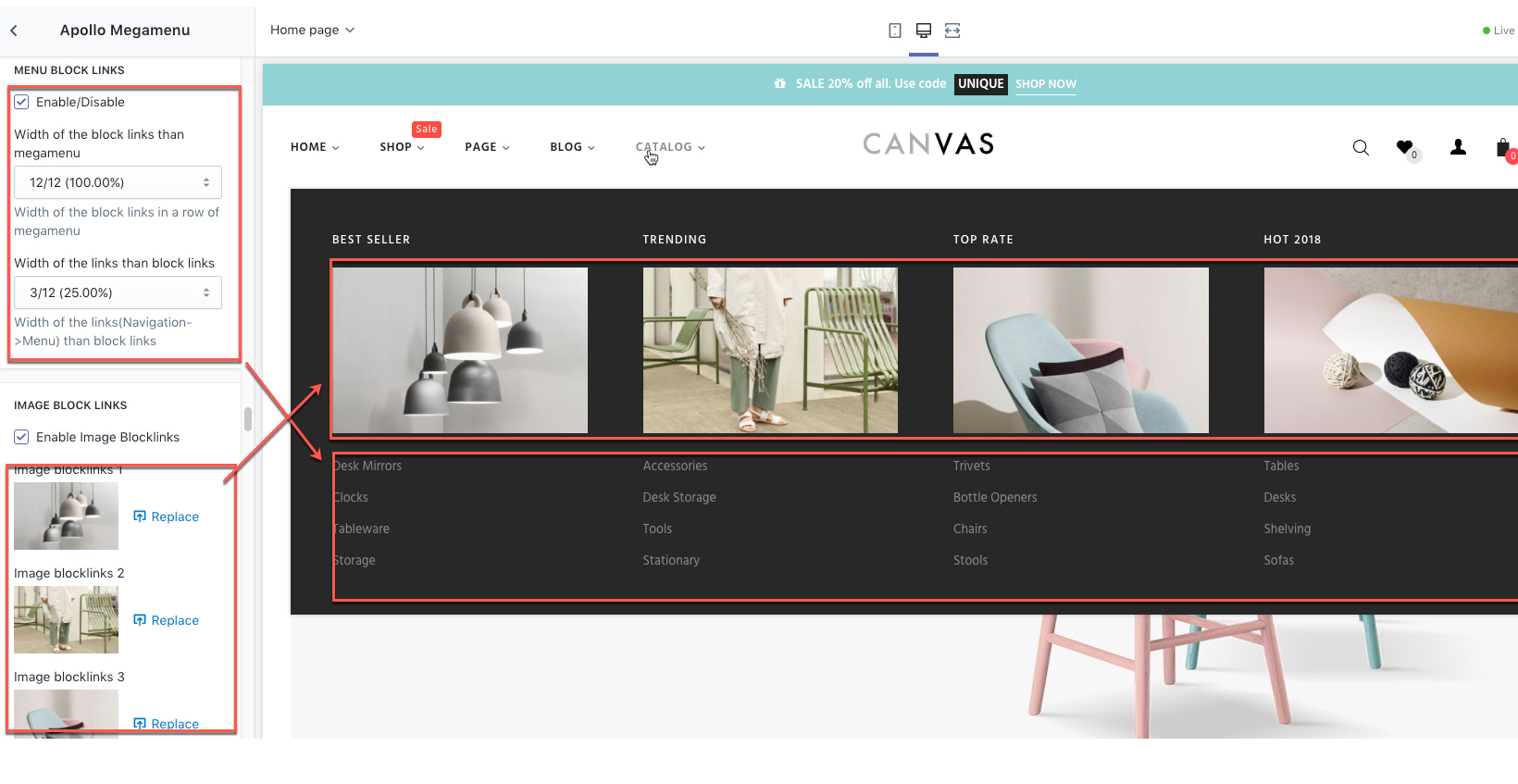
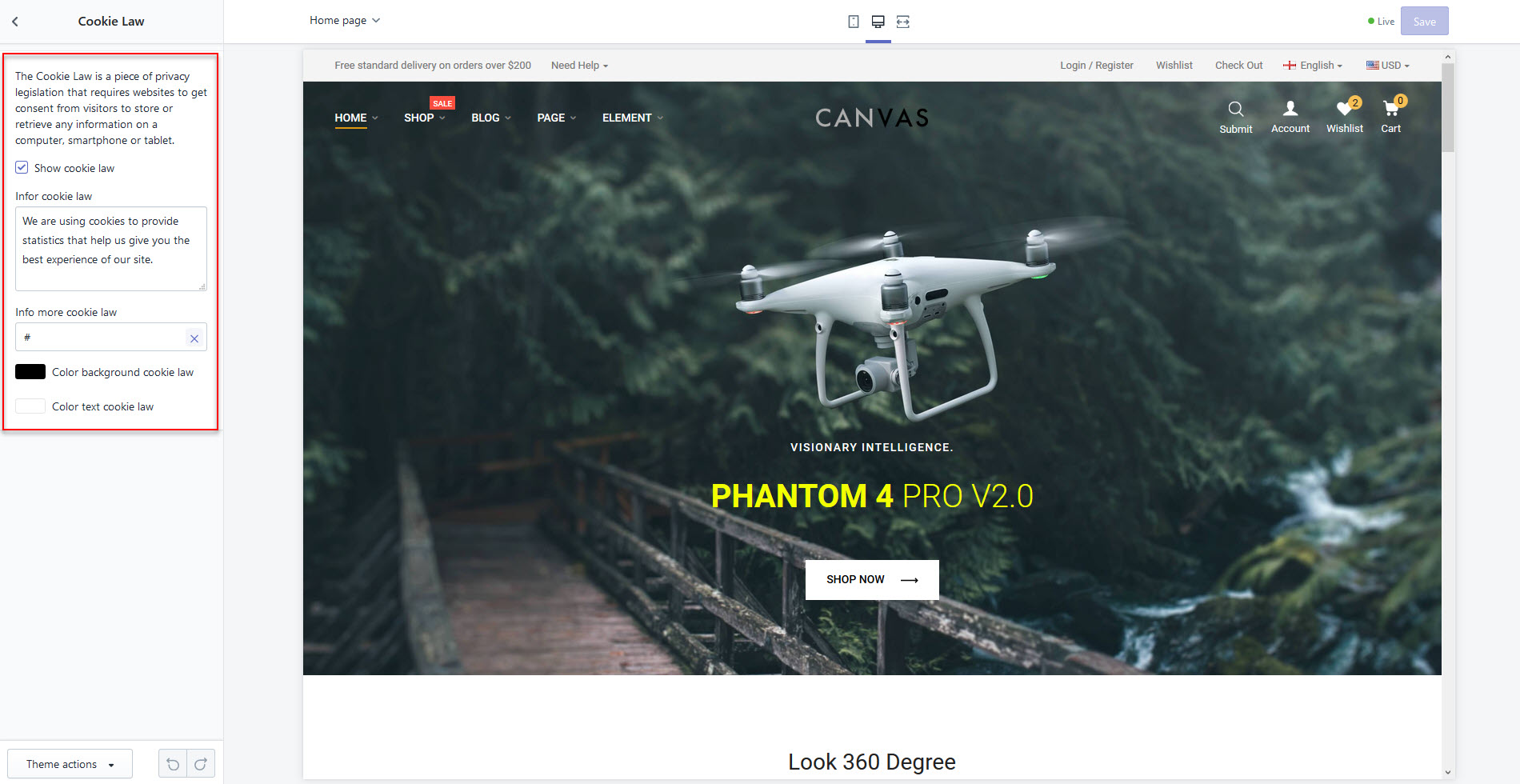
Cookie Accept Notification
- Enable block
- Edit text content
- Link info
- Change background-color and text color
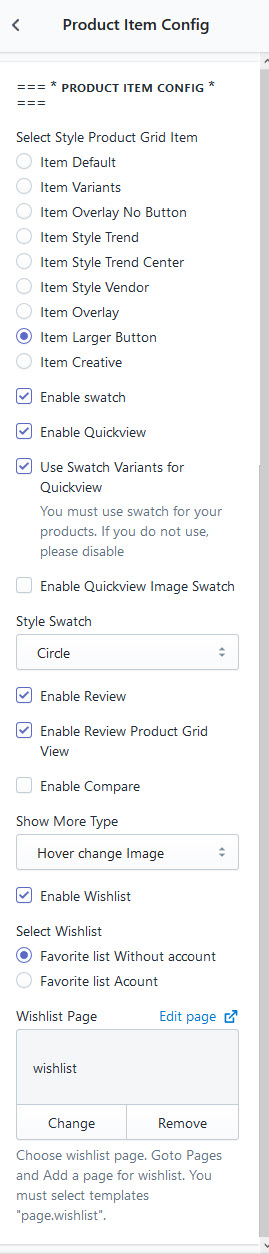
Products Grid Item
- Select Template Products Grid ( 10 pre-made styles ) Link Demo Style Products Grid
- Enable Swatch
- Enable Quickview
- Enable Swatch Dropdown ( for page products detail )
- Enable Review
- Enable Review in products grid
- Enable Compare
- Enable Wishlist
- Favorite list Without account (Recommend)
- Favorite list Acount
- Select Page Wishlist
- Hover Change Image
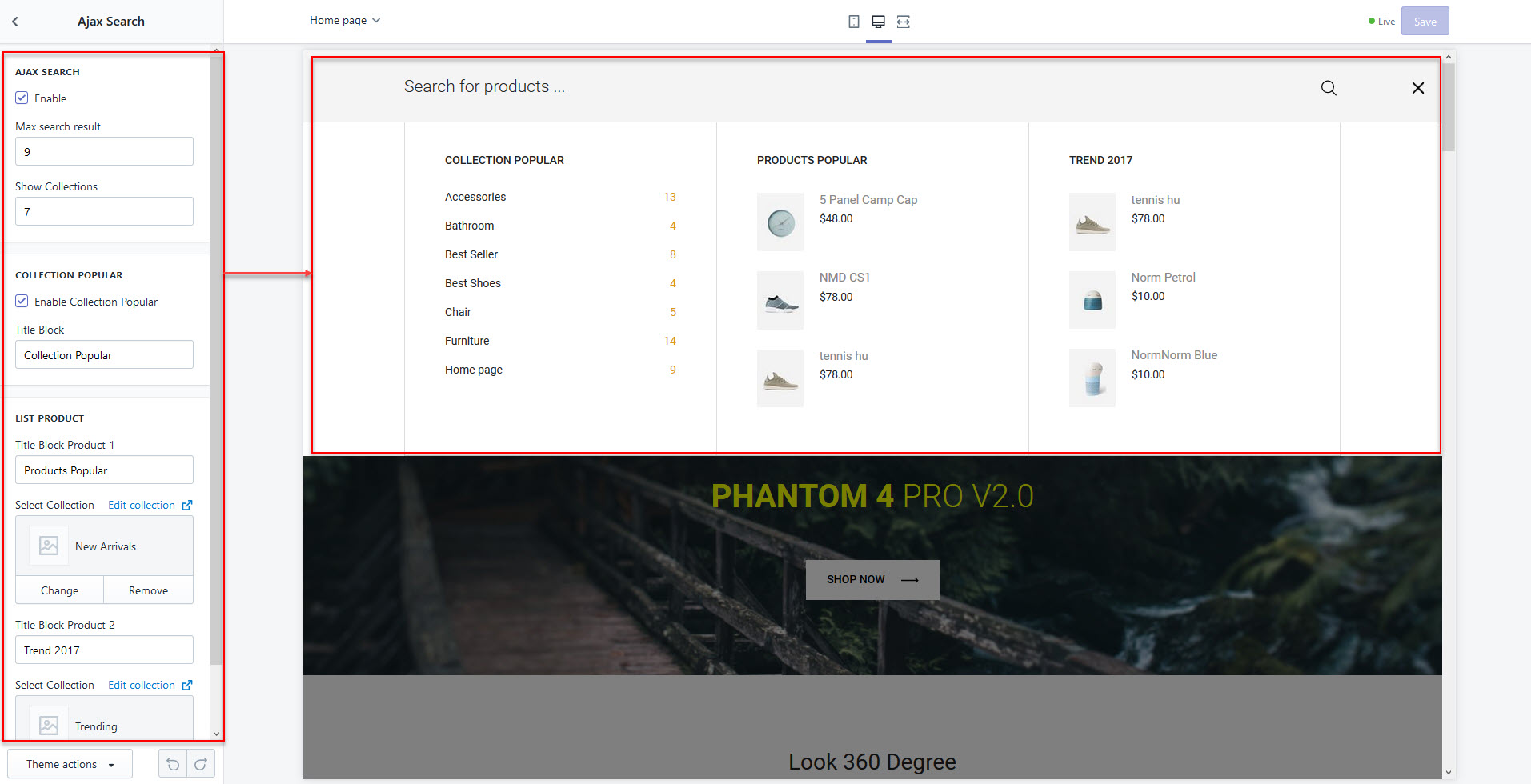
Search Ajax
- Enable block
- Edit Number products search
- Enable collections
- Enable List products
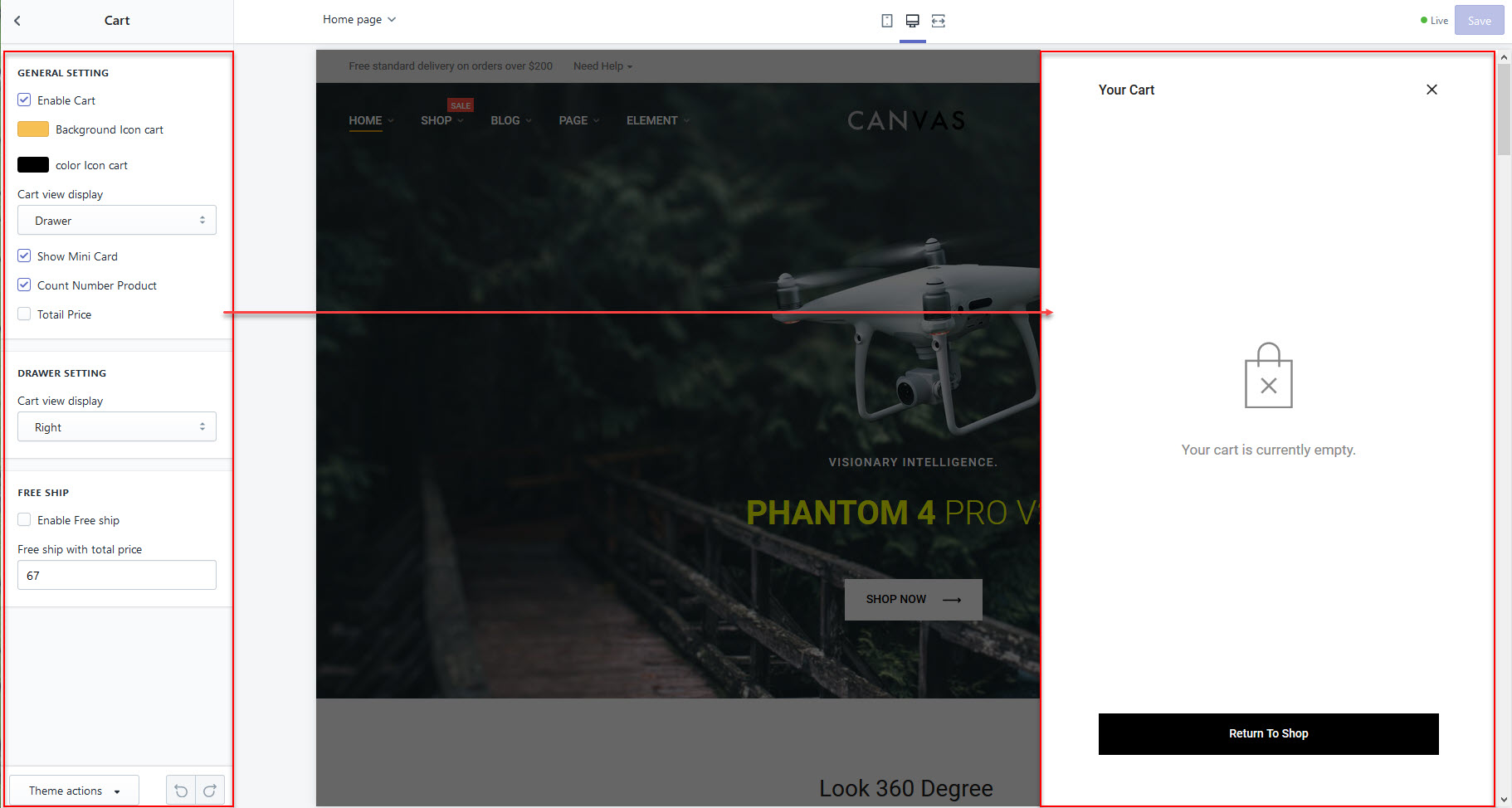
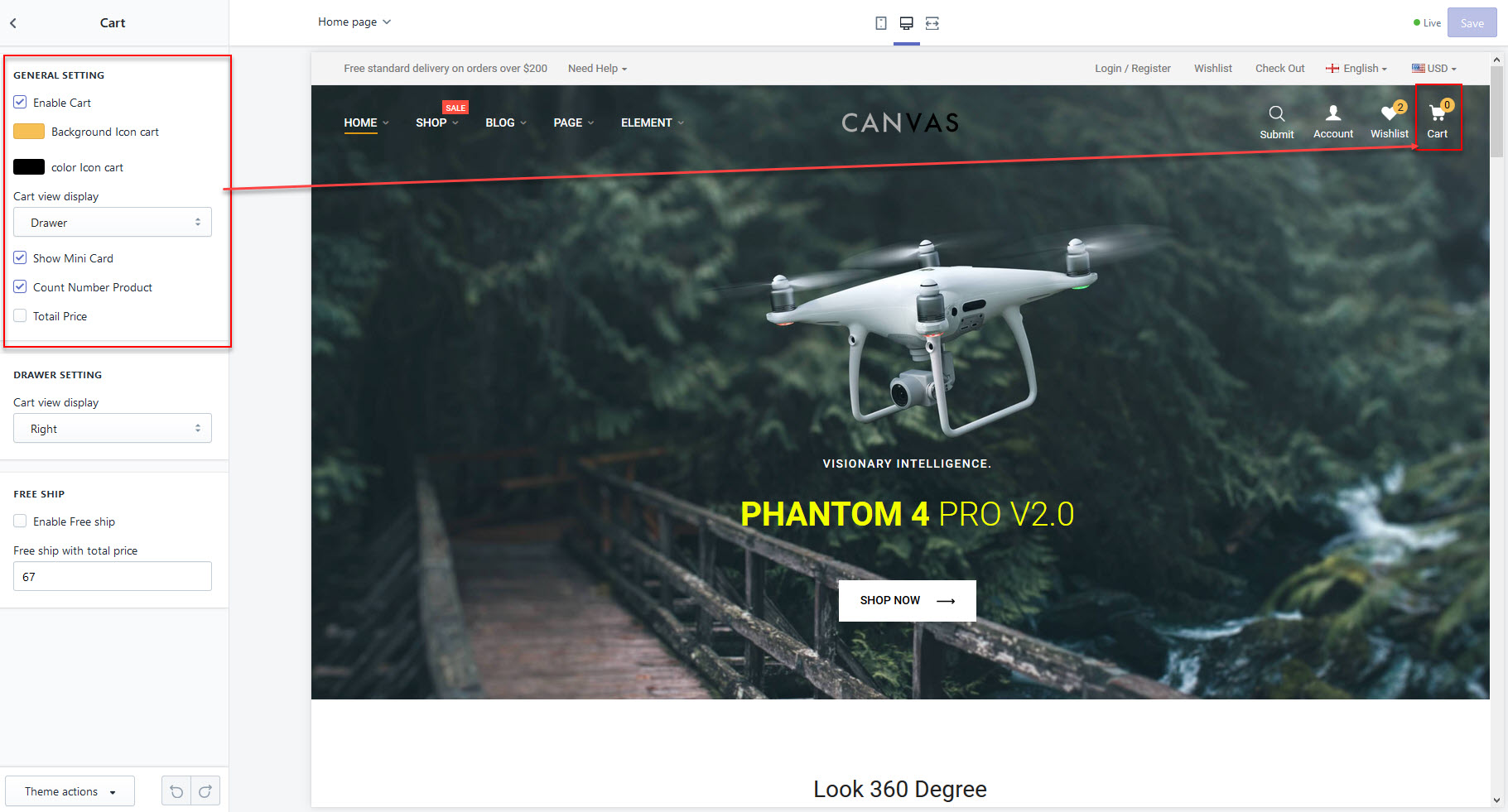
Cart Ajax
- Enable Cart
- Cart view
- Enable Mini Cart
- Count Number product
- Show total price
- Free Ship custom
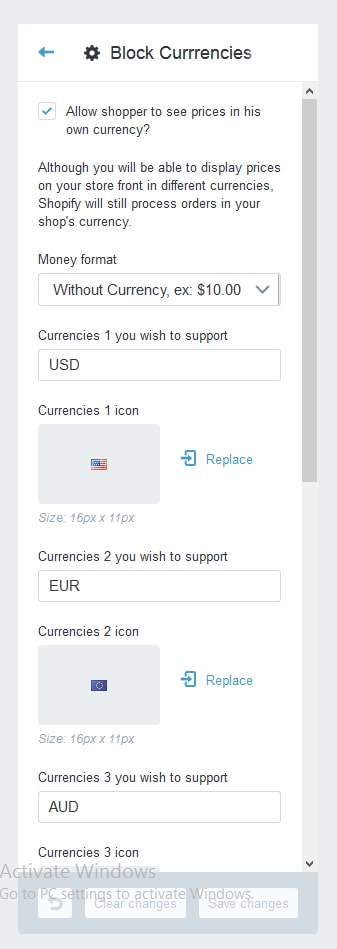
Block Currrencies
Go to Themes > Customize Theme > General settings >Block Currrencies section.
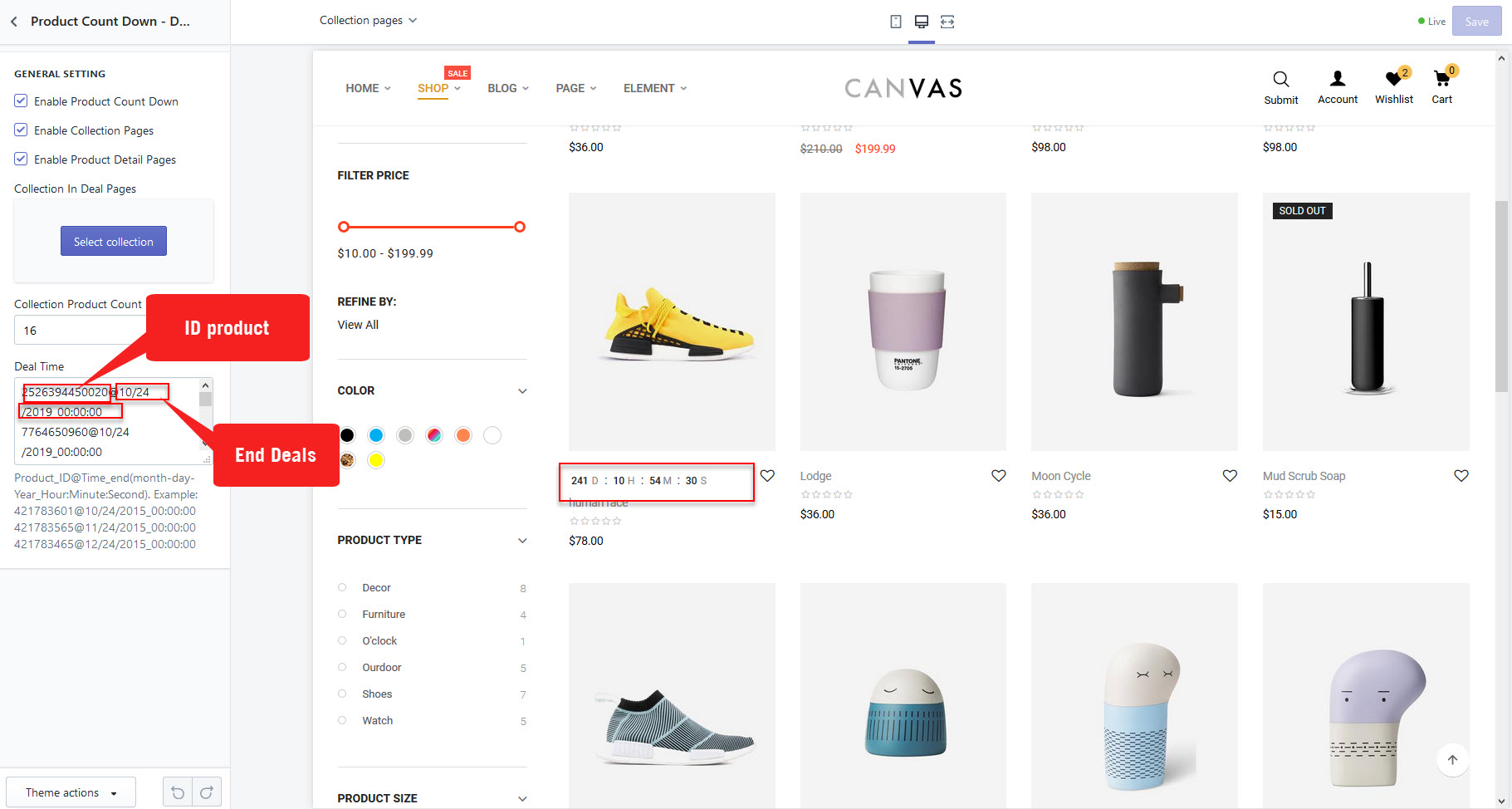
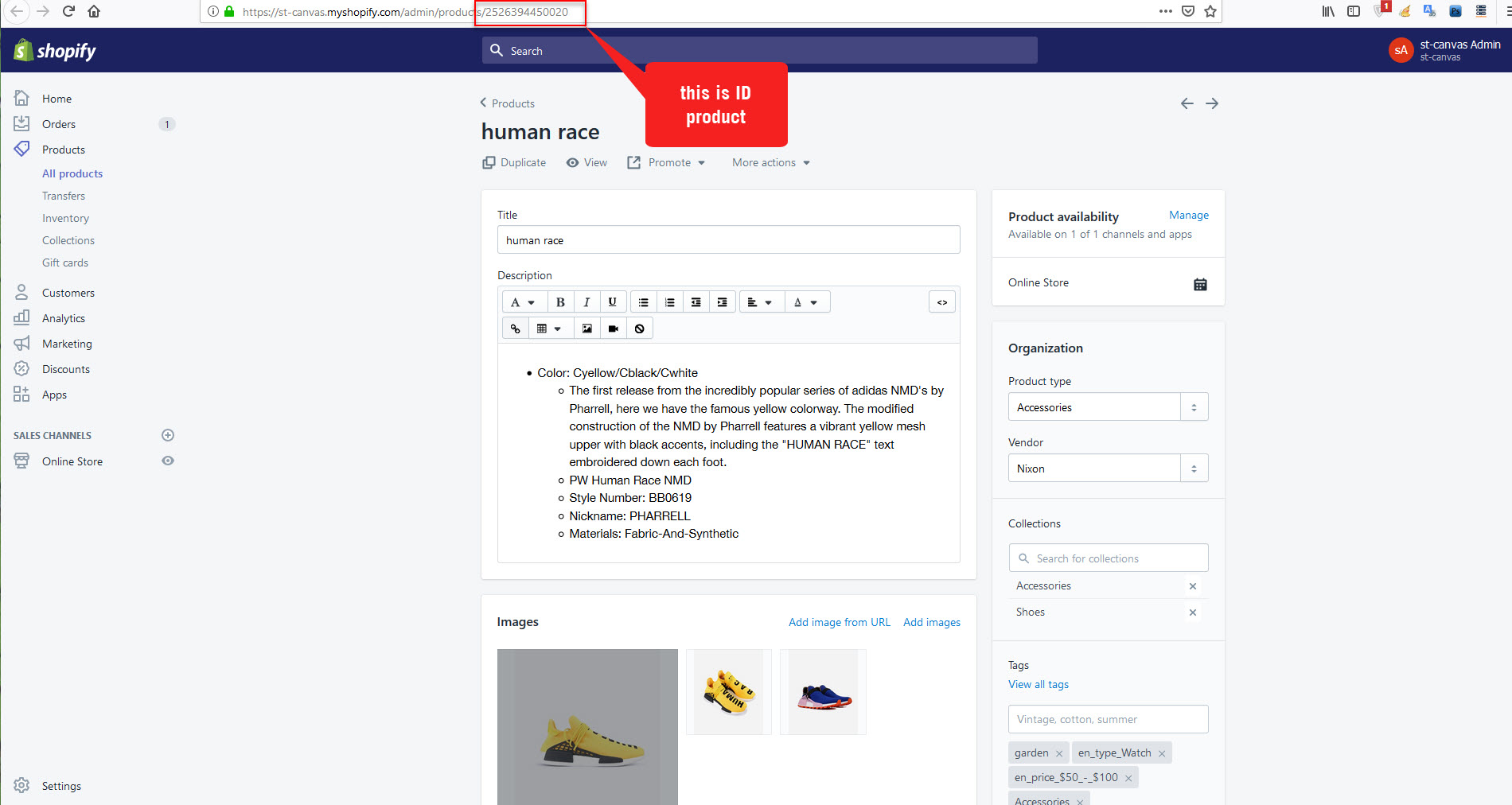
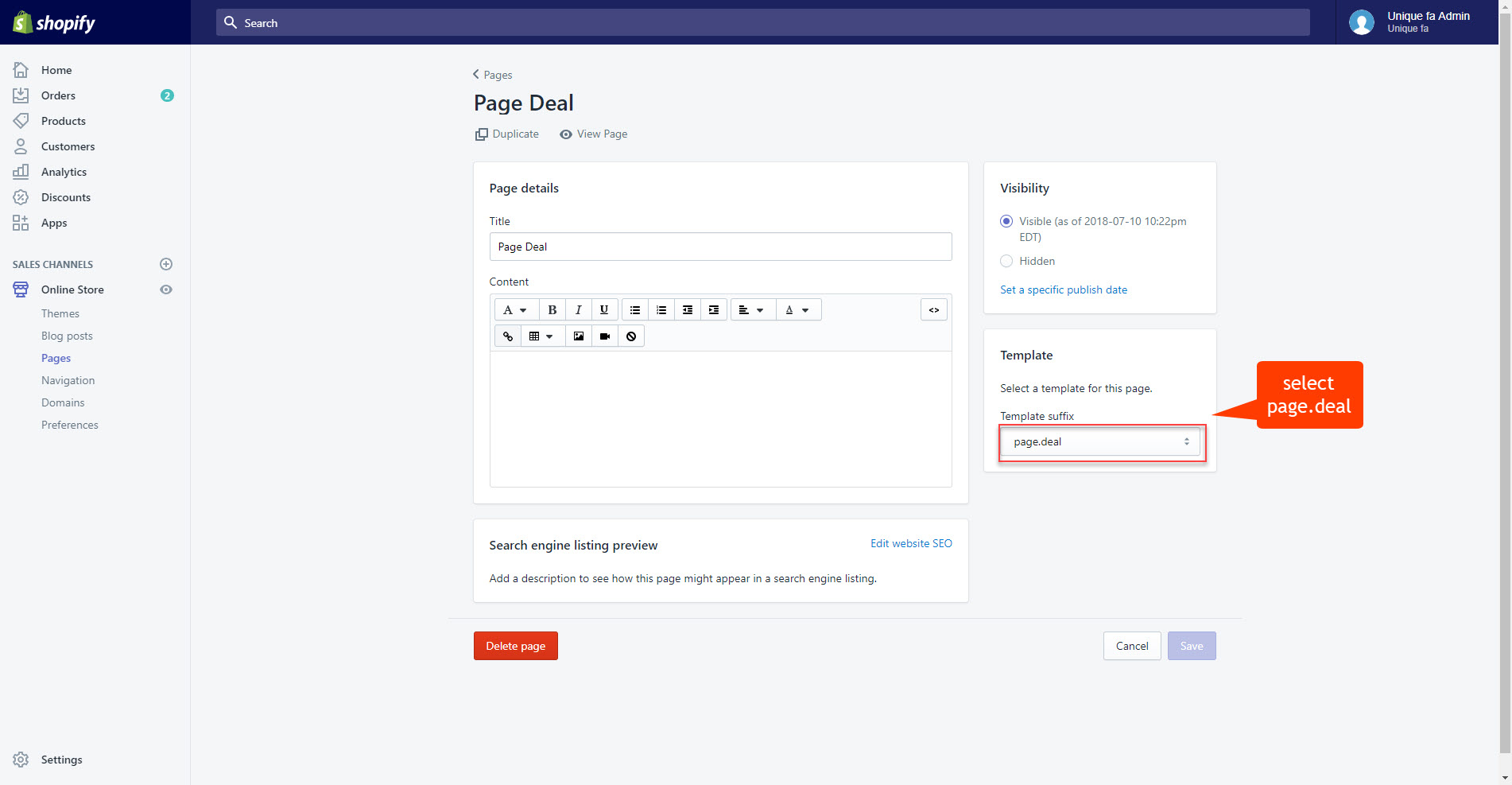
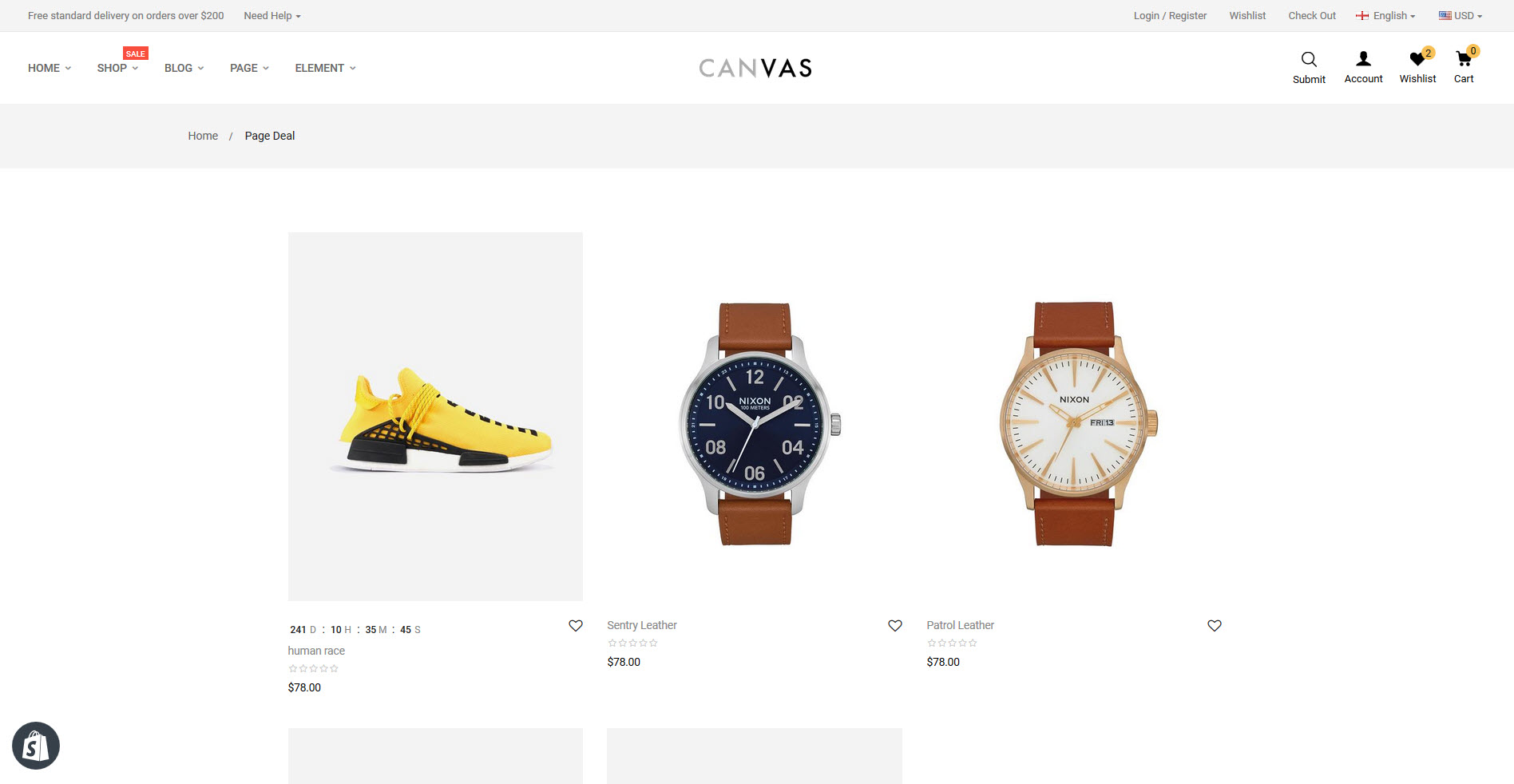
Apollo Product Count Down
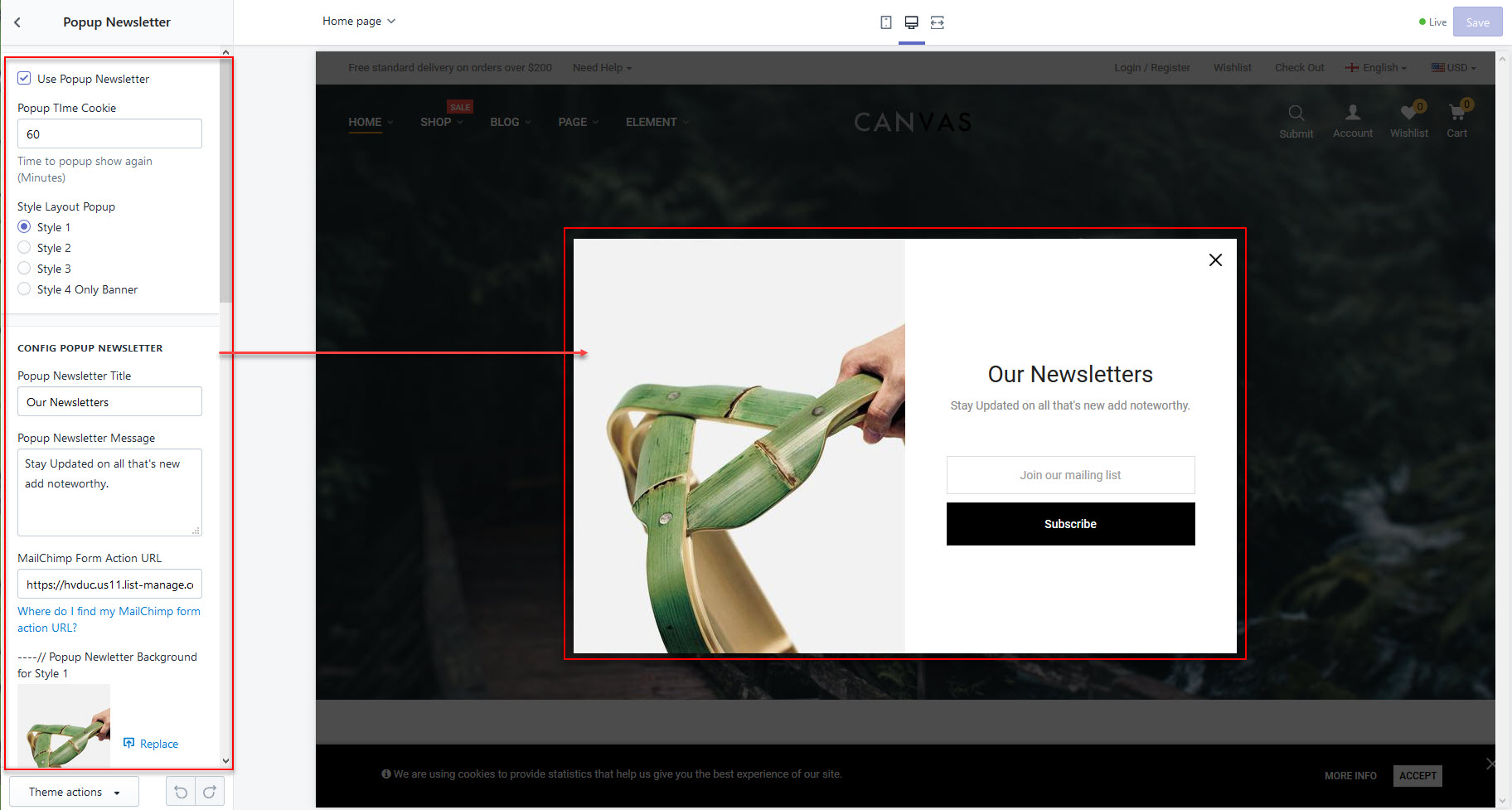
Popup Newsletter
+) Active: You can active Popup Newsletter by Select/Unselect "Use Popup Newsletter"
+) Styles template : Pre-made 4 Styles
+) Popup Time Cookie: Enter the number of minutes that the popup will open up when customer visit the site
+) Popup Newsletter Title: Enter title for Popup Newsletter.
+) Popup Newsletter Message: Enter description for Popup Newsletter.
+) MailChimp Form Action URL: Enter Url action from MailChimp
+) Popup Newletter Background: Upload background image for Popup Newsletter
+) Social In PopupNewLetter: You can use social: Facebook, Twitter, Rss, Youtube, Google Plus, Instagram, Pinterest

Sidebar
- Sidebar for Collection page and Product detail Page
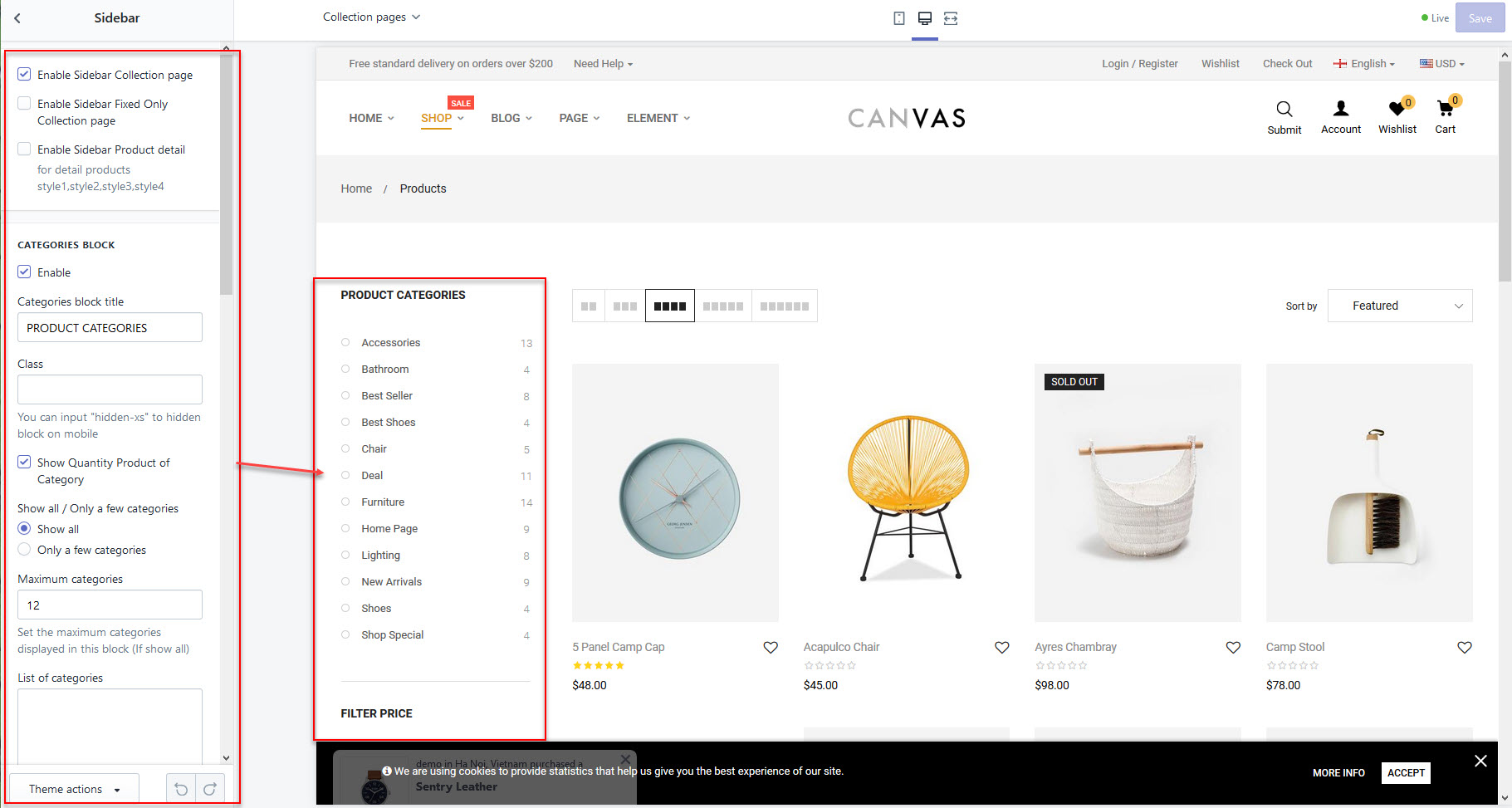
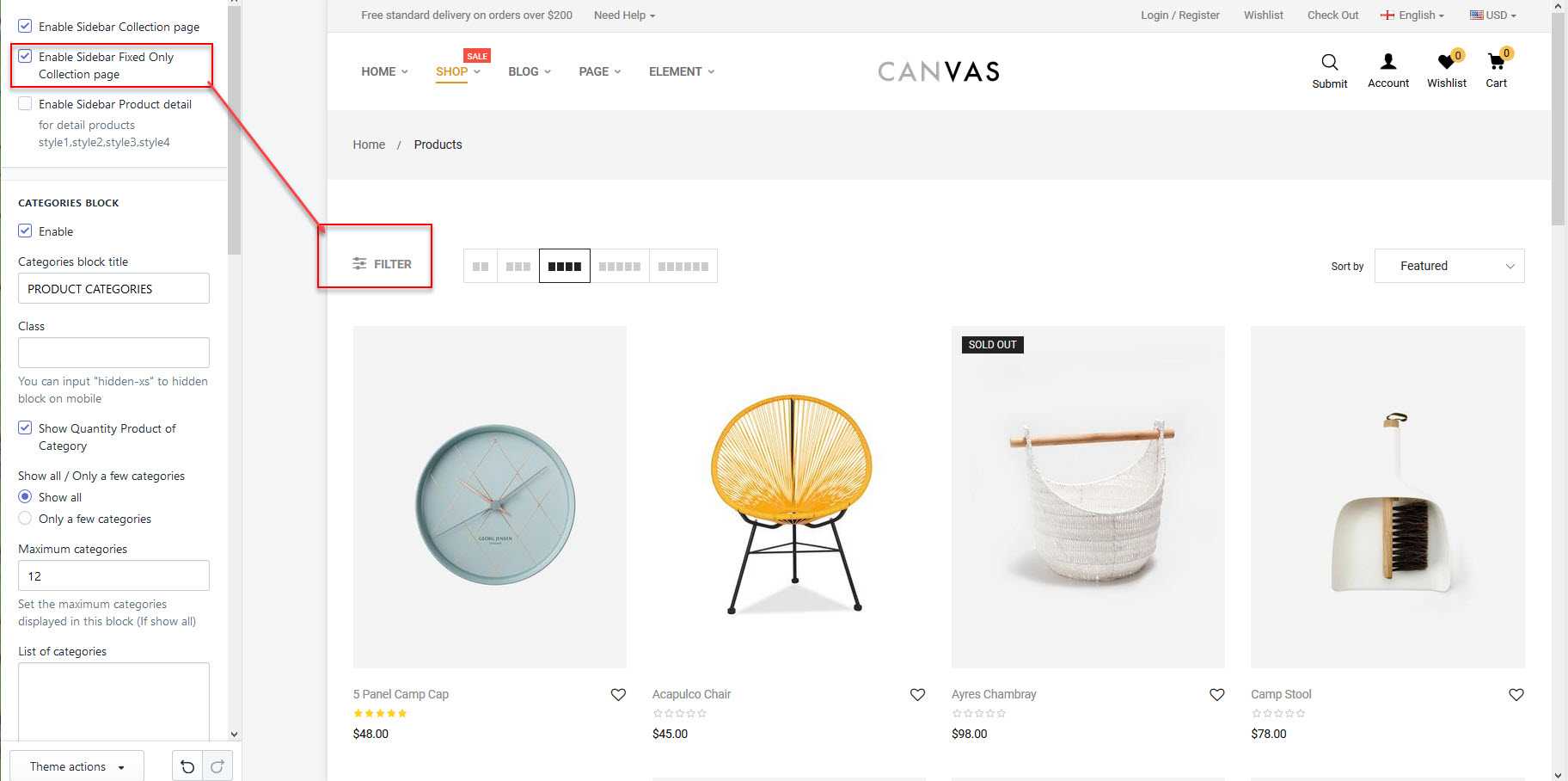
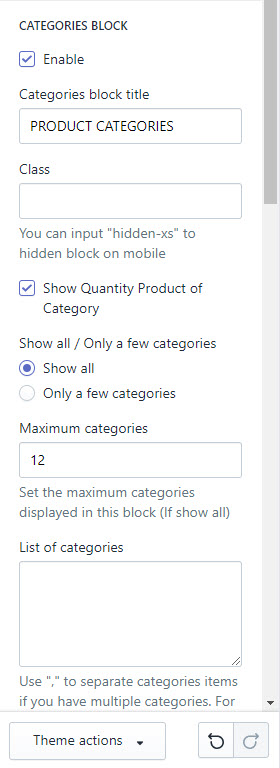
1. Categories Block
+) Active: You can active Block by Select/Unselect "Enable"
+) Categories block title: Title for Block
+) Show Quantity Product of Category: Enable/Disable the number of products displayed next
+) Show all / Only a few categories:
_Show all: Display all product collections. You must enter the largest number of item. "Maximum categories "
_Show a few: Display product collections that you choose. You enter product collections, Use "," to separate item. "List of categories"
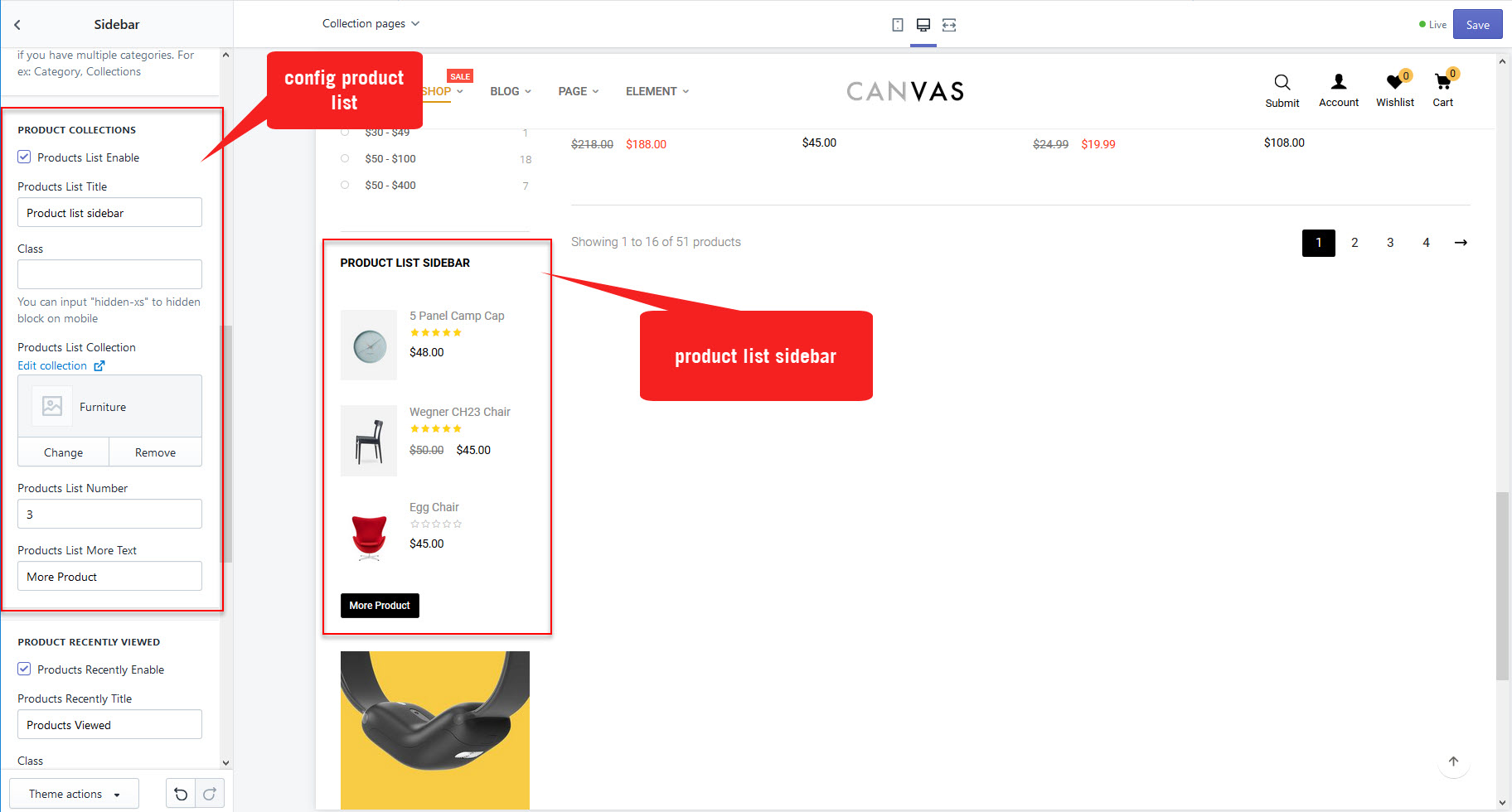
2. Product List Sidebar
+) Active: You can active Block by Select/Unselect "Enable Product List"
+) Limit: Number product limit of block.
+) Items Per Page: Number product in a tab (page).
+) Columns In Tab: Number columns product
+) Interval: Time to play carousel
+) Title Product list: Title of block product
+) Collection Product List: Choose product collections.
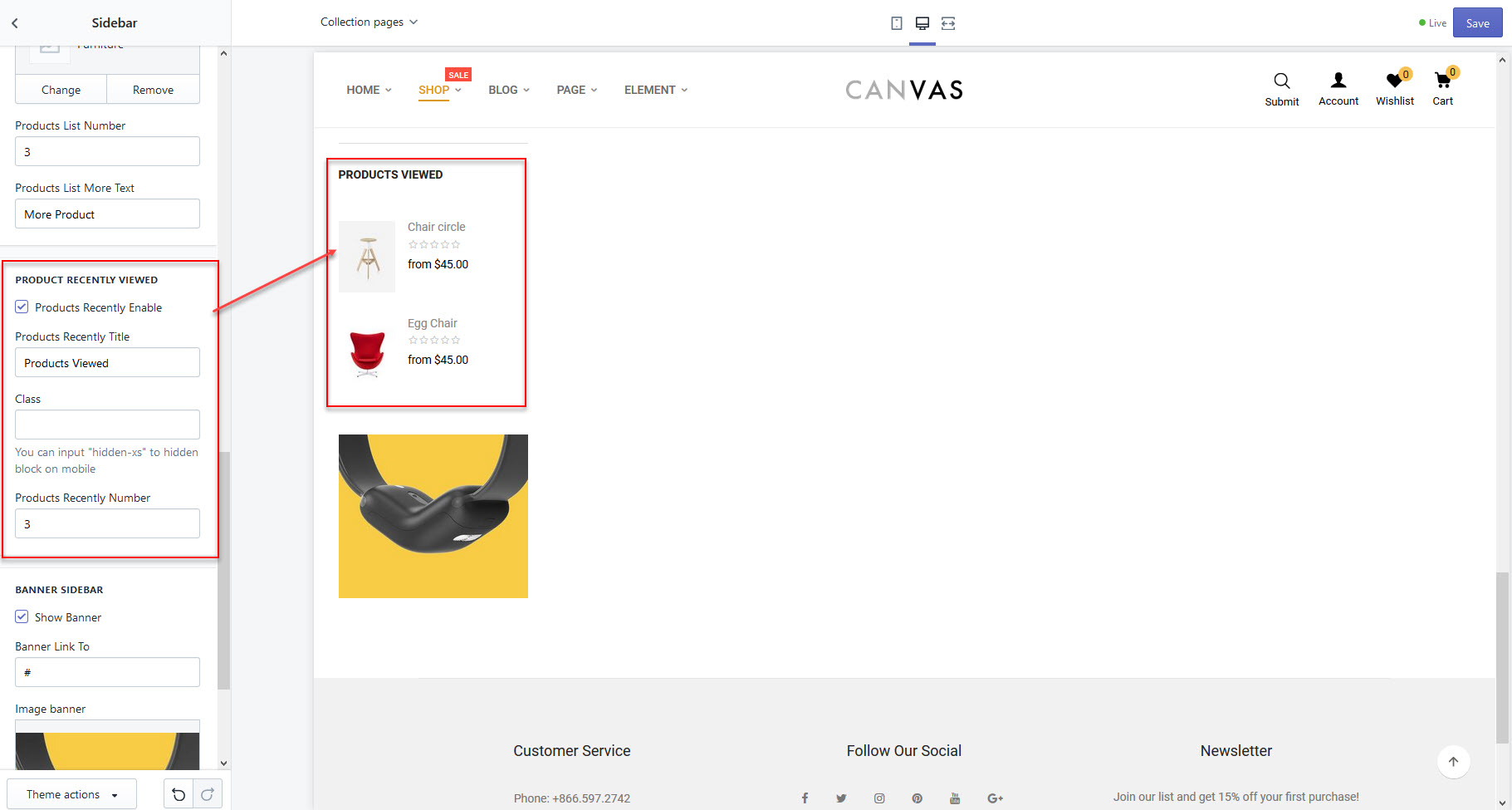
3. Product Recently Viewed
+) Active: You can active Block by Select/Unselect "Enable Product List"
+) Limit: Number product limit of block.
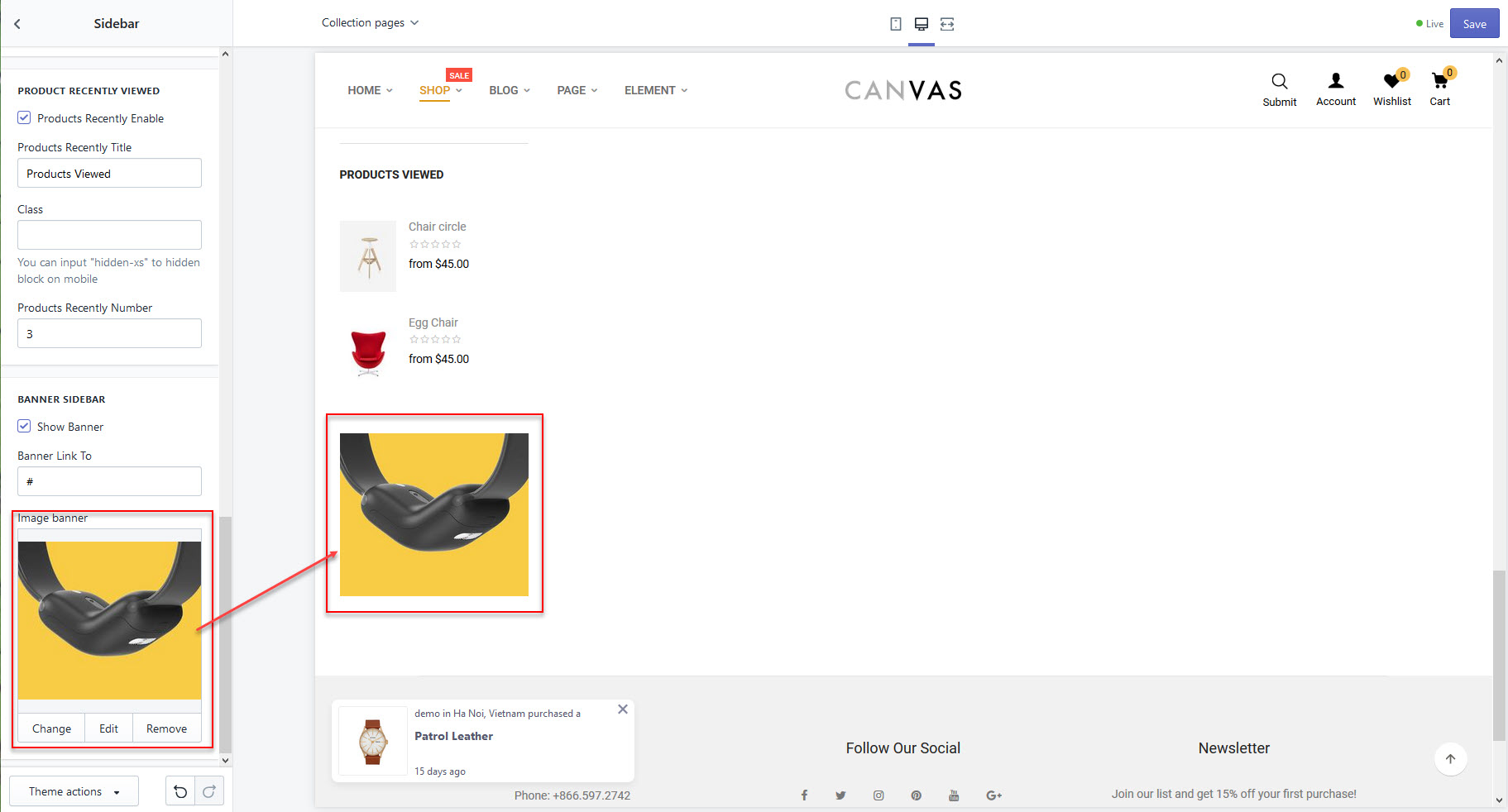
4. Banner
+) Active: You can active Block by Select/Unselect "Enable Banner"
+) Edit: Image.
+) Edit: Link banner.
Fillter
-Select the type of display Filer
a) type Top
- Goto: Admin -> Customize Theme -> General settings -> Scroll to block "Filter" -> Filter position -> "Top"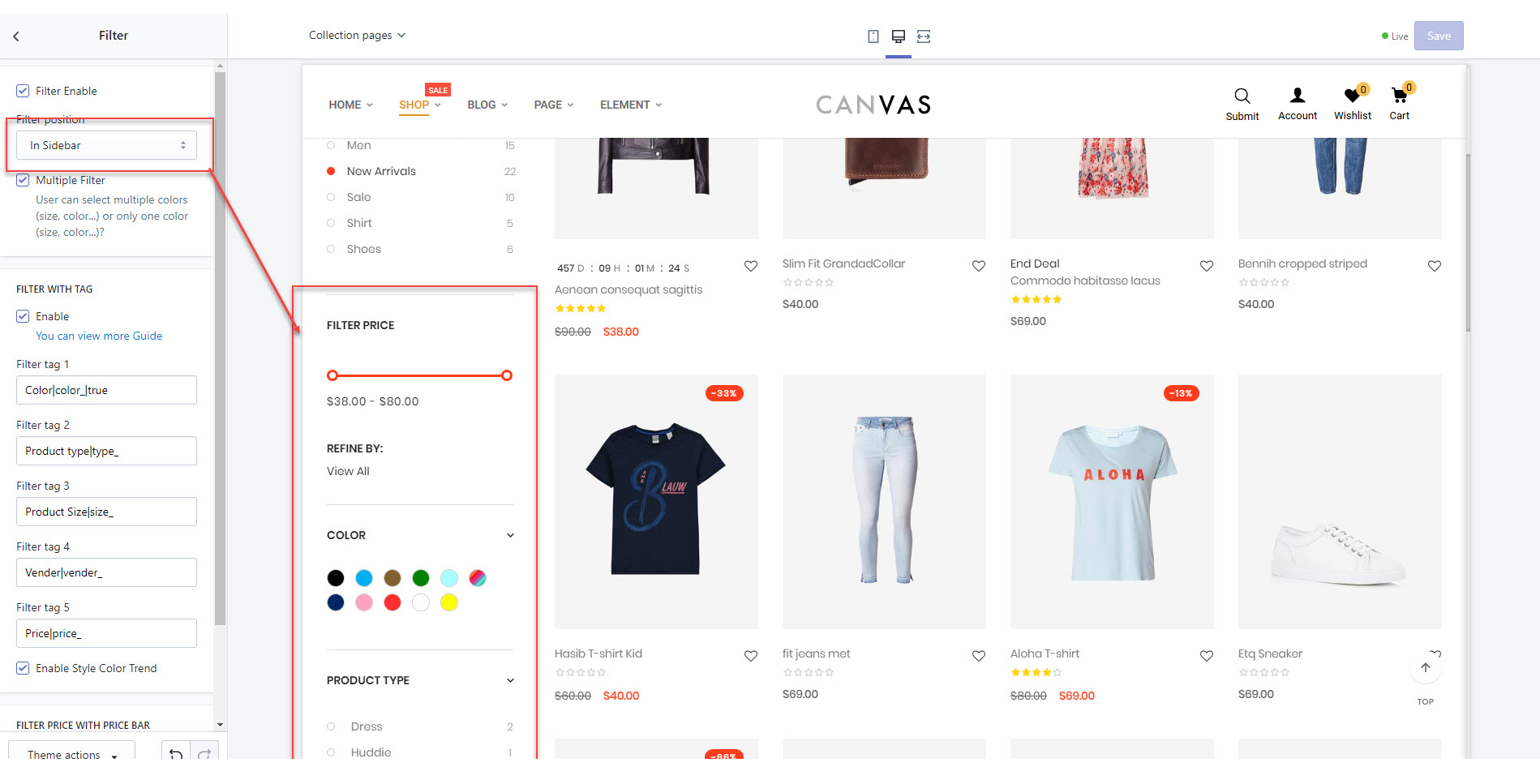
b) type Sidebar
1- Goto: Admin -> Customize Theme -> General settings -> Scroll to block "Filter" -> Filter position -> "In sidebar"
2- Goto: Admin -> Customize Theme -> General settings -> Scroll to block "Sidebar" -> Enable Sidebar Collection page
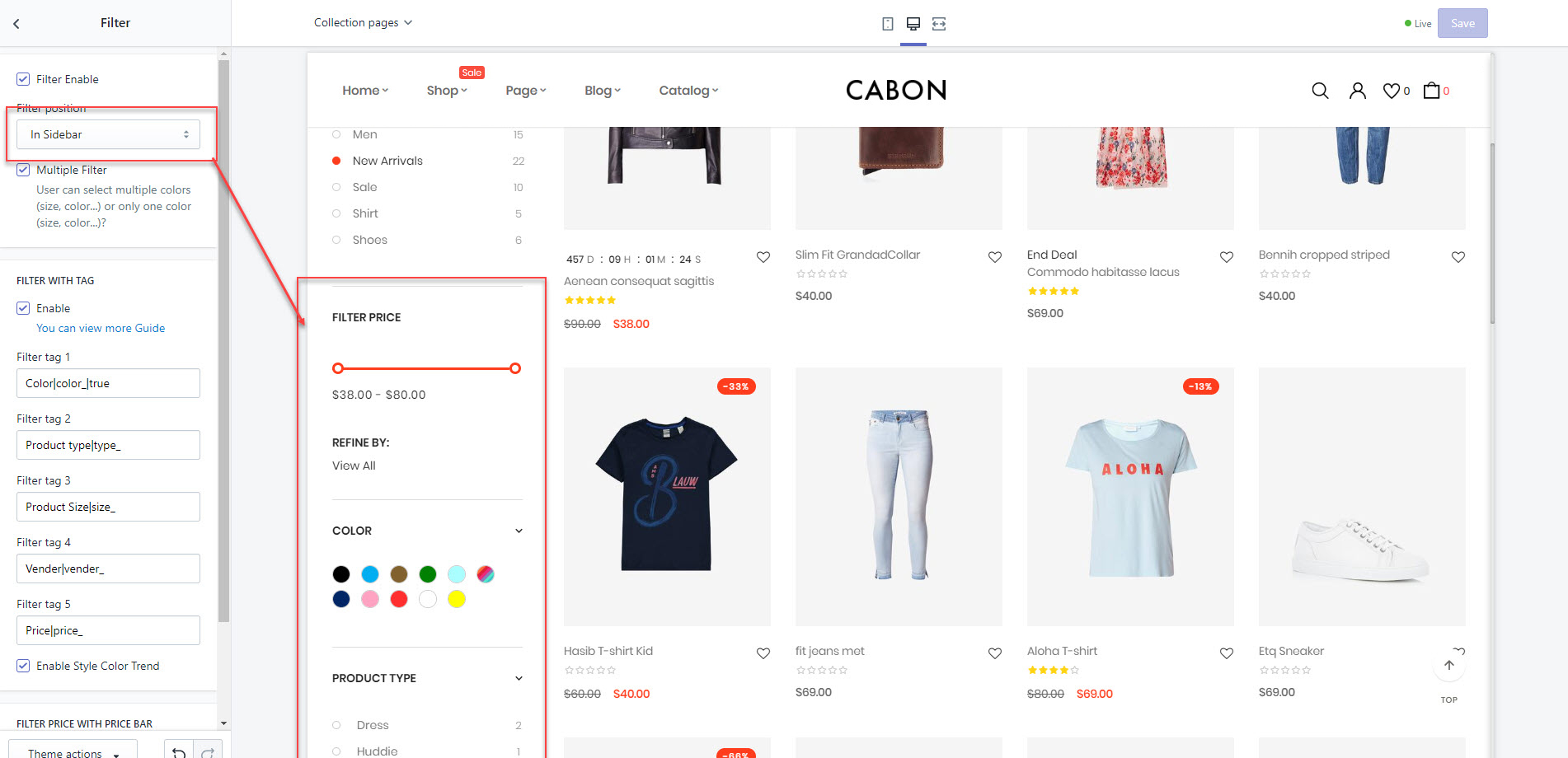
- Enable or Disable block Filter
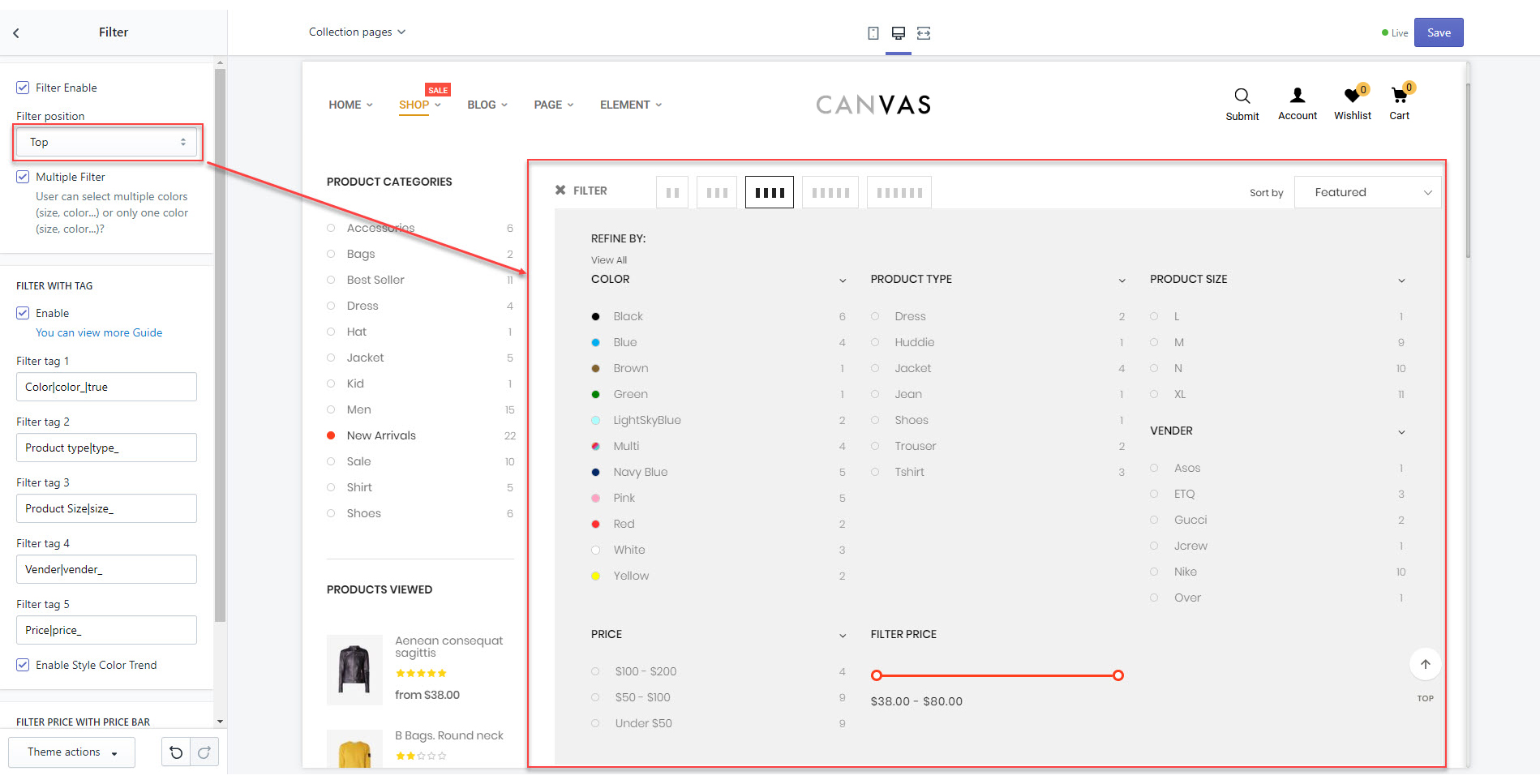
1. Filter with tag
- Filter with tag in product
+ In config input "[Titlle]|[prefixtag]_"
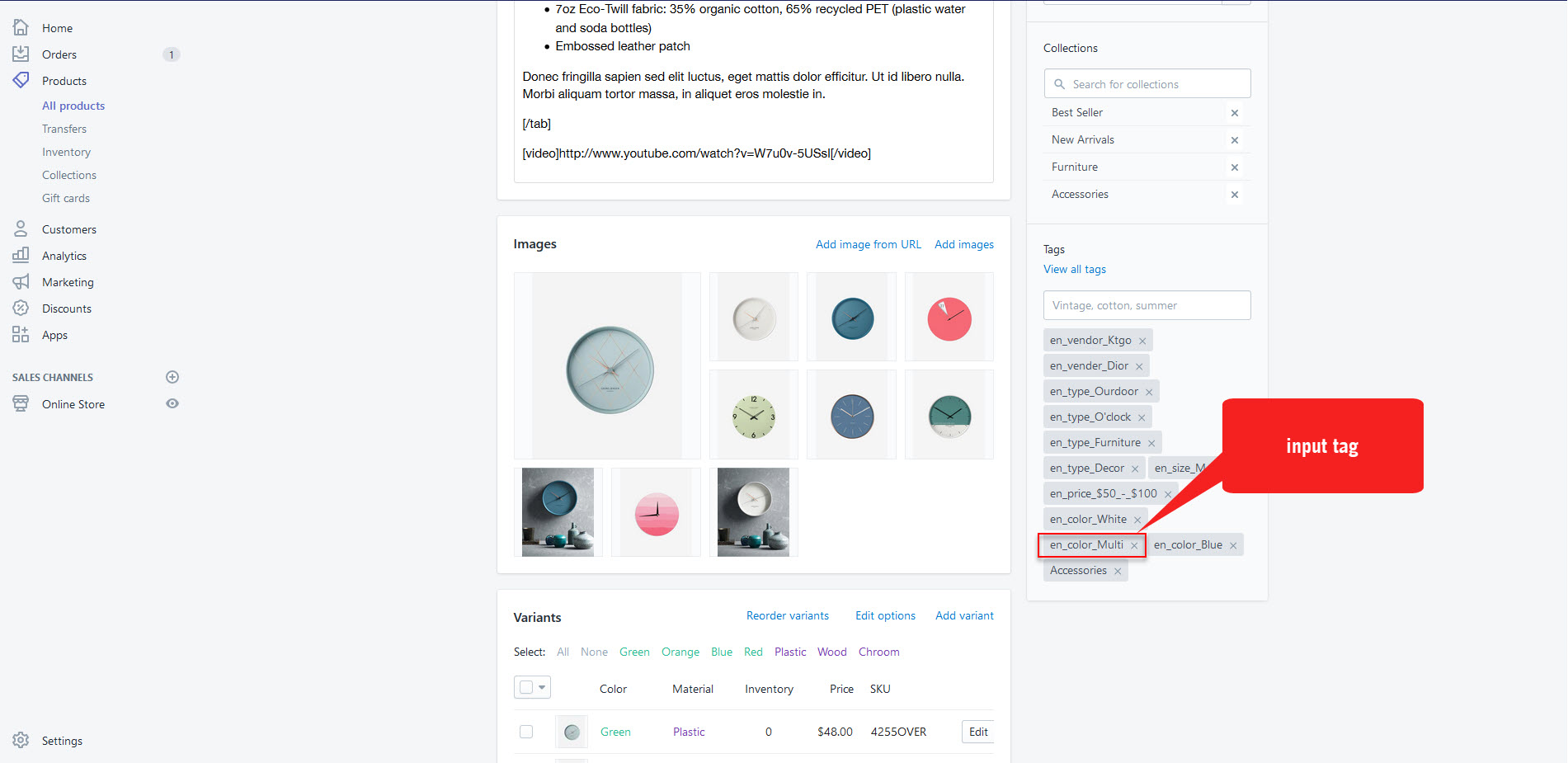
-Steps 2: Import Tag in Product
-Admin -> Products -> Products -> choose a product to input tag
+ Enter the tag of the product follow Structure: "[prefixtag]_[tagname]"
* If you use multiple languages, add the en prefix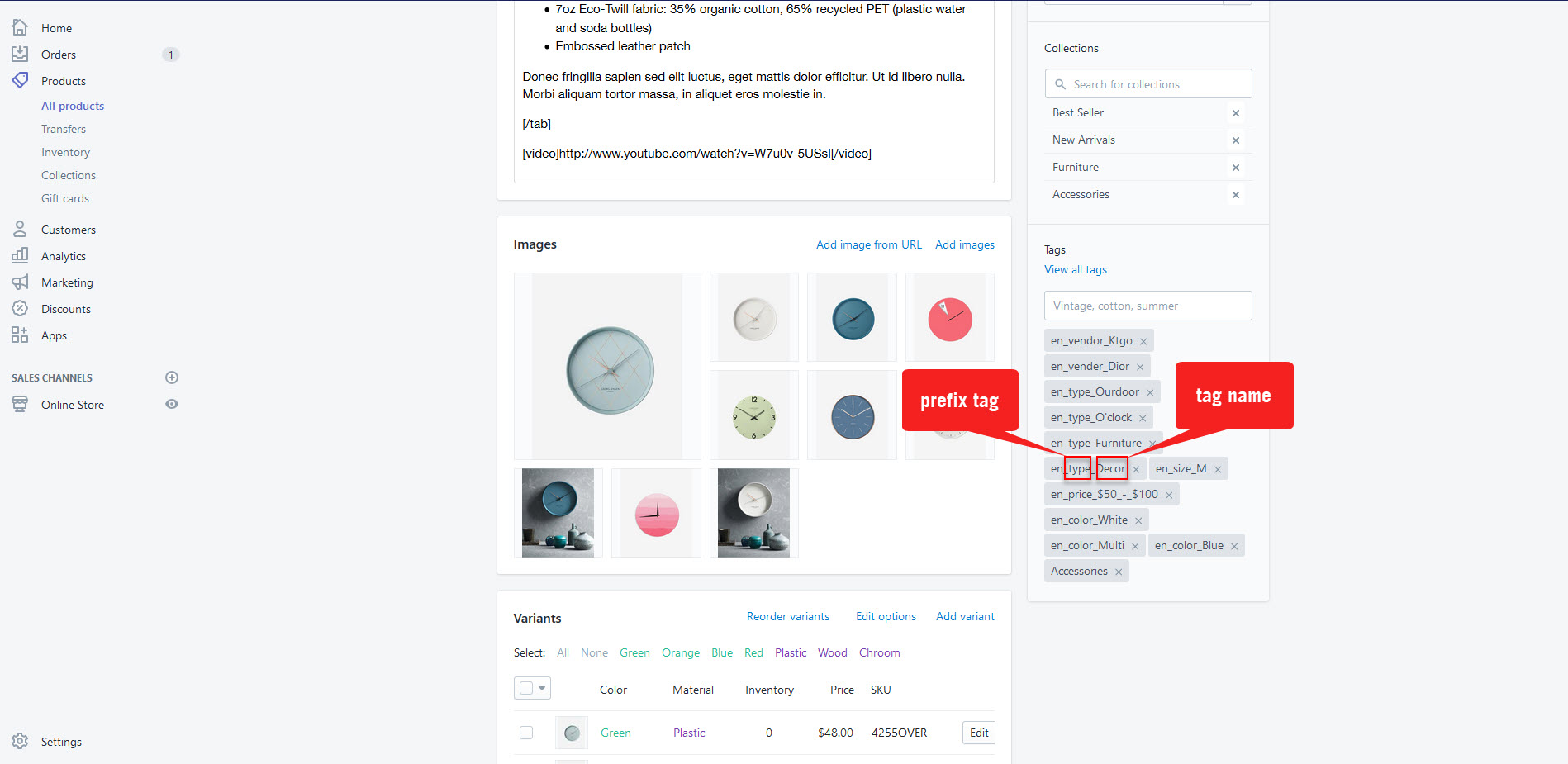
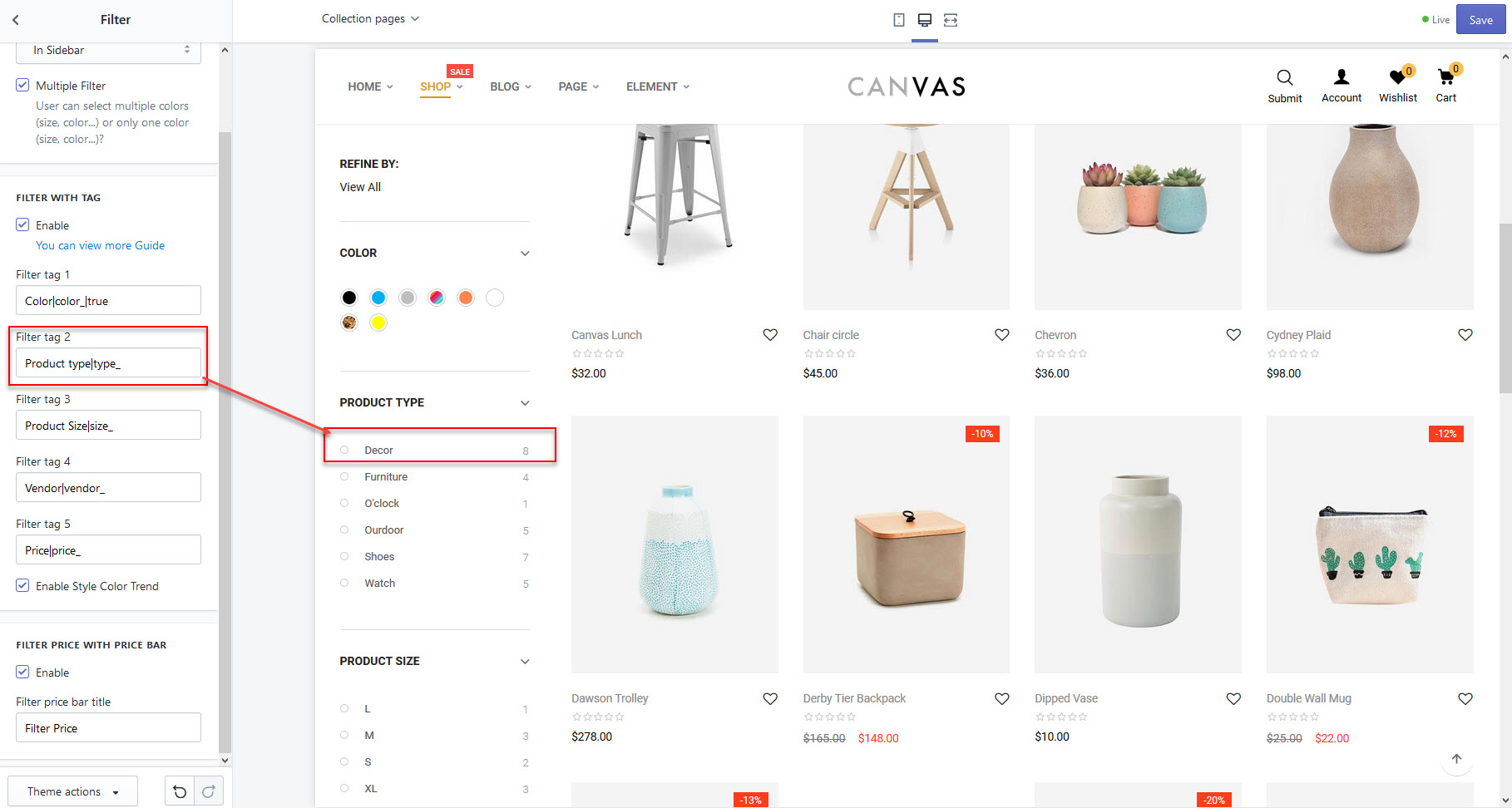
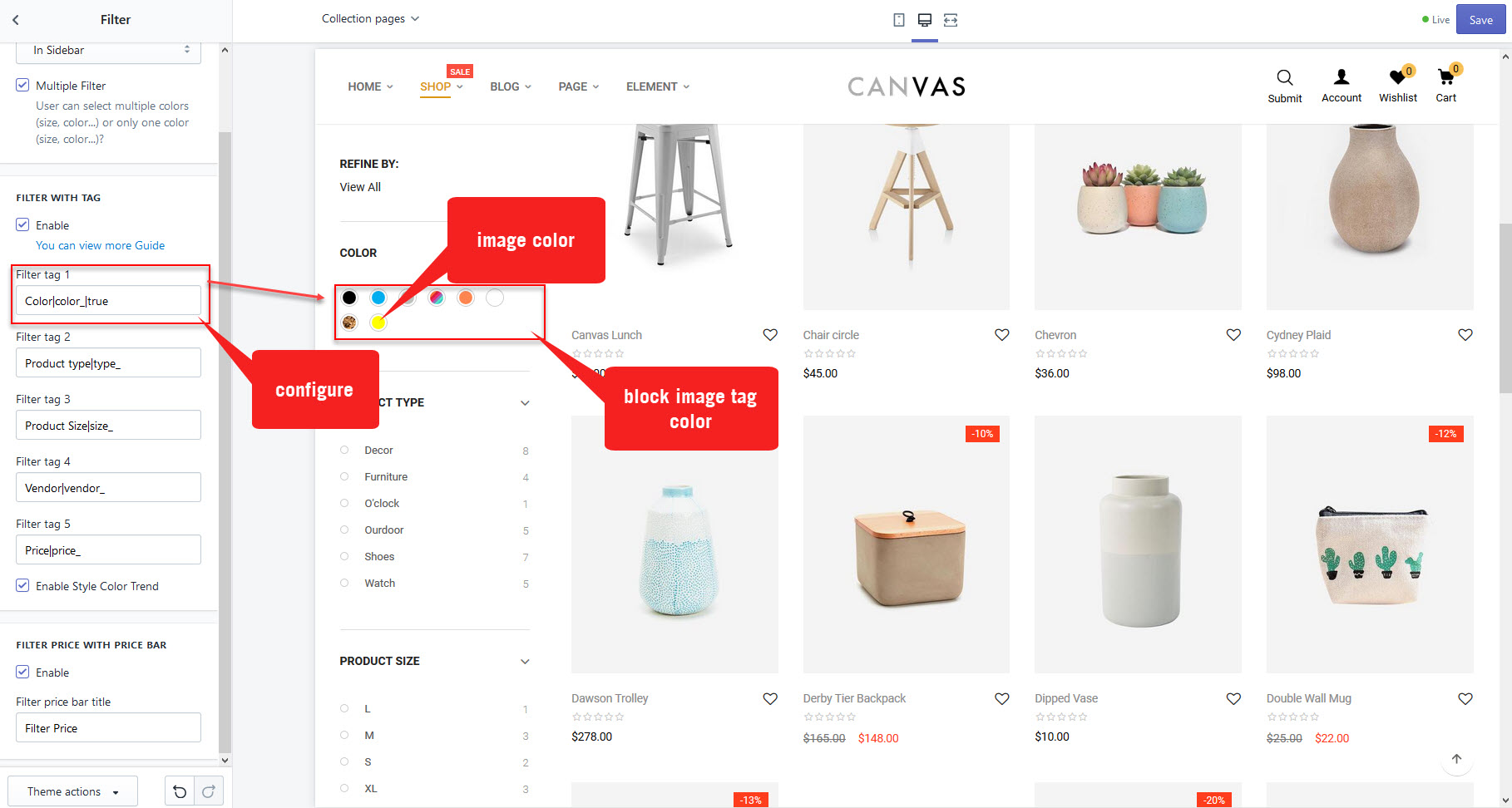
* If you want to show the same image, you can add "true" in config follow Structure: "[Titlle]|[prefixtag]_true"
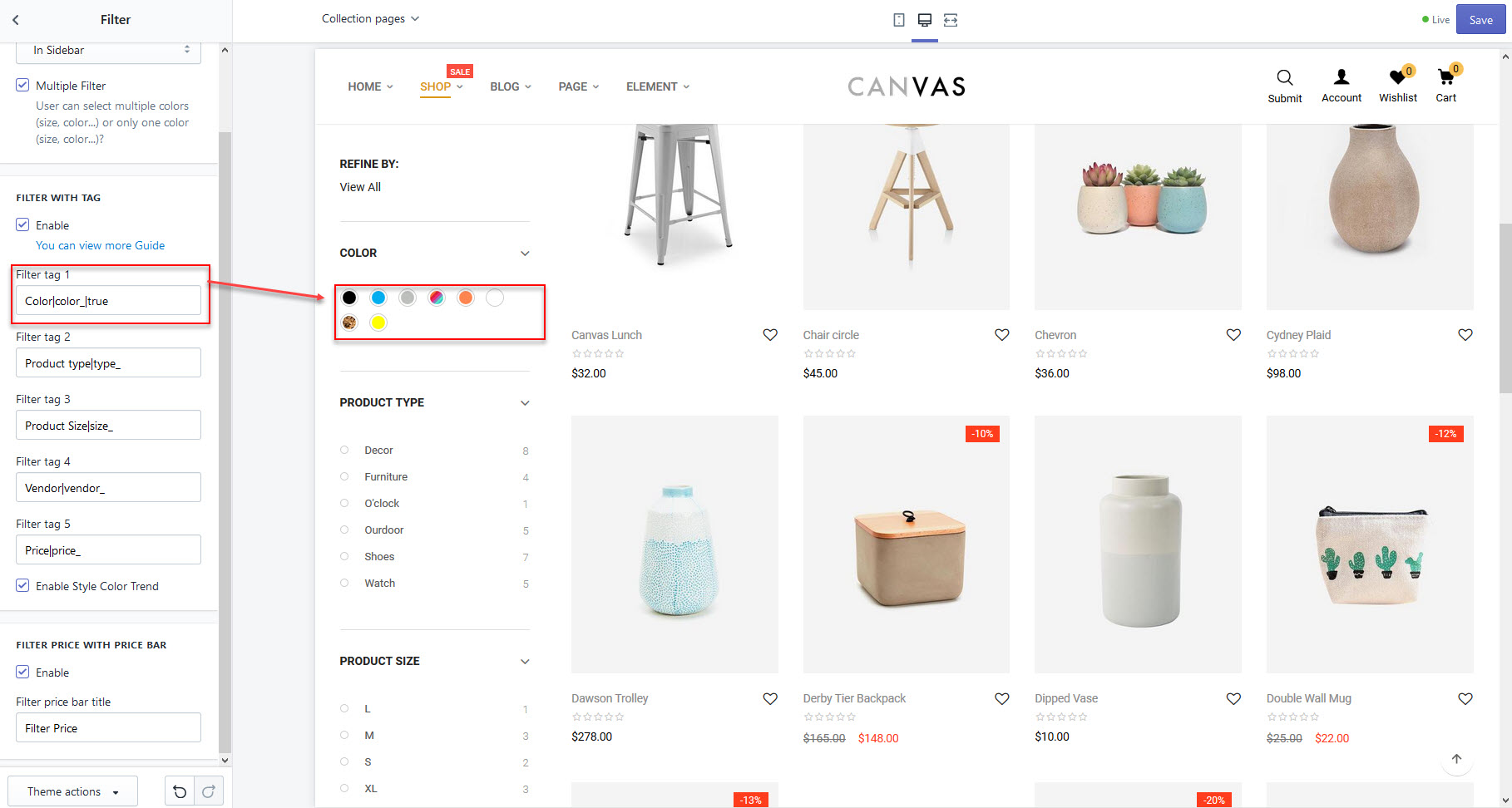
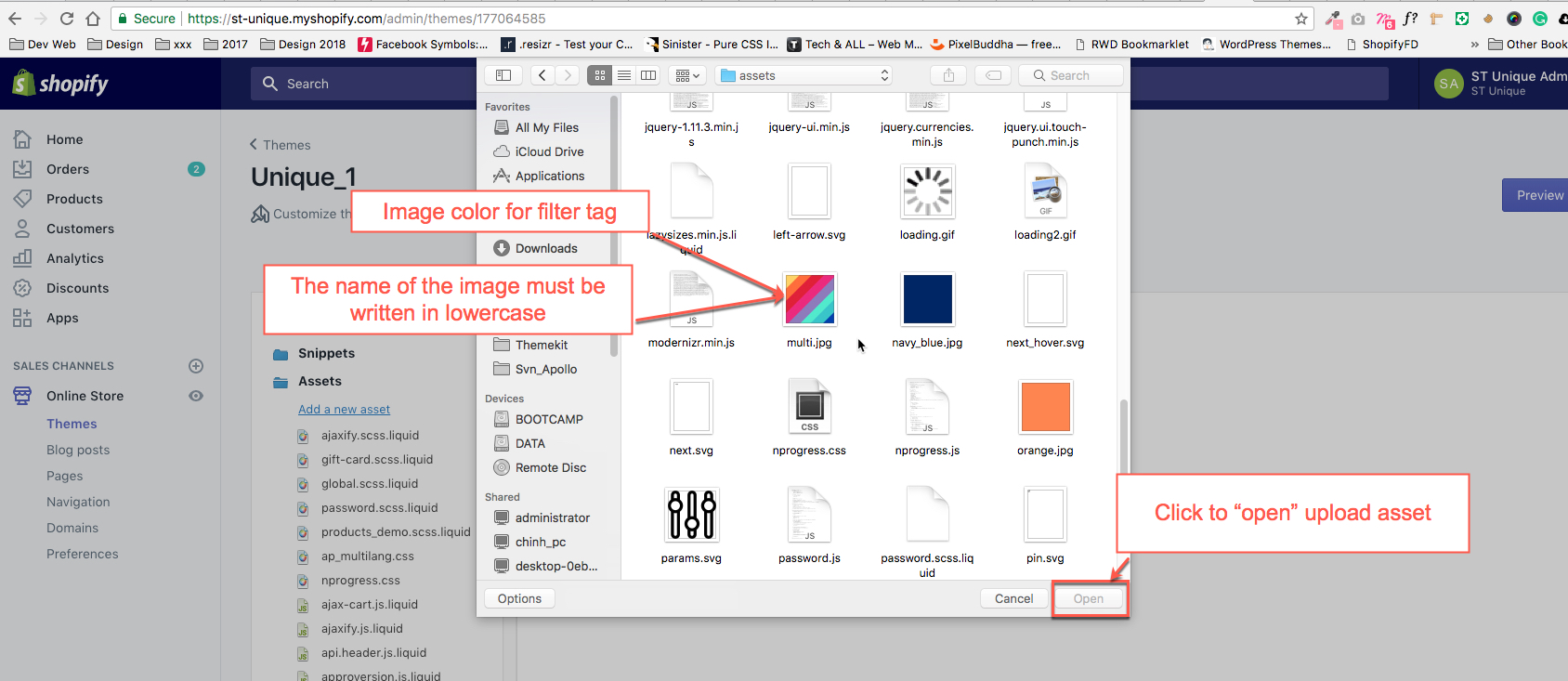
+ Name image same [tagname]. The name of the image must be written in lowercase vd: green, blue, white...v.v.
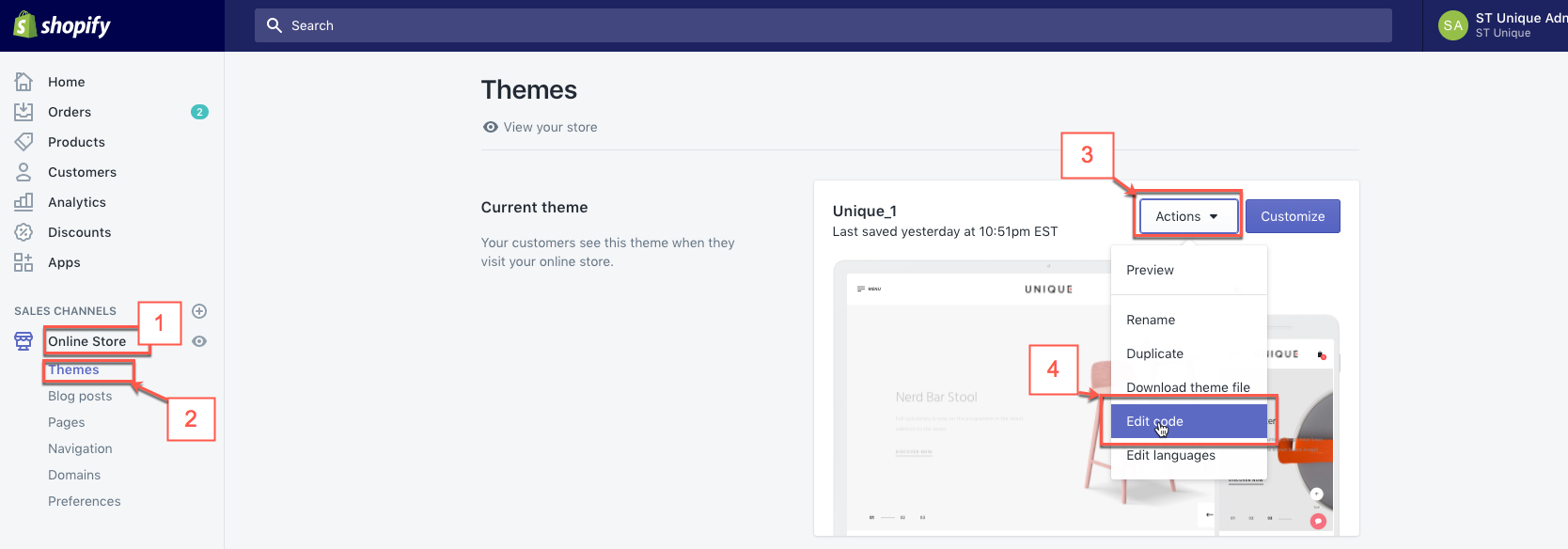
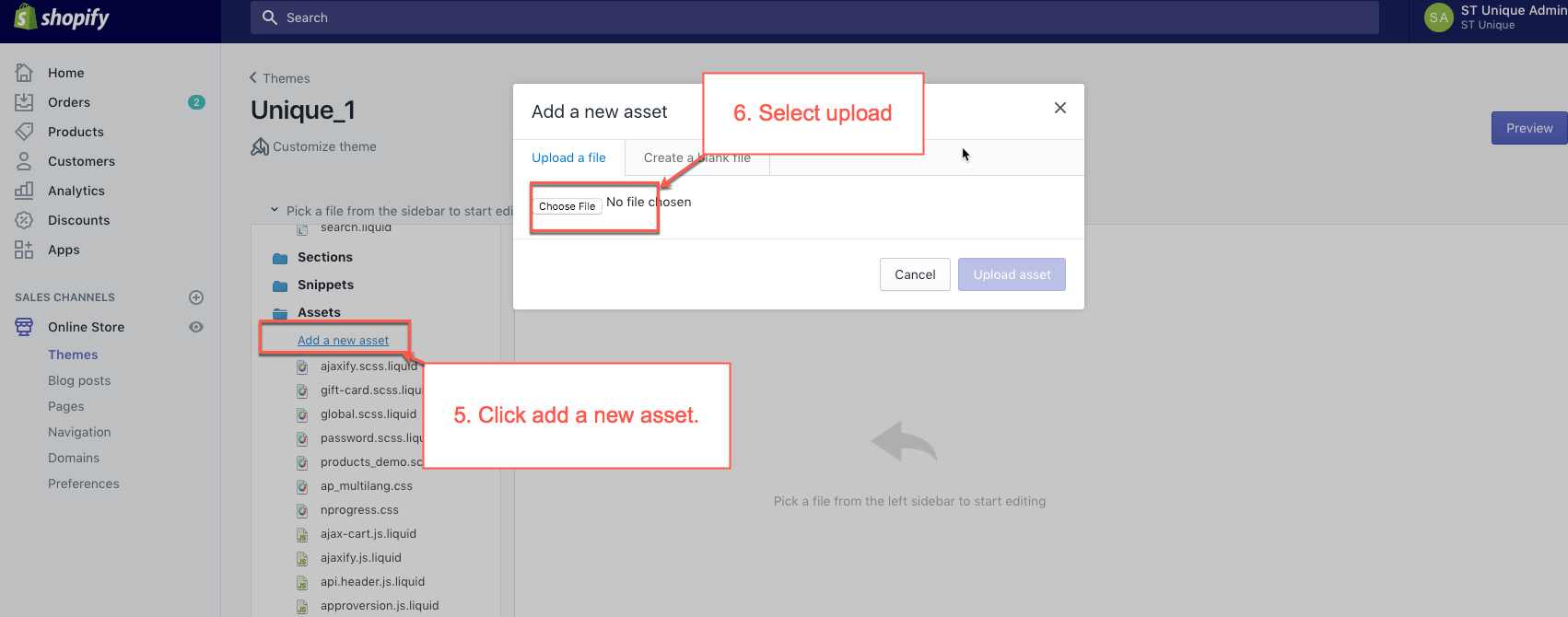
+ After upload Image on folder asset
Example: Create filter Tag Color Product By following the steps below:
-Steps 1: upload image color in asset follwing capture below
-Steps 2: Import Tag in Product
-Admin -> Products -> Products -> choose a product to input tag
-Steps 3: Admin -> Customize Theme -> General settings -> Scroll to block "Filter" -> FILTER WITH TAG -> checkbox Enable
- input Filter tag 1 follow tructure "Color|color_|true".
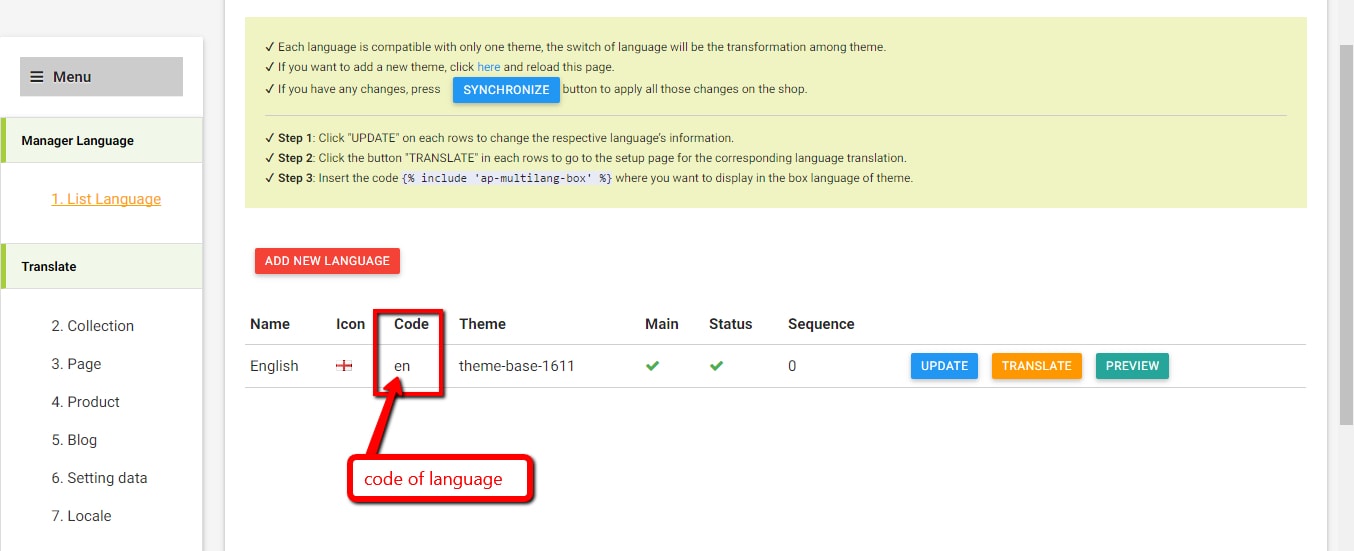
(*) Themes installed app "ap multiple language" need to add "en" in front of the tag structure: "[code]_[prefixtag]_[tagname]" Inside where [code] will correspond to each language
- to know the code: Admin -> App -> Ap Multi-language
- We can see [code] same capture below
Same for all filter tag
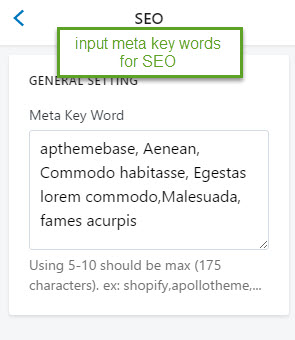
SEO
Checkout
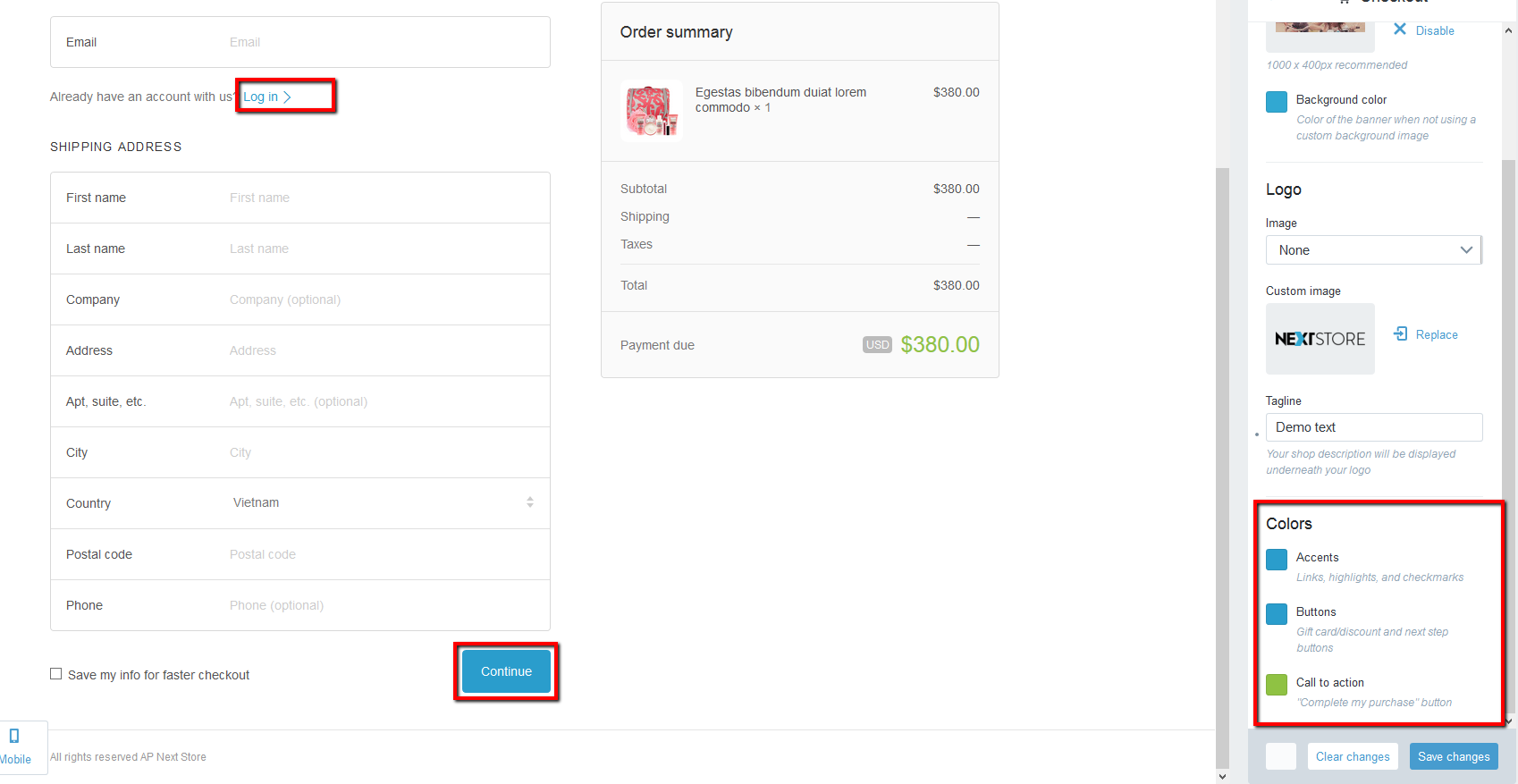
You can custom checkout page with option : logo , background-color ...
Go to Themes > Customize Theme > General settings > Checkout section.
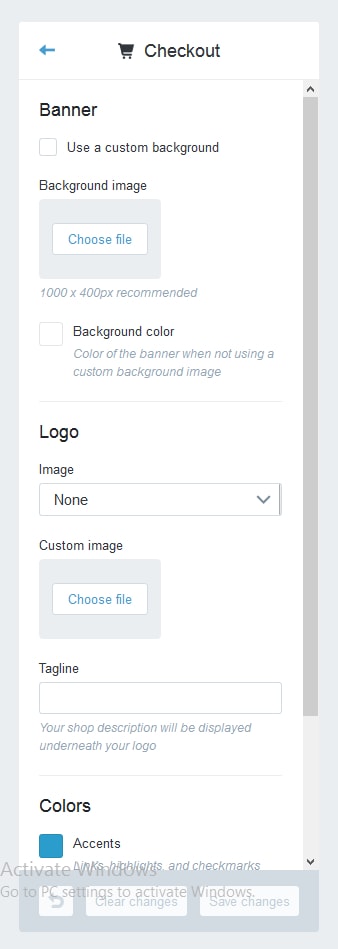
1. Banner
+) Use a custom background: You can Enable/Disable Use a custom background.
+) Background image: Upload custom background if you use it.
+) Background color: Background color for checkout page.
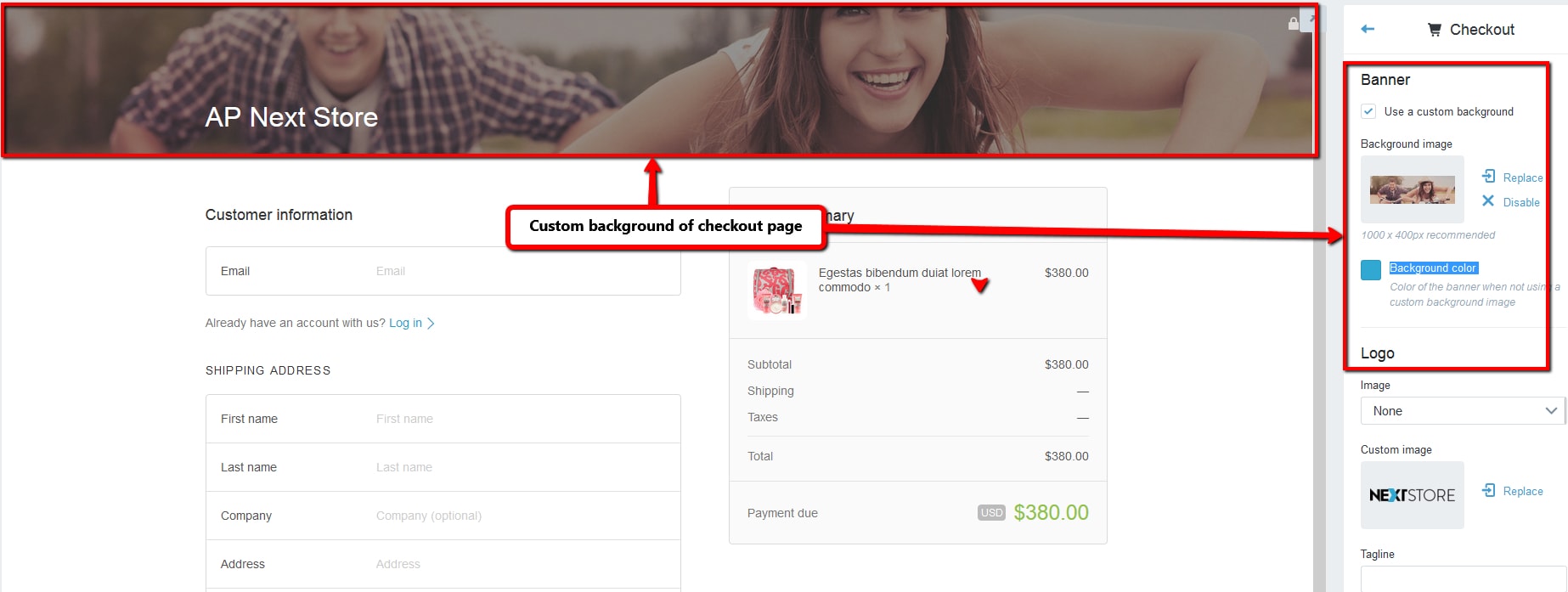
2. Logo
+) Image: You can choose logo for checkout page. There are type: None, Custom, Storefront
+) Custom image: Upload custom logo if you choose Custom.
+) Tagline: Text under your logo.
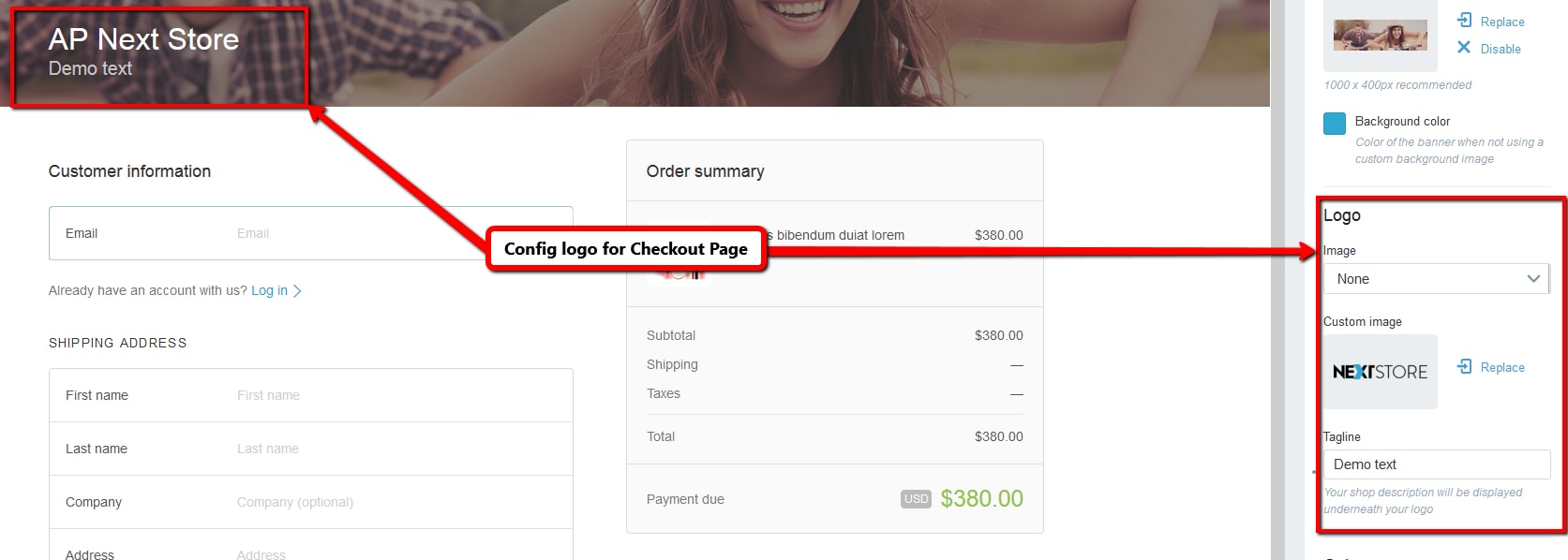
2. Colors
+) Accents : You can change code color for /p>
+) Custom image: Upload custom logo if you choose Custom.
+) Call to action: Text under your logo.
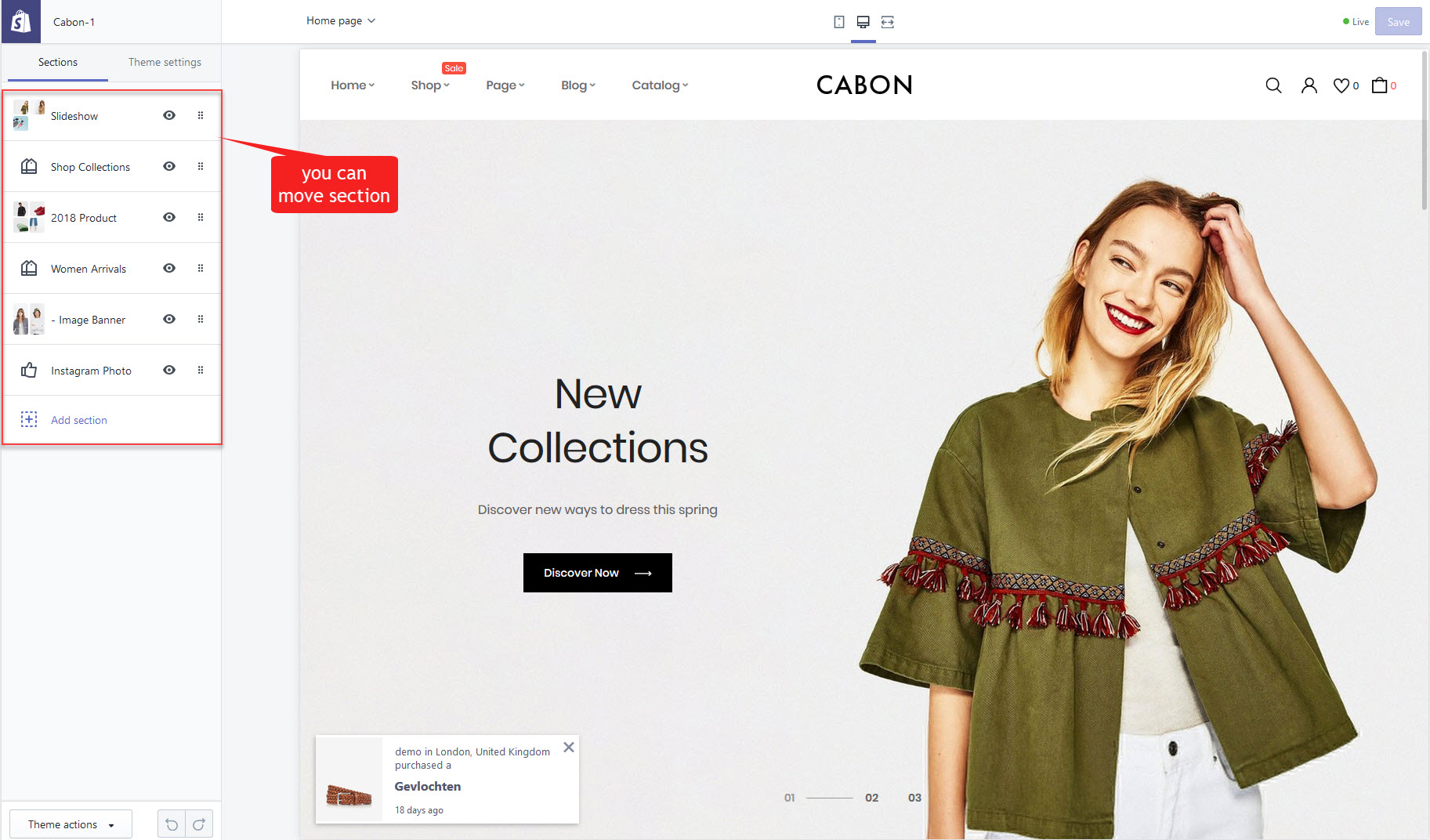
Section settings review
- Go to: Admin -> customize -> Sections
- Add section or delete section
Slideshow
- Add slideshow: Admin -> customize -> Sections -> Add sections -> slideshow
- Go to config: Admin -> customize -> Sections -> Scroll to block "Slideshow"
- Edit Layout
- You can On or Off auto rotate slides
- You can change time rotate
- You can change height section slideshow
- Change Animation
- You can change font size text slideshow
- You can change Button text
- You can change type Navigator
- You can change Arrow Style
- Enable Arrow vertical center
- Style Navigation
- Enable dot Center
- You can change Position Top
- Change Background Overlay
- Change Opacity Overlay

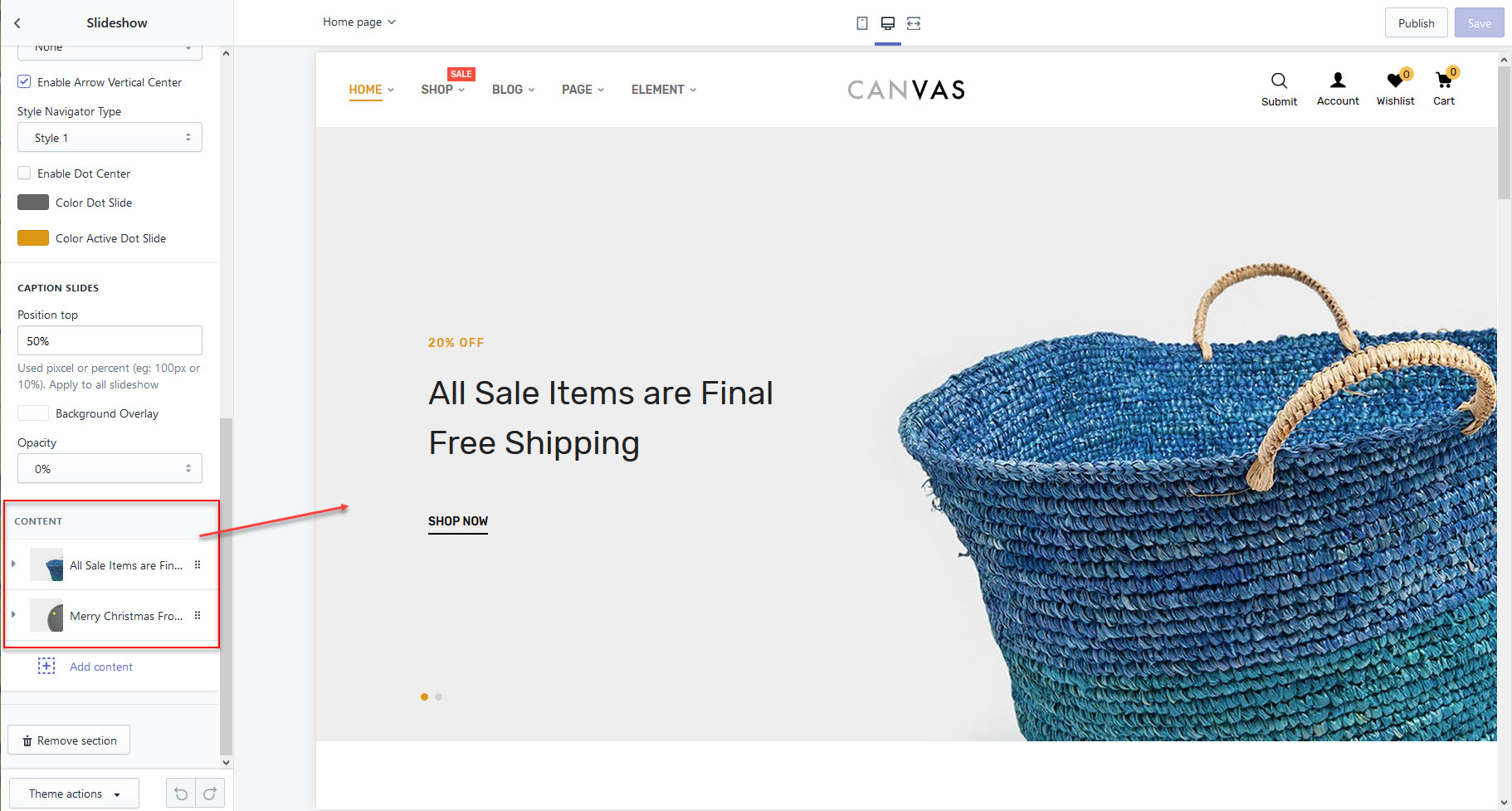
- to add slideshows, then click "Add content" -> click video or image
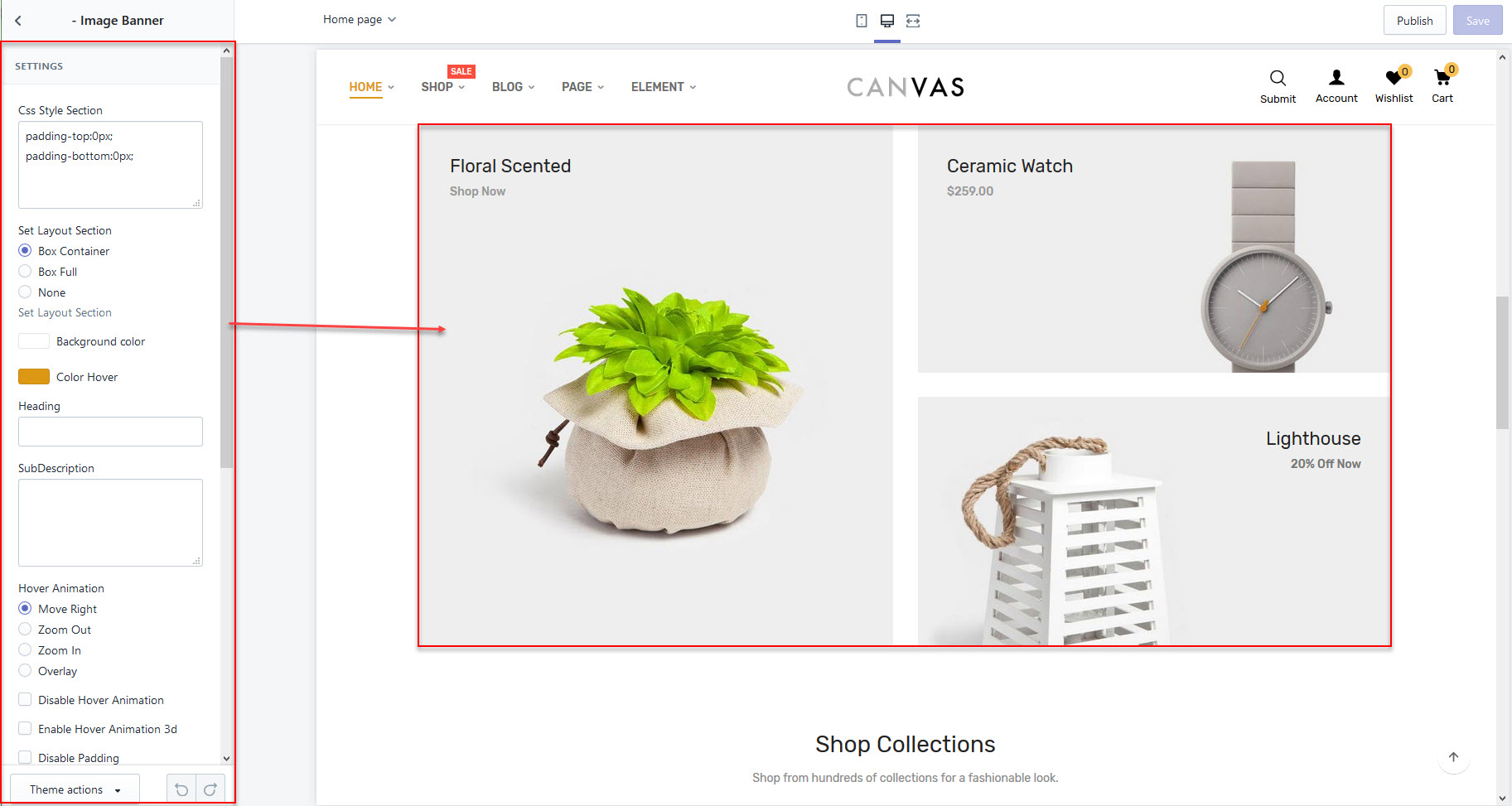
Banner
- Add Banner: Admin -> customize -> Sections -> Add sections -> Collection Image Banner
- Go to: Admin -> customize -> Sections -> Scroll to block "Collection Image Banner"
- Edit Css Padding Margin
- Edit Layout
- Edit Background
- Title
- Text Alignment
- Disable Animation hover
- Animation hover 3d
- Set column min for beauty layout
- You can add Image block
- Change Image
- Edit Height image
- Edit Column
- Edit Background Color
- Link Banner
- Caption
- Sub Caption
- Edit text color

Collection Tabs
- Add Block Product: Admin -> customize -> Sections -> Add sections -> Collection Product Tabs
- Go to config: Admin -> customize -> Sections -> Collection Product Tabs
- Edit Css Padding Margin
- Edit Layout
- Edit Background
- Title
- Edit Grid/ Slick Carousel
- Enable Dot
- Enable Arrows
- Limit Products
- Column products
- Rows Slick Carousel
- Slide to scroll
- Column products for Screen Desktop small
- Column products for Screen Table
- Column products for Phone Table
- Interval Carousel
- Button & Link
- add Tab
- Tab Name
- Select Collection
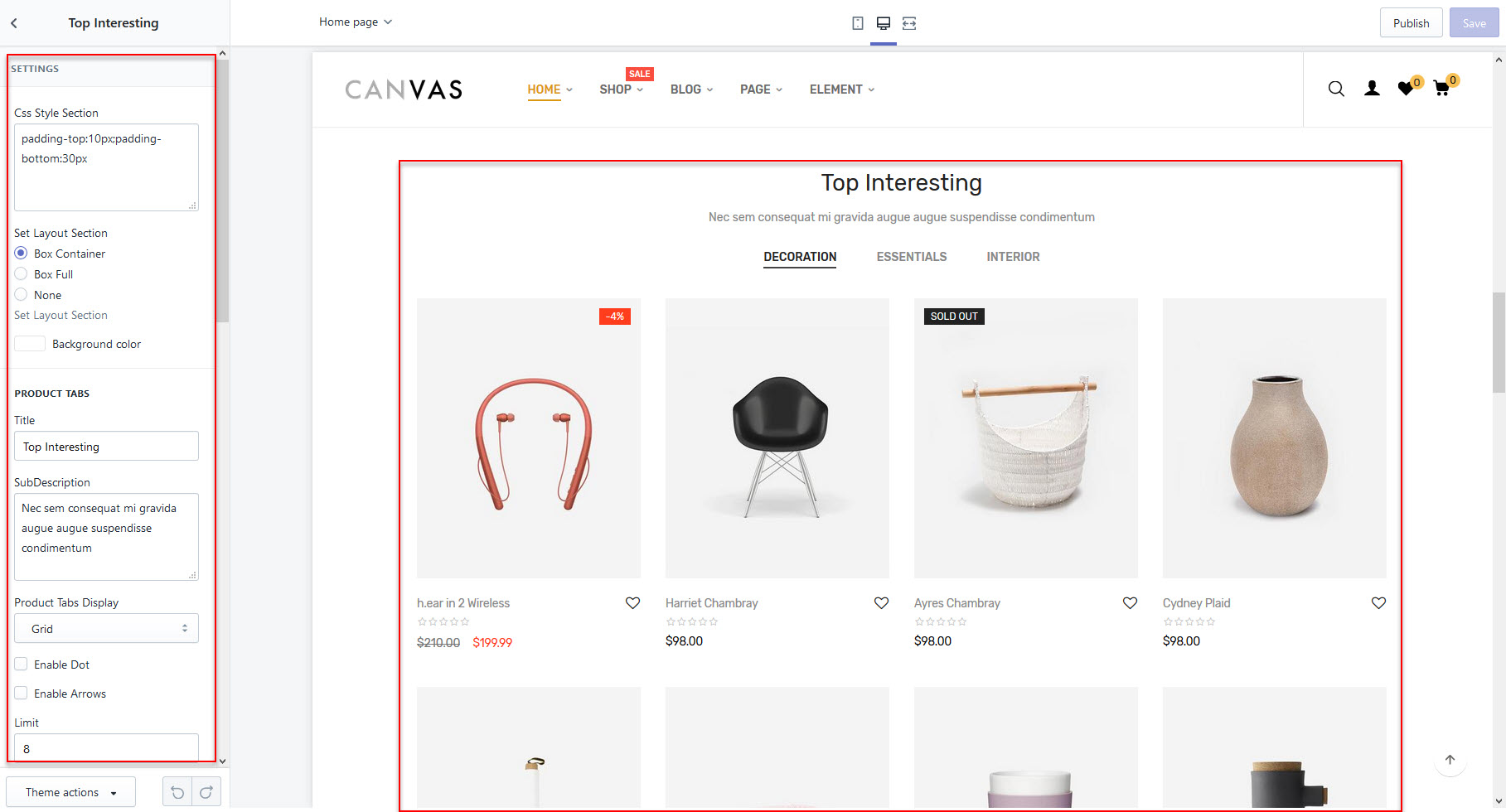

All product blocks are similarly configured
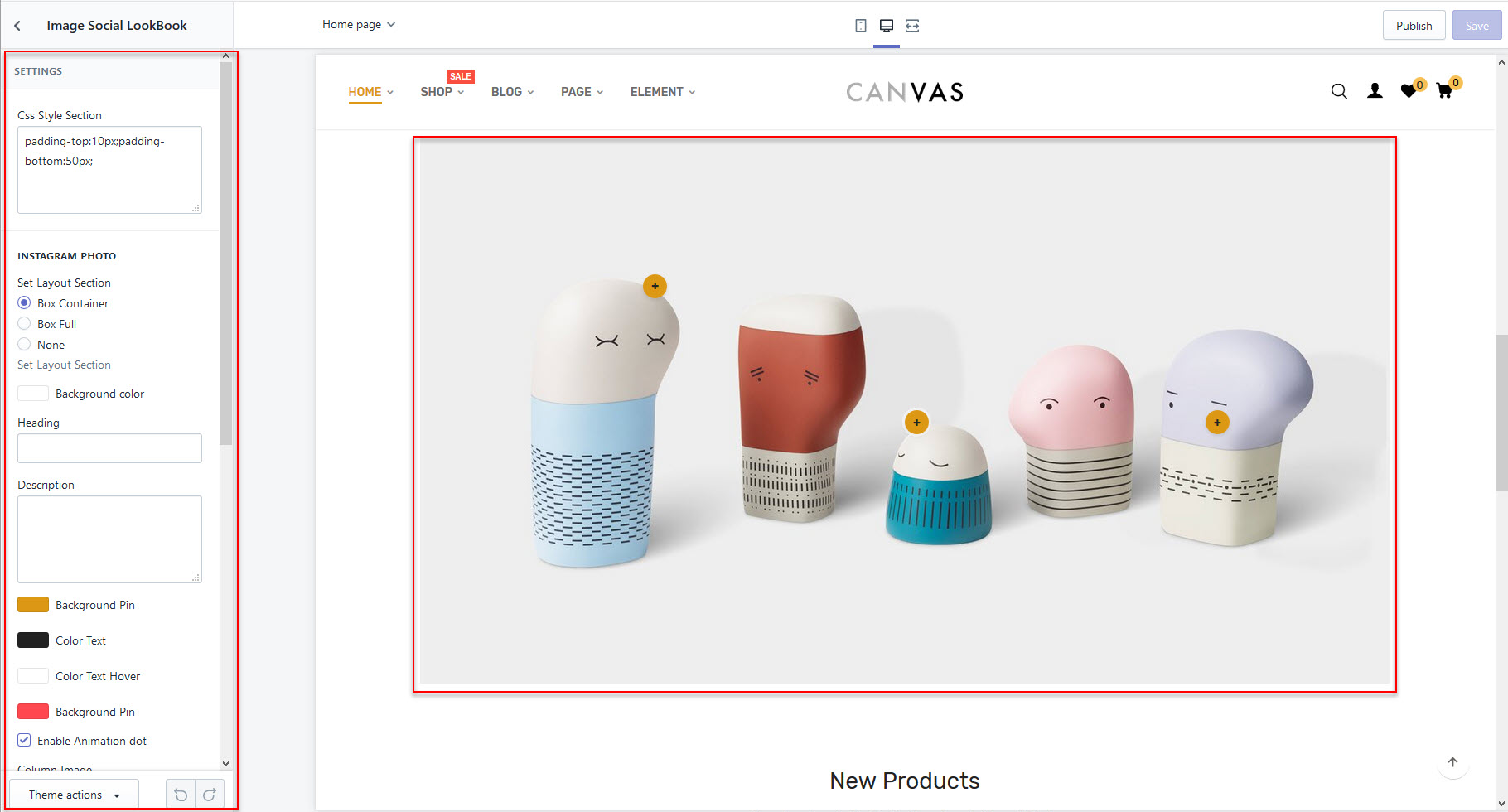
The Lookbook
- Add Service: Admin -> customize -> Sections -> Add sections -> "Image Lookbook"
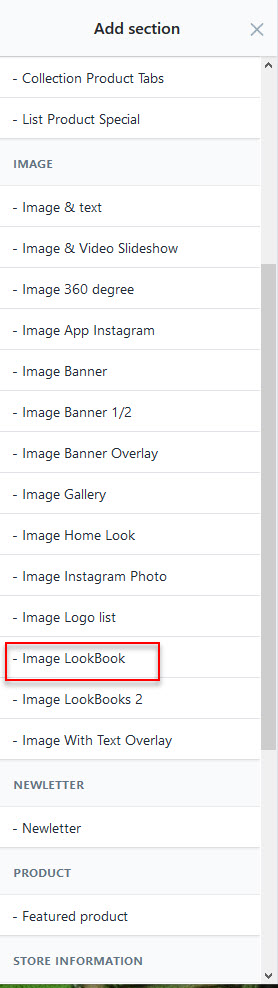
- Go to config: Admin -> customize -> Sections -> Scroll to block "Image Lookbook"

The Lookbook 2
- Add Service: Admin -> customize -> Sections -> Add sections -> "Image Lookbook 2"
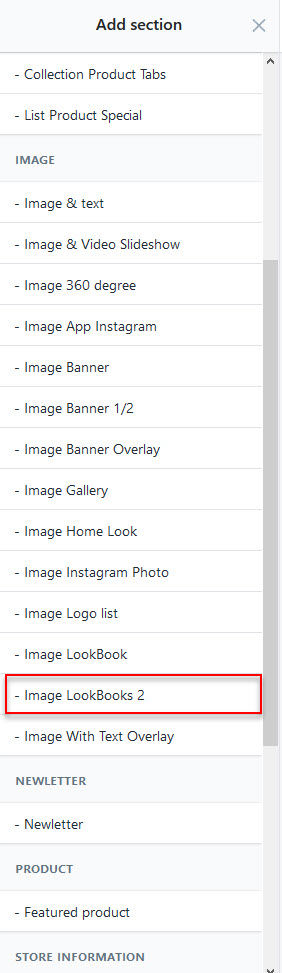
- Go to config: Admin -> customize -> Sections -> Scroll to block "Image Lookbook 2"
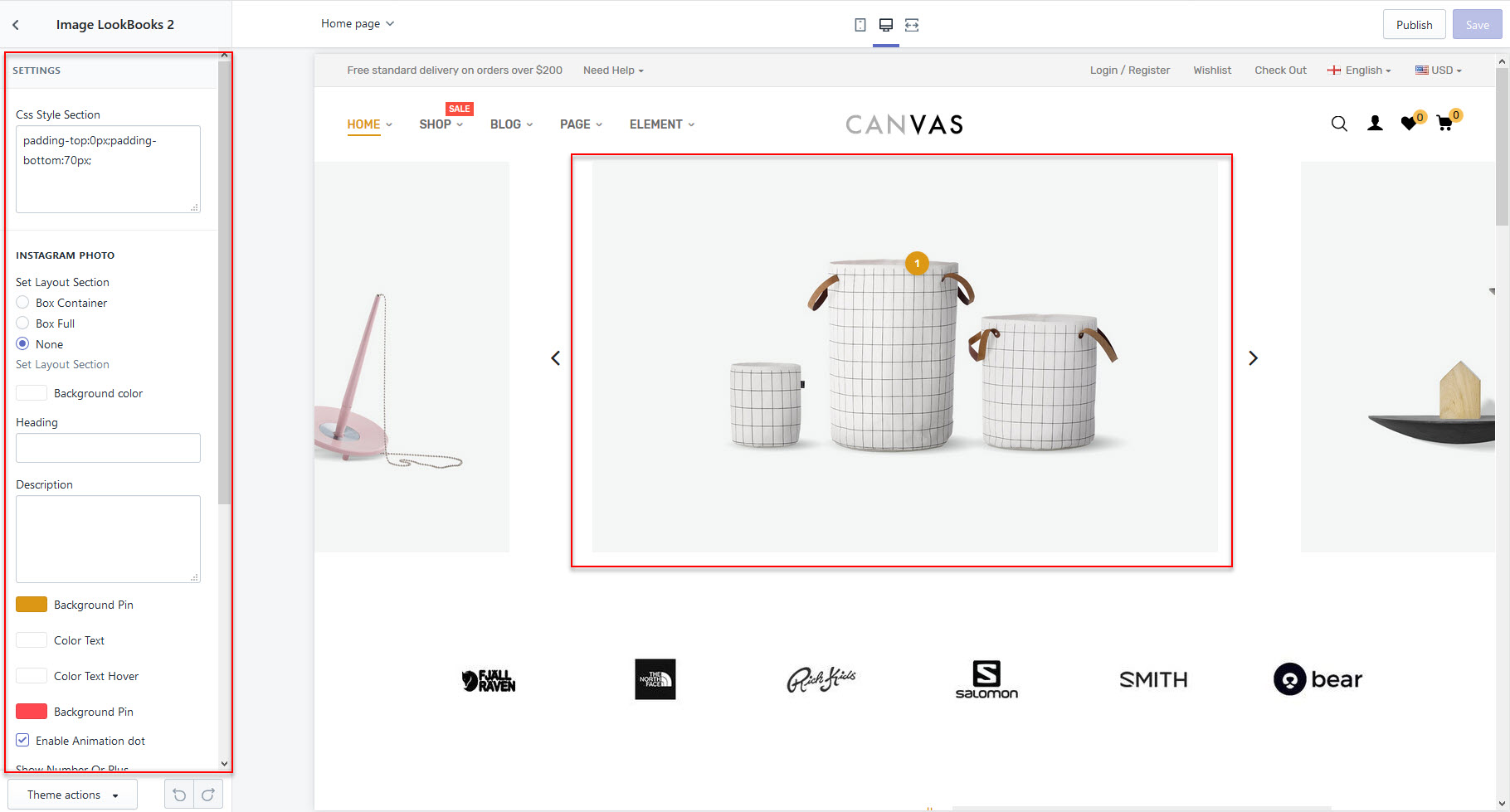
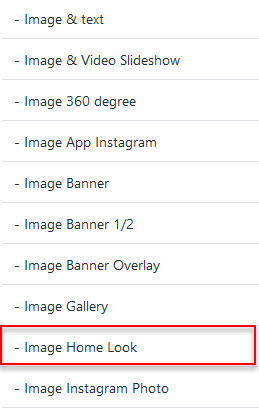
Image Home Look
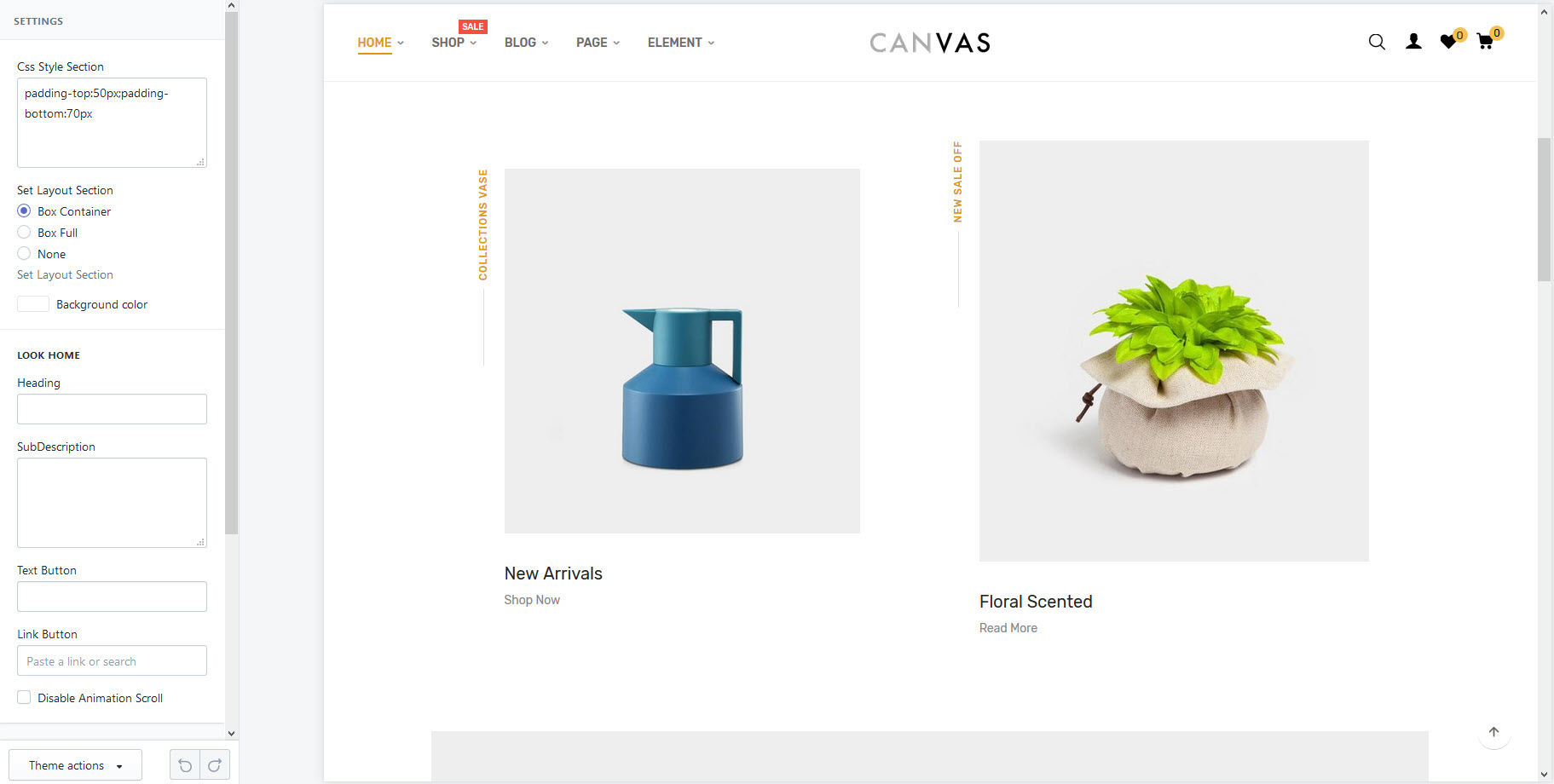
- Add Service: Admin -> customize -> Sections -> Add sections -> "Home Look"
- Go to config: Admin -> customize -> Sections -> Scroll to block "Home Look"
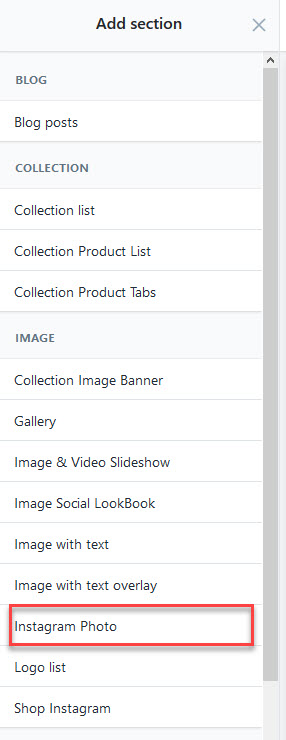
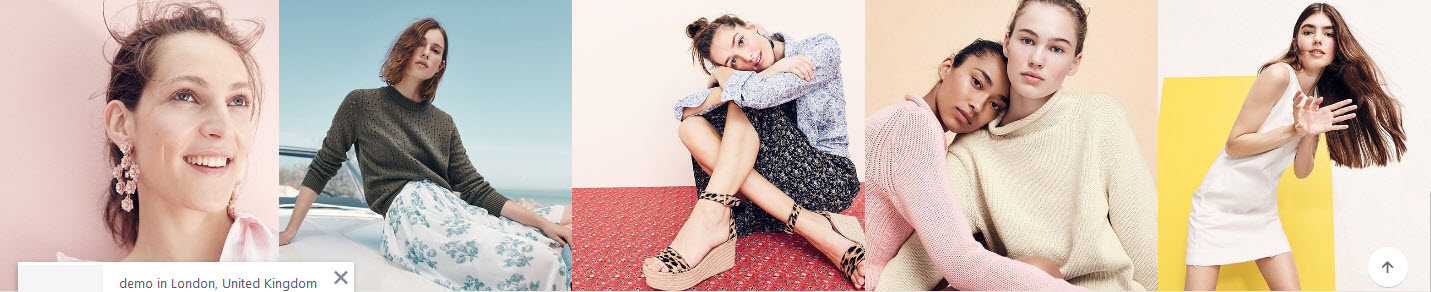
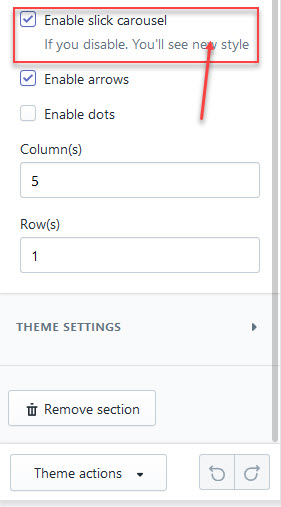
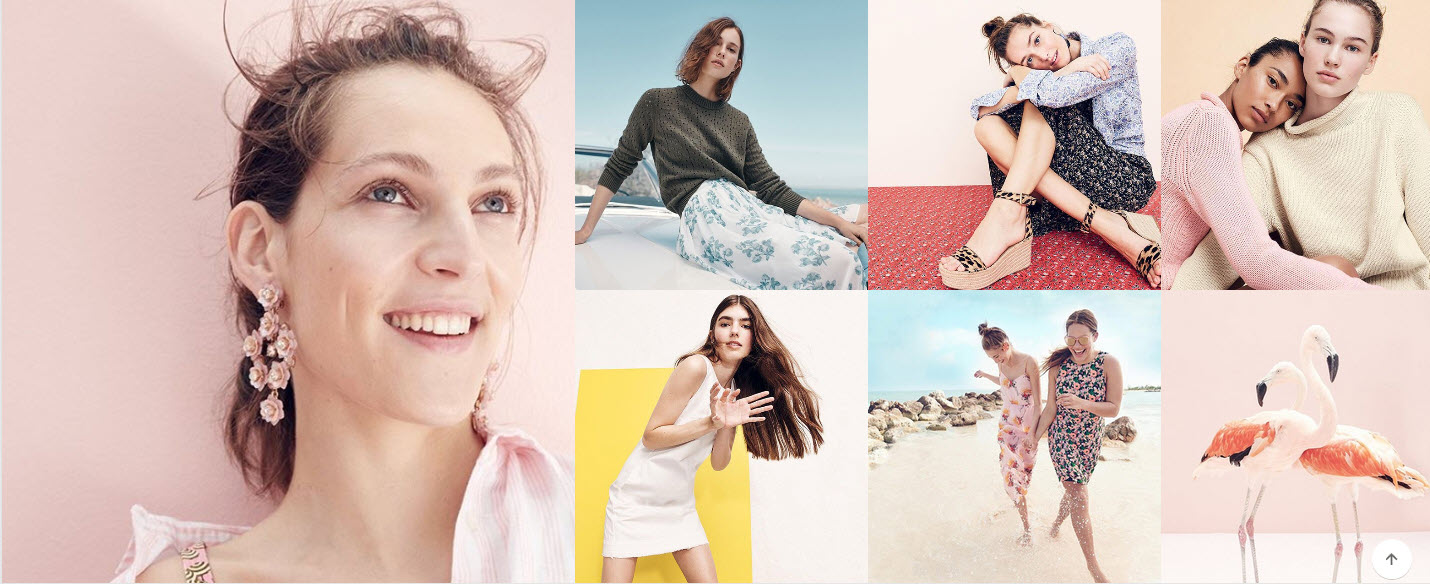
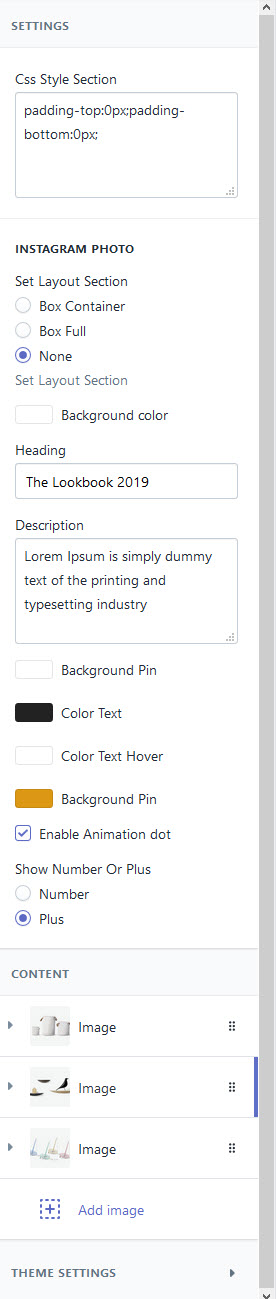
- Add Instagram: Admin -> customize -> Sections -> Add sections -> "Instagram Photo"
- Go to: Admin -> customize -> Sections -> Scroll to block "Instagram Photo"

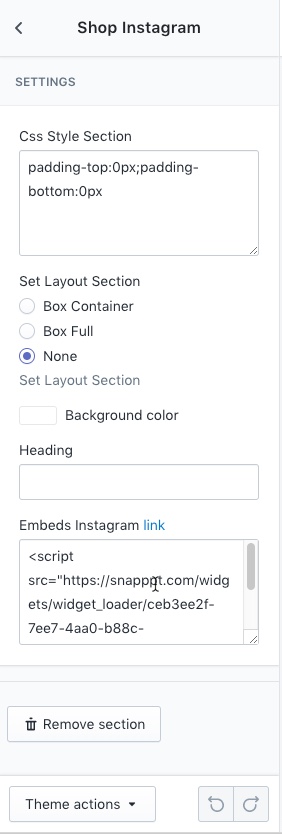
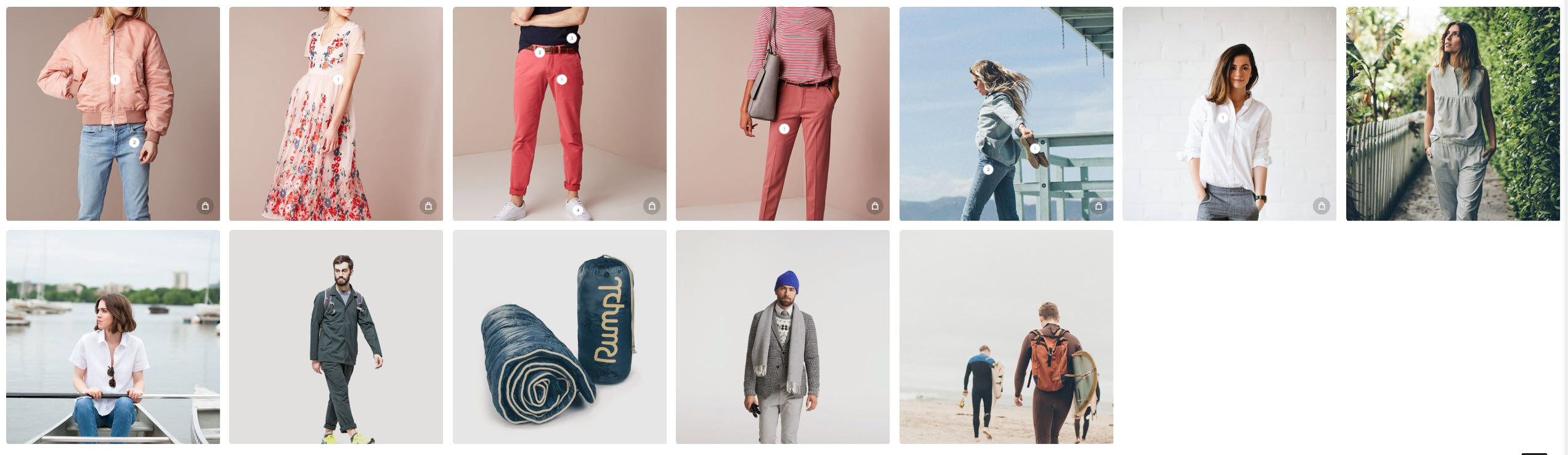
Instagram Shop
- Add Instagram: Admin -> customize -> Sections -> Add sections -> "Shop Instagram "
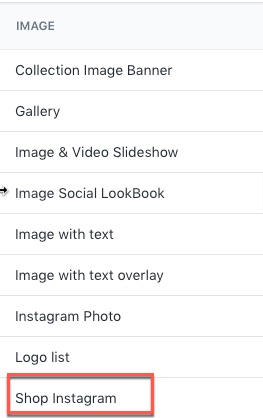
- Go to: Admin -> customize -> Sections -> Scroll to block "Shop Instagram "
Blog posts
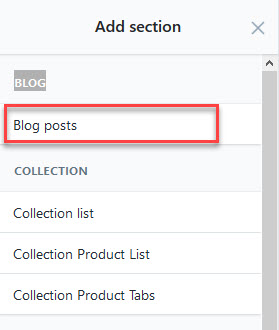
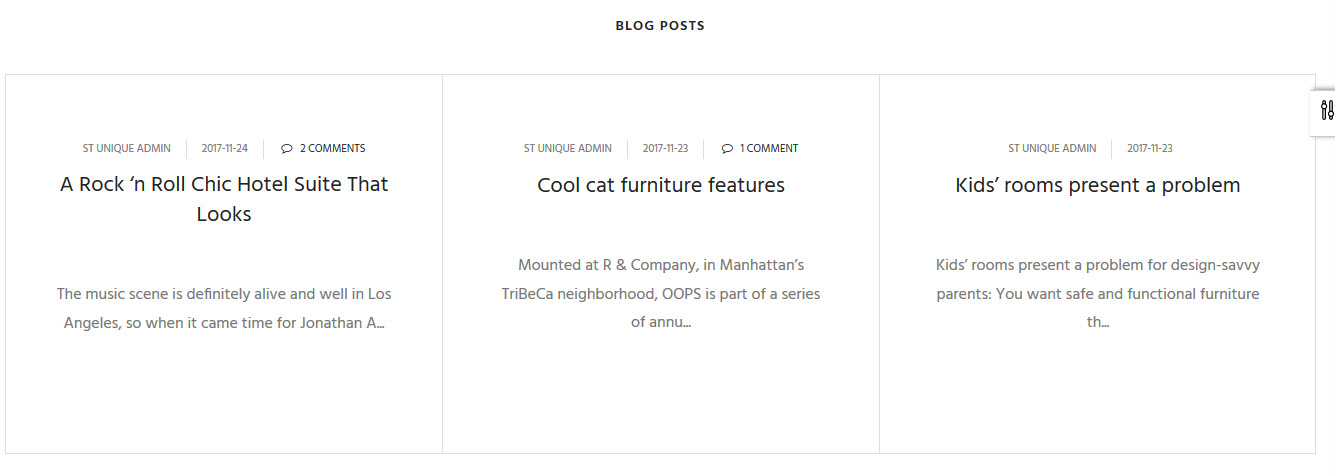
-Add Blog posts: Admin -> customize -> Sections -> Add sections -> "Blog posts"

Brand logo
-Add Brand logo: Admin -> customize -> Sections -> Add sections -> "Logo list"
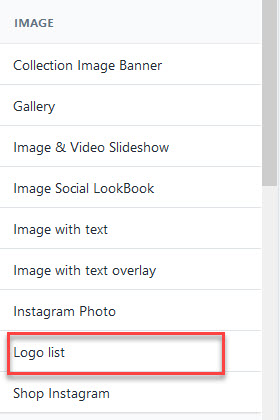
- Go to config:Admin -> customize -> Sections -> Scroll to block "Brand logo"


Service
-Add Service: Admin -> customize -> Sections -> Add sections -> "Service"
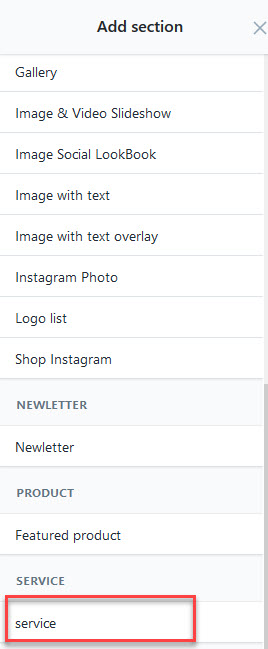
- Go to config:Admin -> customize -> Sections -> Scroll to block "Service"
- you can get svg https://www.flaticon.com/ or font fontawesome.io

Image With Text Overlay
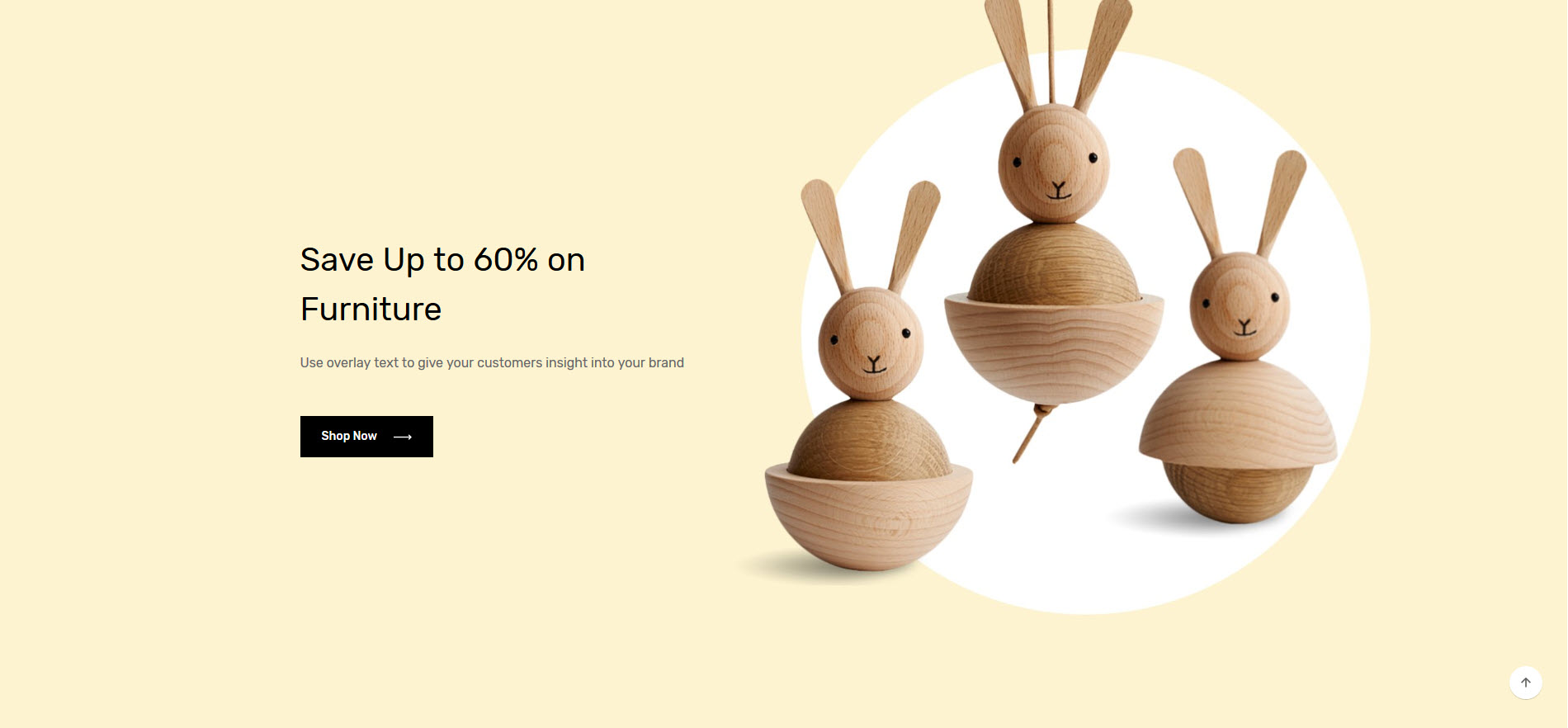
-Add Image With Text Overlay: Admin -> customize -> Sections -> Add sections -> "Image With Text Overlay"
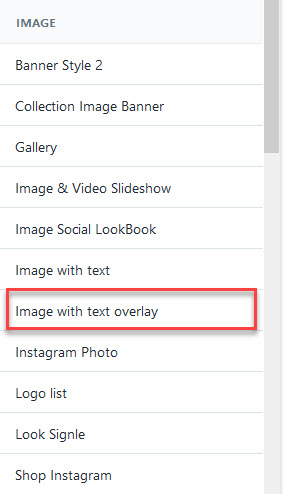
- Go to config:Admin -> customize -> Sections -> Scroll to block "Image With Text Overlay"

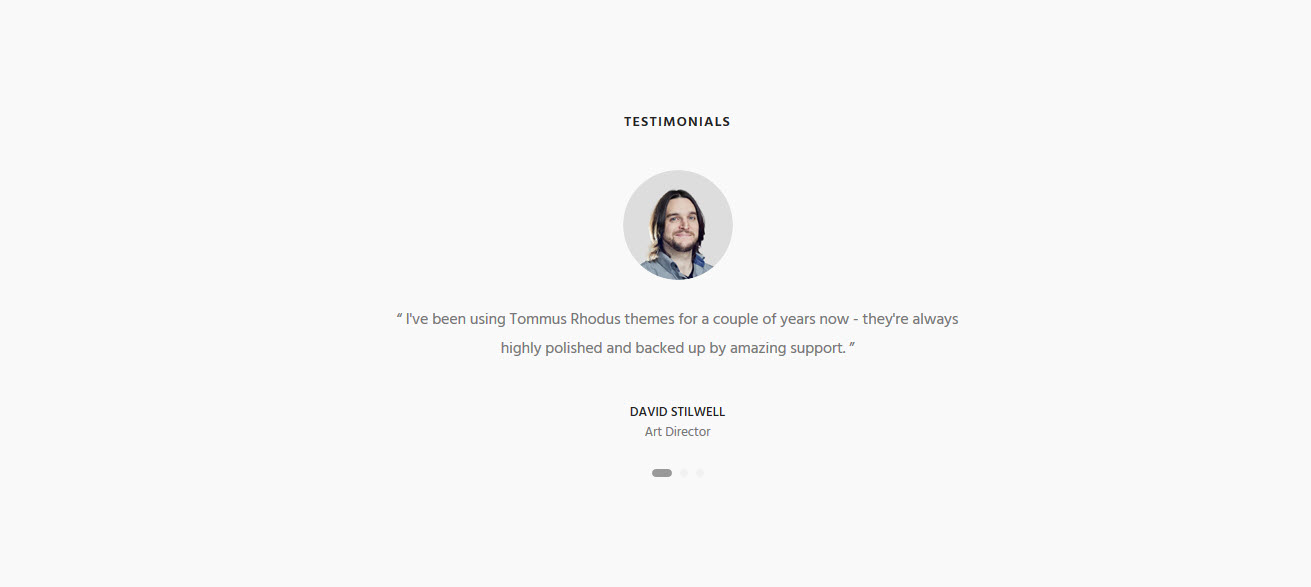
Testimonial
-Add Testimonial: Admin -> customize -> Sections -> Add sections -> "Testimonial"
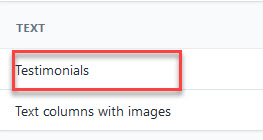
- Go to config:Admin -> customize -> Sections -> Scroll to block "Testimonial"

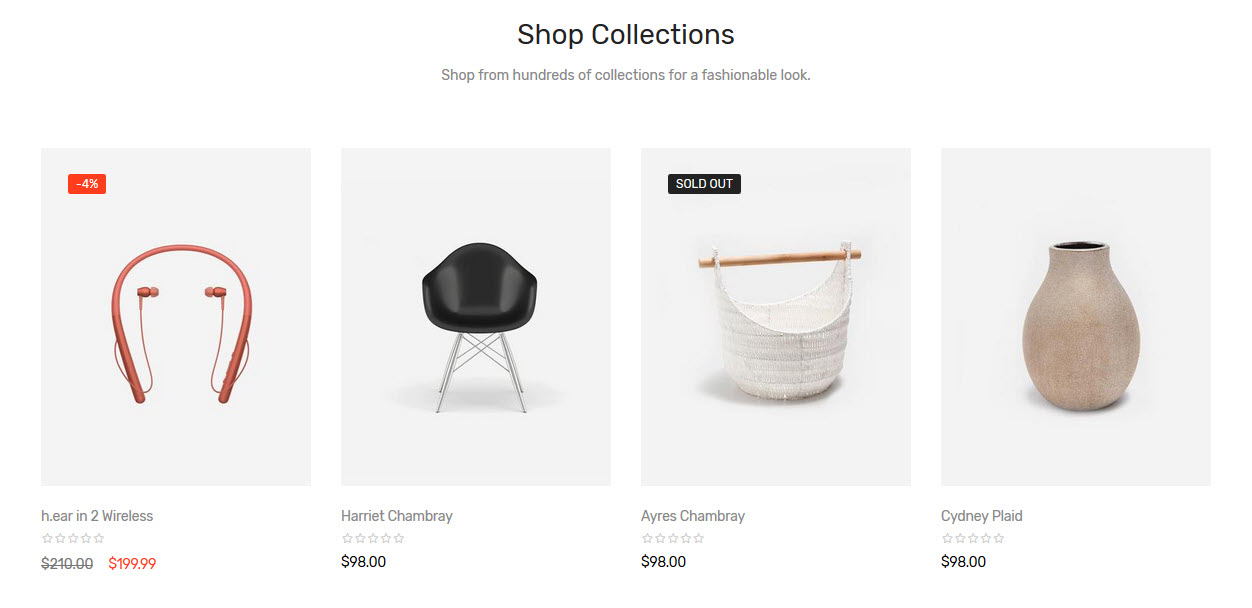
Collection Product Style 1
-Add Collection Product List: Admin -> customize -> Sections -> Add sections -> "Collection Product Style 1"
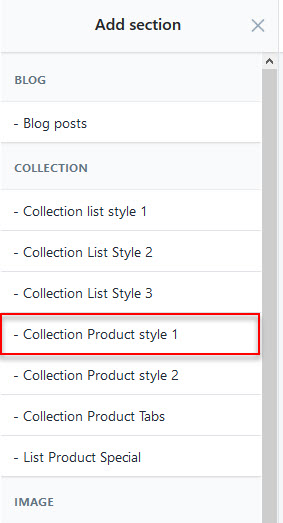
- Go to config:Admin -> customize -> Sections -> Scroll to block "Collection Product Style 1"

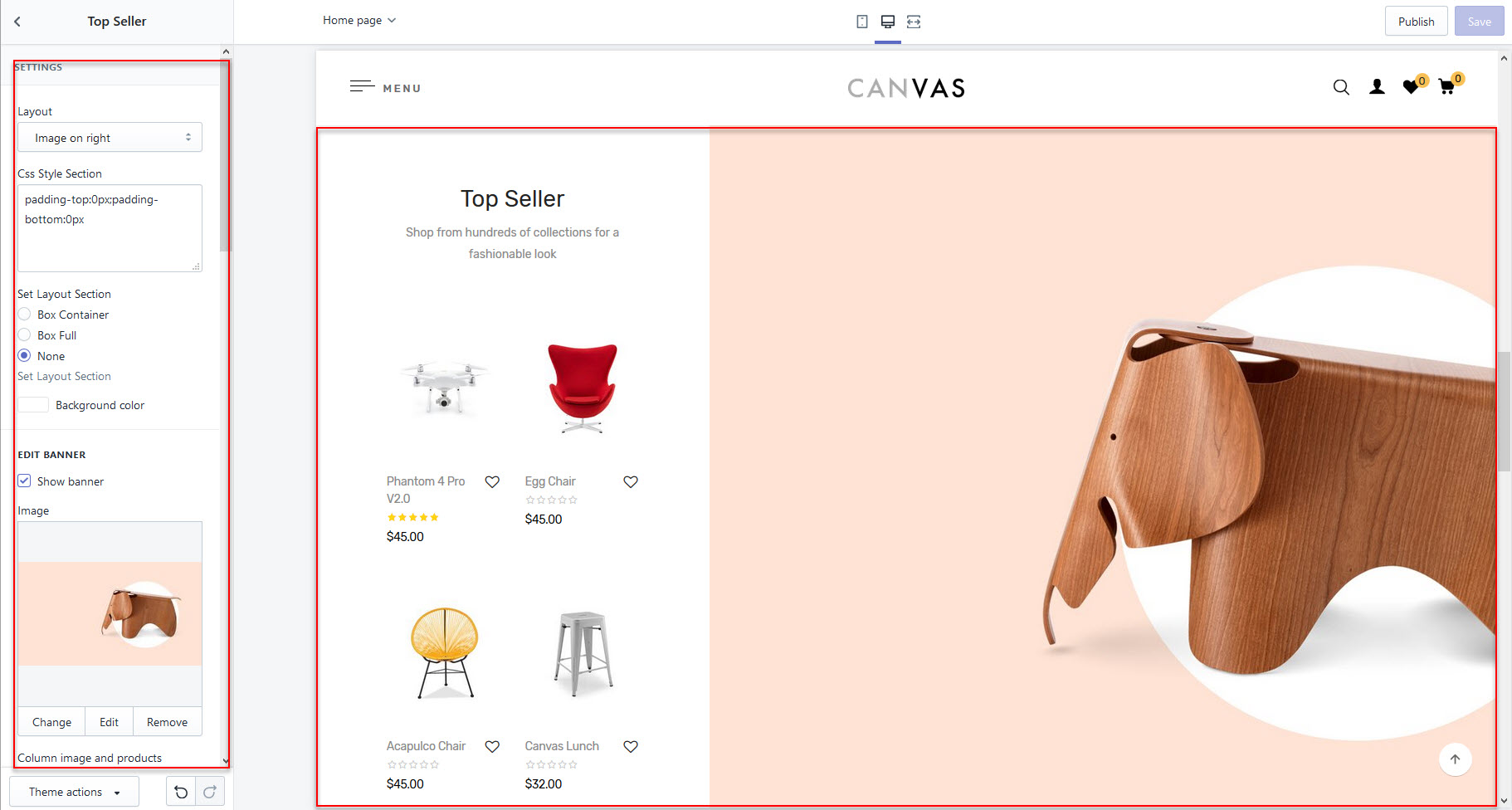
Collection Product Style 2
-Add Collection Product List: Admin -> customize -> Sections -> Add sections -> "Collection Product Style 2"
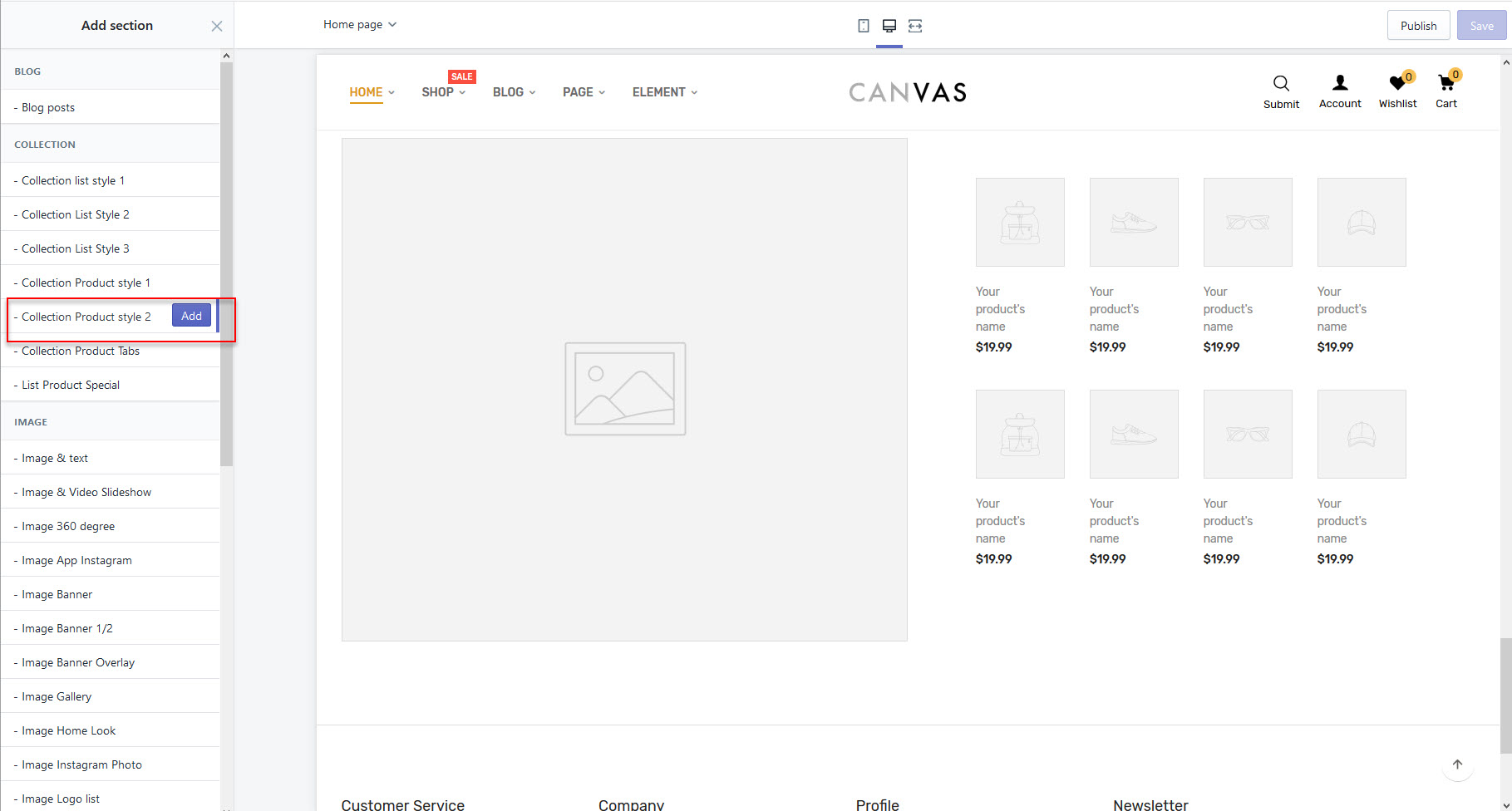
- Go to config:Admin -> customize -> Sections -> Scroll to block "Collection Product Style 2"
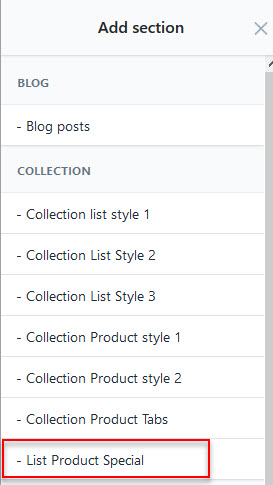
- List Product Special
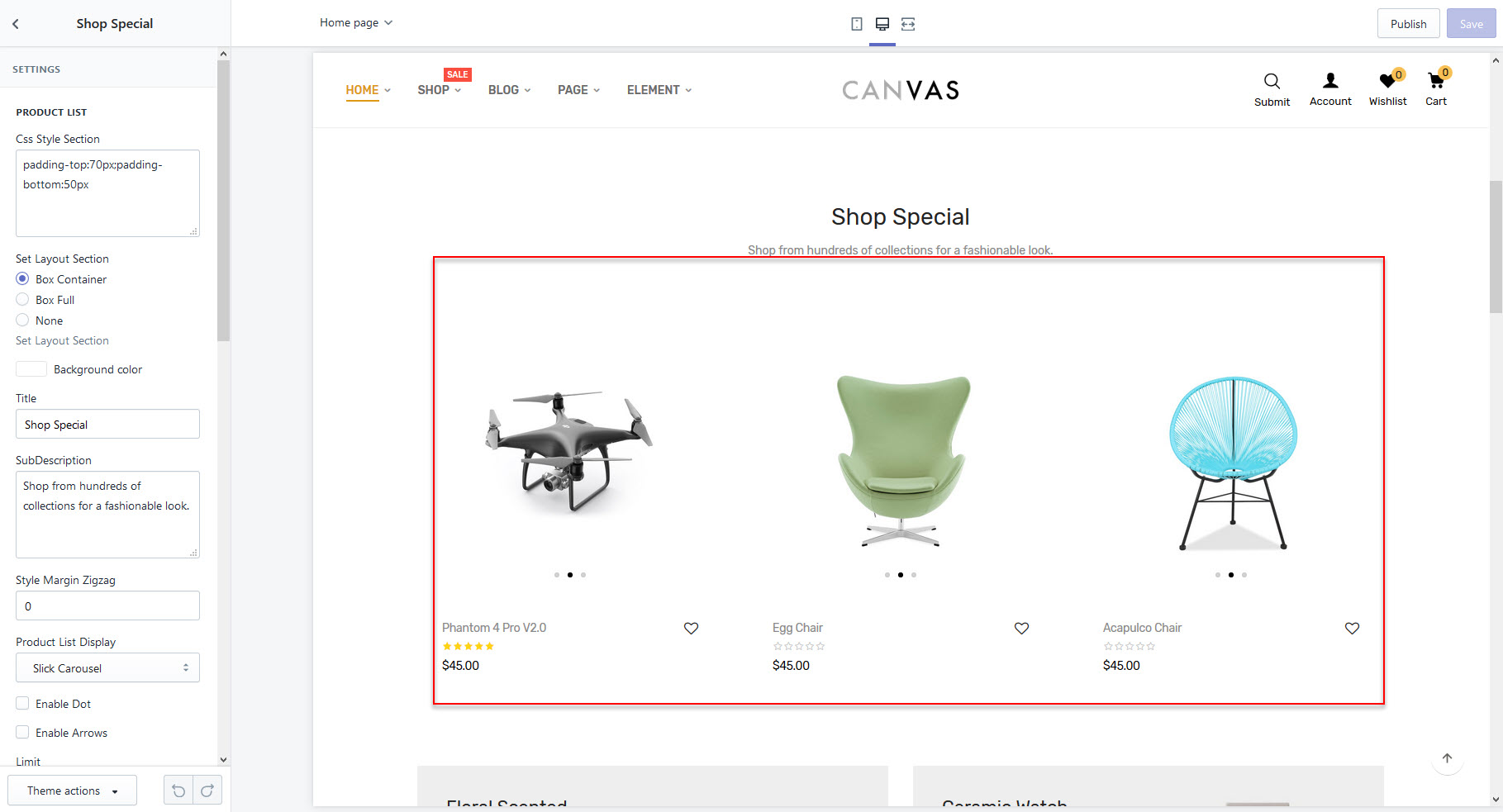
-Add Collection Product List: Admin -> customize -> Sections -> Add sections -> "- List Product Special"
- Go to config:Admin -> customize -> Sections -> Scroll to block "- List Product Special"
Collection 1
-Add Collection: Admin -> customize -> Sections -> Add sections -> "Collection"
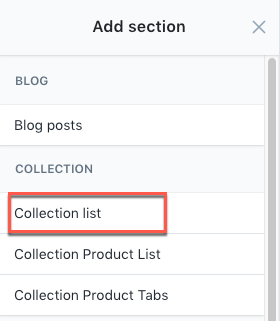
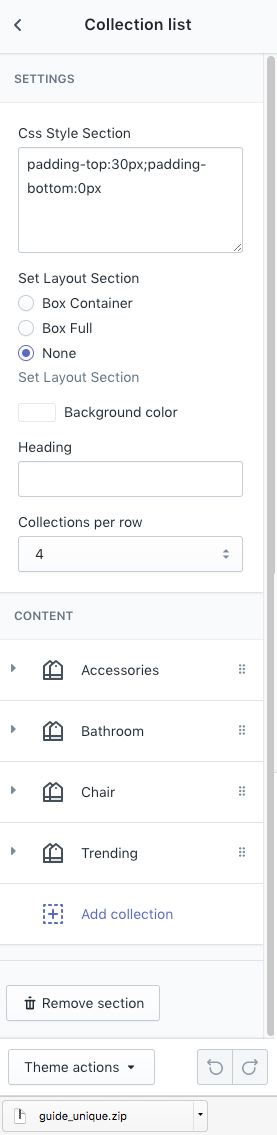
- Go to config:Admin -> customize -> Sections -> Scroll to block "Collection"
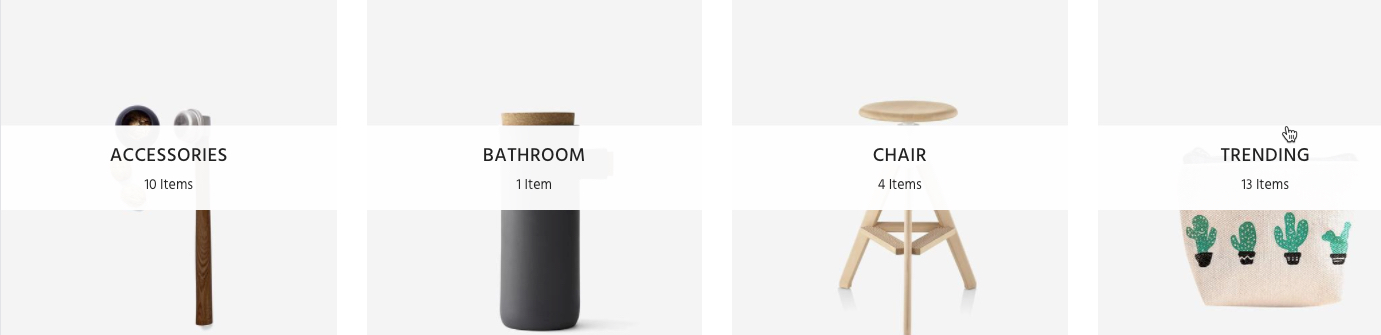
Collection icon (only home 7)
-Add Collection: Admin -> customize -> Sections -> Add sections -> "Collection List Style 3"
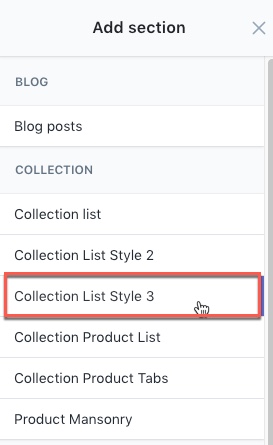
- Go to config:Admin -> customize -> Sections -> Scroll to block "Collection List Style 3"

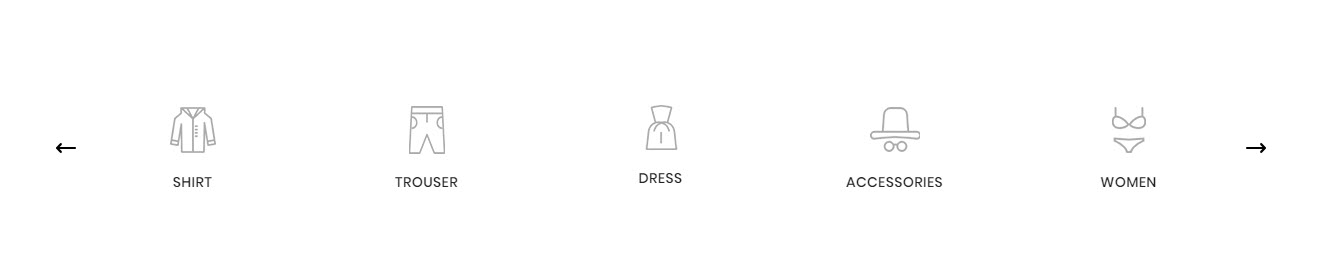
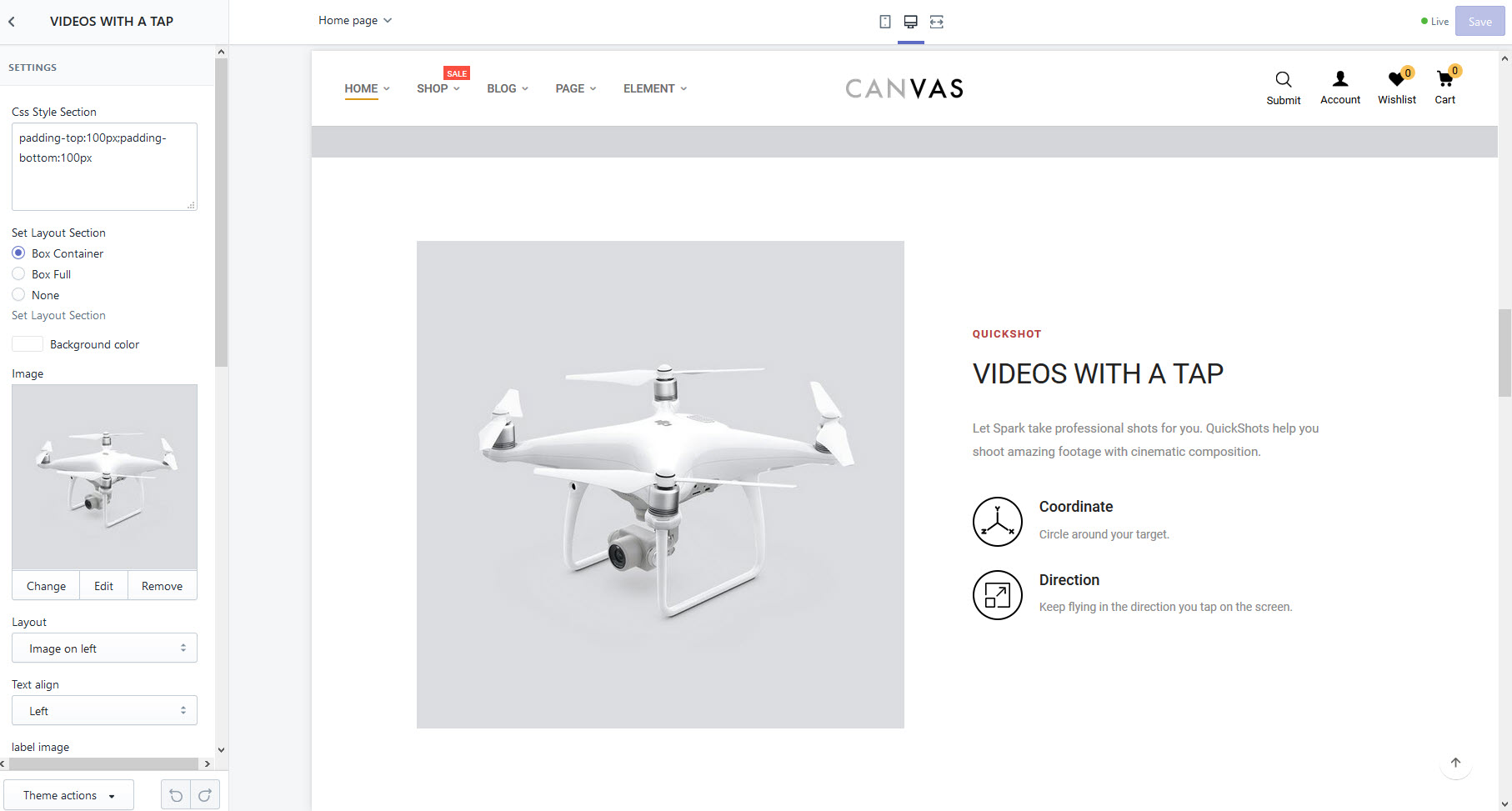
Image with text
-Add Image with text: Admin -> customize -> Sections -> Add sections -> "Image with text"
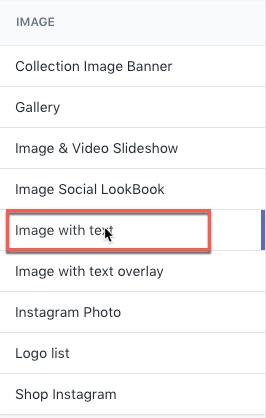
- Go to config:Admin -> customize -> Sections -> Scroll to block "Image with text"

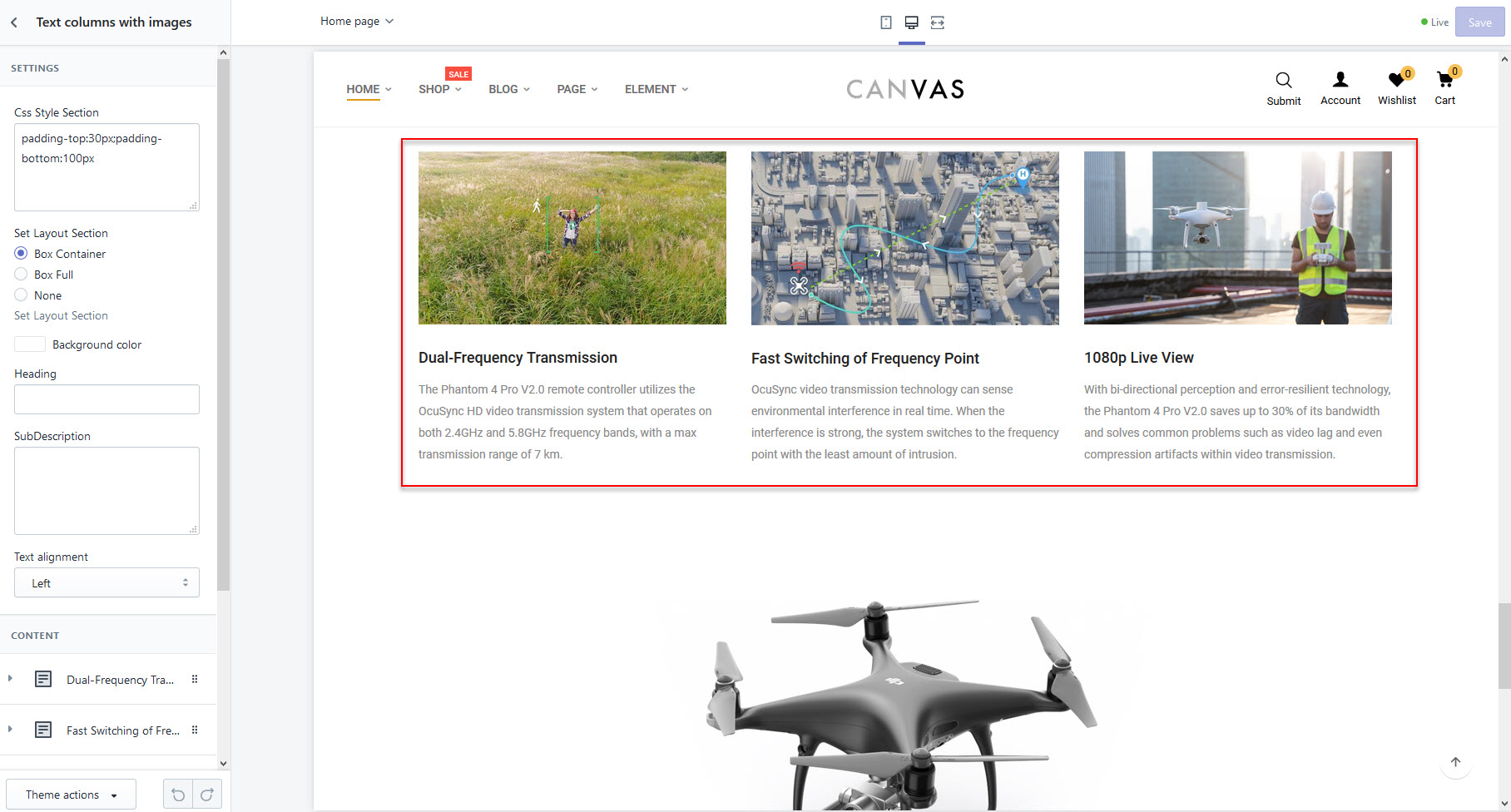
Text columns with images
-Add Image with text: Admin -> customize -> Sections -> Add sections -> "Text columns with images"
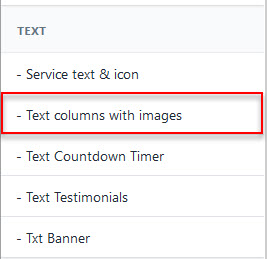
- Go to config:Admin -> customize -> Sections -> Scroll to block "Text columns with images"
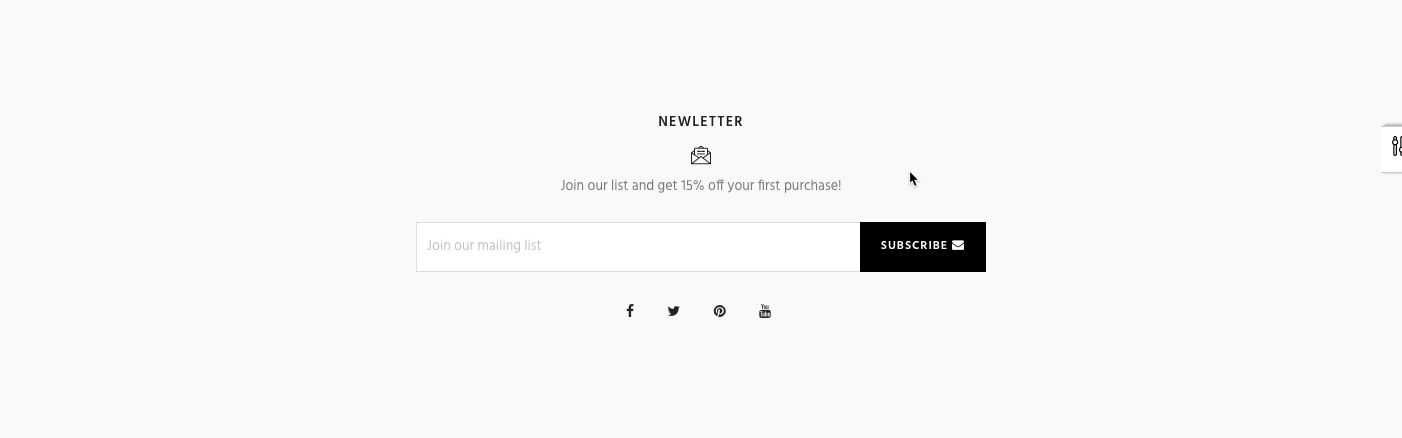
New Letter & Social
-Add New Letter & Social: Admin -> customize -> Sections -> Add sections -> "Section Newletter"
p>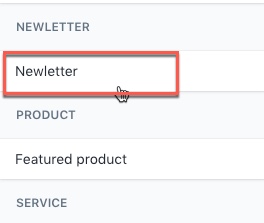
- Go to config:Admin -> customize -> Sections -> Scroll to block "Section Newletter"

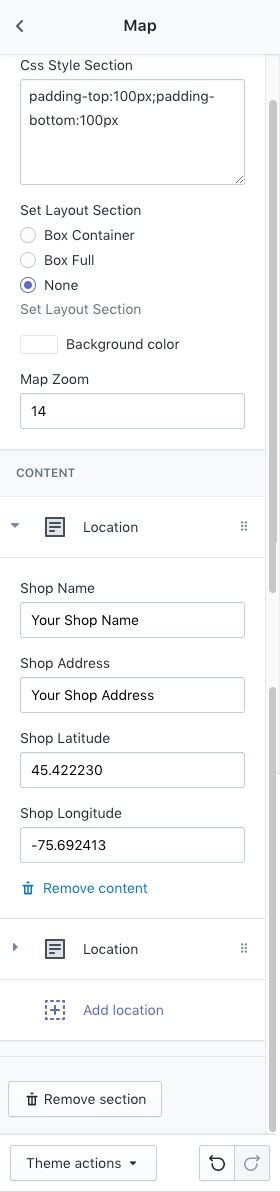
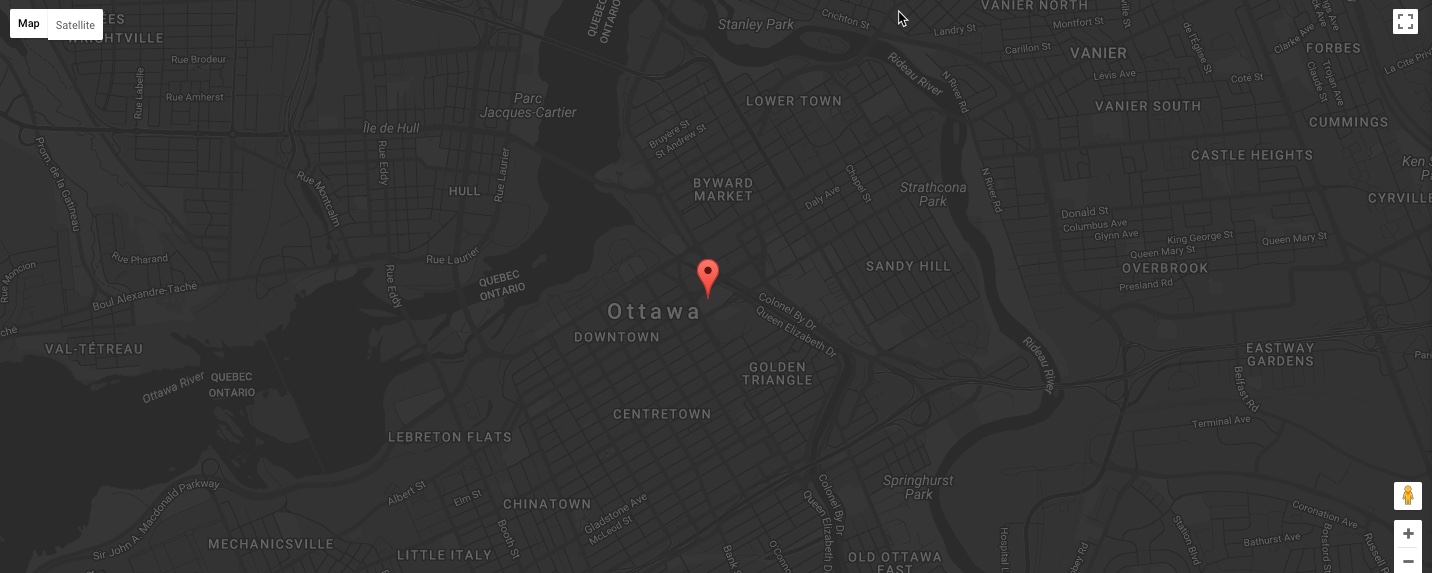
Map location
-Add map: Admin -> customize -> Sections -> Add sections -> "map"
p>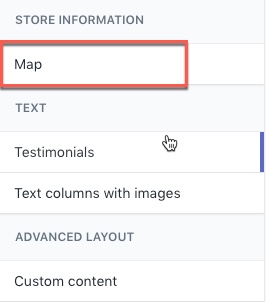
- Go to config:Admin -> customize -> Sections -> Scroll to block "map"
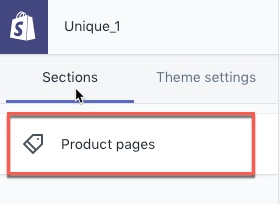
Product Page
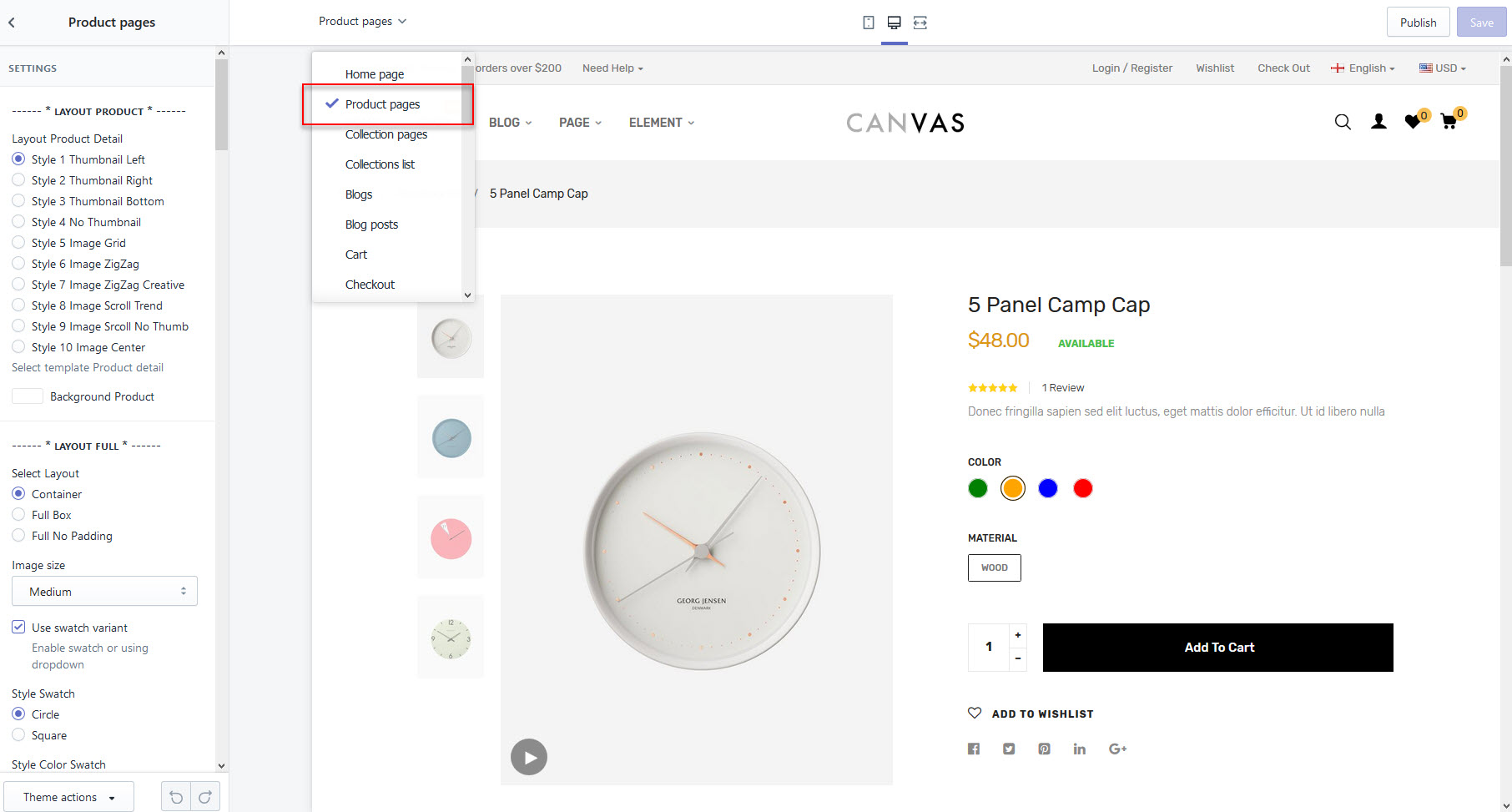
- 10 Pre-made layouts template
- Edit width layout
- Select Image Size
- Enable Swatch Dropdown or Select
- Style Swatch
- Style Color Swatch
- Show available
- Show quantity selector
- Show Propertie Right Products
- Show SKU
- Show vendor
- Show Type
- Show Collection
- Show Tags
- Limit Tags
- Enable image Zoom
- Enable image Popup
- Show social sharing buttons

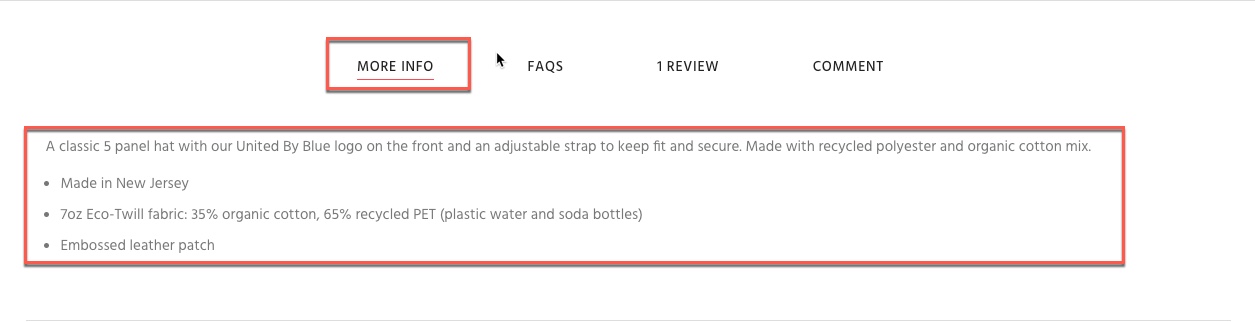
1.More info
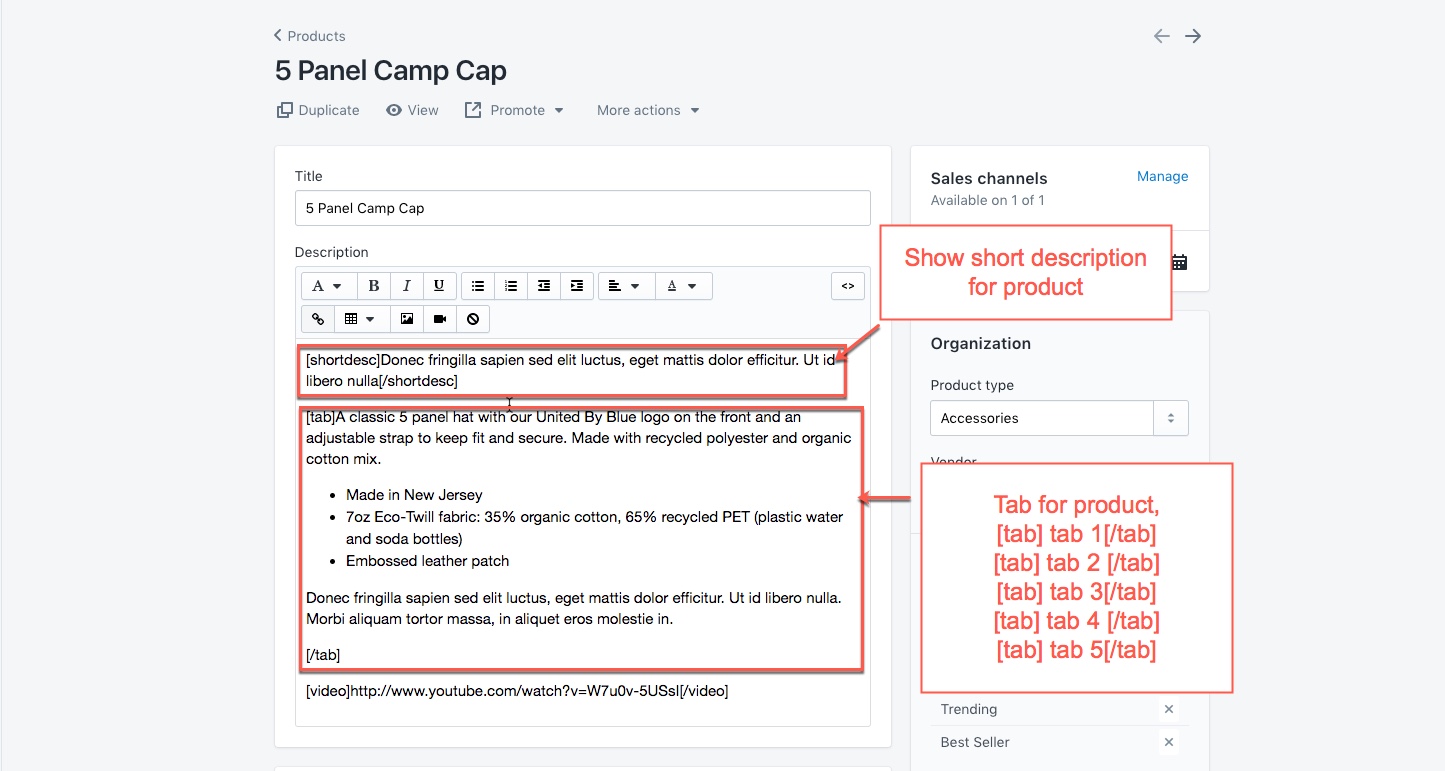
+) show short descrioption: Goto Admin-> product -> input Description product same image below
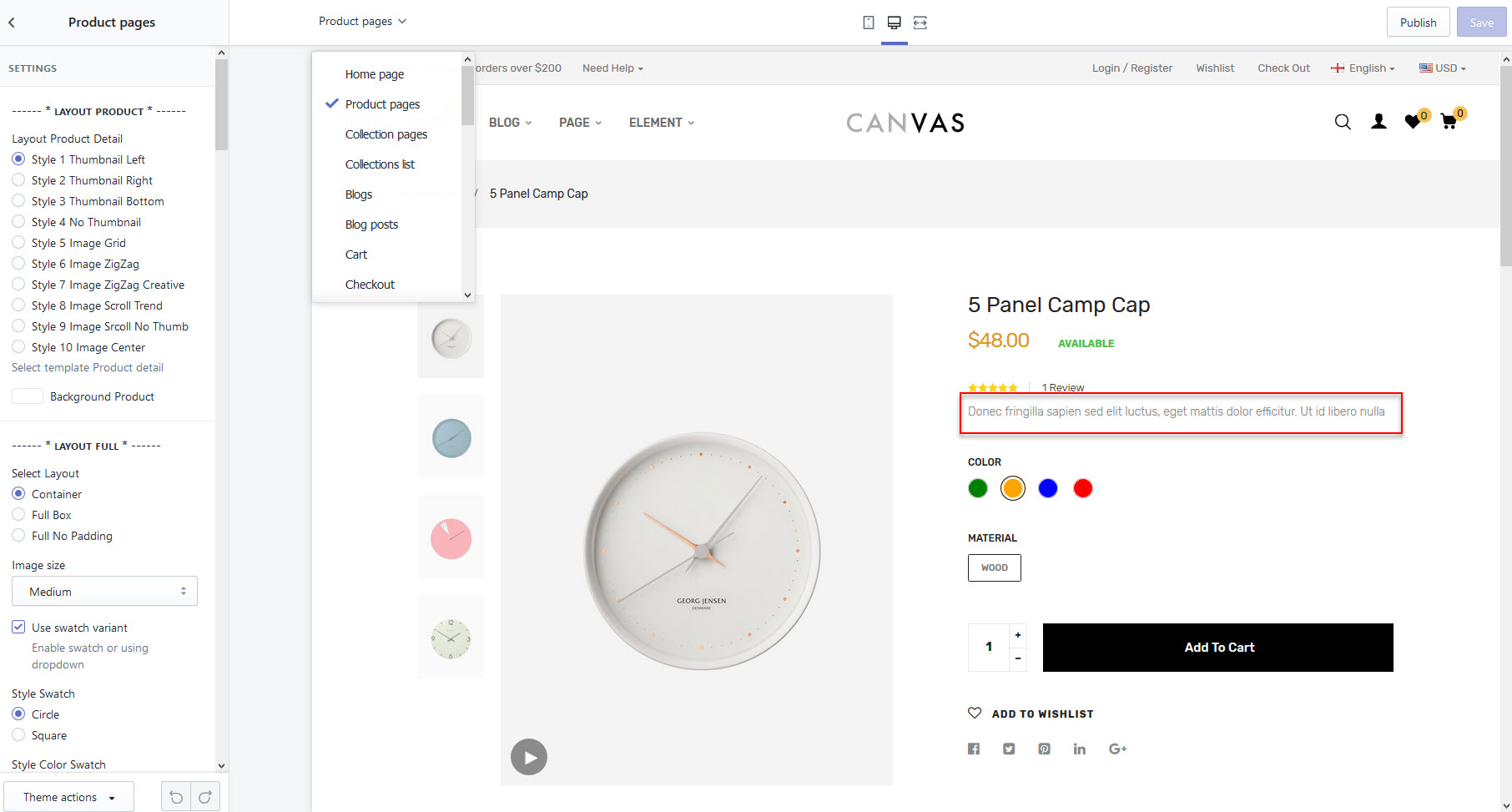
+) show Description Tab (more info, Tab1, tab2, tab3, tab4)
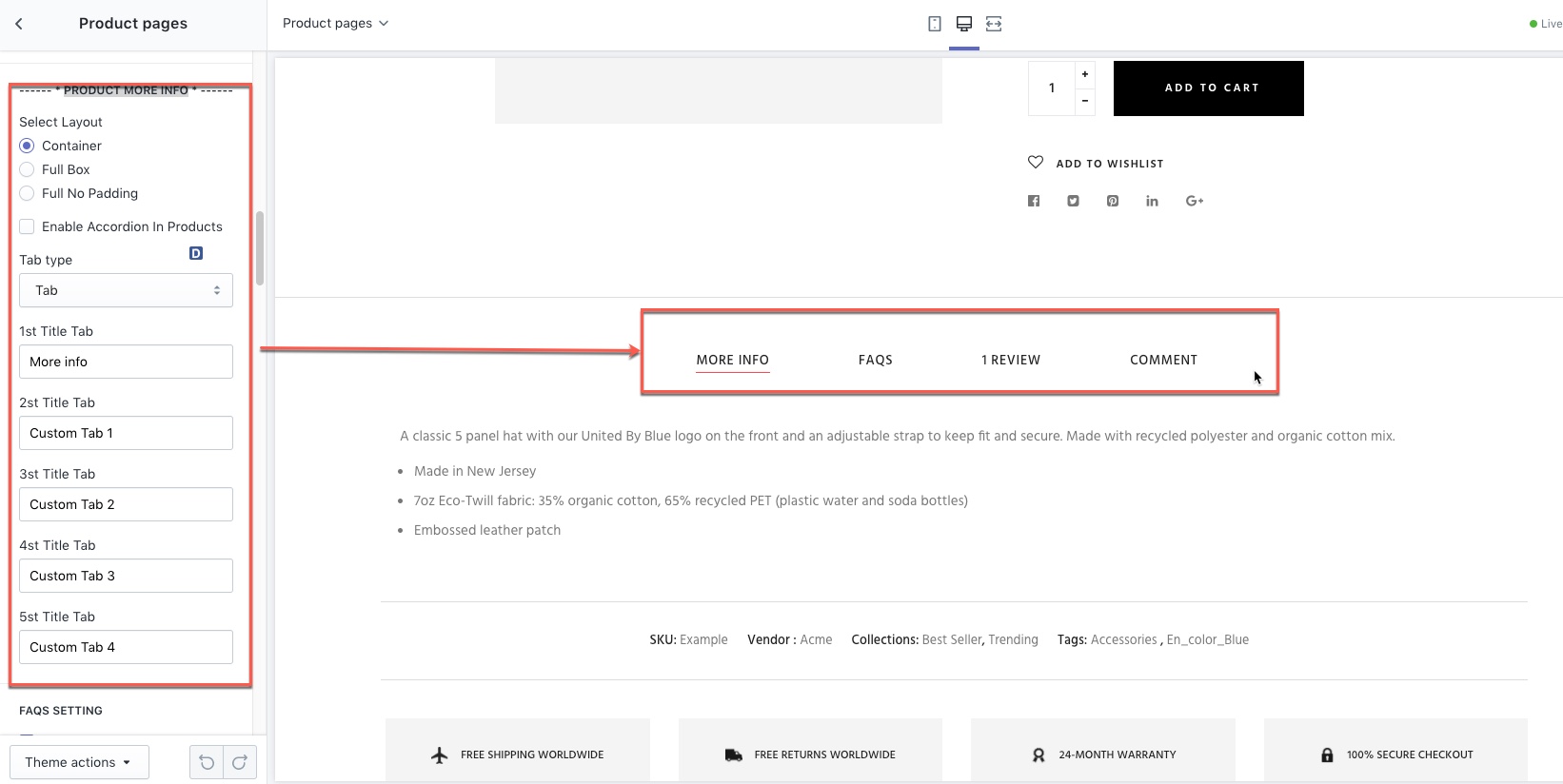
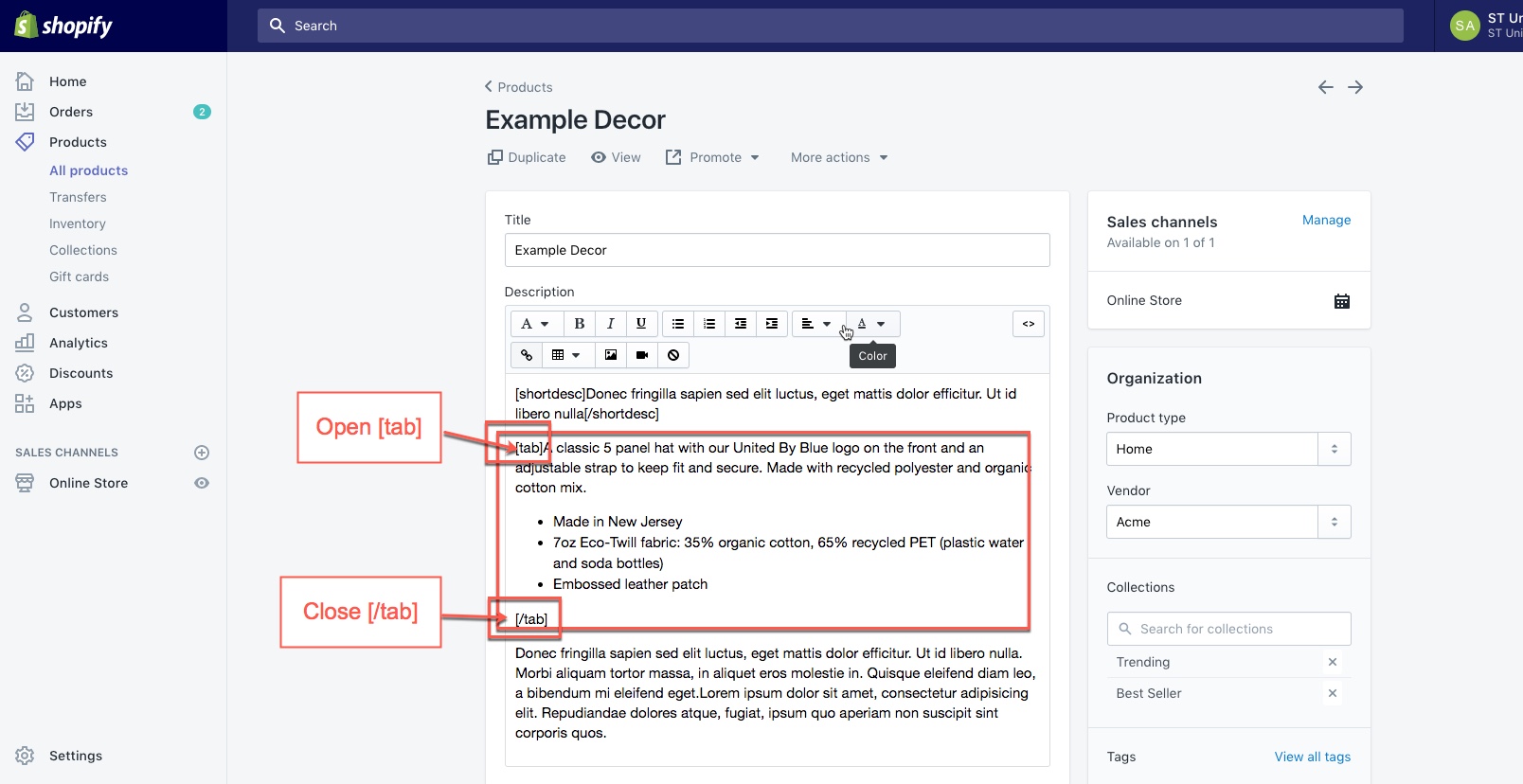
+) to display contents of the part "more info", tab1, tab2, tab3, tab4, it is necessary to input contents of the product in the respective order of each tab in [tab] [/tab]
+) For example, when you want to display "Tab1", you must input contents of this part into [tab] [/tab] as the following image:
1.Video
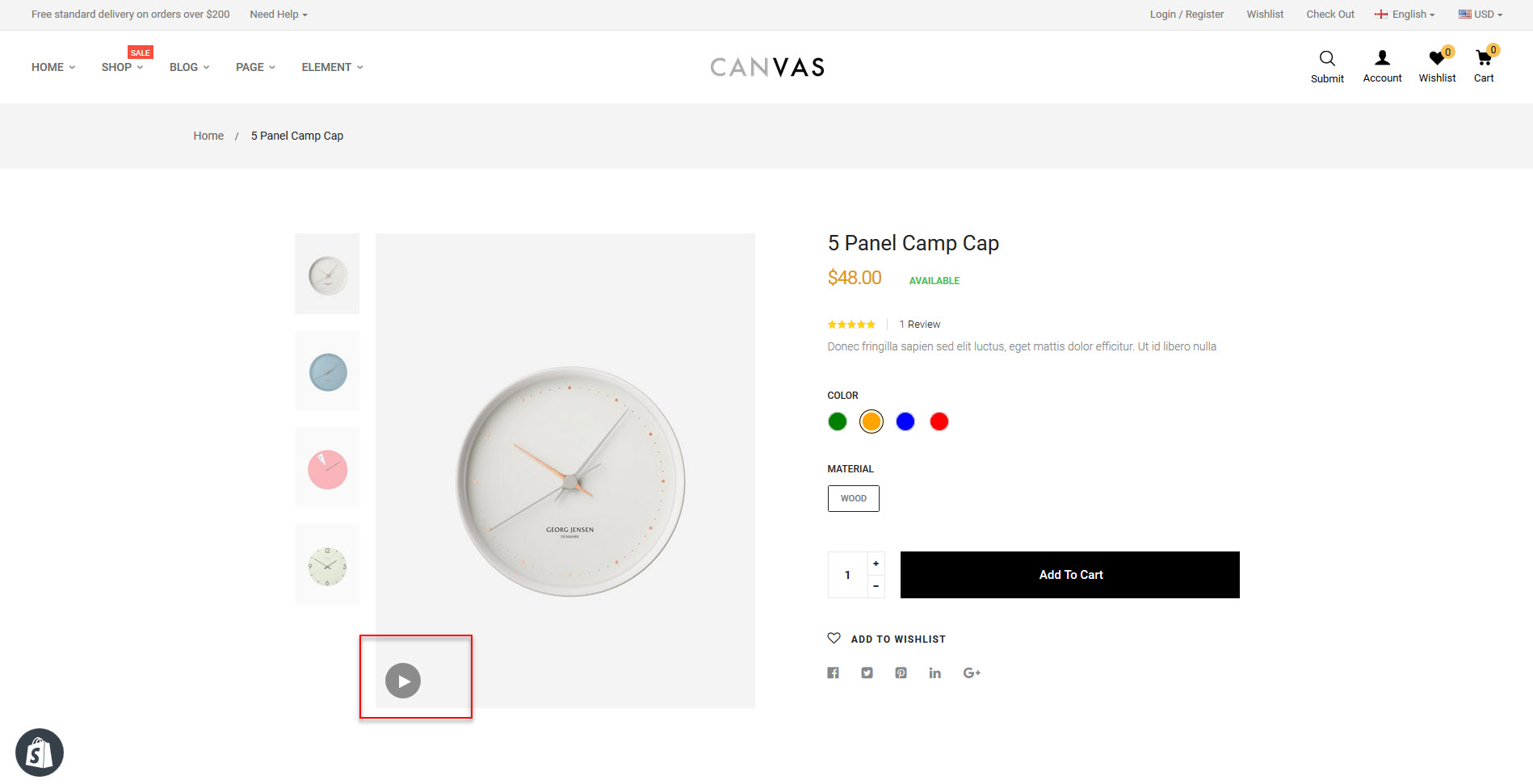
+) to the video, add tags [video] [/ video]. ex: [video]http://www.youtube.com/watch?v=opj24KnzrWo[/video]
2.SERVICE PRODUCTS
+) You can edit icon and text service


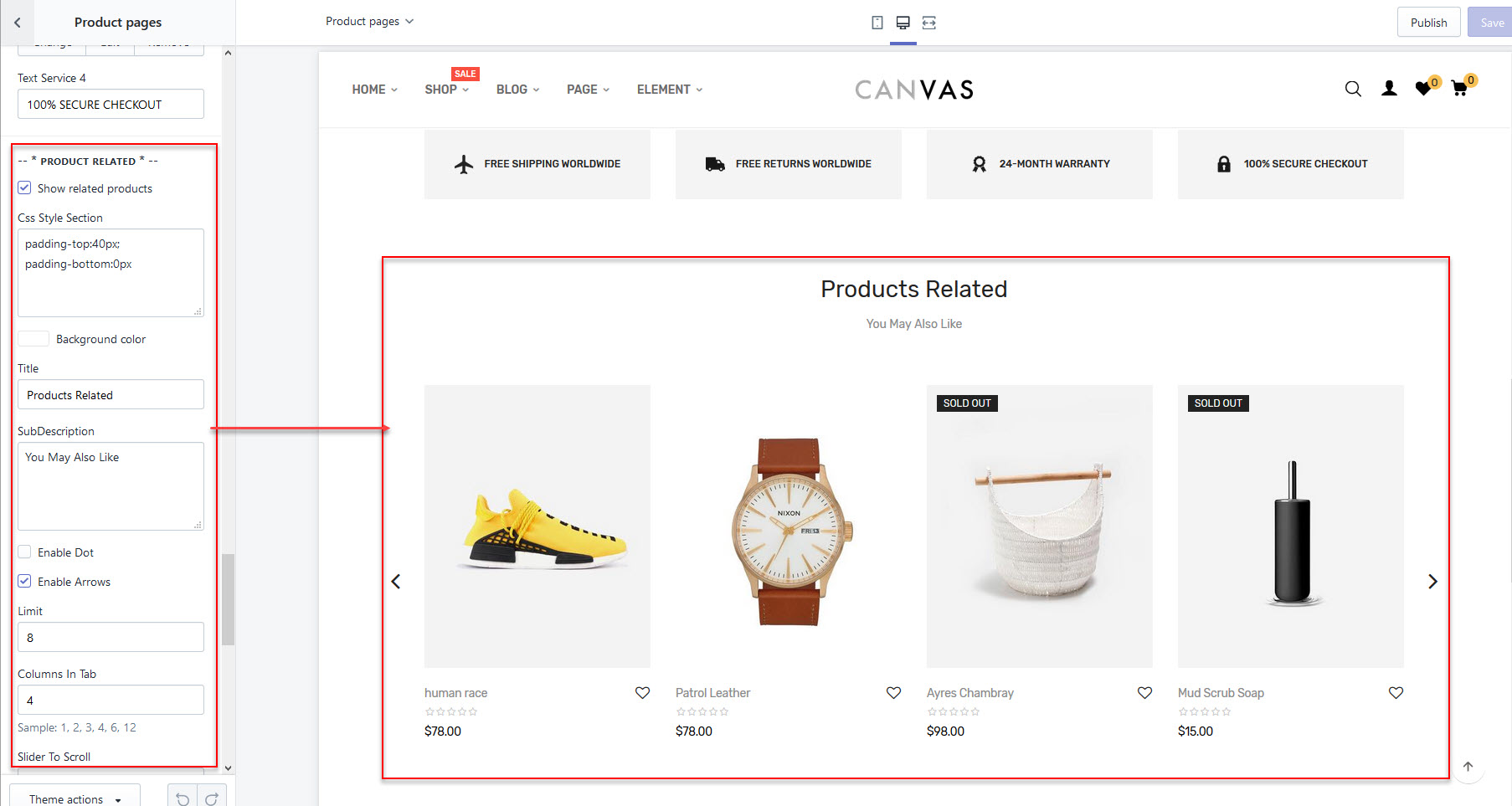
3.PRODUCT RELATED
- Show related products
- Edit Css Margin Padding
- Title
- Enable Dot
- Enable Arrows
- Limited
- Columns Products
- Slider To Scroll
- Row for Slick carousel
- Interval
- Number Item per Line ( small Laptop )
- Number Item per Line (Table)
- Number Item per Line (Phone Min )
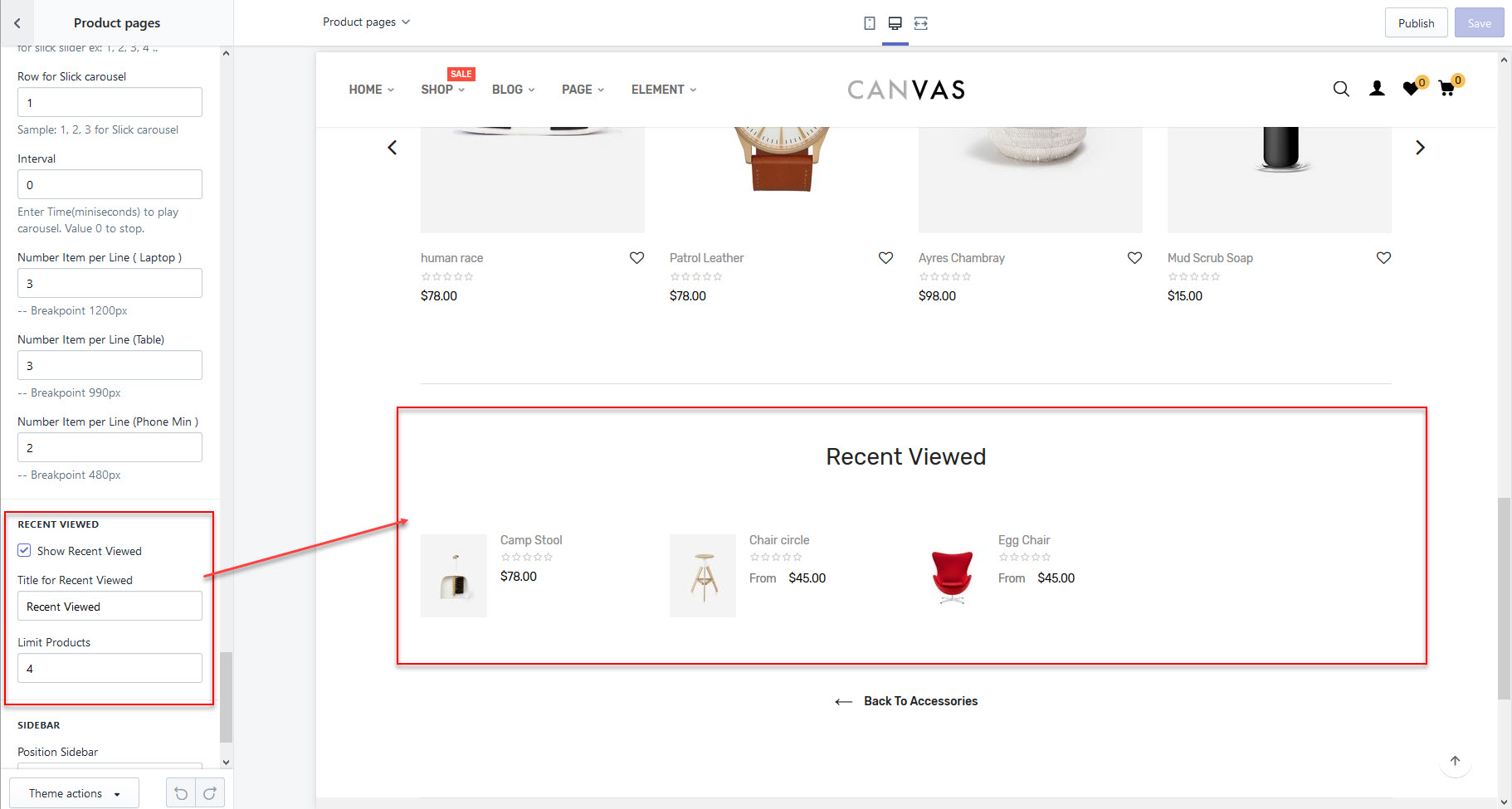
4.RECENT VIEWED
- Show Recent Viewed
- Title for Recent Viewed
- Limit Products
5.Select SIDEBAR
You can view more layout detail product page -> Link Demo
Collection Page
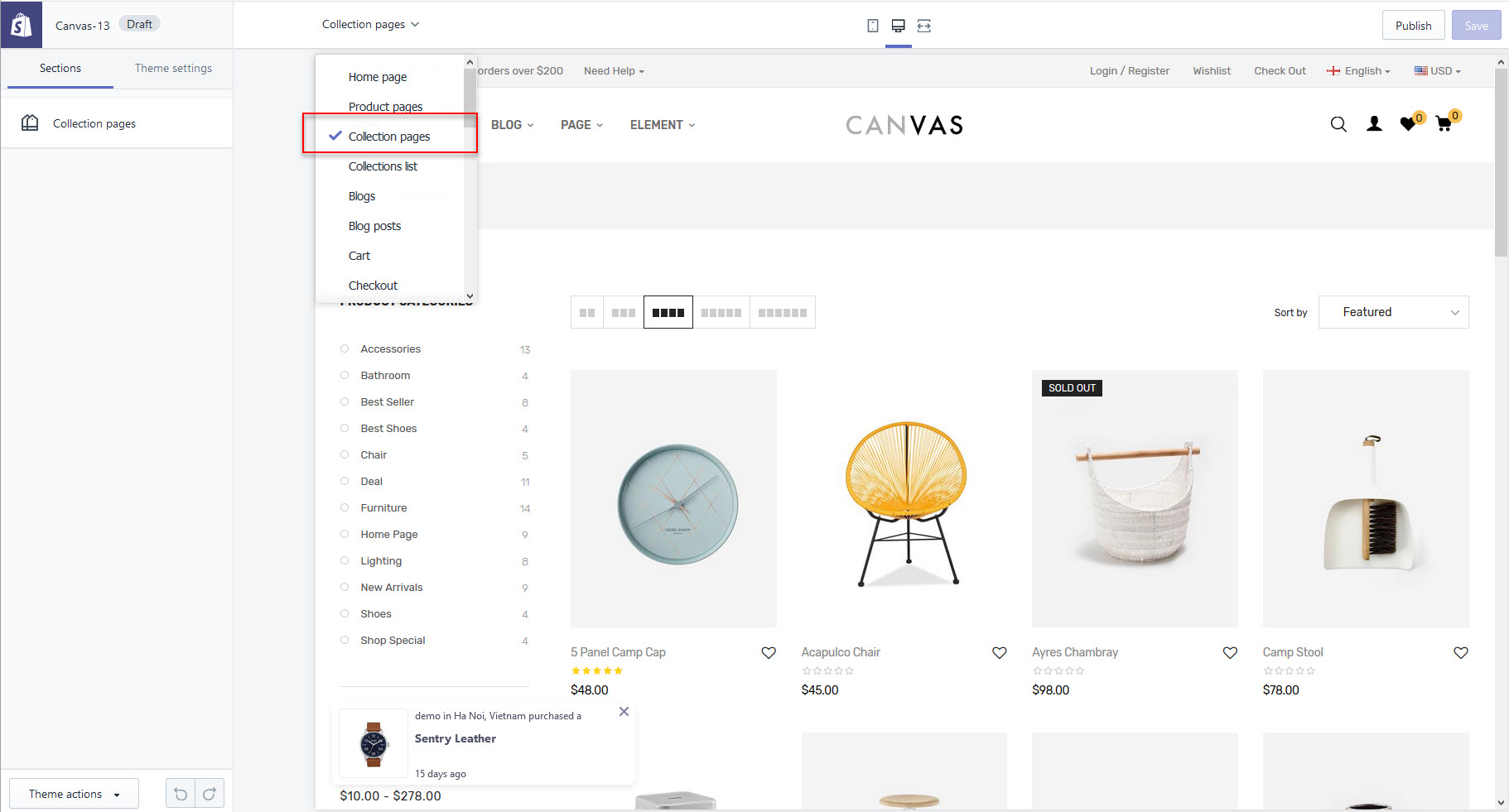
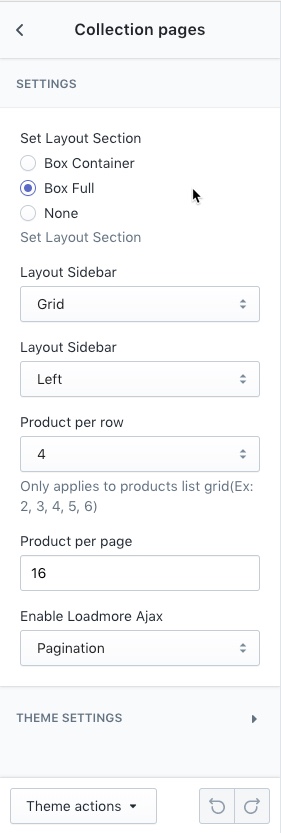
- Set Layout Section
- Layout Sidebar
- Product per row
- Product per page
- Select Pagination
Blog pages
-> Goto Page blog List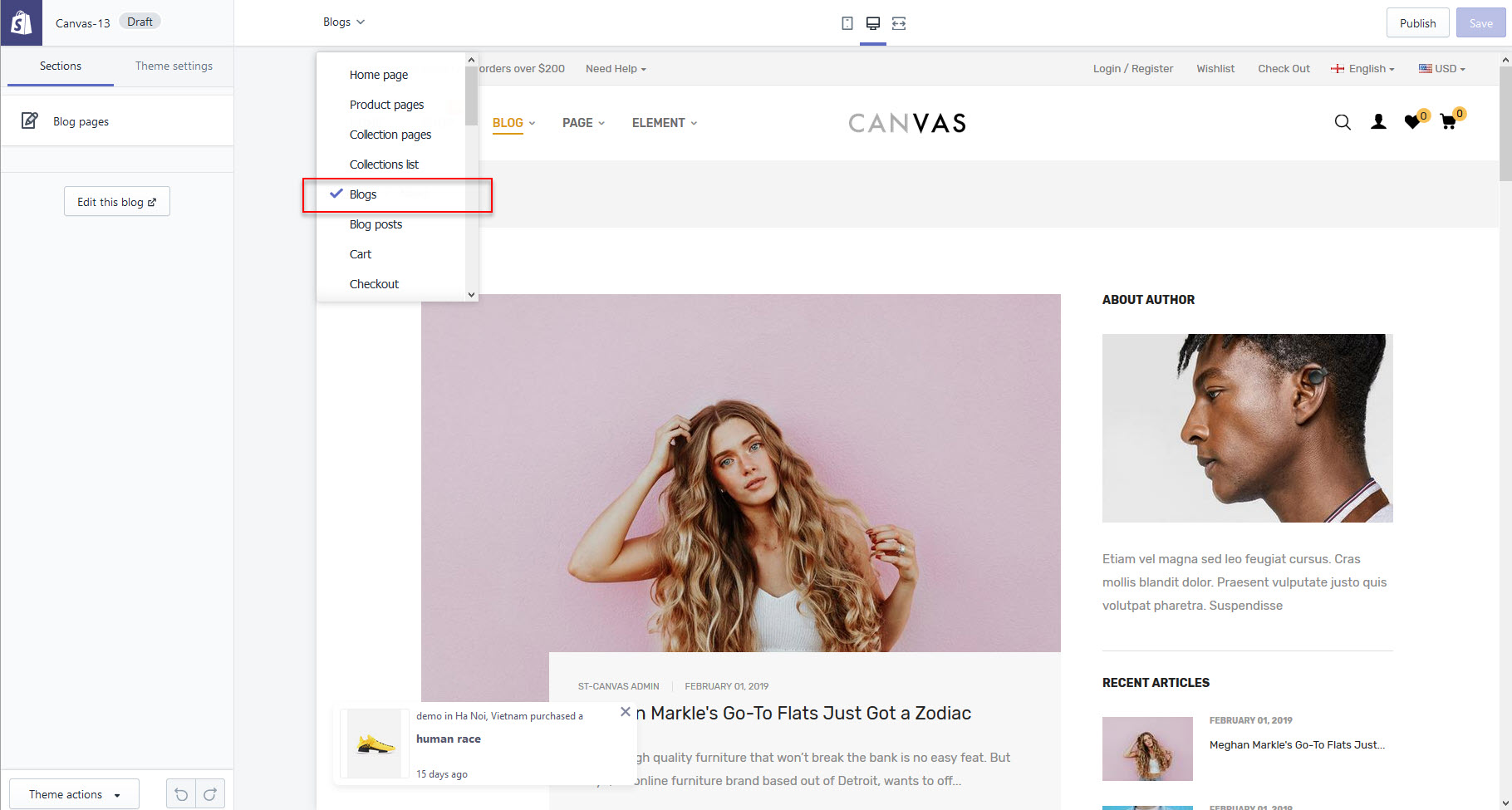
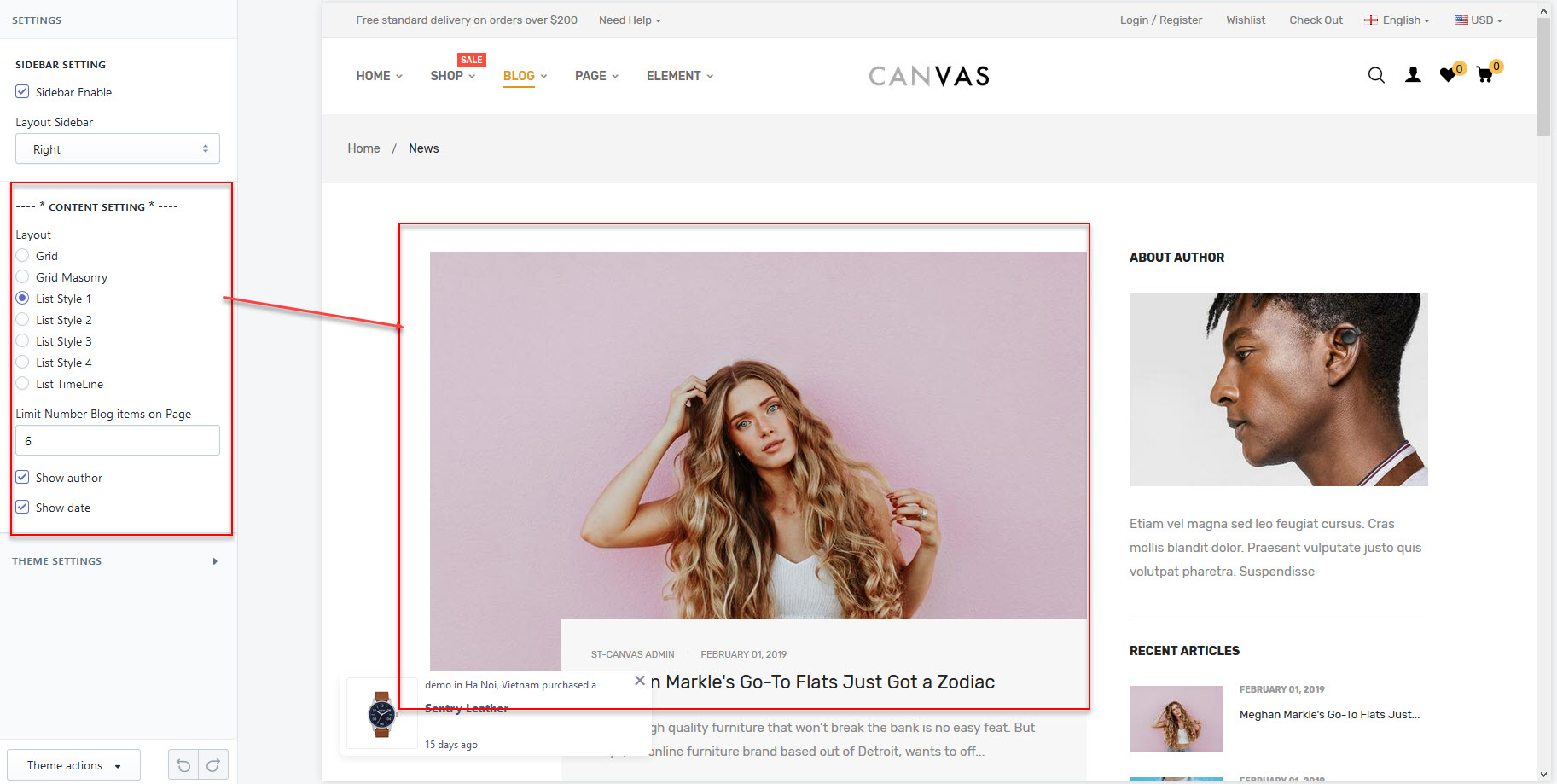
- Sidebar Enable
- 7 Pre-made Layout styles
- Limit Number Blog items on Page
- Show author
- Show date


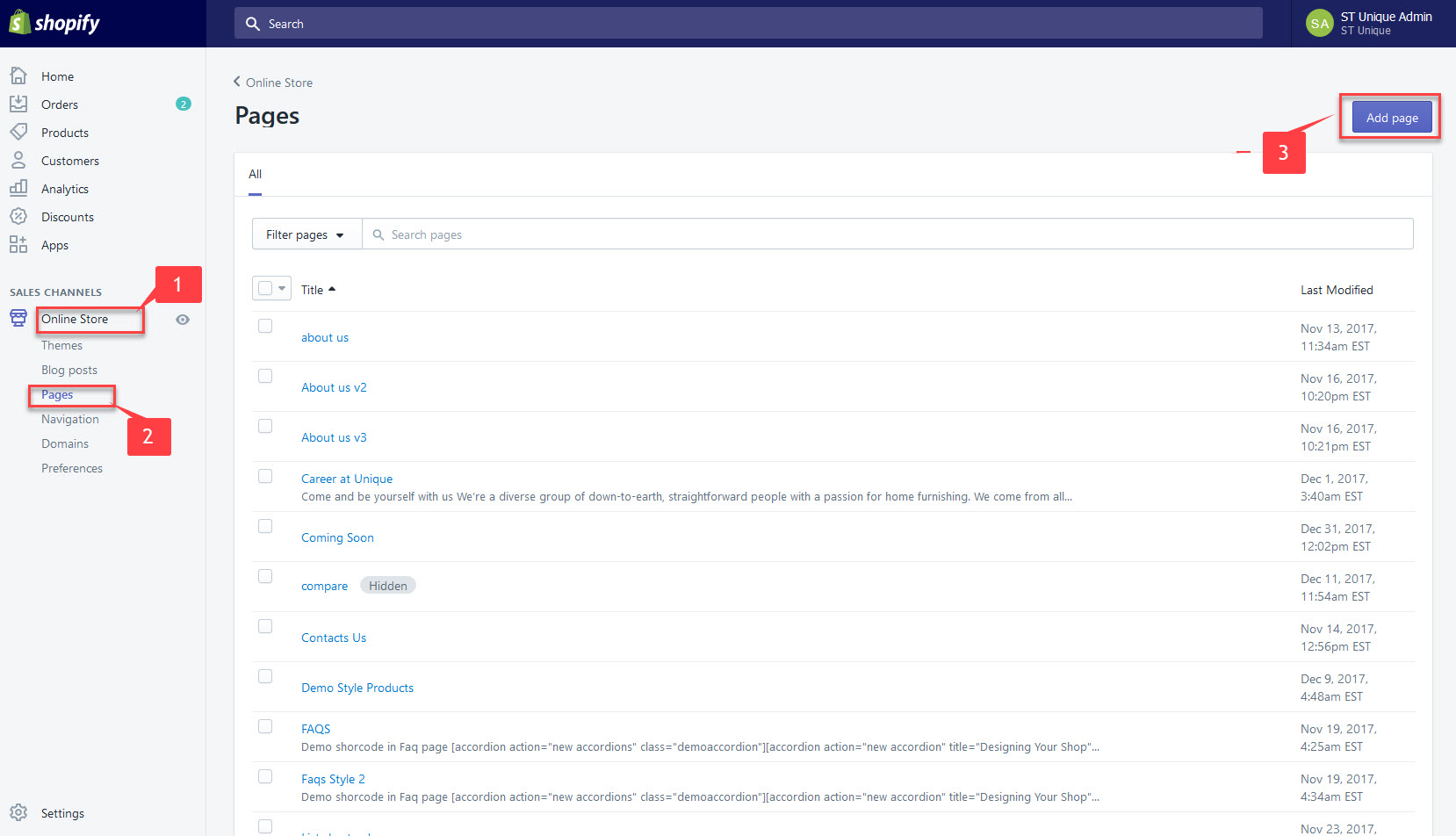
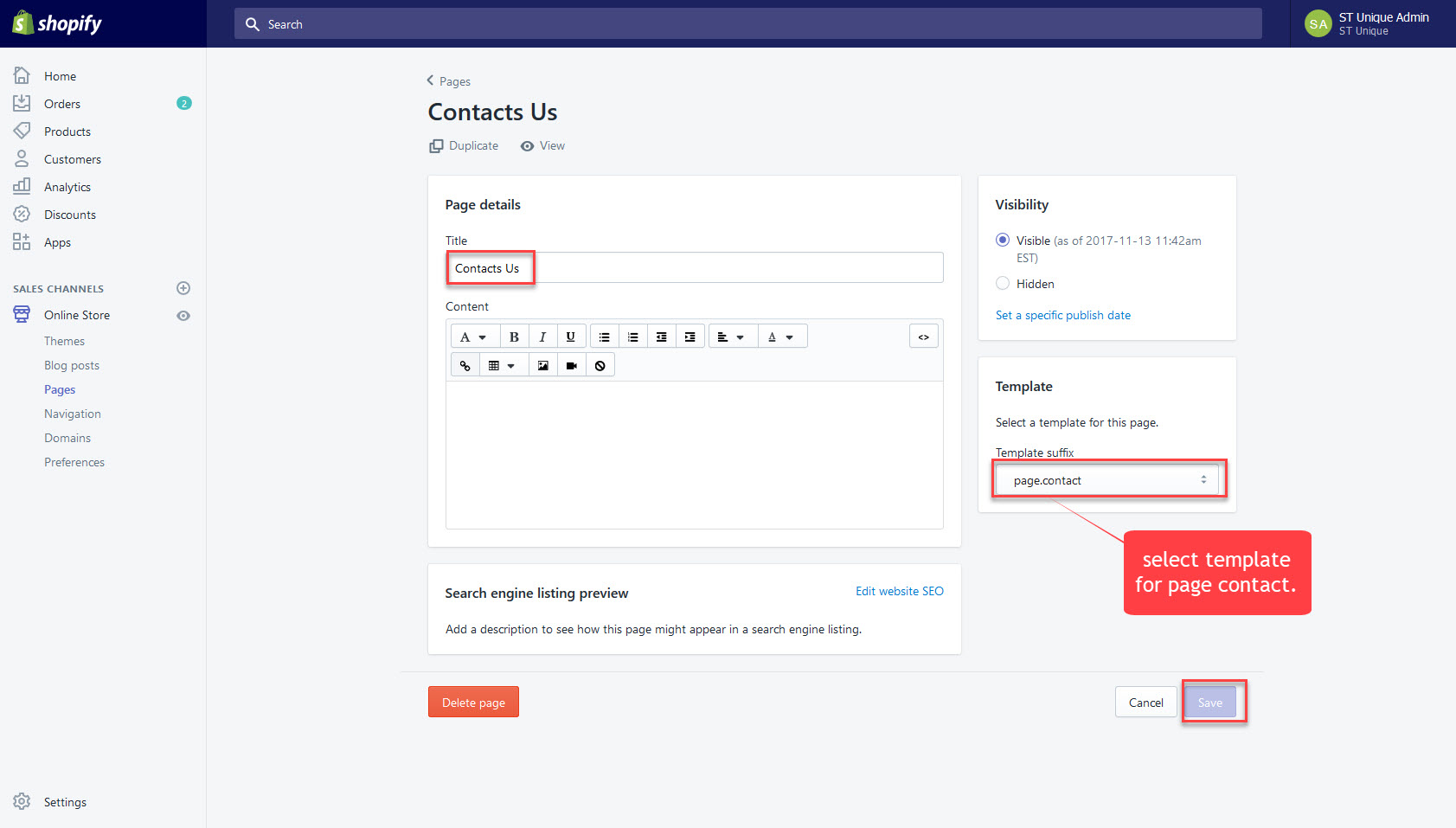
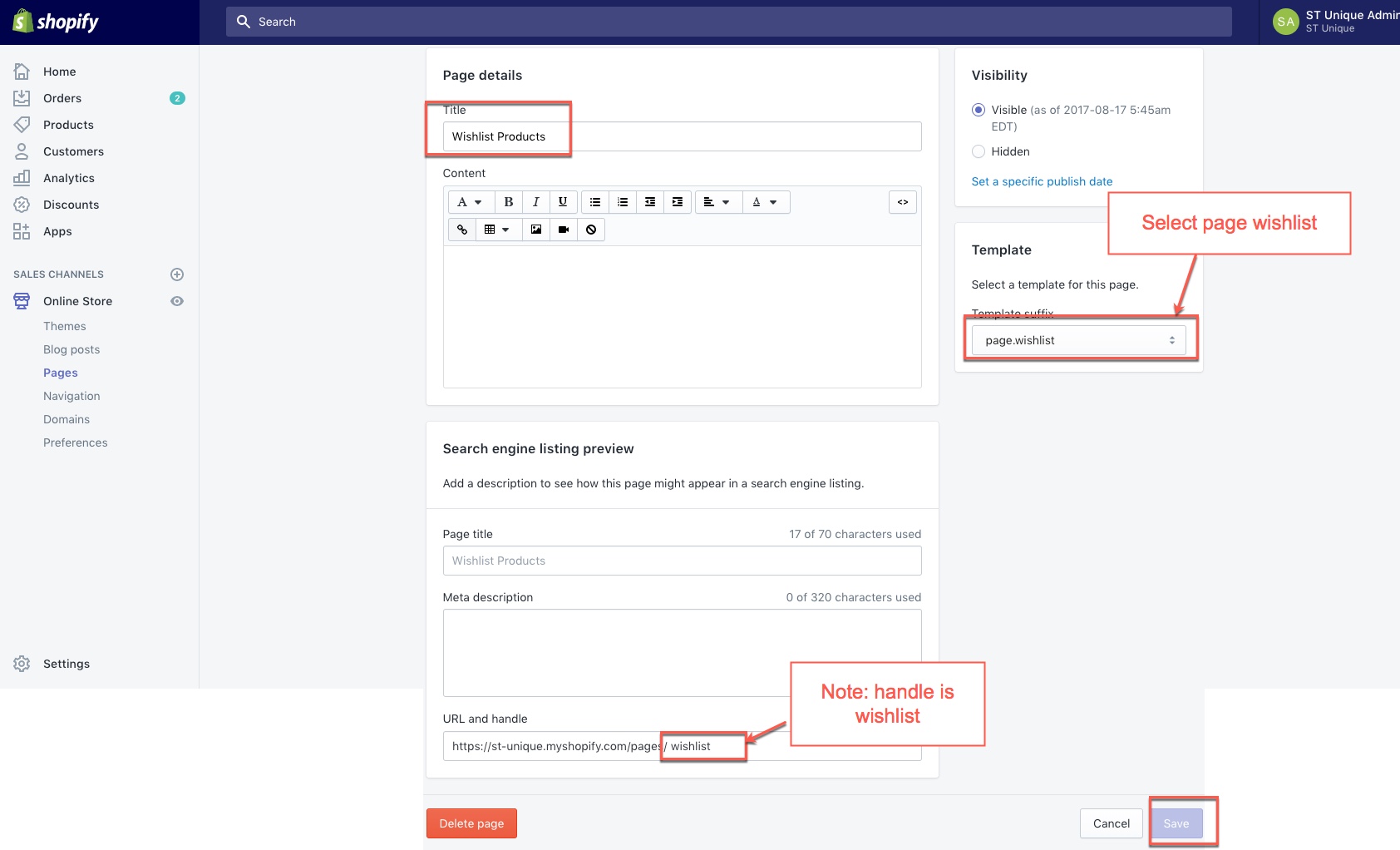
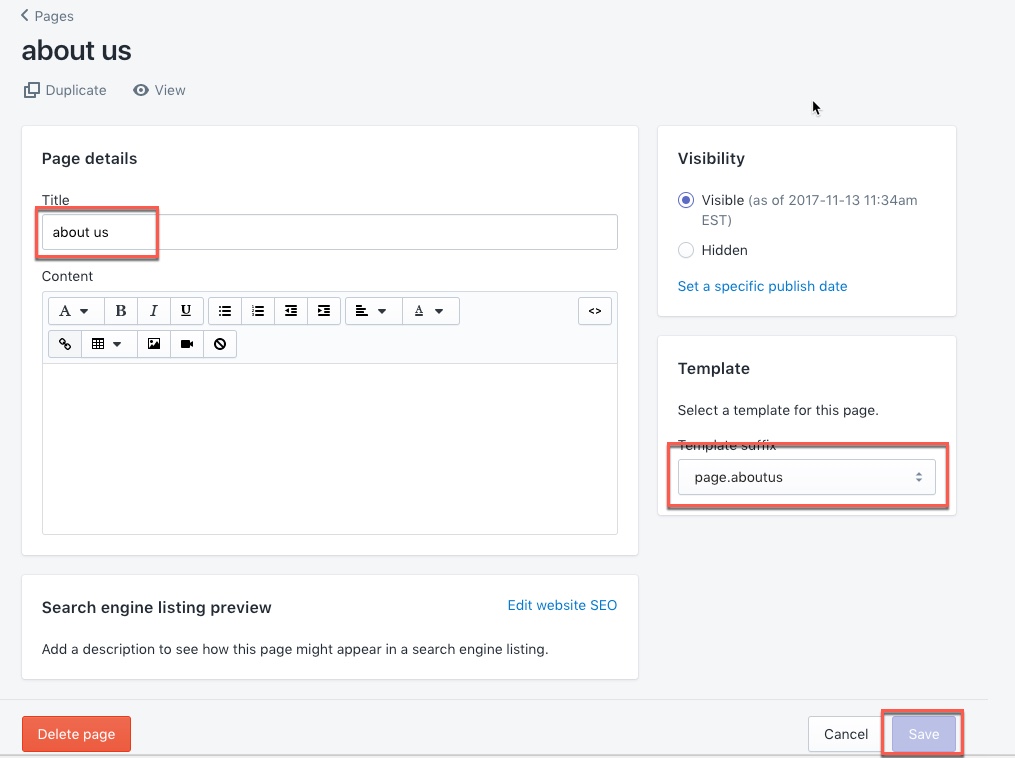
Creat page
1. Contact us
2. Wish list
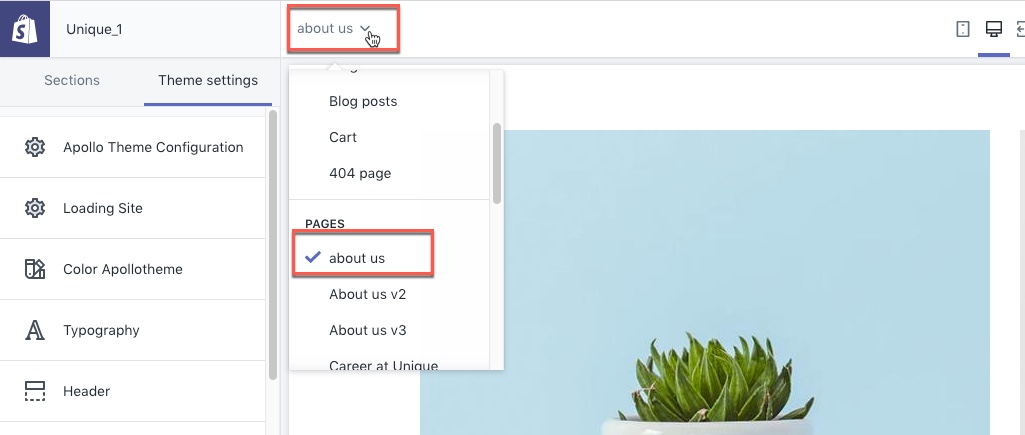
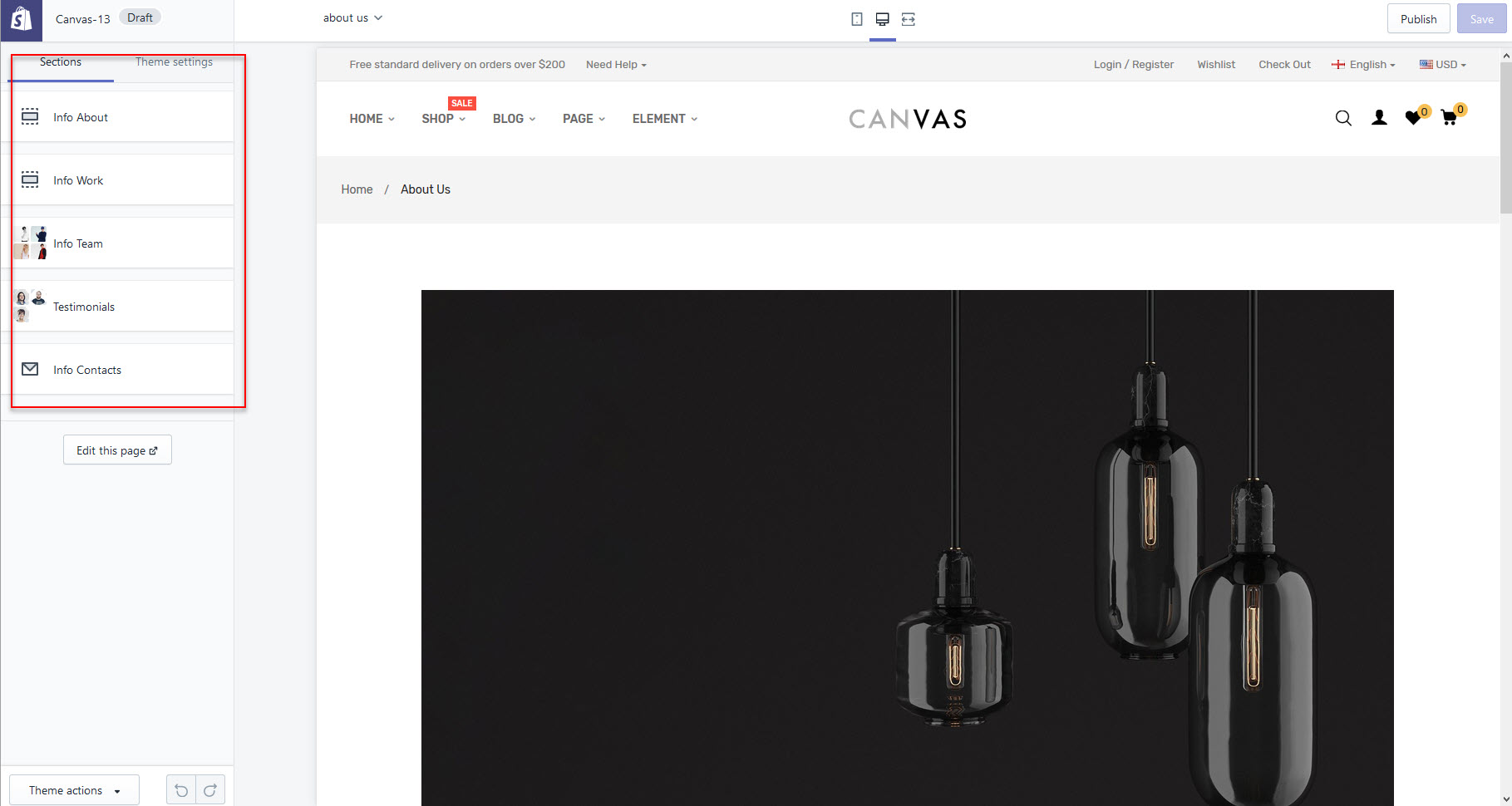
3. About Us
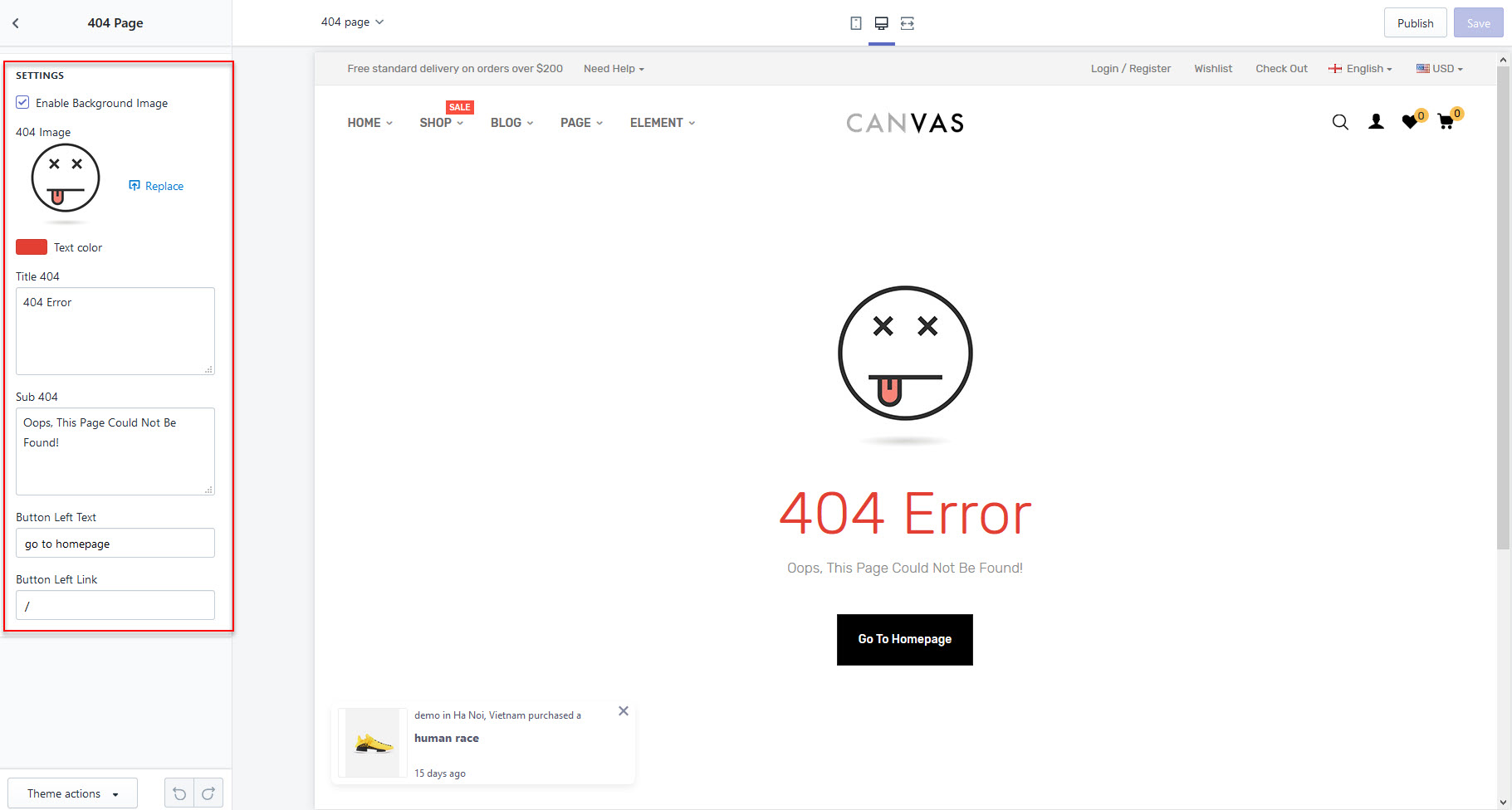
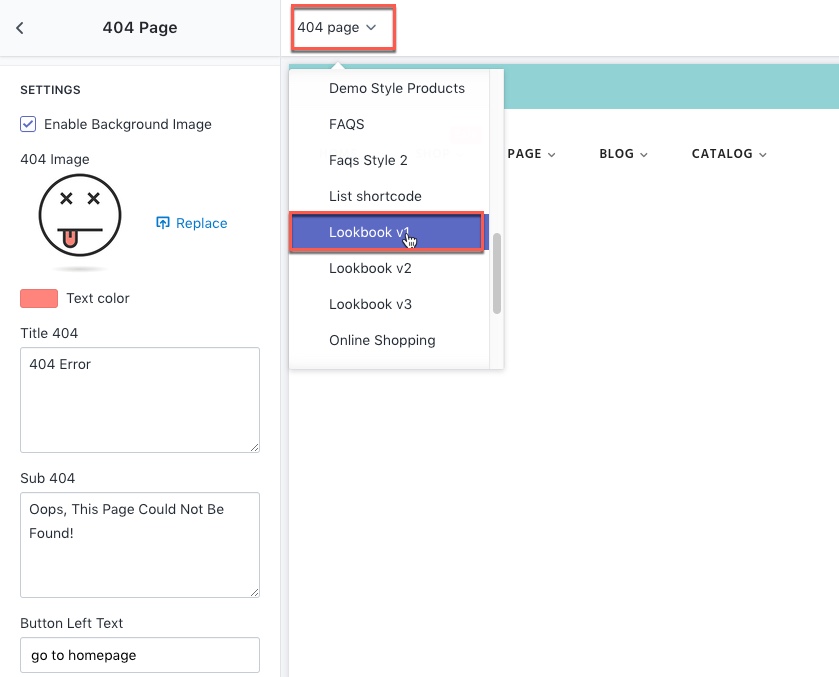
4. Page 404
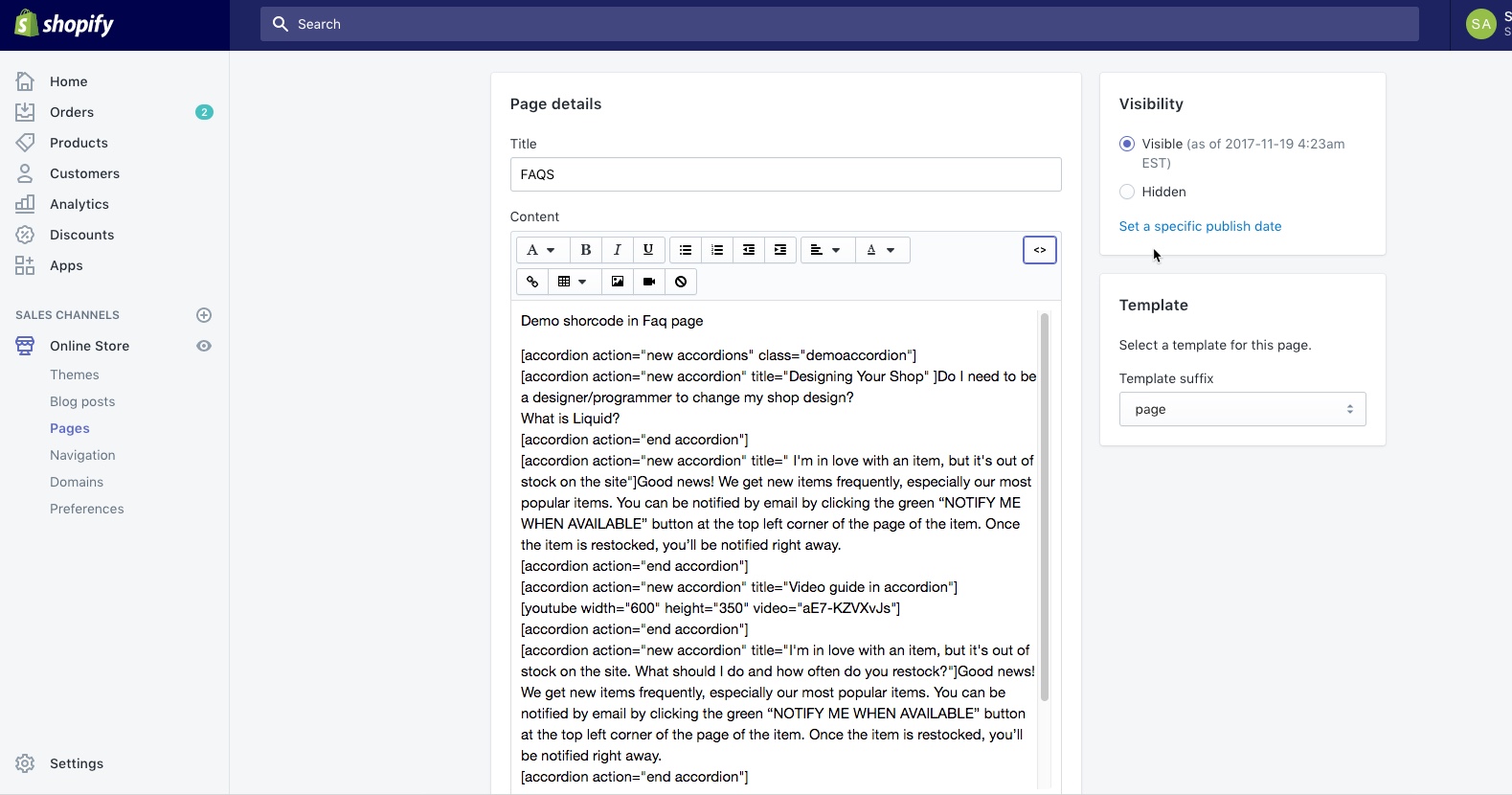
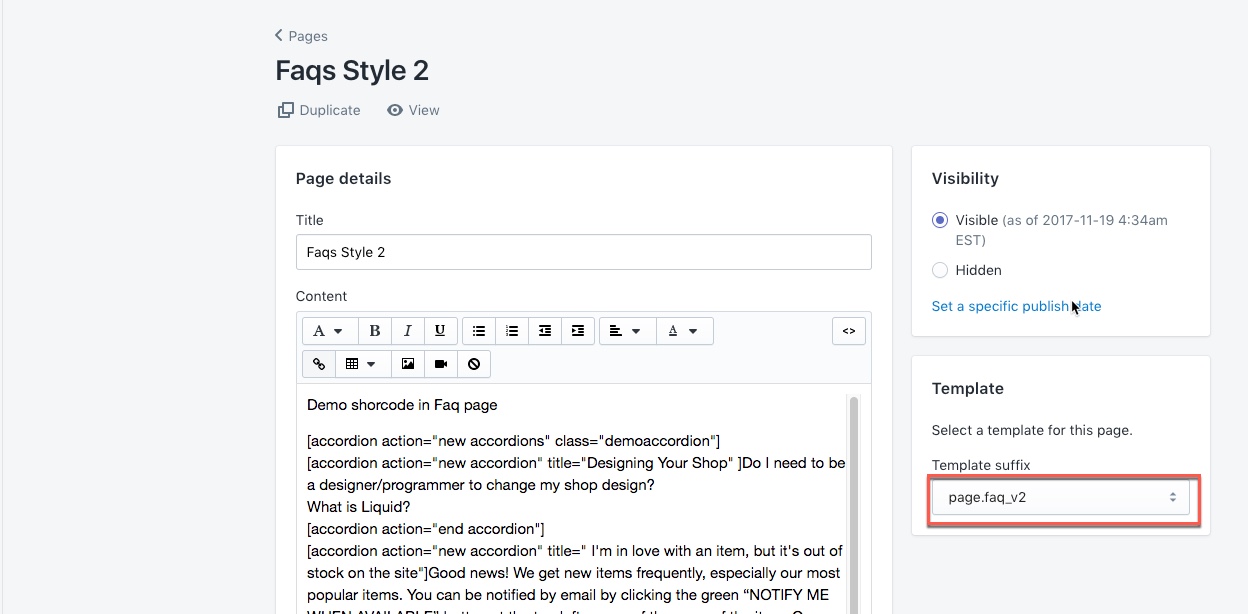
5. Page Faq
Code Shortcode FAQ : Code Faq shortcode
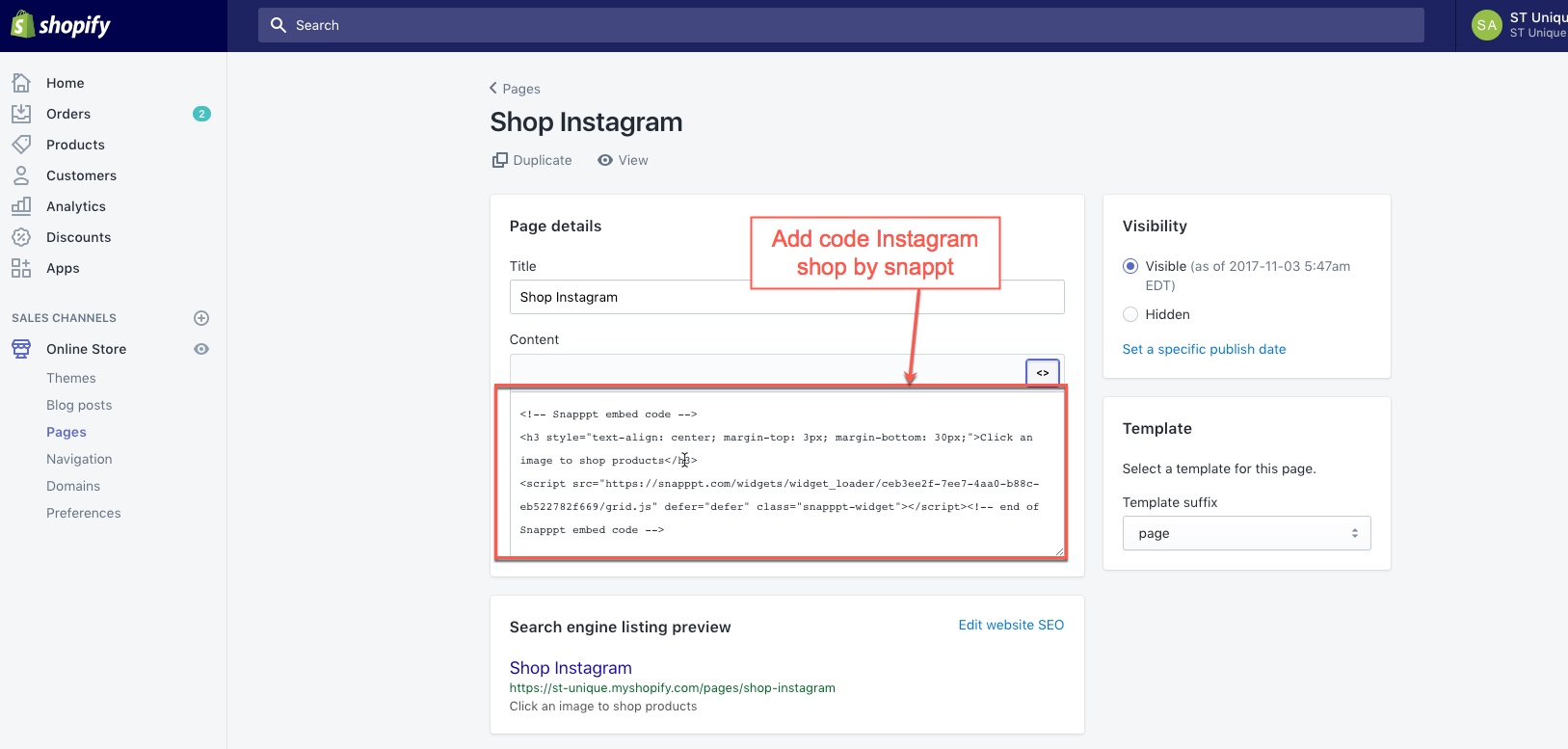
6. Instagram Shop
Guide add code instagram shop Link here
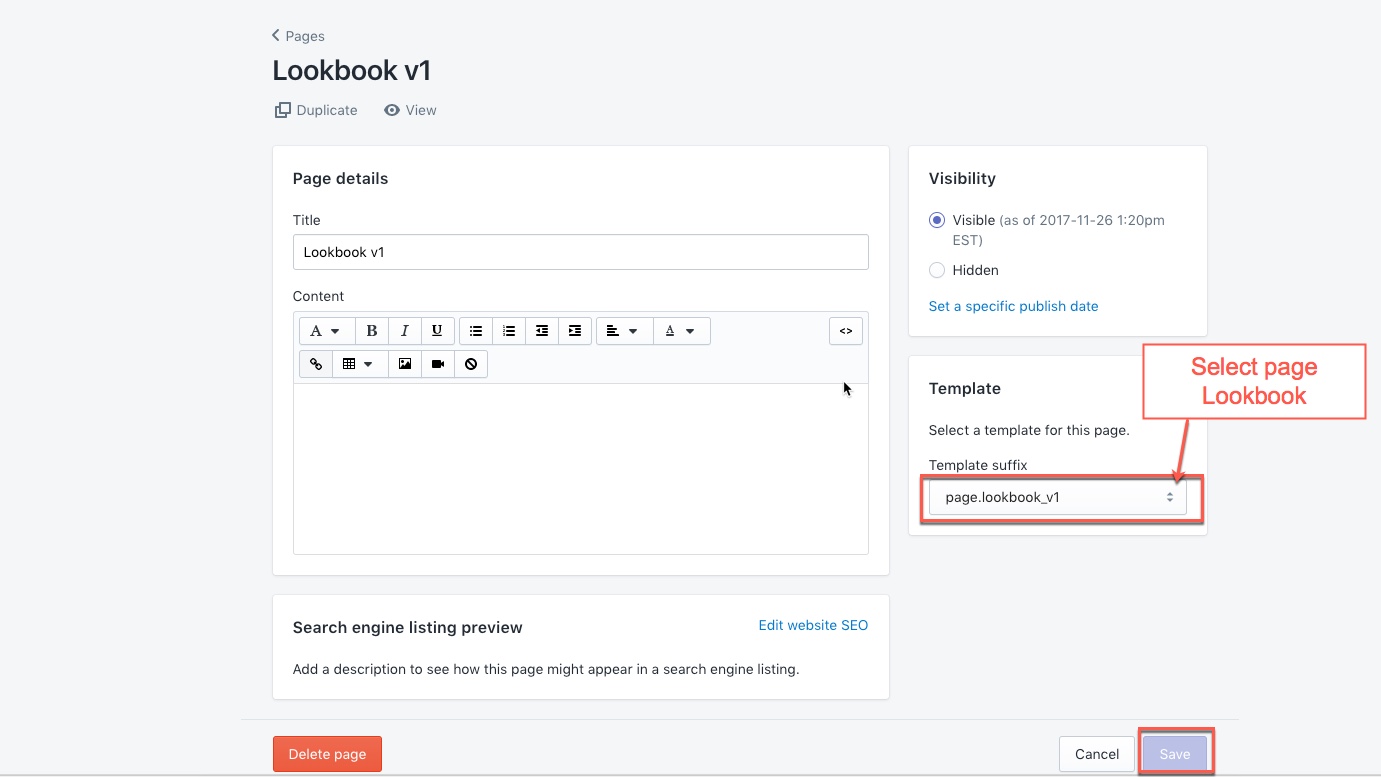
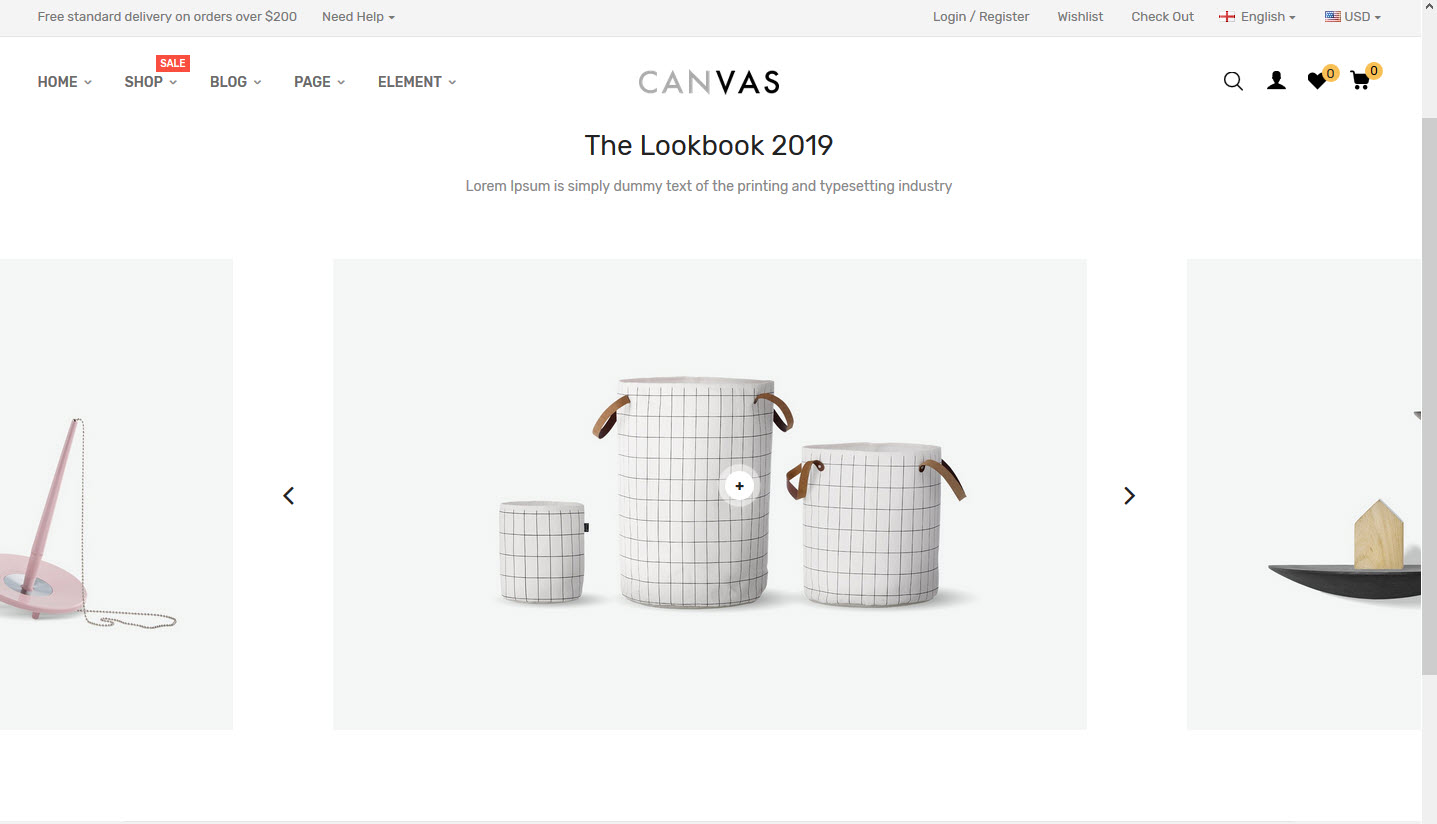
7. Lookbook Page
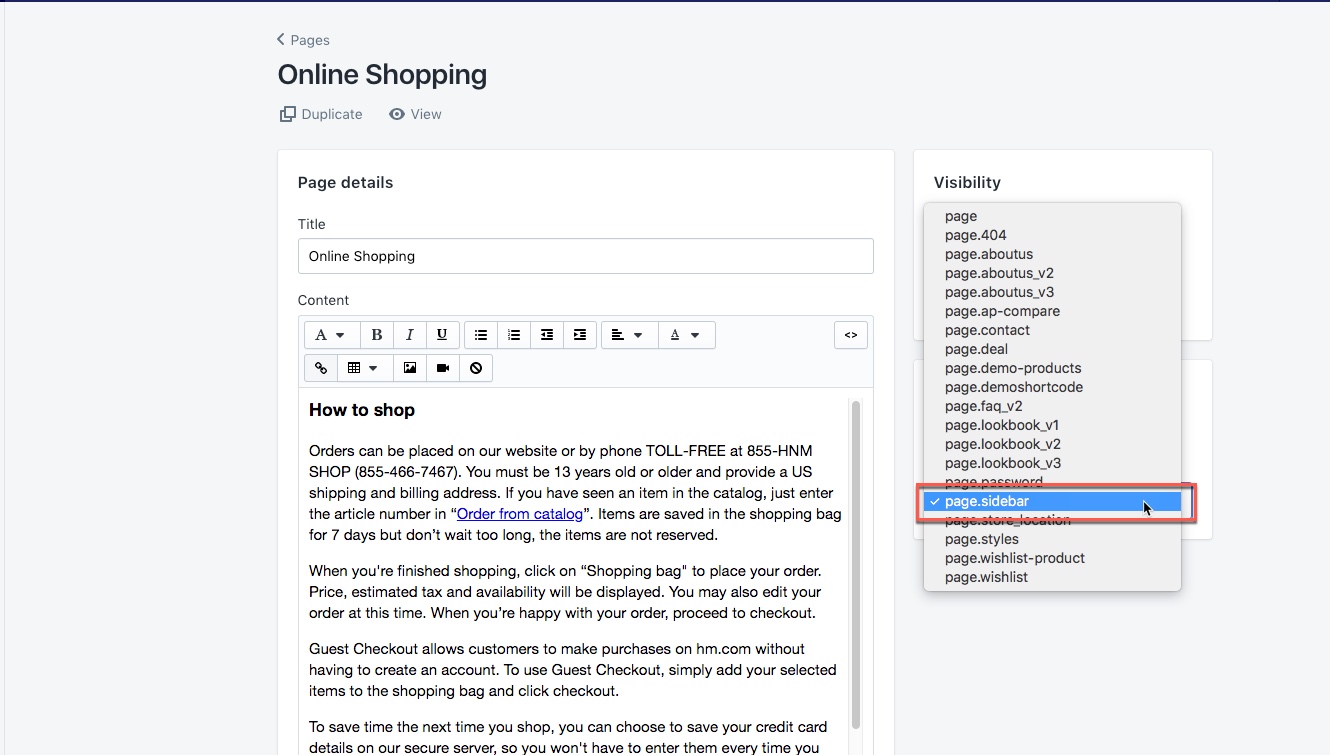
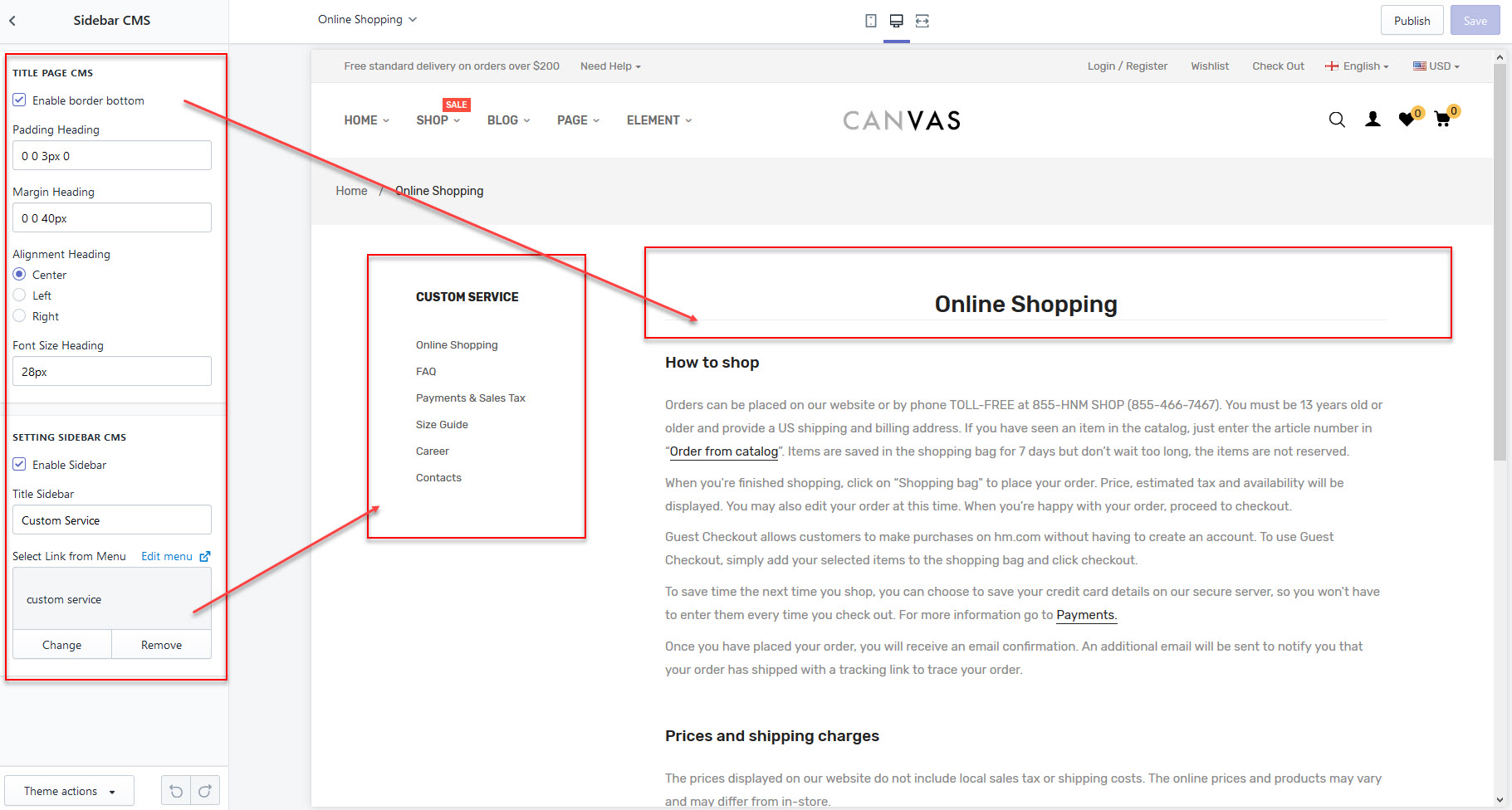
8. Page Sidebar CMS
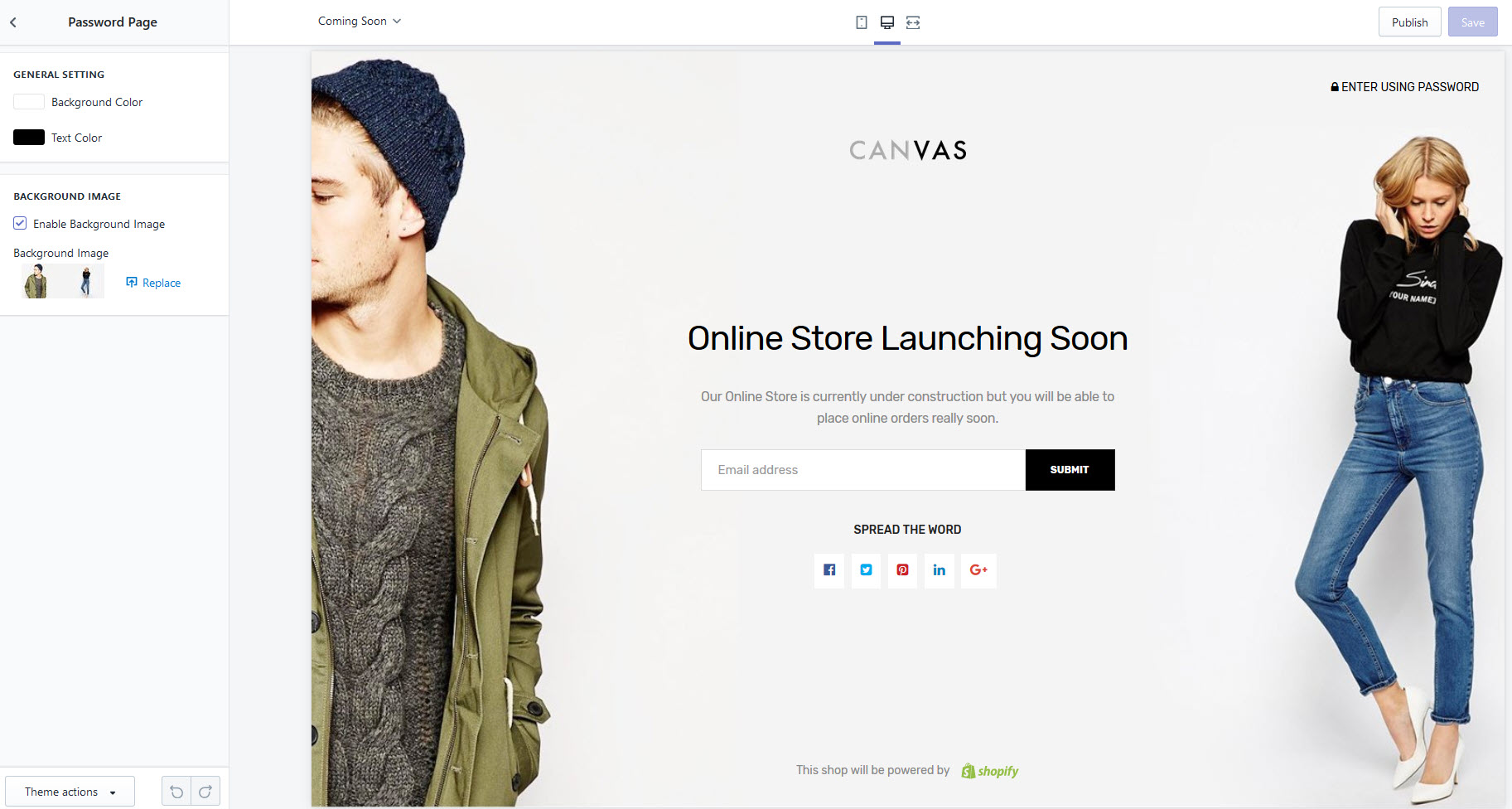
9. Password Page
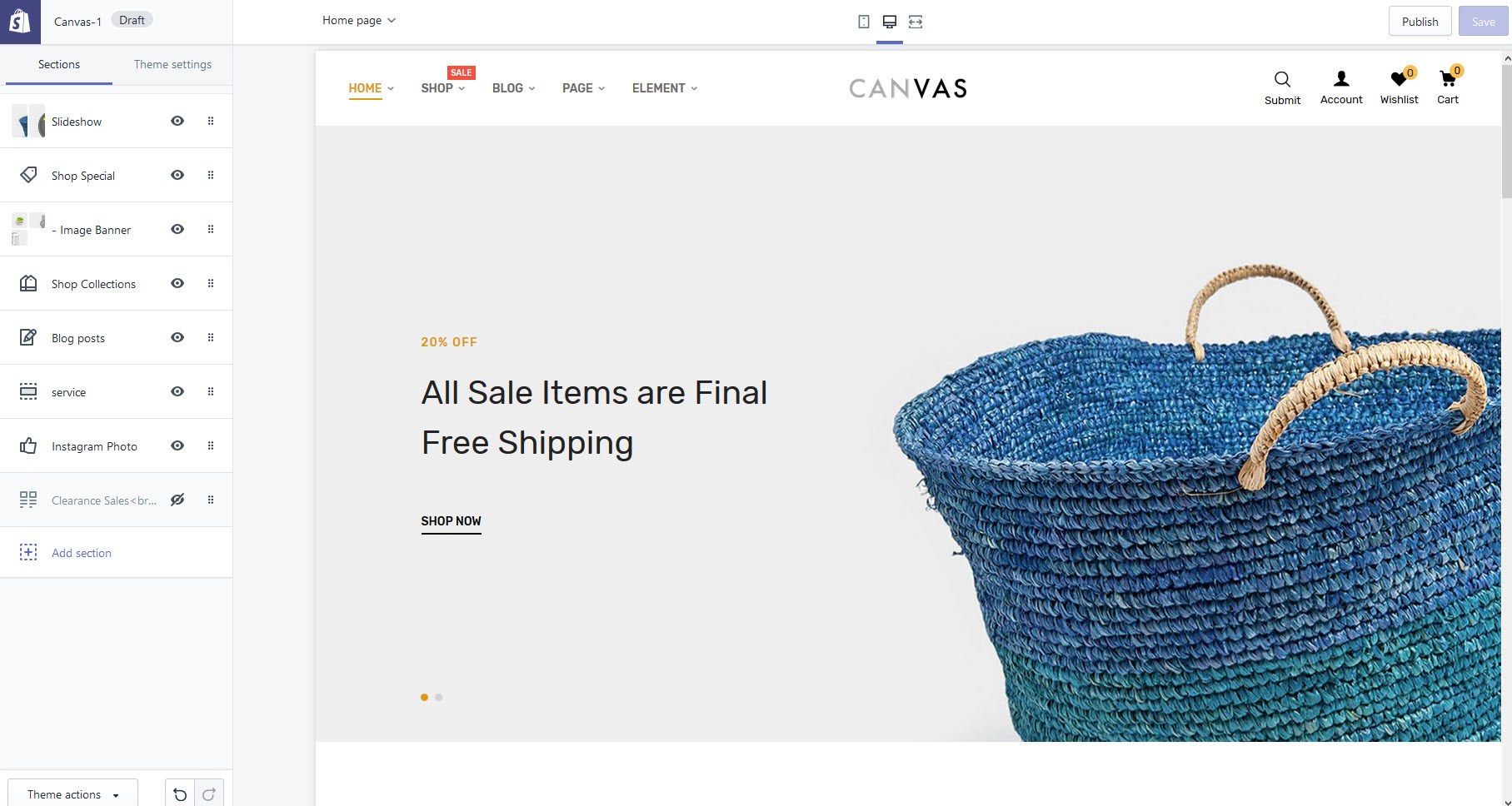
Home Page 1
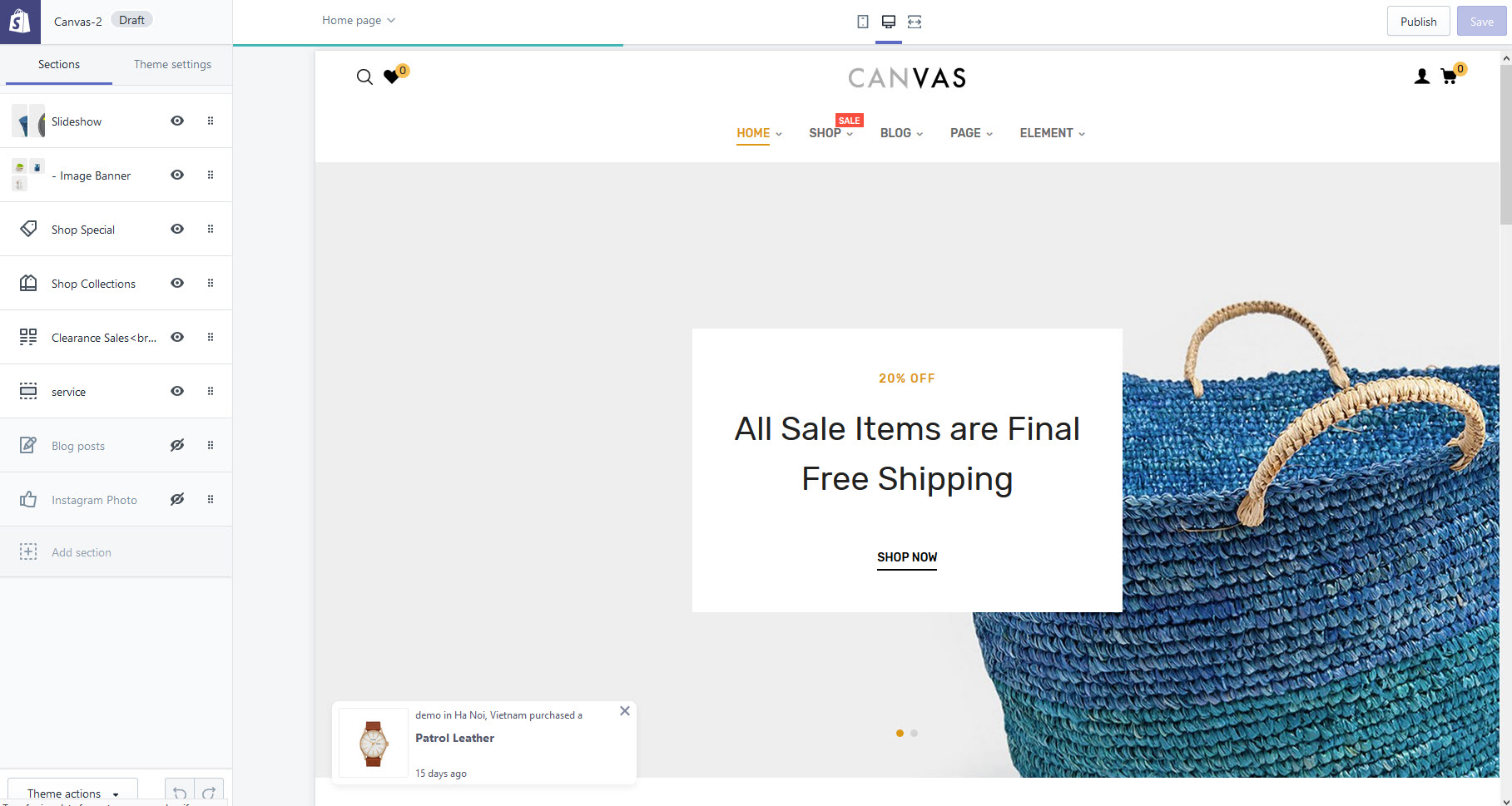
Home Page 2
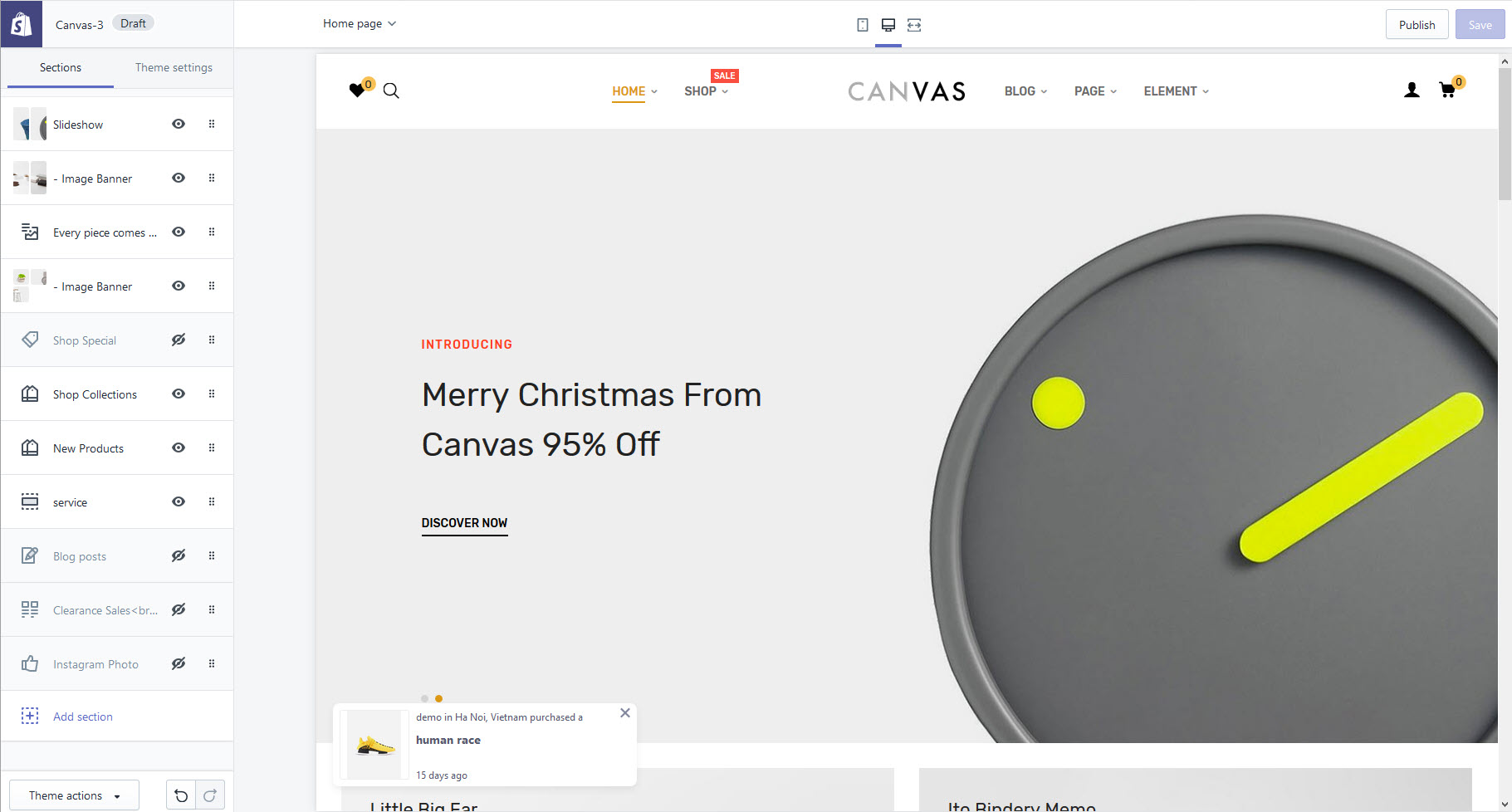
Home Page 3
Home Page 4
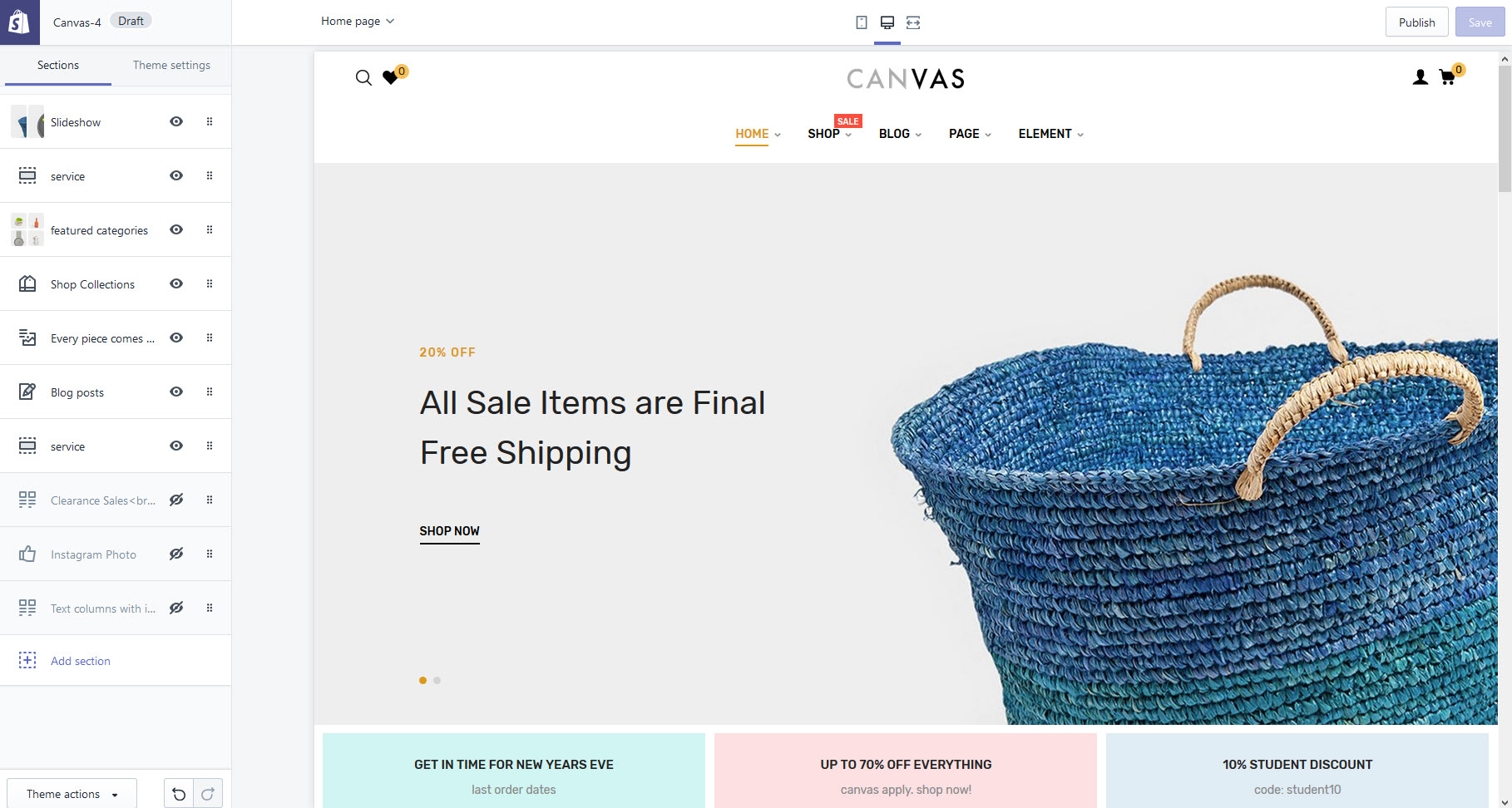
Home Page 5
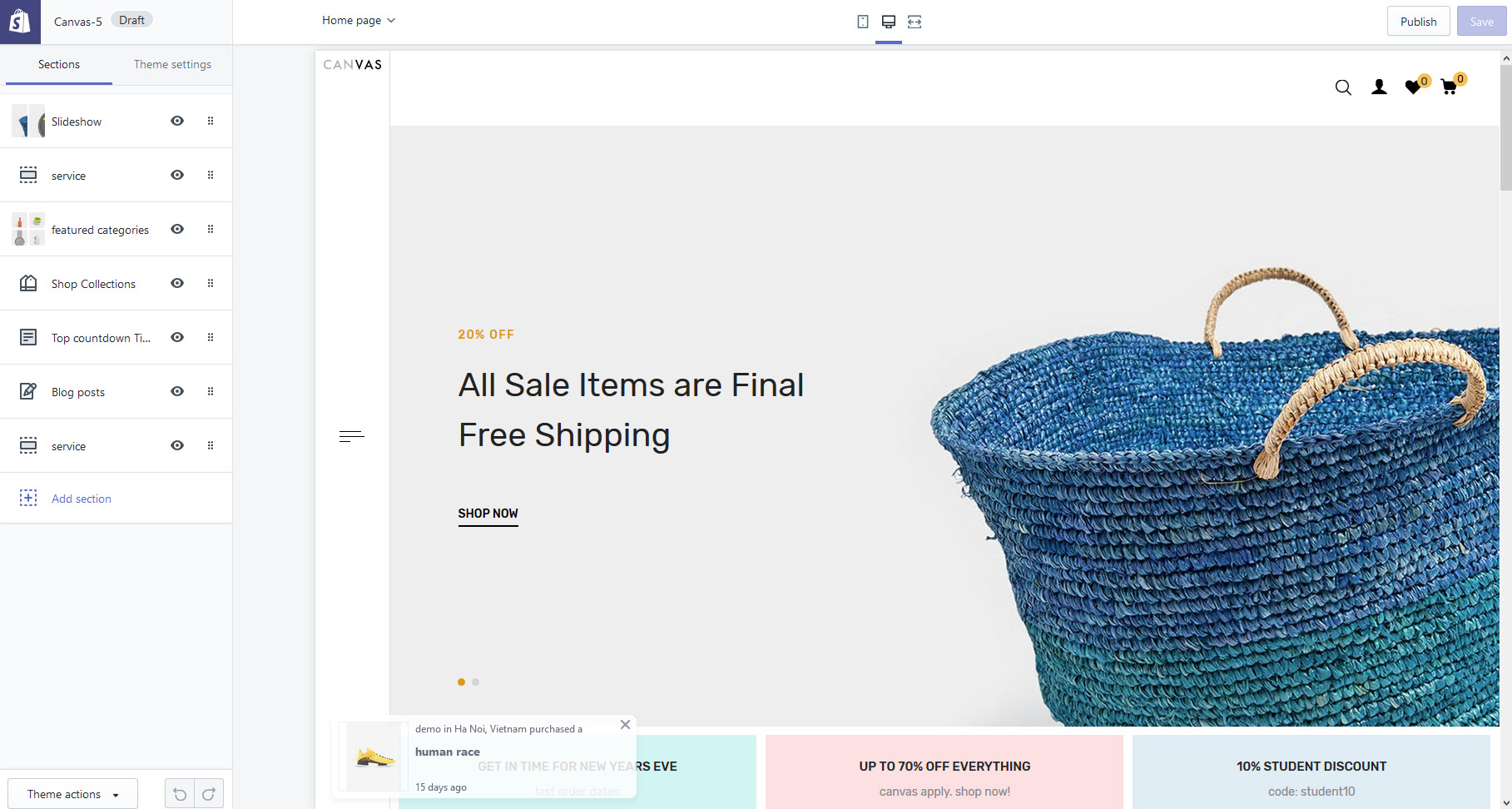
Home Page 6
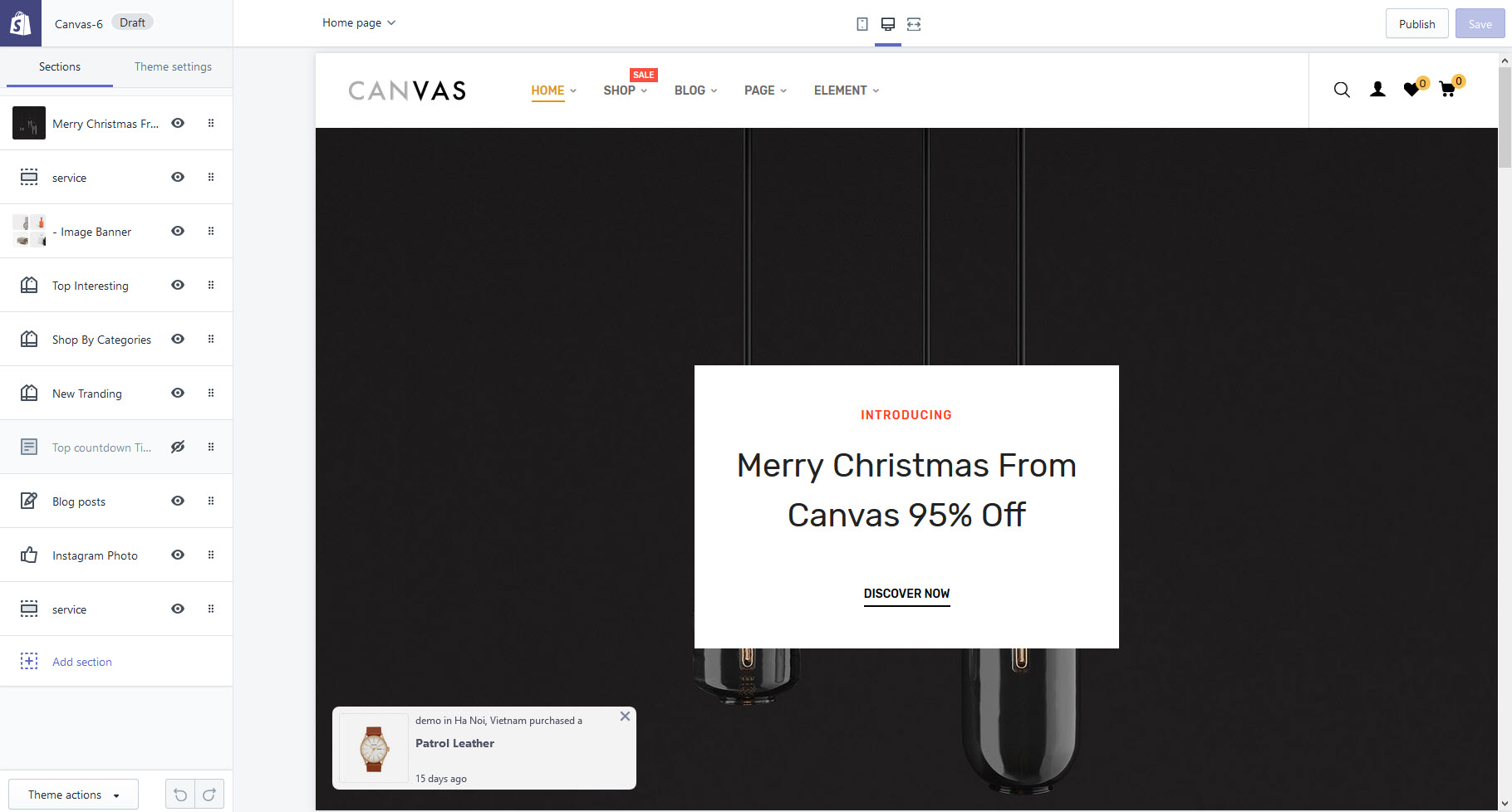
Home Page 7
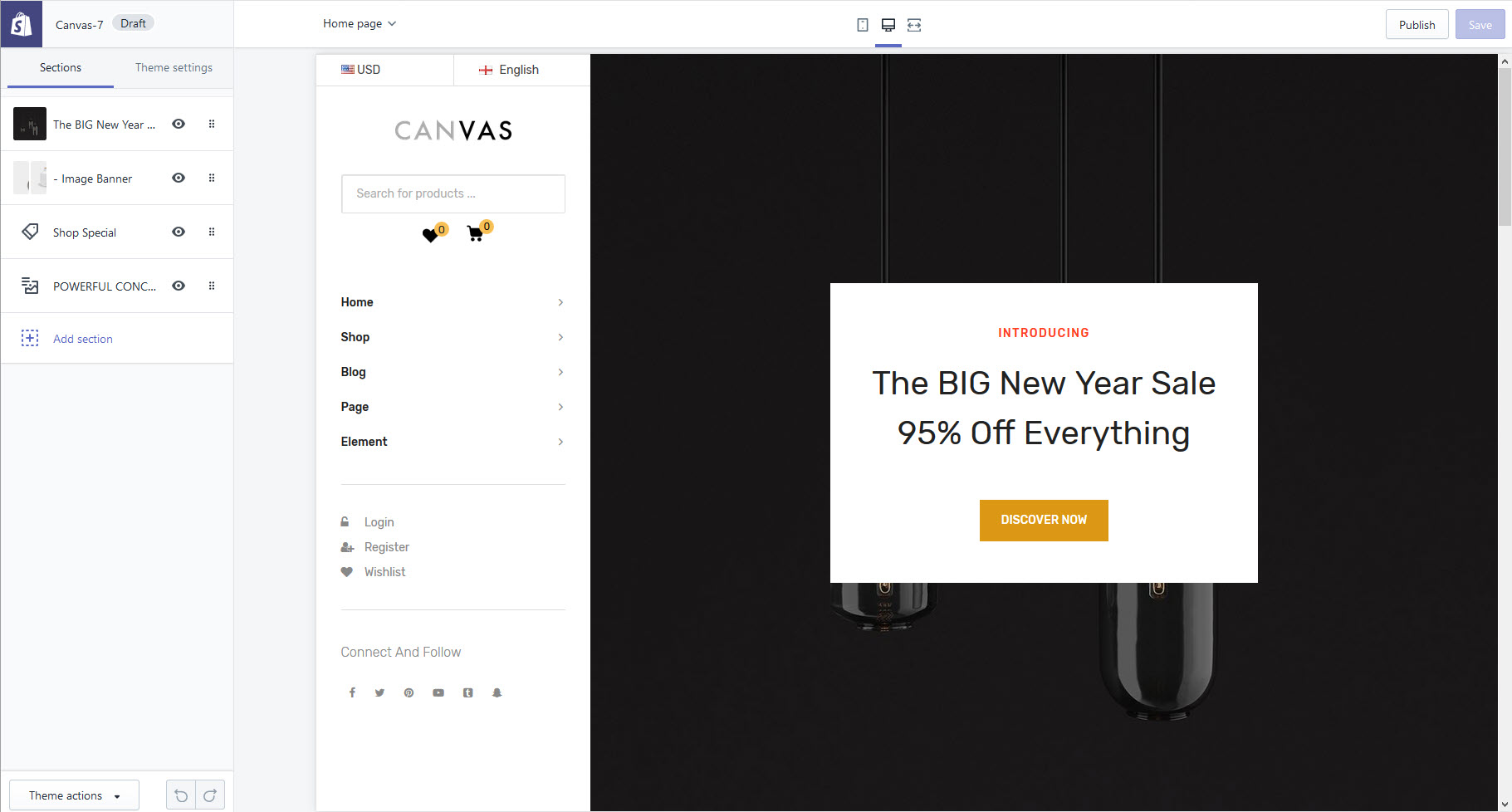
Home Page 8
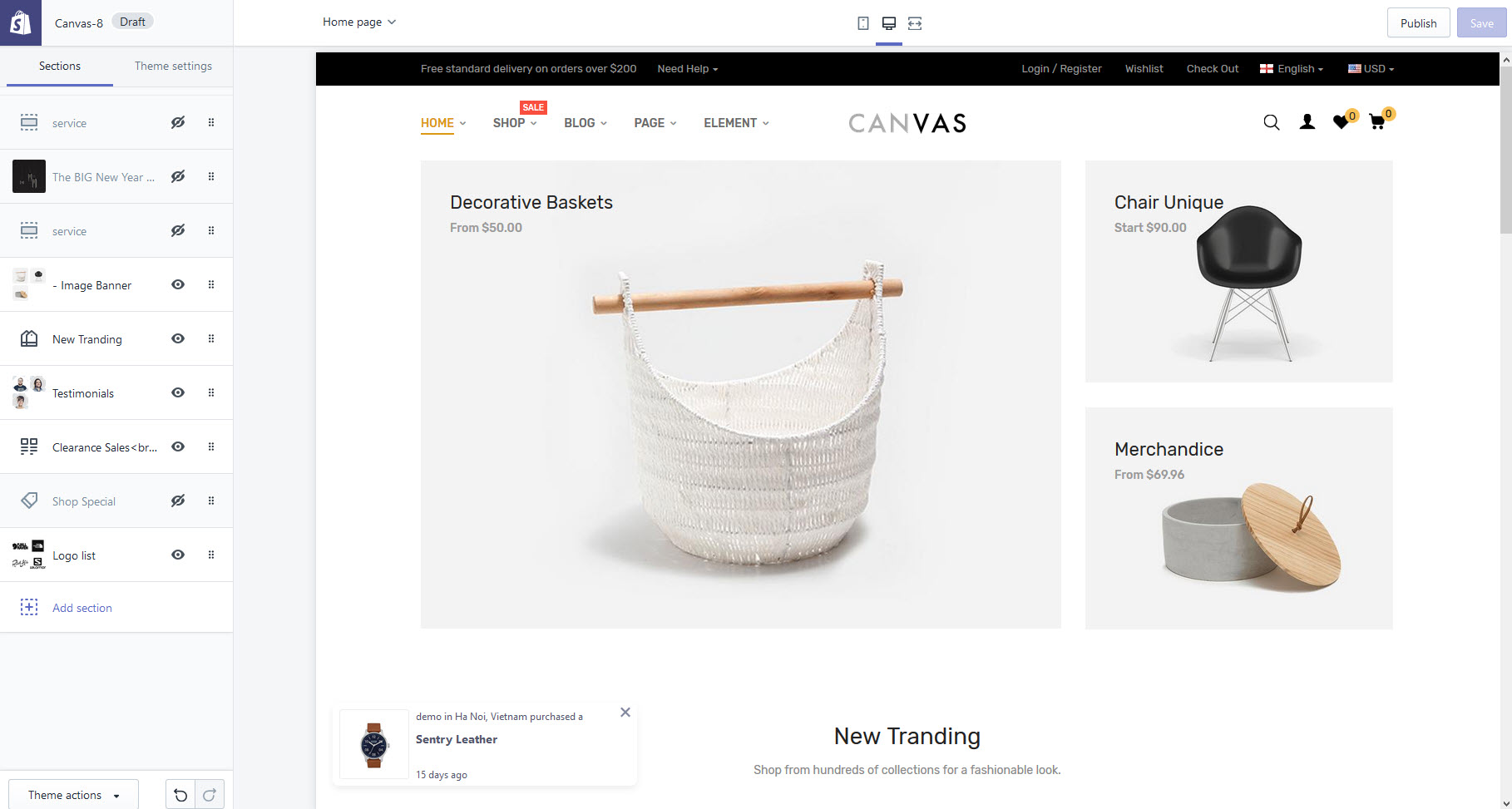
Home Page 9
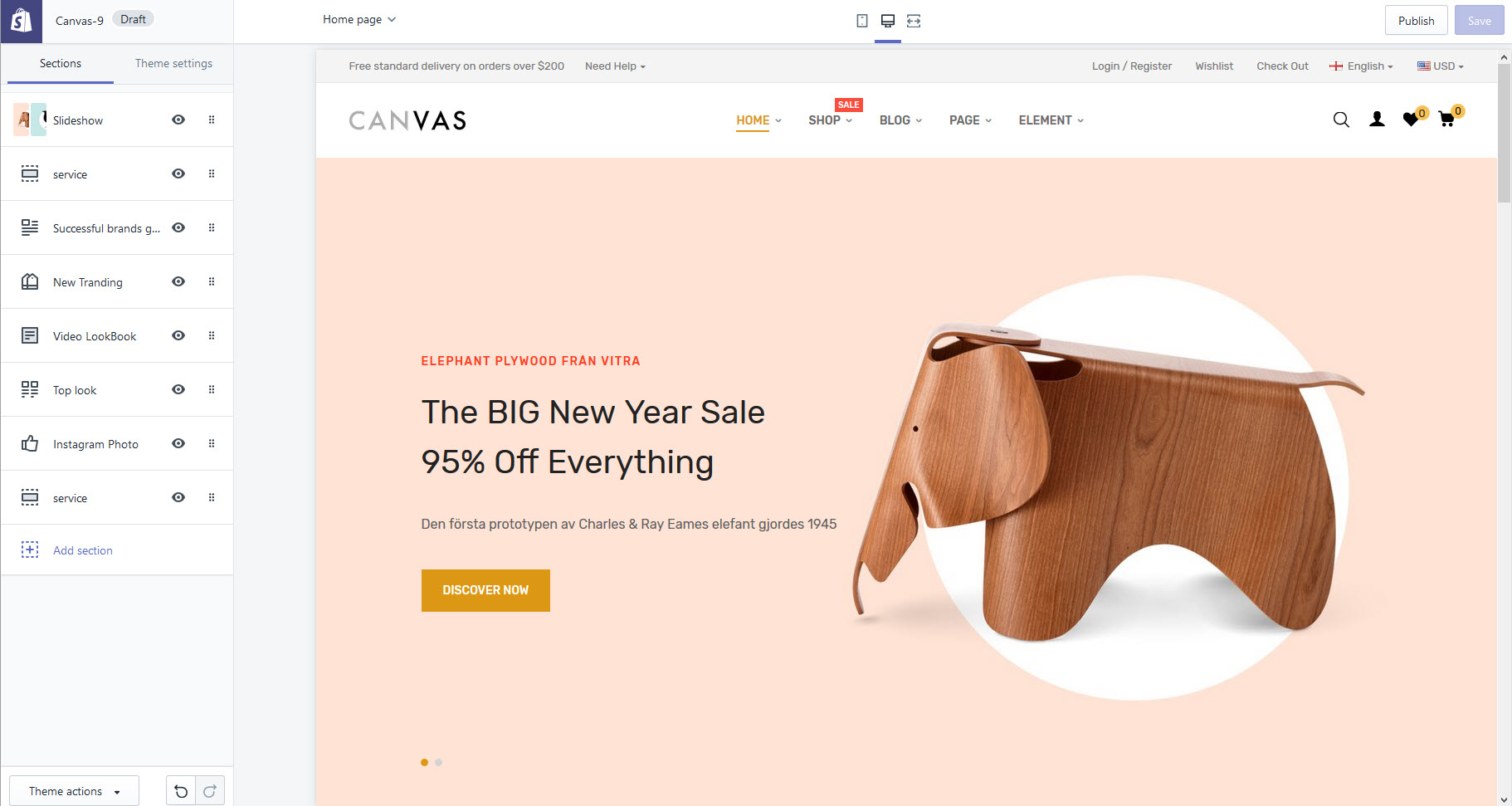
Home Page 10
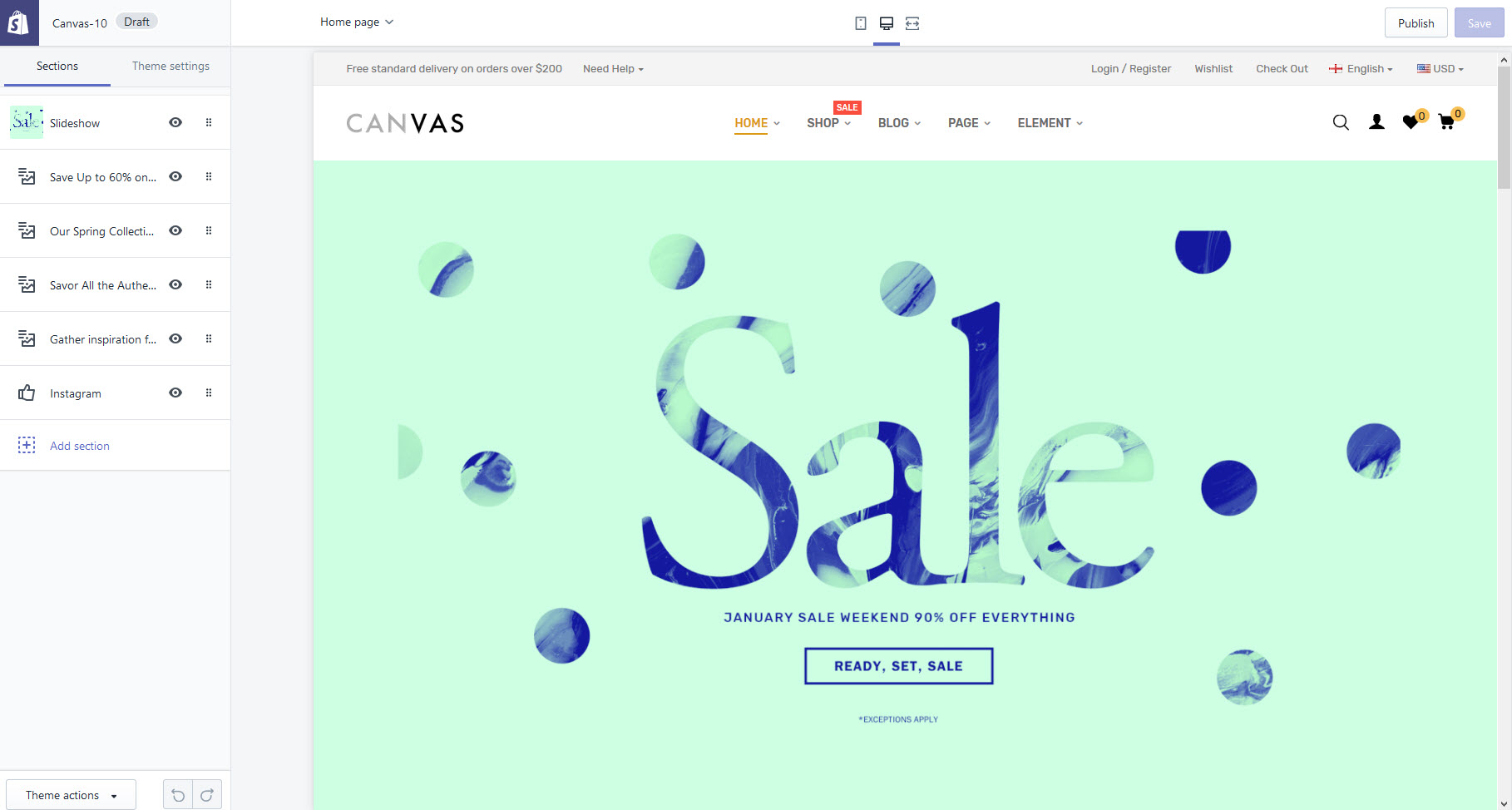
Home Page 11
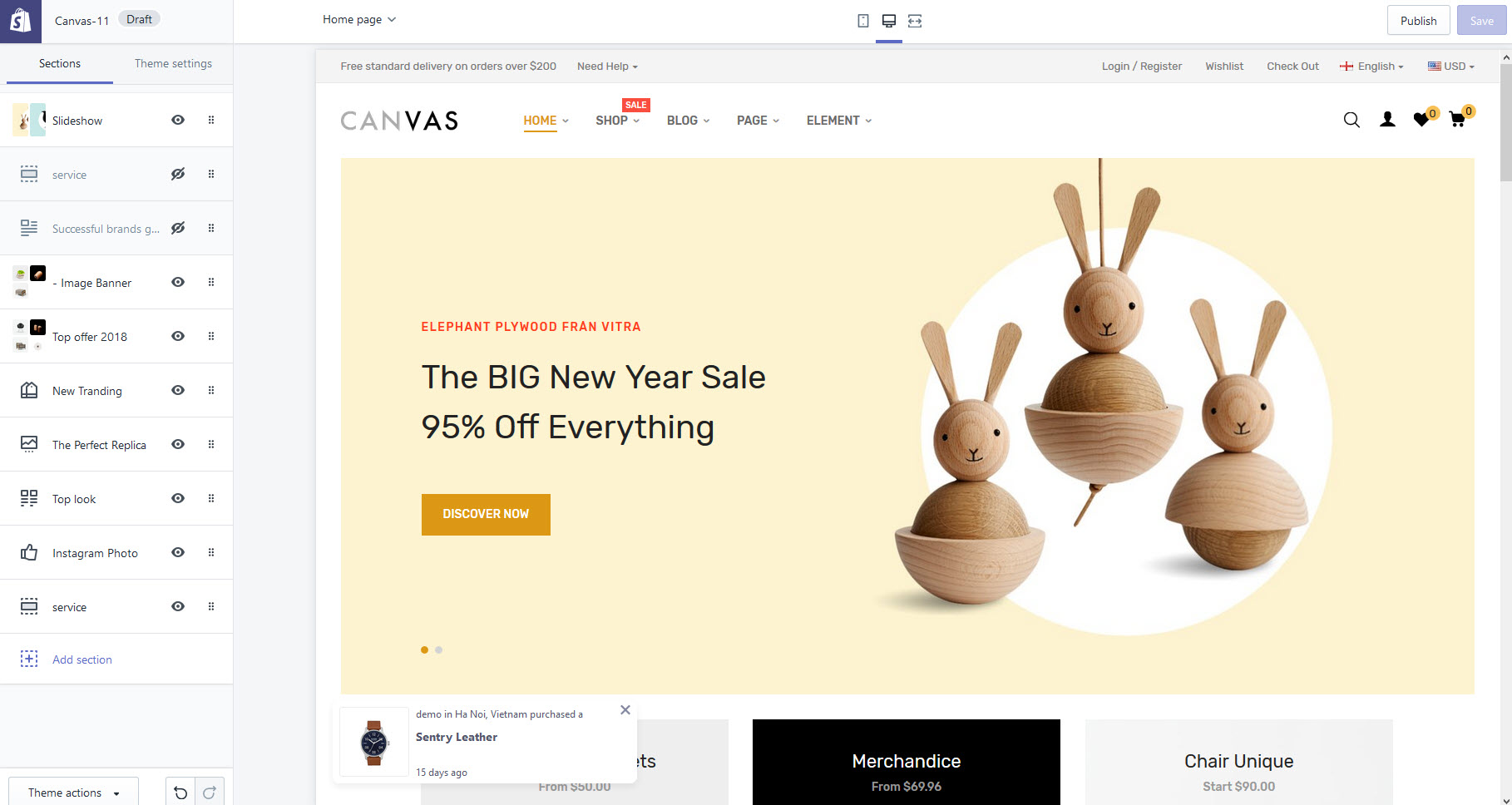
Home Page 12
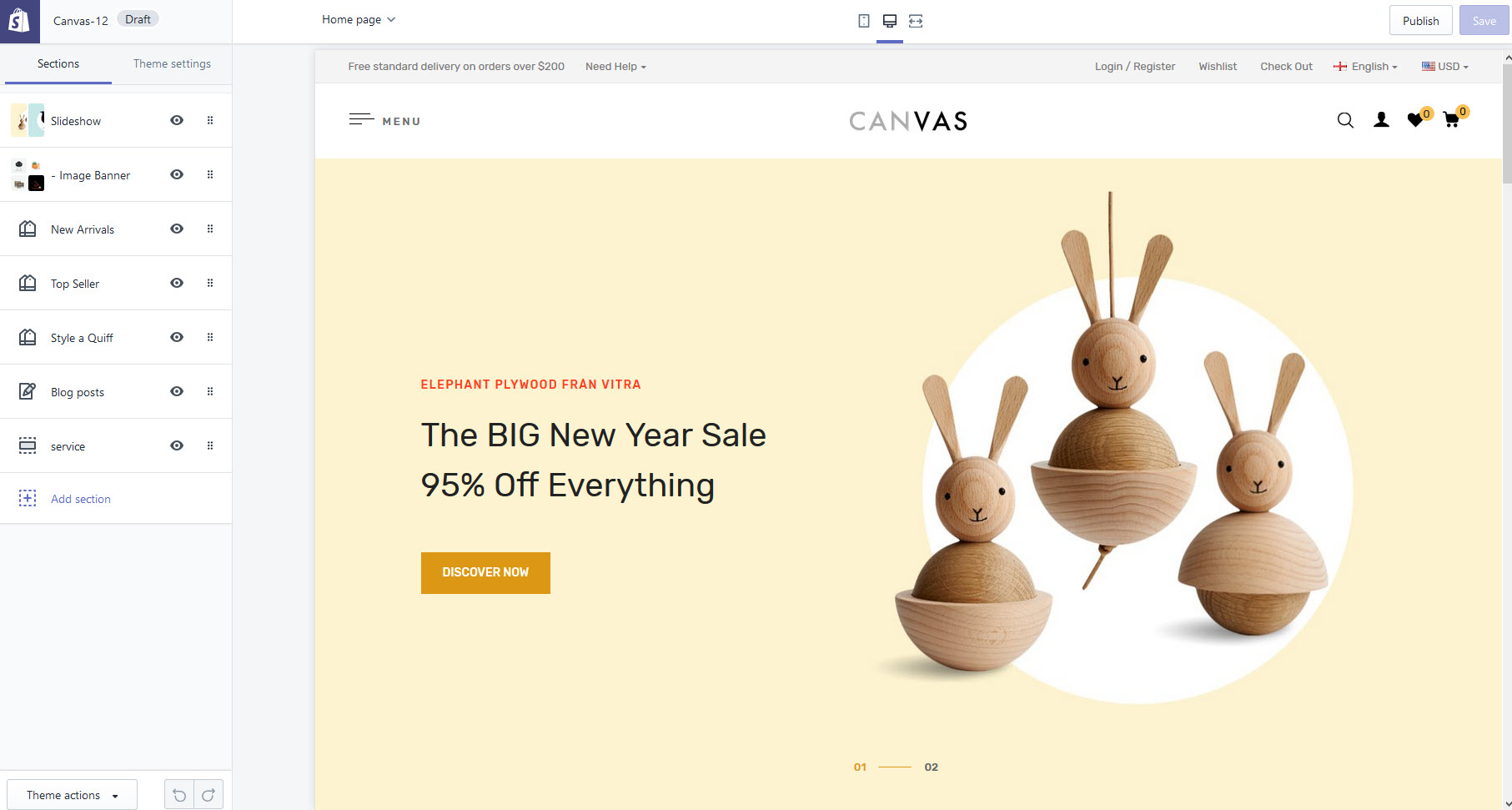
Home Page 13
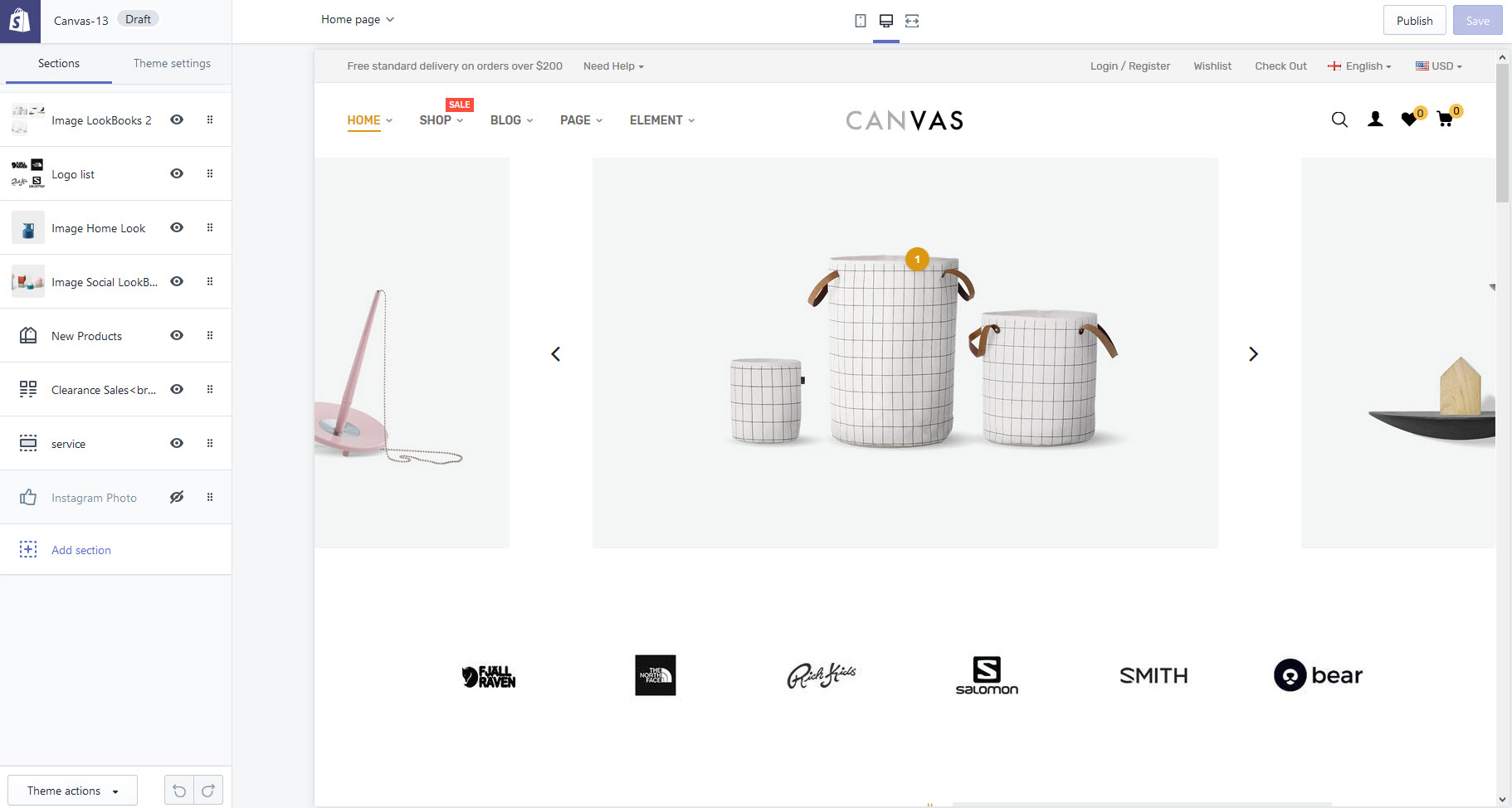
Home Page 14
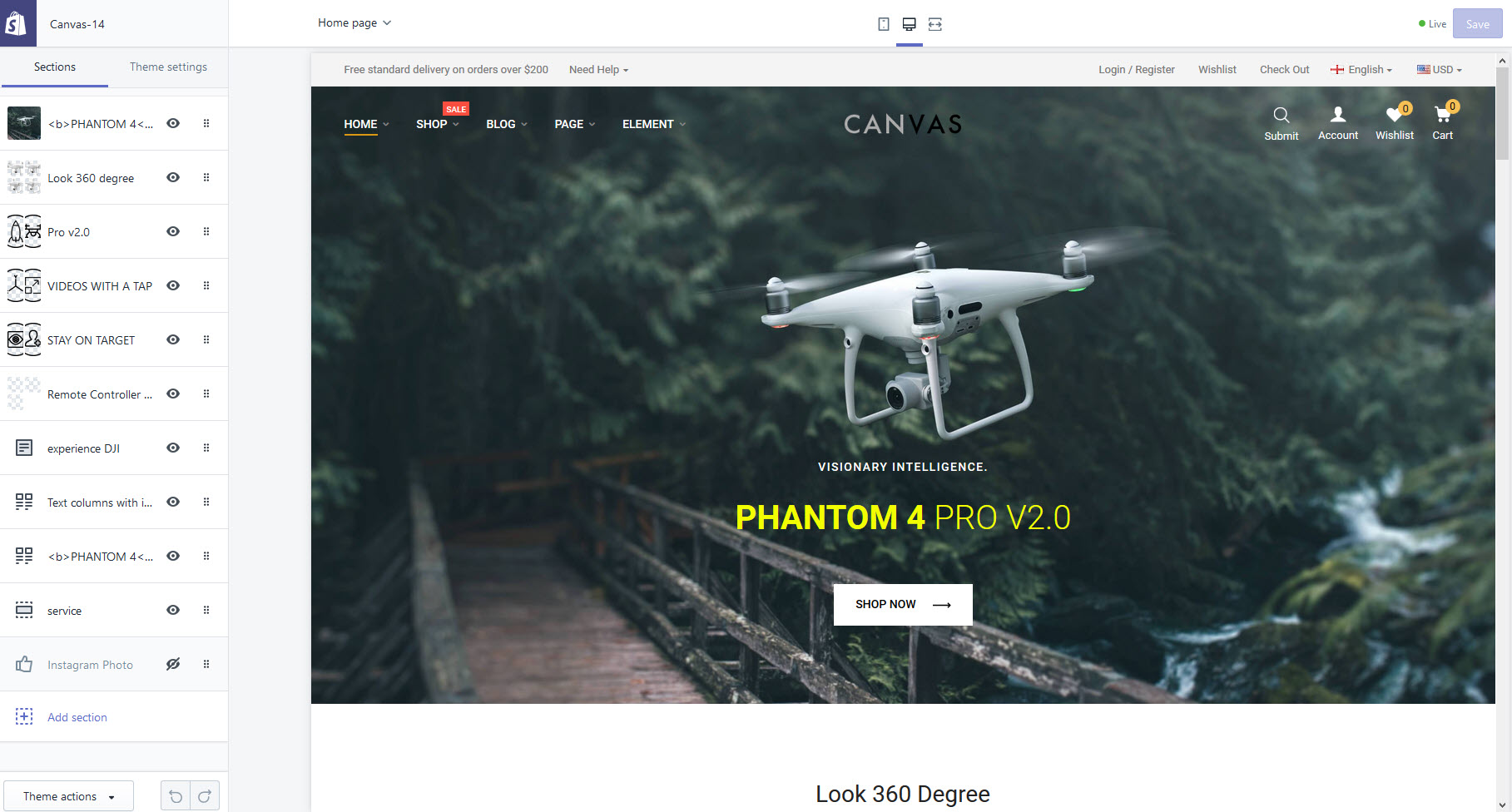
Home Page 15
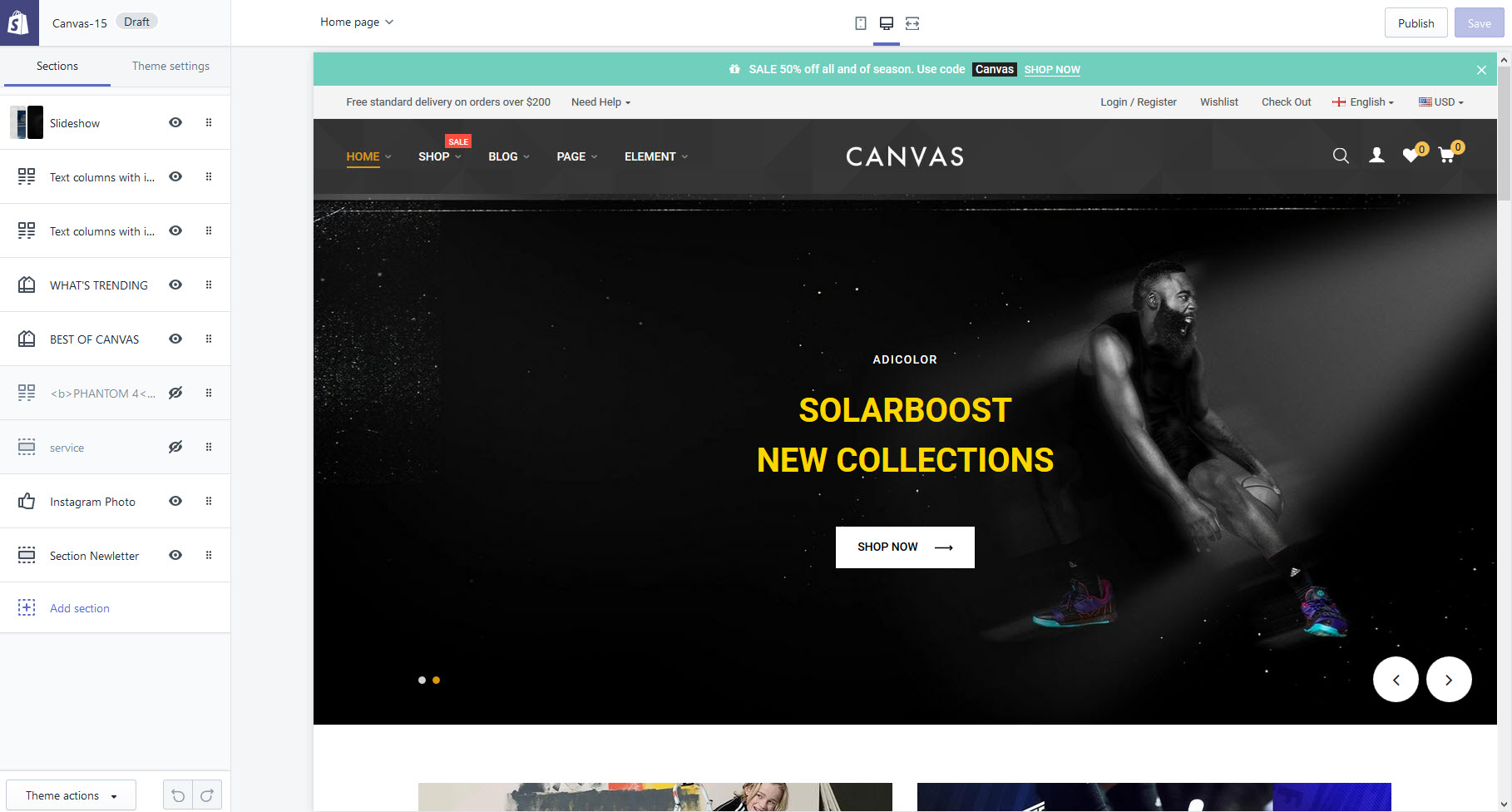
Home Page 16
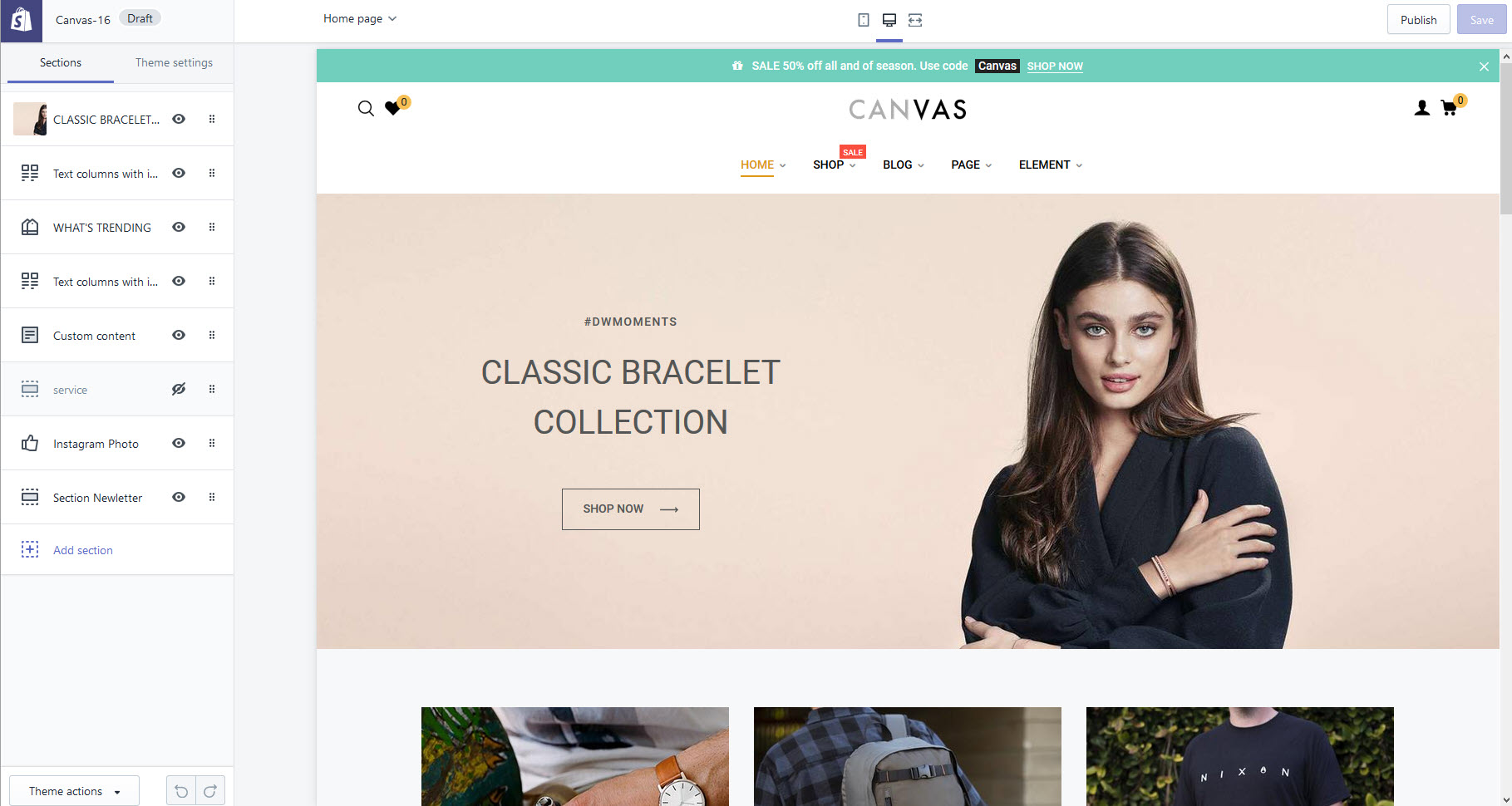
Home Page 17
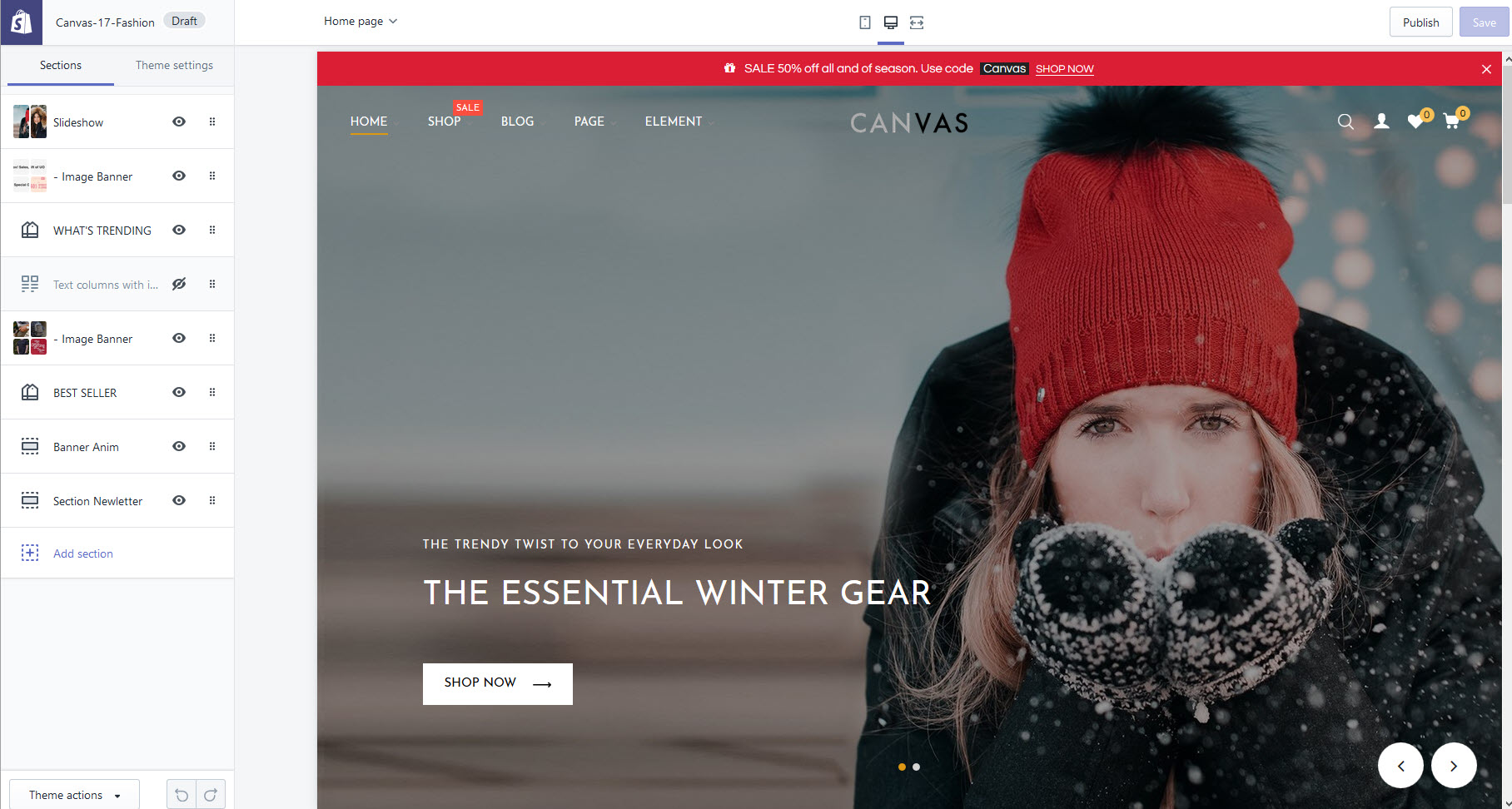
Home Page 18